 Google One · Set up
How to Move Google Drive Data to Another Google Account
Share the files with the receiving Gmail, choose Transfer ownership on drive.google.com from a computer, then sign in to the receiving Gmail to accept. After that, the files count toward the new owner's storage.
This guide shows you how to move files and folders in Google Drive from one Google account to another without downloading them to your computer and uploading them again. It uses Drive's ownership transfer feature. This works well when you want to gather data from a secondary Gmail into your main Gmail, which has more storage.
Before you start
Button names used in this guide
This guide uses the button and menu names from Drive's English interface. The table below lists each one and where you'll use it.
| Button or menu | Where you use it |
|---|---|
| Share | Steps 1, 2, and 3, and when canceling a request |
| Editor | Step 1 |
| Send | Step 1 |
| Transfer ownership | Step 2 |
| Accept ownership? | Step 3 |
| Accept | Step 3 |
| Cancel ownership transfer | When canceling a pending request |
| Shared with me | When you can't transfer ownership |
| Make a copy | When you can't transfer ownership |
Step 1. Share the files with the receiving account
Google only lets you transfer ownership to someone the file is already shared with, so you need to share it first.
Sign in to the account that holds the data at drive.google.com.
Find the file or folder you want to move. To select several items in a row, hold Shift while you click.
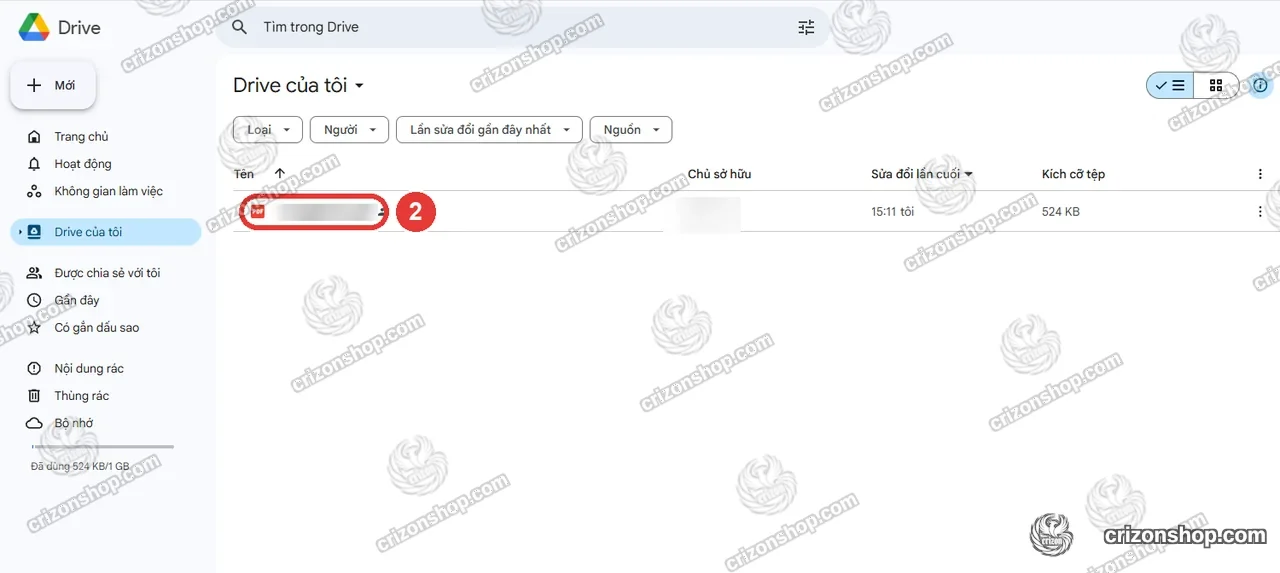
Select CraigMartin.pdf. Right-click the selected item, choose Share, then choose Share again.
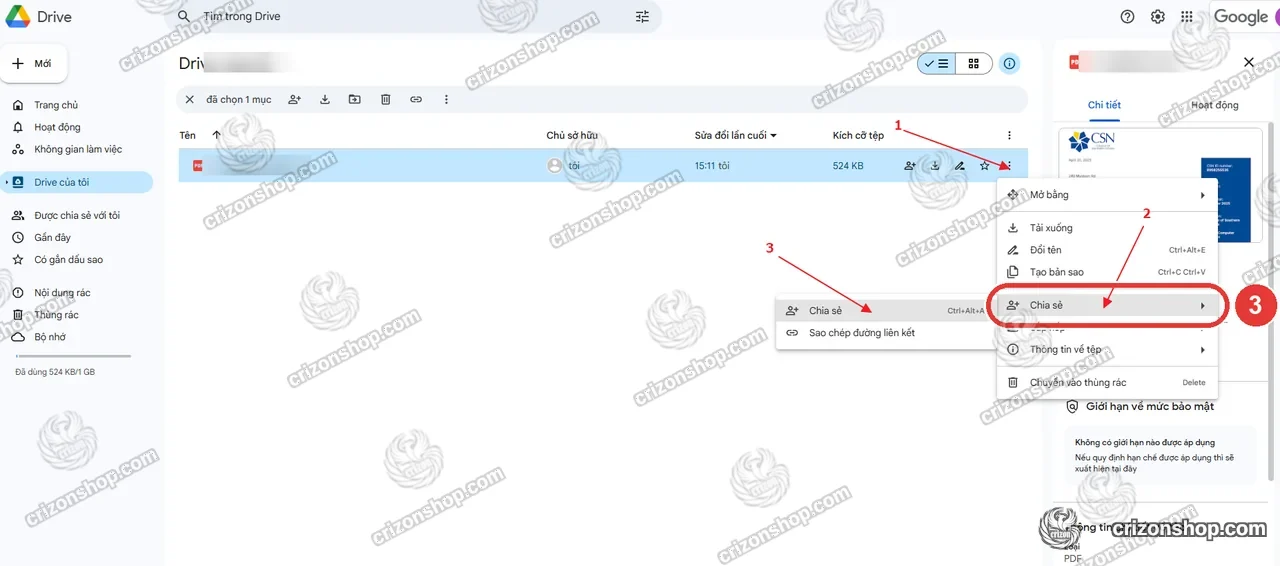
Choose Share in the submenu. Enter the Gmail address of the receiving account.
Choose the Editor role.
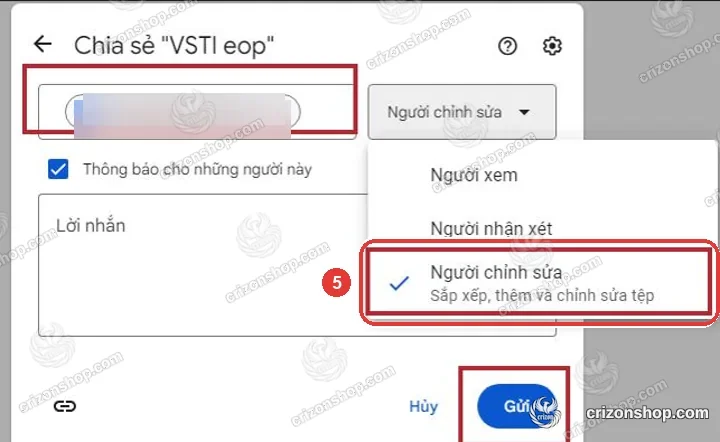
Choose Editor. Click Send.
Step 2. Send the ownership transfer request
Still in the old account, right-click the file you just shared, choose Share, then Share.
Click the down arrow next to the receiving account's name.
Choose Transfer ownership.
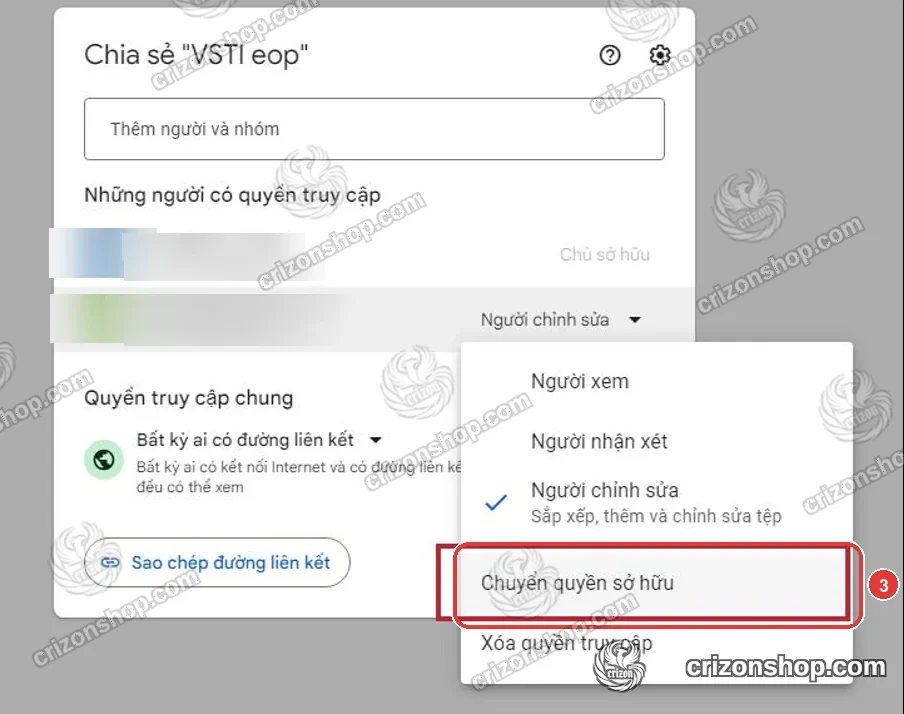
Click Transfer ownership. If Drive asks you to confirm, click the confirmation button to send the invitation.
The receiving account will get an email about this request. Until the recipient accepts, the file still belongs to the old account.
Step 3. Accept ownership in the receiving account
Sign in to the receiving account at drive.google.com. You can use an incognito window so it doesn't get mixed up with the old account.
Type the search term below into the Drive search bar and press Enter to see the files waiting for you to accept.
Right-click the file, choose Share, then Share.
Click Accept ownership?, then choose Accept.
pendingowner:meOnce you accept, the file is no longer in the old account's Drive and no longer counts toward its storage. The old account is moved down to Editor access, and the new owner can remove that access if it isn't needed.
Cancel a request before it's accepted
In the old account, right-click the file and choose Share, then Share.
In the sharing box, choose Cancel ownership transfer.
If you can't transfer ownership
If the receiving account is a work or school account, Google doesn't allow transferring ownership to it from a personal account. In that case, sign in to the receiving account, open Shared with me, right-click each file, and choose Make a copy. The copy belongs to the receiving account and uses that account's storage. Whether you can make a copy also depends on the organization's settings.
For more details on transferring ownership, see the Google Drive Help page.
FAQ
No. Files that others share with you still count toward the owner's storage. A file only starts using the receiving account's storage once you accept ownership or make a copy of it.
The Google Drive app on Android, iPhone, and iPad doesn't support changing the owner. Open drive.google.com in a browser on a computer to do it.
Yes. The old account keeps Editor access unless the new owner removes it in the file's sharing settings.
No. The Google One plan is applied to the same personal Gmail you enter at checkout, and your existing emails, photos, and files stay where they are. You only need this guide if you want to gather files from another Gmail into the upgraded account. You can check your order status under <b>Account → My orders</b> on crizonshop.com.
Related guides
How to Sign In to Google Drive and Check Your Google One StorageHow to Activate IObit Driver Booster PRO with a License Code How to Leave a Microsoft 365 Family Group
Still need help?
Send your order code and we can sort it out faster.
