 Chegg · Sign in
How to Sign In to Chegg Study on Your Computer and Phone
Go to chegg.com or open the Chegg Study app and tap Sign in. Enter your email and password, or choose Google or Apple if you created your account that way. Then register your device when prompted.
This guide shows you how to sign in to your Chegg Study account in a desktop browser and in the mobile app. It also covers the two most common problems: a forgotten password and a prompt from Chegg to register a new device.
What you need before signing in
Sign in to Chegg Study
Open chegg.com in your browser.
Click Sign in in the top-right corner.
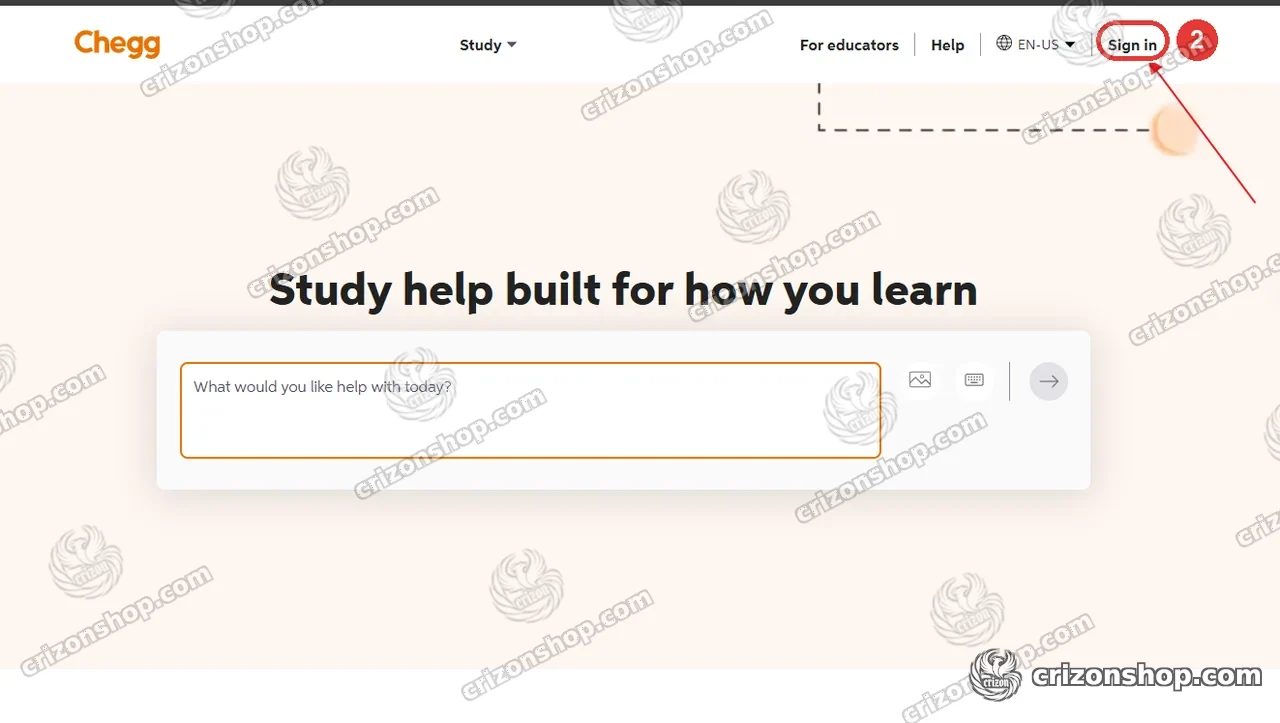
Click “Sign in” in the top-right corner. Enter the email you used to sign up for Chegg in the email field.
Enter your password and click Sign in.
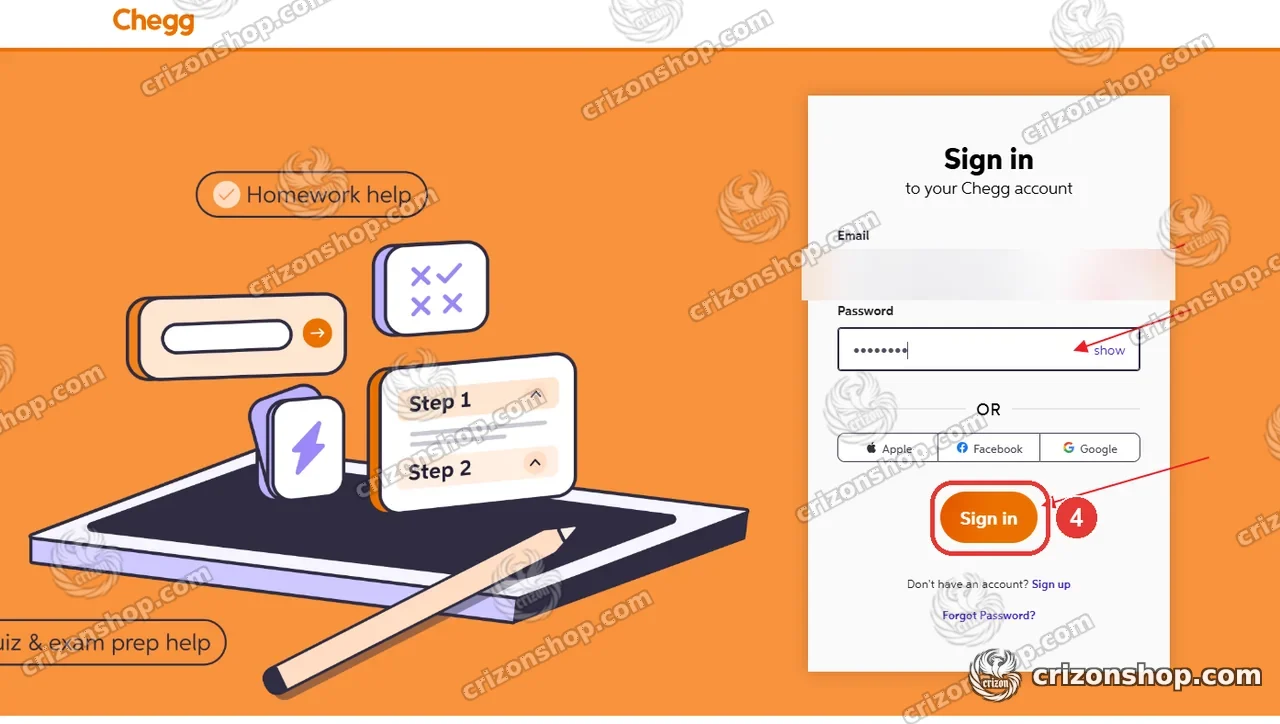
Enter your password and click “Sign in”. If you created your account with Google or Apple, skip the two fields above and click the Google or Apple button in the sign-in box.
When Chegg asks if you want to register this device, agree if it's a computer you use regularly.
Install the Chegg Study app from the App Store or Google Play. You'll find the download links on Chegg's app page.
Open the app and tap Sign in.
Choose the same sign-in method you used when you created your account: email, Google, or Apple.
If you use email, enter your email and password, then tap Sign in.
If Chegg sends a verification code to your email, open your inbox, get the code, and enter it in the app.
Agree to register the device when the app asks.
Register and manage devices
Chegg Study limits how many devices can use one account and how many times you can swap devices each month. The exact numbers are shown in the message Chegg displays when you sign in on a new device. Here's how to review your registered devices.
Sign in to Chegg in your browser.
Open My account.
Select My devices to see the devices linked to your account.
If you've reached the limit, follow the on-screen instructions to swap an old device you no longer use for the new one.
Reset a forgotten password
In the sign-in box, click Forgot password?. You can also go straight to Chegg's password reset page.
Make sure the email in the field is the one you used to sign up for Chegg, then click Send password reset.
Open your inbox and find the password reset email from Chegg.
Click the link in the email and create a new password.
Go back to Chegg and sign in with your new password.
Frequently asked questions
Usually you're signed in to a different account, or the Chegg Study subscription on this account isn't active yet or has expired. Open My account and check that you're signed in with the same email you used to buy the subscription. Then check the subscription status there.
Sign in to Chegg in your browser, go to My account, and select Security. Enter your current password in the Old password field, enter your new password in the New password field, and click Save changes.
Go to My account › My devices and swap an old device for the one you're using now. If you've used up this month's swaps, you'll need to wait until next month when the limit resets, or contact Chegg support and ask them to review your case.
The safest option is to keep using the Google button, the same way you signed up. If you want a separate password, you can try Forgot password? with that same Gmail address so Chegg sends you a link to create one.
Related guides
 How to Sign In to DataCamp and What to Do When You Can't Get In
 How to Log In to Your JetBrains Account on the Web and in the IDE
 How to Log In to Bookmate with Email or Google
Still need help?
Send your order code and we can sort it out faster.
