 Lumion · Activate
How to Register a Lumion Pro License Key in Your Lumion Account
To add a Lumion Pro key, sign in at account.lumion.com, open License Keys, click Register a License Key, paste your 8-character key, and click Register Key so the key shows up in your account.
This guide shows you how to register a Lumion Pro key to your own Lumion account so you can download, install, and use the software. You do everything on Lumion's account site at account.lumion.com, and it usually takes just a few minutes.
Before you enter your key
How to enter your Lumion Pro key
Go to account.lumion.com and sign in to your Lumion account.
In the account menu, select License Keys.
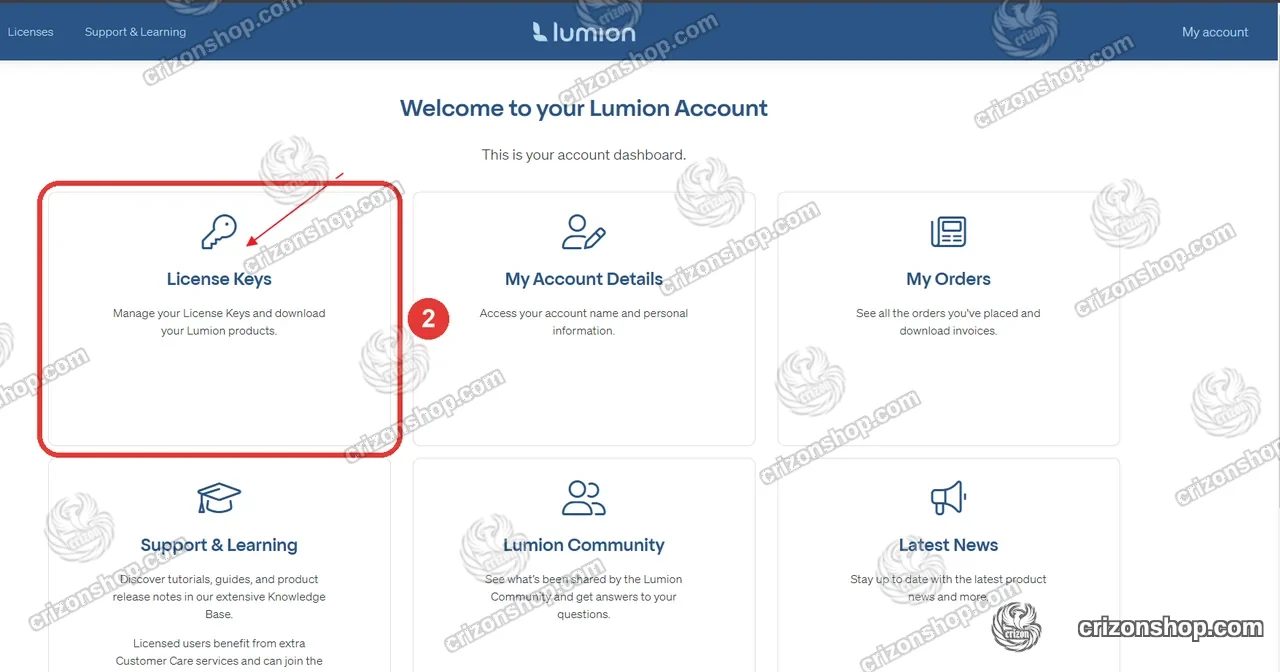
Click License Keys to open your license management section. Click Register a License Key.
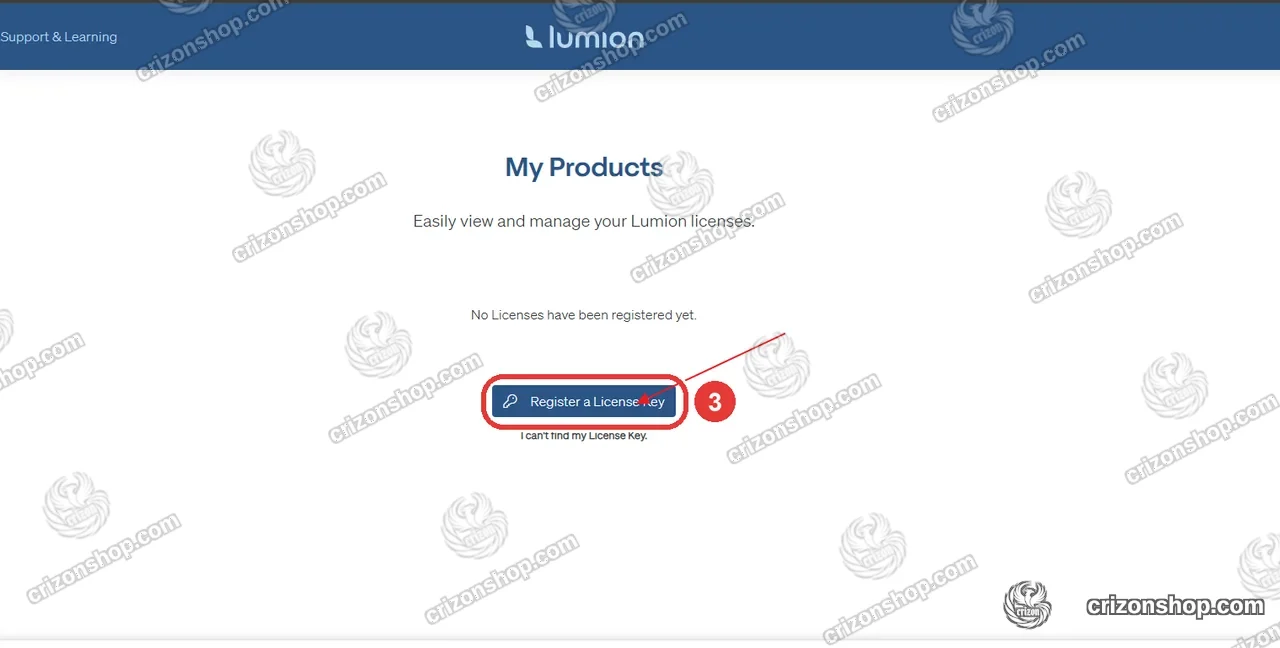
Click Register a License Key. Paste your License Key into the key field.
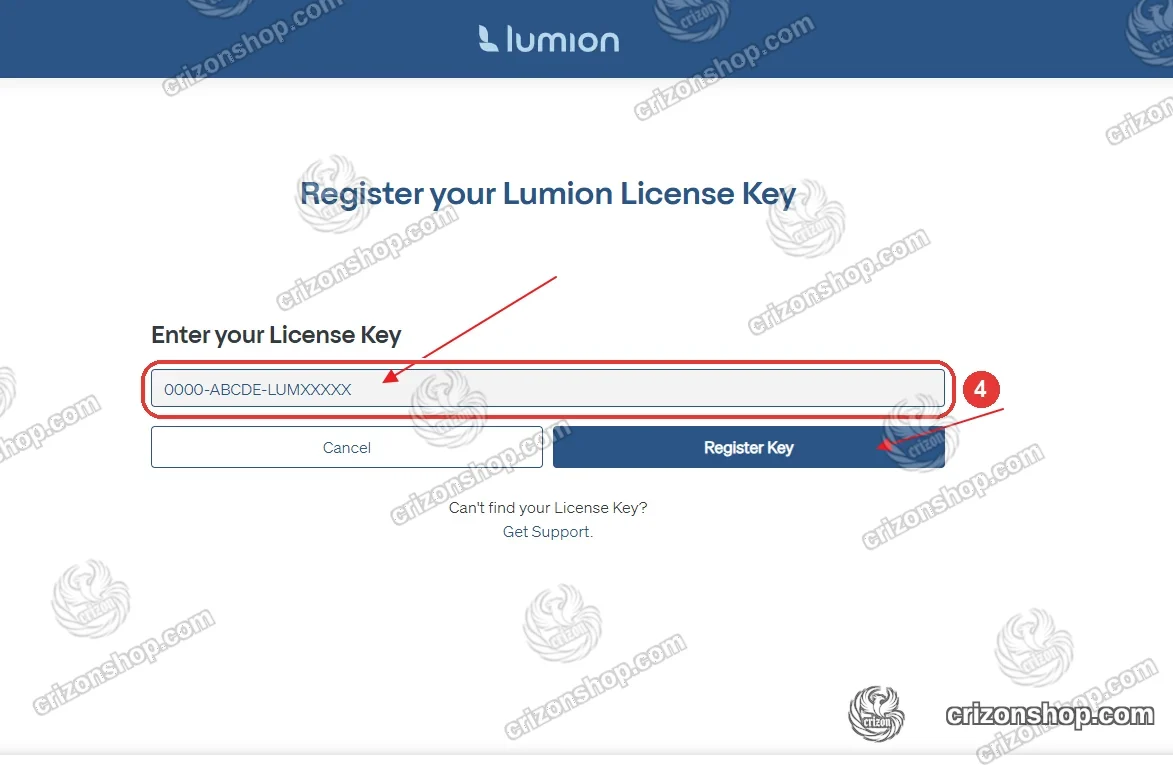
Paste your License Key into the “Enter your License Key” field. Click Register Key to confirm.
Check the License Keys list again. If registration worked, your new key will appear there.
After registering: get your Activation Code and download Lumion
Your License Key and your Activation Code are two different codes. The License Key links the license to your account. The Activation Code is the installer code you need to download and install Lumion. The Activation Code only appears in your Lumion account.
In License Keys, click the 8-character key you just registered to see its Activation Code.
Click Download Product for the key you want to install.
Run the installer you downloaded. If you downloaded it from the link in your account, the code is usually already filled in.
If the installer asks for a code, paste the Activation Code exactly as it appears in your account. Then wait for the installer to download the files it needs.
Opening Lumion Pro for the first time with a Named-User key
Open Lumion Pro. It will ask you to sign in to your Lumion account.
If you don't have an account yet, click Create an account to make one.
Click Sign In. Your browser will open so you can enter your login details.
Once you're signed in, select the License Key assigned to you.
Lumion Pro will open with the key you selected.
Frequently asked questions
Lumion says License Key numbers are no longer included in the Getting Started with Lumion email sent at purchase. The key and its Activation Code are in the License Keys section of the Lumion account used to buy it. If your company or someone else bought the key, ask them for the key or ask them to assign you a seat. Learn more on Lumion's support page.
First, check that the key doesn't include any spaces or extra characters. Next, check whether it's a Named-User or Lumion View key, since those can't be entered manually. If it still fails, contact Lumion's support team at support.lumion.com.
A key is only added to your account automatically when the email on your Lumion account matches the email used for the purchase. If you created your account with a different email, enter the key manually using the steps above.
You might. The Lumion installer uses the Activation Code, not the License Key. If you download the installer with the Download Product button in your account, the code is usually filled in for you. If the installer still asks for it, click the key in License Keys to view and copy the Activation Code.
Related guides
 How to Activate a GRFX Studio Key for Corel PaintShop Pro
 How to Activate Adobe Acrobat Classic with a Serial Number
 How to Accept Your Canva Pro Invitation and Check Your Upgrade
Still need help?
Send your order code and we can sort it out faster.
