 Canva · Activate
How to Accept Your Canva Pro Invitation and Check Your Upgrade
Open Canva's invitation email, click Join the team, and sign in with the email you entered at checkout. Then go to Settings › Billing to confirm your account has Canva Pro.
Once your Canva Pro order (upgrade on your own account) has been delivered, follow this guide to accept the invitation Canva sends to your account and check that Pro is active. You do every step in your own Canva account. We don't need your password and will never ask for it.
Before you start
We check each order before delivering it, within 24 hours. If you just placed your order and don't see the email yet, wait a little longer and check the order status again.
Step 1. Find Canva's invitation email
Open the inbox of the email you entered when you bought Canva Pro.
Look for an email from Canva inviting you to join a team.
If it's not in your inbox, check your Spam or Junk folder. In Gmail, also check the Promotions tab.
Step 2. Accept the invitation
Open the invitation email.
Click Join the team. Depending on the email, the button may say Accept Invitation instead.
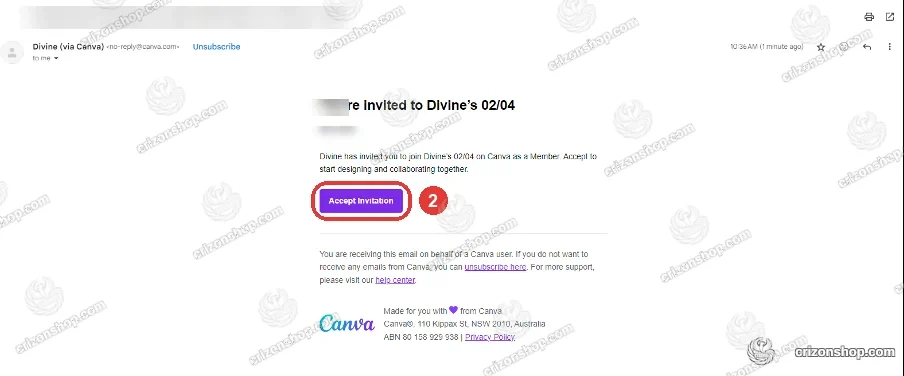
Click “Accept Invitation” (Join the team) to accept the invitation. Canva opens a sign-in page in your browser so you can log in to your account.
Step 3. Sign in to the right account
Choose the sign-in method you normally use with the email you entered at checkout. For example, choose Google if your Canva account is linked to Google.
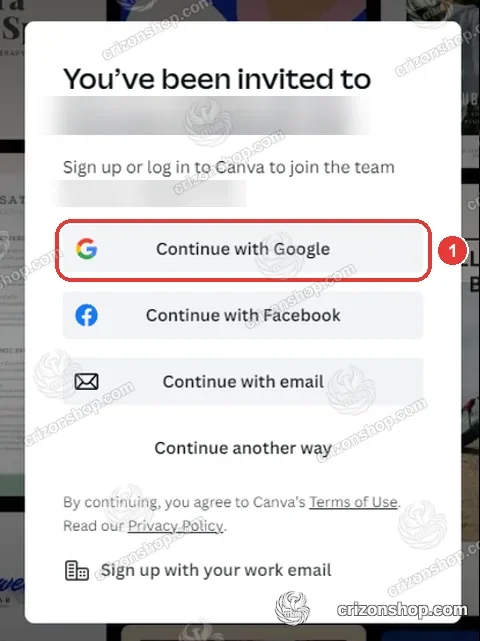
Click “Continue with Google”. If you sign in with email, enter that same email and follow the verification steps Canva shows on screen.
Once you're signed in, Canva takes you into the team you just accepted.
Step 4. Check that your account has Pro
On the Canva homepage, click your profile picture.
Look under Teams. The team you just joined appears here.
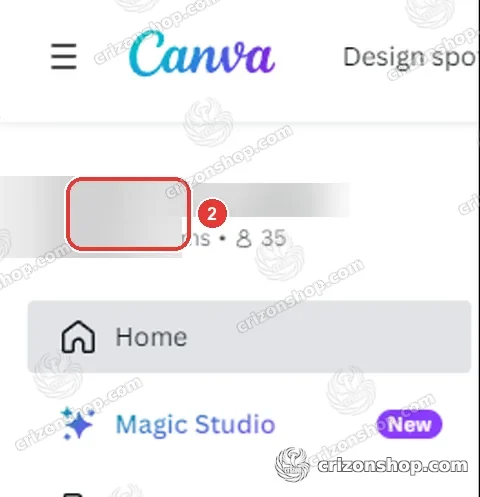
Check “Teams” to confirm the team you just joined. Go to Settings, then select Billing.
Under Subscriptions, you'll see your active Canva plan.
If an active plan shows under subscriptions, your upgrade is complete. You can use Pro templates, photos, and tools on any device where you're signed in to this account.
Don't see Pro? Switch to the right team
A Canva account can belong to several teams at once. According to Canva, you only see the designs and plan of the team you currently have selected. If you're in your personal space or a different team, Pro features stay locked even though the upgrade is done.
On the Canva homepage, click your profile picture.
Under Teams, hover over or click the current team name.
Click the right arrow icon.
Pick the team with the Pro plan from the list that appears.
Open the Canva app and tap Menu.
Tap your profile picture.
Under Switch team, pick the team with the active plan.
If you're in the right team but still don't see Pro, reload the page with F5 on your computer, or fully close the app on your phone and open it again.
Need help?
If you've done every step and still don't have Pro, or your order was delivered but you can't find the invitation email, go to Account → My orders on crizonshop.com and click Report a problem on the Canva Pro product in that order. Include the email you entered at checkout. You can also message us through Chat with Support in the corner of the screen. We'll never ask for your Canva password.
Frequently asked questions
Yes. If you click the invitation without an account, Canva will ask you to create one. You must sign up at canva.com with the same email that received the invitation. If the link no longer works after you sign up, click Report a problem in your order and we'll resend the invitation.
Canva invitation links only work for 30 days and can only be used once. If your link has expired, click Report a problem on the product in your order and we'll send a new invitation to your email.
No. Your old designs stay where they were. Just switch back to that space to open them. If you want to move designs into the team with Pro, see Canva's guide to copying designs.
Pro is tied to your account, not your device. Check that your phone is signed in to the upgraded account. Then tap Menu, tap your profile picture, and pick the right team under Switch team.
Related guides
How to Copy Canva Designs to Another Team or AccountHow to Publish a Canva Website on a Free or Custom Domain How to Activate a GRFX Studio Key for Corel PaintShop Pro
Still need help?
Send your order code and we can sort it out faster.
