 Canva · Set up
How to Copy Canva Designs to Another Team or Account
Go to Projects, click the three dots on a design, choose Copy to another team, then pick the team with Pro. To move several designs, put them in one folder and copy the whole folder.
This guide shows you how to move Canva designs from an old team or your personal profile to where you have Canva Pro. You can do one design at a time or many at once. Canva only creates a copy at the destination. The original stays where it was.
Choose the right method
The method depends on whether the designs and the destination belong to the same Canva account (the same login email).
| Where the design is now | How to move it |
|---|---|
| Another team or your personal profile, in the same Canva account | Use Copy to another team, one design at a time or a whole folder |
| A different Canva account (different email) | Share the design, then create a copy with Make a copy, one design at a time |
Before you start, check the following:
- The Copy to another team option only appears if your account belongs to two or more teams.
- In teams on Canva Teams, Business, Enterprise, or Education, only team admins can copy designs to another team by default. If you're a regular member, ask an admin to give you permission.
- Use canva.com in a desktop browser, because some steps below require hovering over designs.
- Check whether the destination already has Pro. Click your profile picture, go to Settings, then Billing & plans to see the current plan.
This guide uses the button names from Canva's English interface, which are the same names Canva uses on its help pages. Here's a quick reference for the ones you'll need. Labels may vary slightly between versions.
| Button | What it does |
|---|---|
| Projects | Opens your designs and folders |
| More (three dots) | Opens the menu for a design or folder |
| Copy to another team | Copies a design or folder to another team |
| Move | Moves selected designs into a folder |
| + Create new | Creates a new folder |
Copy a single design to another team
Log in to Canva in a desktop browser.
Click your profile picture or team name, then select the team (or personal profile) that holds the design.
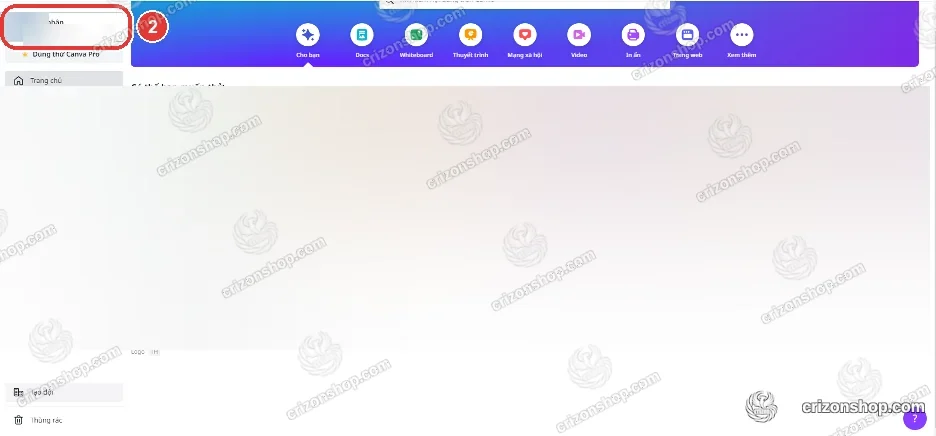
Click Personal to choose the profile that holds the design. Open Projects.
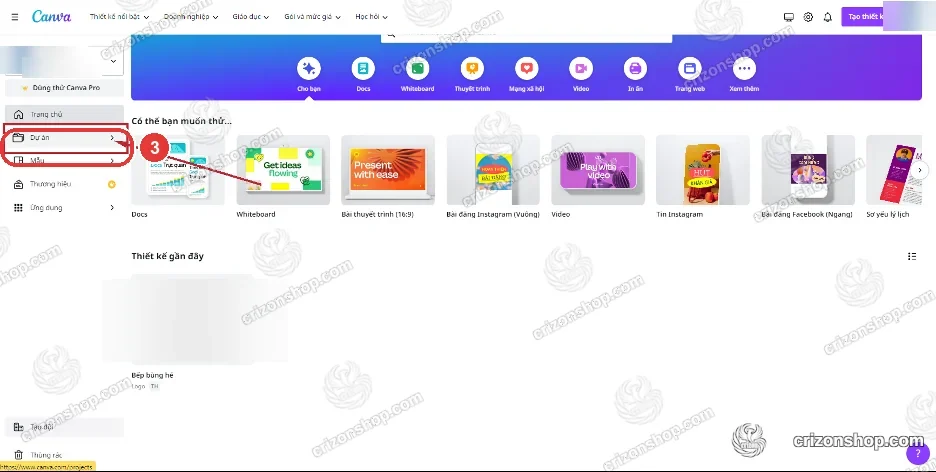
Click Projects in the left sidebar. Hover over the design you want to move and click More (the three dots).
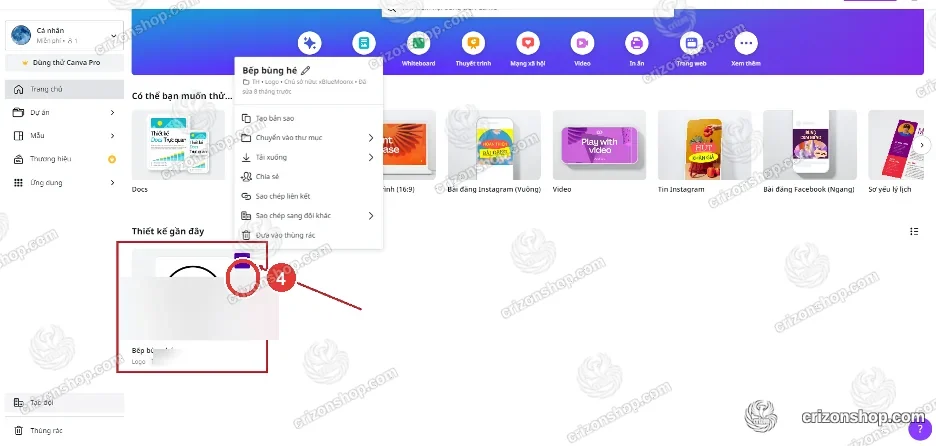
Click More (…) on the design you want to move. Select Copy to another team.
Choose the destination team. This is usually the team with Canva Pro.
Click Copy to confirm.
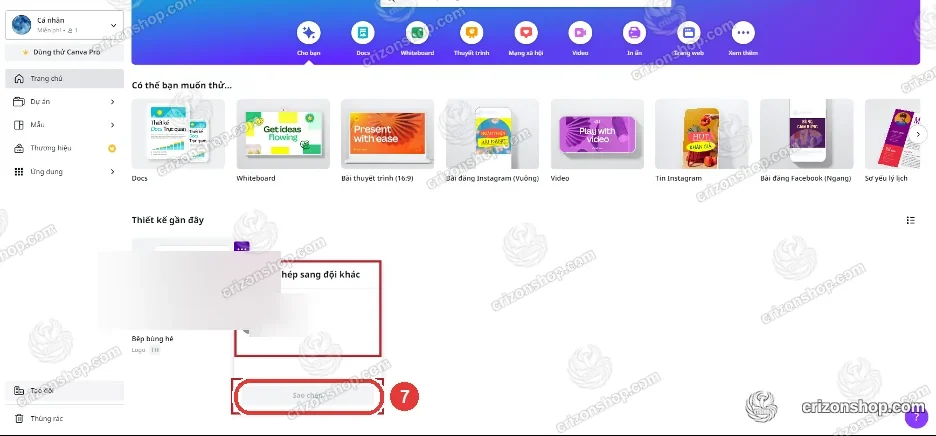
Click Copy to confirm.
The copy will appear in Projects in the destination team. Switch to that team to open it and keep editing right away.
Copy multiple designs at once
Canva doesn't let you select several individual designs and copy them in one go. Put them in a folder first, then copy the whole folder to the destination team. Canva explains how to manage folders on its Manage folder contents page.
Put the designs in one folder
In the team that holds the designs, open Projects.
Select the checkbox on the first design.
Select the checkboxes on the other designs you want to move.
Click Move.
Canva will ask which folder you want to put these designs in.
- If you already have a folder, select it from the Recent tab (recently used folders) or the All tab (all folders you own or can access), then click Move.
- If you don't have a folder yet, go to the All tab, select Your Projects, click + Create new, name the folder, then click Move to new folder.
Copy the folder to the team with Pro
Still in Projects, find the folder that now holds your designs.
Hover over the folder and click More.
Select Copy to another team.
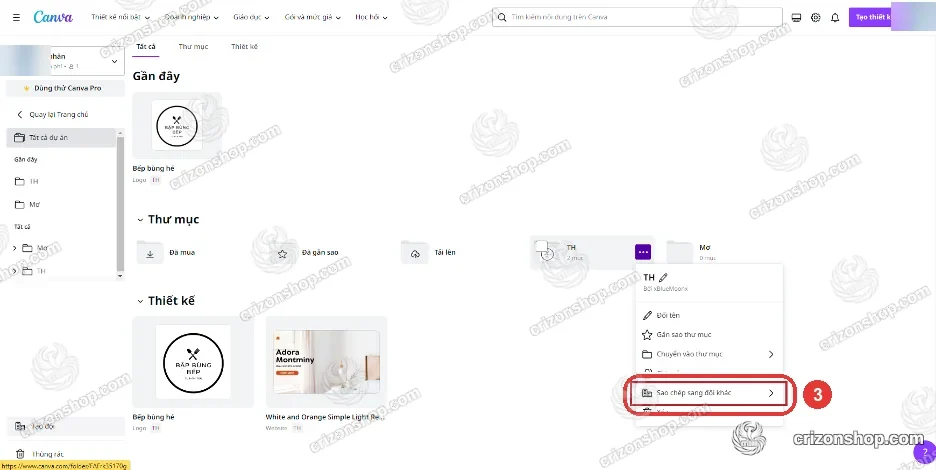
Click Copy to another team. Choose the destination team, then click Copy.
If the folder has a lot of designs, it may take Canva a little longer before all the copies show up in the destination team.
Move designs to a different Canva account
If the designs are in an account that uses a different email from your Pro account, you can't use Copy to another team. In this case, Canva only lets you move designs one at a time. You share each design, then make a copy from the receiving account. Canva's own instructions are on its Copy designs or files to another team or account page.
Log in to the account and team that holds the design, then open Projects.
Hover over the design, click More, then select Share.
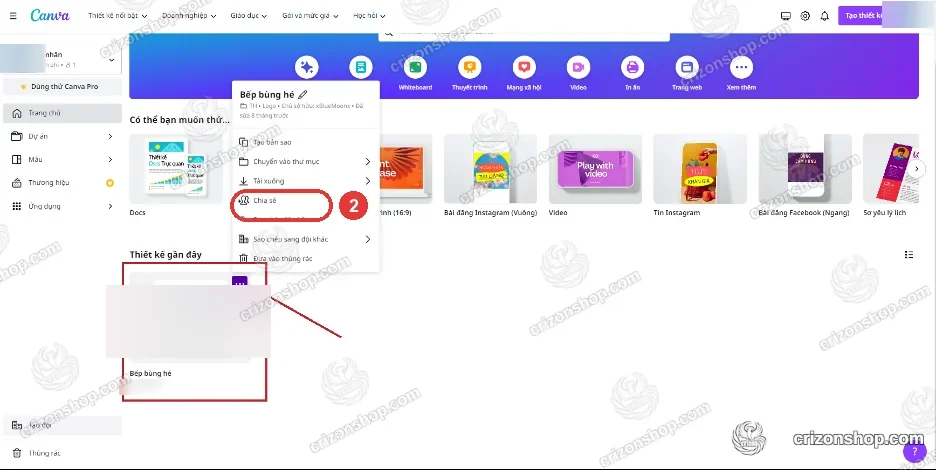
Click Share. Enter the email of the receiving account.
Set the permission to Can edit, then click Share.
Log out of the old account.
Log in to the receiving account.
Open the shared design from the invitation email or from the Notifications icon on the Canva home page.
In the top menu bar, select File, then Make a copy.
Frequently asked questions
There are usually three possible reasons. Your account may belong to only one team, so Canva has no other team to copy to. You may be a regular member of a paid team, where only admins can copy to other teams by default. Or you may be trying to copy to a different account. In that case, share the design and use Make a copy as shown above.
No. Canva keeps the original in the old team or account and adds a copy at the destination. If you don't need the original anymore, open the copy first to make sure it's fine. Then delete the original yourself.
Usually not. The plan is applied to the account with the email you entered at checkout, so the designs in that account stay where they are. You only need to move designs that are in an account with a different email or in a team other than the one showing Pro. If your order was delivered but you don't see Pro, check its status in Account → My orders on crizonshop.com. Then click Report a problem on the product in that order, or use Chat with Support in the corner of the screen.
According to Canva, you can copy up to 2,500 designs and 10,000 items per day, and a single copy can't include more than 10,000 items. If you're moving designs to a different account, you have to do it one design at a time. You can't copy a whole folder.
Related guides
How to Accept Your Canva Pro Invitation and Check Your UpgradeHow to Publish a Canva Website on a Free or Custom Domain How to Activate a GRFX Studio Key for Corel PaintShop Pro
Still need help?
Send your order code and we can sort it out faster.
