 Canva · Set up
How to Publish a Canva Website on a Free or Custom Domain
Open a Website design, click Publish website, then choose the free my.canva.site domain or connect your own domain. Custom domains need Canva Pro or higher, and verification can take up to 72 hours.
Canva lets you publish a website design online with a free Canva domain or with a custom domain you already own. This guide covers both methods step by step. It also covers which plans you need and where to manage your domains after you publish.
What you need before publishing
The steps below only work for designs of the Website type. If you're working on a presentation or document, resize it to a Website format or create a new design from a Website template before you publish.
| Canva Free | Canva Pro, Teams, Business, Education | |
|---|---|---|
Publish to the free my.canva.site domain | Up to 5 websites | Unlimited websites |
| Sections per page when publishing | Up to 10 sections | No 10-section limit (unlike Free) |
| "Designed with Canva" footer | Always shown, can't be removed | Not shown |
| Connect a custom domain | Not available | Available, up to 5 domains at a time on Pro, Teams and Business |
Publish to Canva's free domain
This method works on every Canva plan. Your site gets an address like yourname.my.canva.site, and you can add your own path after it.
Open the website design you want to publish in the Canva editor.
Click Publish website at the top of the editor.
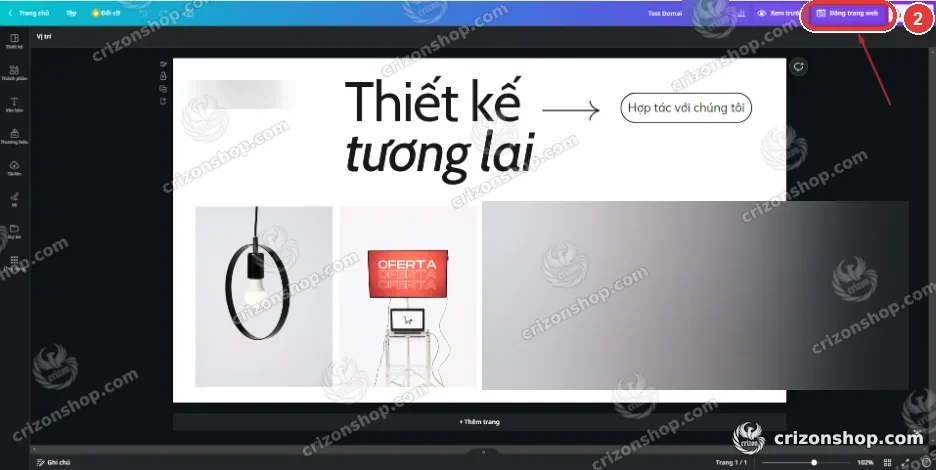
Click “Publish website”. Select Free domain.
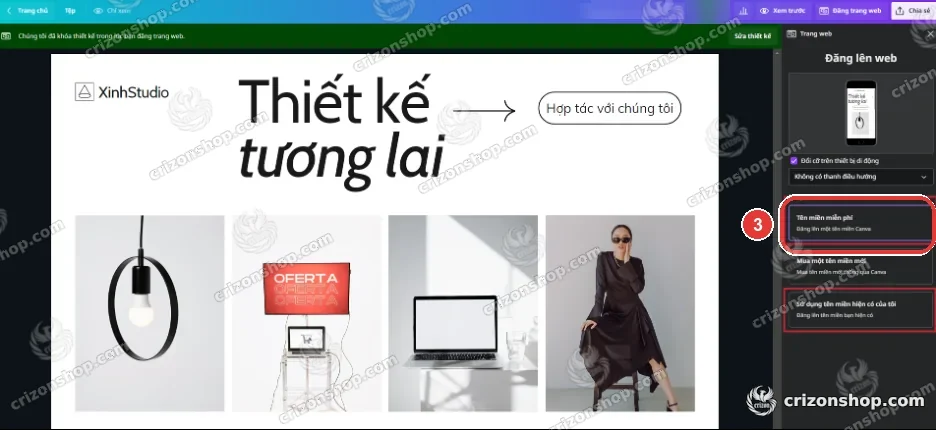
Select “Free domain”. Keep the subdomain Canva suggests, or change it to one you prefer.
Click Continue to publish to go to the next step.
To add a path after the address, click the pencil icon in the Website URL field and type the path, for example
/about.Click Publish and wait for Canva to put your site online.
Canva explains this method in detail at Publish websites to a free domain.
Connect a custom domain you already own
This method requires a Canva Pro, Teams, Business or Education account. You must also already own a domain from a domain provider and be able to sign in to that domain's DNS management page.
Open the website design and click Publish website at the top of the editor.
Select Use my existing domain.
Click Add another domain and type your domain, for example
yourdomain.com.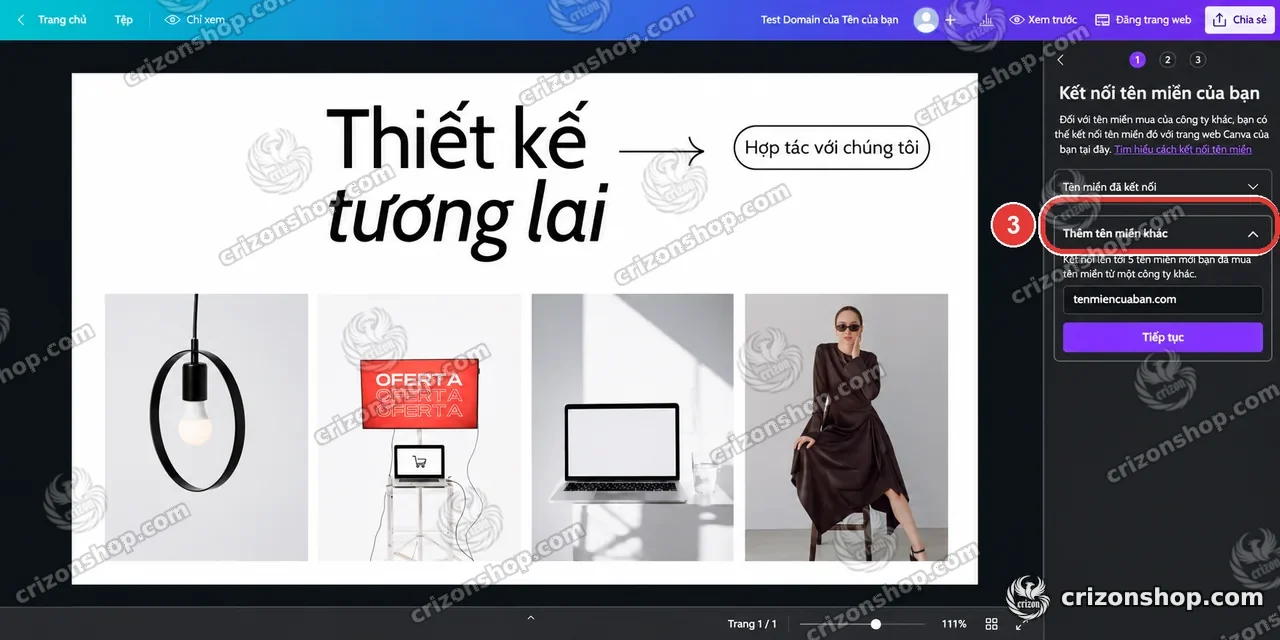
Click “Add another domain” to enter your domain. Read the terms, tick the box to agree, then click Connect domain.
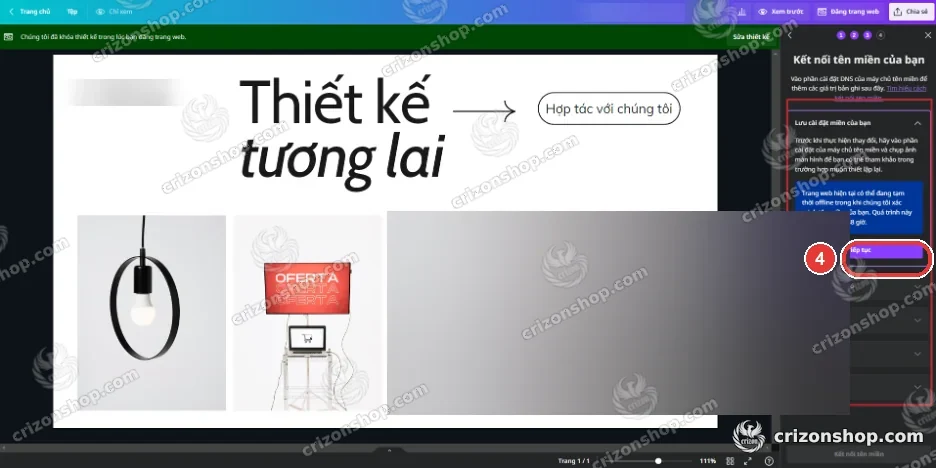
Read the terms, agree, then click “Continue” (Connect domain). Follow the connection instructions Canva shows on screen. You'll connect automatically or manually, as described in the section below.
Add a path if needed, then click Publish.
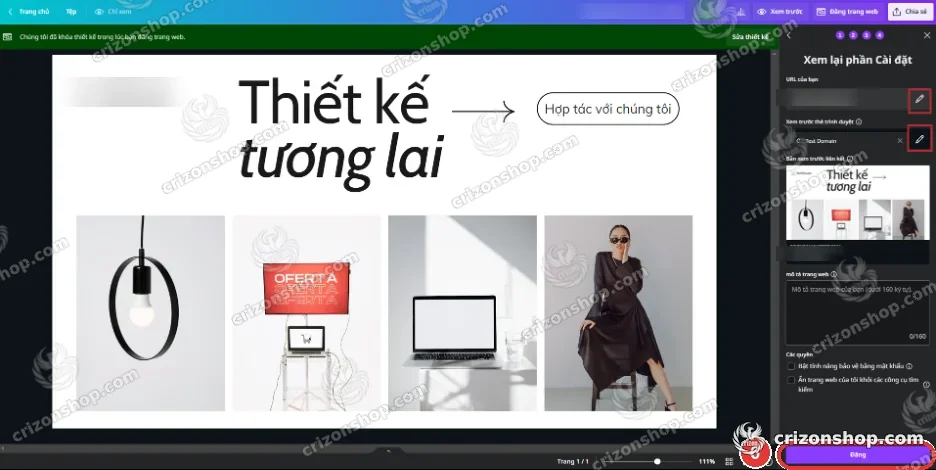
Click “Publish” to make your website live.
Automatic vs. manual connection
Depending on your domain provider, Canva will let you connect in one of these two ways.
- Automatic. Sign in to your account with your DNS provider and grant permission once. Canva then adds the domain settings for you.
- Manual. Copy the DNS records Canva gives you, add them in your domain provider's DNS management, then wait for the changes to take effect. If you haven't done this before, see Canva's DNS settings guide.
For more details, see Canva's guide Publish websites to your own domain.
Check and manage your domains after publishing
On the Canva home page, click your profile picture and select Settings (or click the gear icon).
Open Domains.
Review the domains linked to your websites, and change your free subdomain if needed.
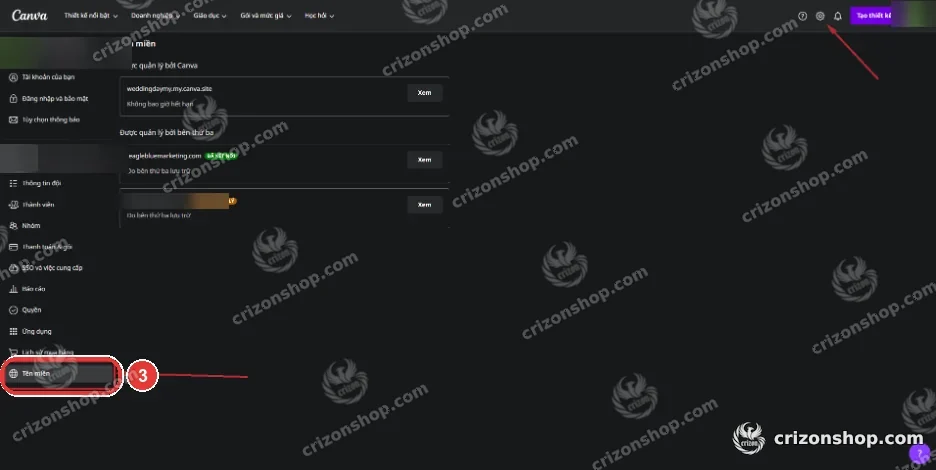
Click “Domains” to view or change your free subdomain.
If you upgraded to Canva Pro at CrizonShop
CrizonShop applies the Canva Pro upgrade to the Canva account with the email you entered at checkout. That means you can connect a custom domain from the same account that holds your designs. Sign in to Canva with that email, or with the sign-in method linked to that account. Then check your plan under your profile picture → Settings → Billing & plans.
If you've upgraded but the publishing screen still asks you to upgrade when you choose a custom domain, check your order status under Account → My orders on crizonshop.com. Then click Report a problem next to the product in your order, or message Chat with Support in the corner of the screen so we can look into it.
Frequently asked questions
Yes. You can publish up to 5 websites to the free my.canva.site domain, with up to 10 sections each. The "Designed with Canva" footer always appears at the bottom of the page. To use a custom domain or remove that footer, you need Canva Pro or higher.
Canva can take up to 72 hours to verify a domain, so wait the full 72 hours. If you connected manually, go back to your DNS management page and check each record against the details Canva gave you. If it still doesn't work after 72 hours, see Canva's DNS settings help page.
Yes. You can change your free subdomain at any time under Domains in your Canva account settings.
You can keep editing a published site as usual. Reopen the design in Canva, make your changes, then publish again with Publish website to update the live version.
Related guides
How to Accept Your Canva Pro Invitation and Check Your UpgradeHow to Copy Canva Designs to Another Team or Account How to Activate a GRFX Studio Key for Corel PaintShop Pro
Still need help?
Send your order code and we can sort it out faster.
