 Filmora · Activate
How to Redeem a Wondershare Filmora Key and Activate Your License
Log in to Wondershare Account Center with your Wondershare ID, go to Plan & Products, choose Redeem membership, enter your key and click Submit. Then log in to Filmora with the same ID to activate your license.
This guide shows you how to add a Wondershare Filmora key to your Wondershare ID. You then log in to the app so Filmora picks up your license and exports videos without a watermark.
What you need
Redeem your key in Wondershare Account Center
Open Wondershare Account Center in your browser.
Log in with your Wondershare ID.
In the left menu, open Plan & Products.
Choose Redeem membership.
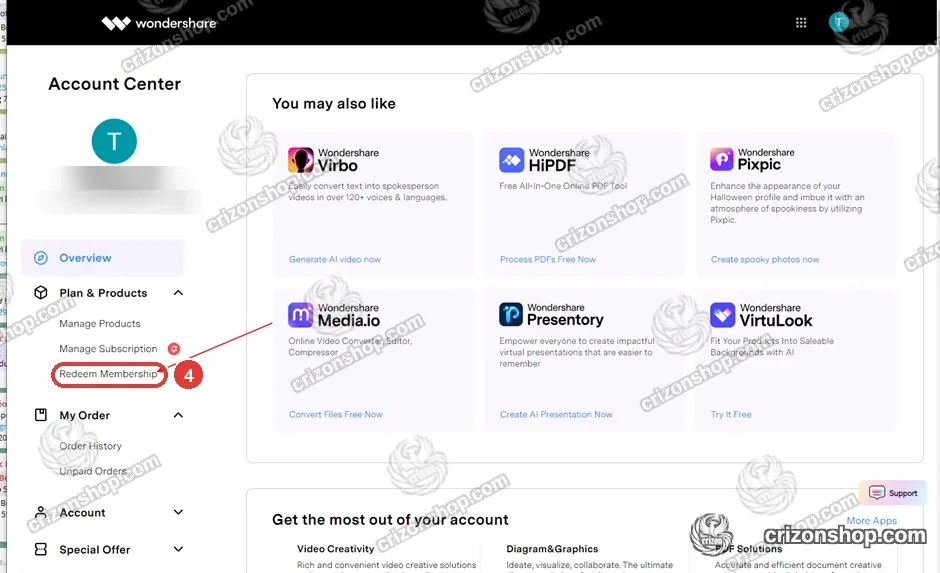
Click “Redeem Membership”. Paste your Filmora key into the code field.
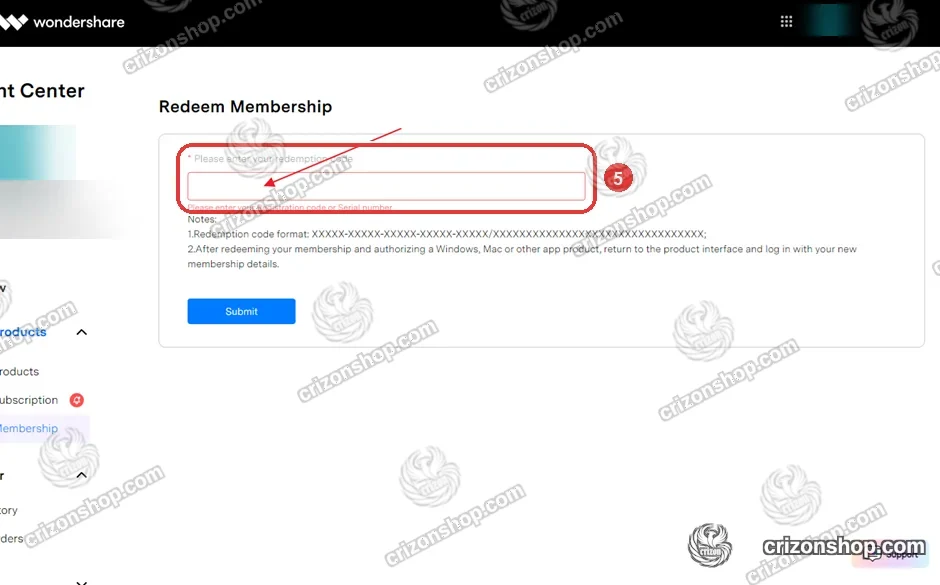
Paste your Filmora key into the “Please enter your redemption code” field. Click Submit.
Open Manage products to check whether your Filmora plan now shows up in your account.
Log in to Filmora to activate your license
After you redeem the key, the license is only in your account. Filmora unlocks only after you log in with that same account in the app. The steps are the same on Windows and Mac.
Open Filmora on your computer.
Click the Login button in the top-right corner of the window.
Log in with the same Wondershare ID you redeemed the key to.
Click your profile picture at the top to check your activation status.
What to check if your key is invalid
According to Wondershare's support page, a key is usually rejected for one of these reasons.
- The key is for a different Wondershare product, not Filmora.
- The key is a registration code tied to a specific licensed email, and you have to activate it with that exact email.
- The key was bought through a marketplace or a third party, so the licensed email may not be yours.
If you've checked all of the above and still get an error, contact Wondershare support. Include your key purchase details and a screenshot of the error so they can sort it out.
FAQ
Filmora only removes the watermark when you're logged in with a Wondershare ID that has a paid plan. Go to Manage products in Account Center to make sure the plan is in your account. Then log out of Filmora and log back in with that same account.
For this type of registration code, Wondershare usually creates a Wondershare ID for the licensed email already. Use the password reset option on the login page with that email, log in to Account Center, and check Manage products. If the plan isn't there, redeem the key through Redeem membership as shown above.
You can't move it yourself in Account Center. Contact Wondershare support and give them the key, the email of the account you redeemed it to by mistake, and the email you want to move it to. They'll review your request.
Related guides
How to Download, Install, and Log In to Wondershare UniConverterHow to Log In to Filmora with Your Wondershare ID on a Computer How to Activate a GRFX Studio Key for Corel PaintShop Pro
Still need help?
Send your order code and we can sort it out faster.
