 Filmora · Sign in
How to Log In to Filmora with Your Wondershare ID on a Computer
Open Filmora and click Log In or the account icon. Then log in with the Wondershare ID that has your plan, using email or Google. After that, click your profile picture to check your activation status.
This guide shows you how to download Filmora from the official site, log in with your Wondershare ID on Windows or Mac, and check that your paid plan has been applied. Once you're logged in to the account that has the plan, your exported videos won't have a watermark.
Before you log in
Download and install Filmora
Download Filmora from the Filmora website so you don't end up with a modified installer. Wondershare only provides installers for the current version and the previous major version, as stated on Wondershare's product download page.
Open the Filmora website and click the download button.
Choose the Windows or Mac version to match your computer.
Open the downloaded file and click Install.
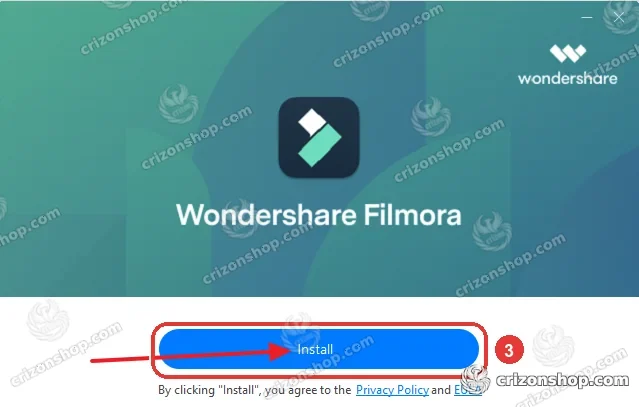
Click “Install” to start the installation. Wait for the installation to finish, then launch Filmora.
Log in to Filmora
Open the login window
Open Filmora.
Look for the Log In button or the profile picture icon. On the start screen of newer versions, it's usually in the bottom-left corner. In some older versions, it's in the top-right corner.
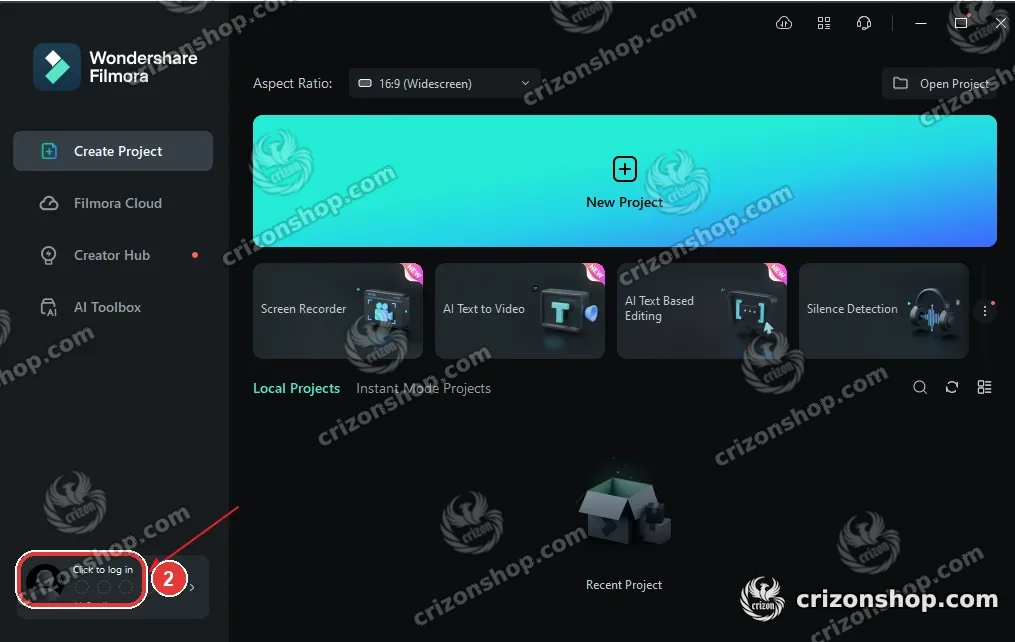
Click “Click to log in” to sign in. Click it to open the login window.
In the login window, choose the same method you used to create your Wondershare ID.
| You created your account with | How to log in to Filmora |
|---|---|
| Email and password | Enter your Wondershare ID email and password in the login fields |
| Google account | Click the Google icon |
| Facebook or X (Twitter) | Click the matching icon |
| Apple ID | Click the Apple icon (Mac version only) |
Log in with email
Enter your Wondershare ID email in the email field.
Enter your account password.
Click the log-in button and wait for Filmora to load your plan details.
Log in with Google
Click the Google icon in the login window.
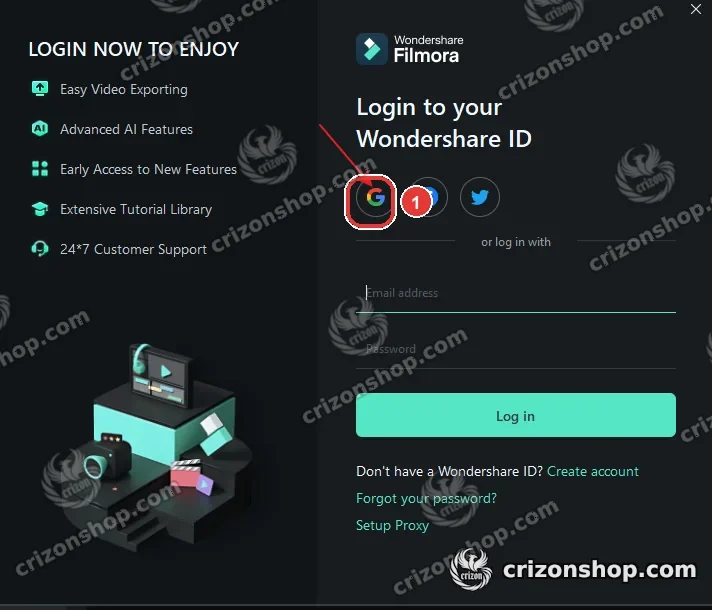
Click “Google” to log in. The Google sign-in window appears. Sometimes it opens in your browser.
Choose the Google account that has your Filmora plan from the list.
If that account isn't listed, click Use another account, then enter your Google email and password.
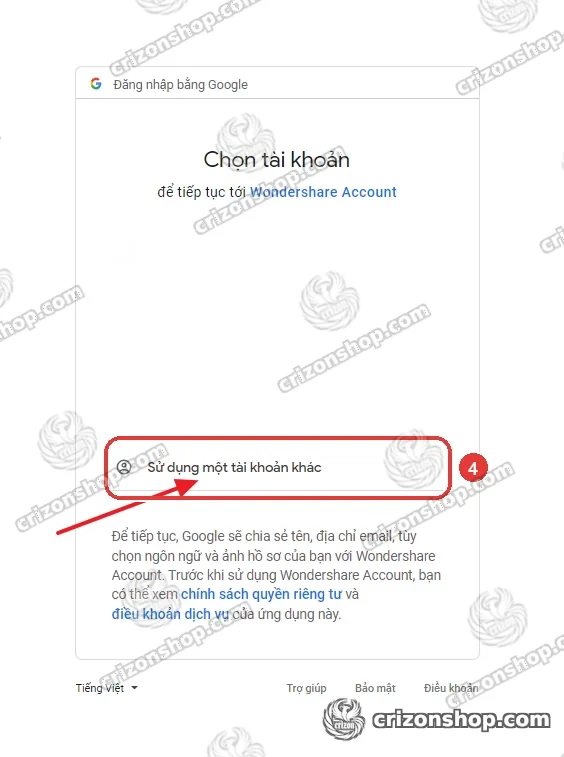
Click “Use another account”. If Google asks you to verify, use the method you set up for your account, such as confirming on your phone or entering a code from the Google Authenticator app.
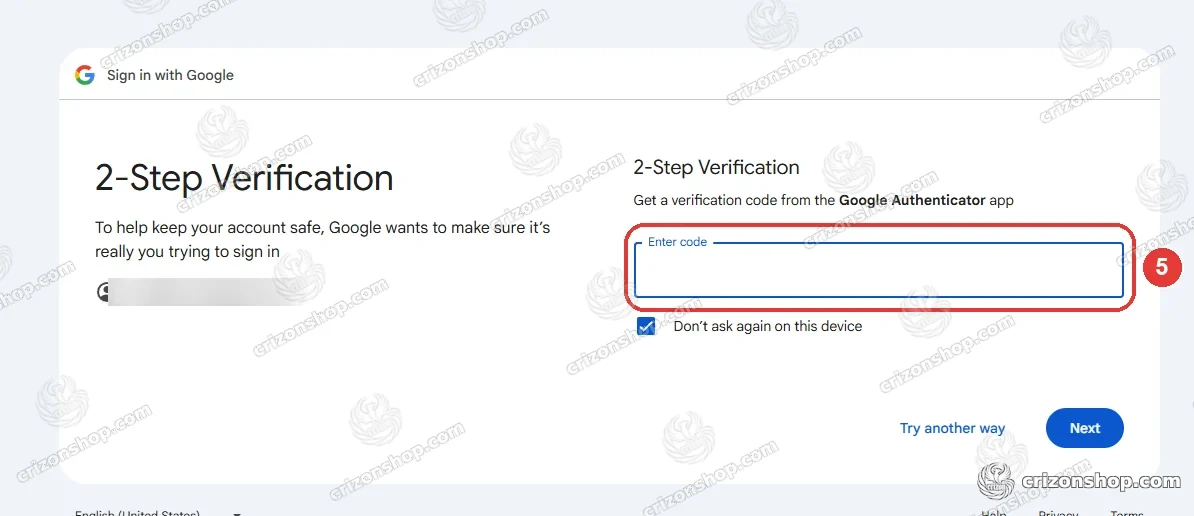
Enter the code in the “Enter code” field. Go back to Filmora once Google confirms you've signed in.
Check that your plan is activated
After logging in, click your profile picture in Filmora.
Check that the account email and plan name shown match the plan you bought.
Export a short test video to make sure there's no watermark.
Frequently asked questions
First, click your profile picture and check that you're logged in with the email you bought the plan with. Next, check that your plan works on the operating system you have installed. If both are correct, check your internet connection, then log out and log back in so Filmora refreshes your activation status.
In the login window, click Forgot your password? below the log-in button and enter the email you registered with. Wondershare will send a 6-digit verification code to that email. Enter the code, then set a new password. If you don't see the email, check your Spam folder and wait about 5 minutes before requesting a new one. If you created your account with Google, you usually don't need this password. Just click the Google icon to log in.
Wondershare's download page only offers installers for the current version and the previous major version. Older versions are no longer publicly available. If you really need one, ask Wondershare support.
Each Filmora plan has a limit on how many devices can be activated. Go to Wondershare Account Center, remove any old computers you no longer use from your device list, then log in again on your new computer.
Related guides
How to Download, Install, and Log In to Wondershare UniConverterHow to Redeem a Wondershare Filmora Key and Activate Your License How to Activate a GRFX Studio Key for Corel PaintShop Pro
Still need help?
Send your order code and we can sort it out faster.
