 Filmora · Sign in
How to Download, Install, and Log In to Wondershare UniConverter
Download the latest UniConverter from Wondershare's official site and install it like any other app. Then log in with your Wondershare ID in the top-right corner of the app to use the plan you bought.
This guide shows you how to download Wondershare UniConverter from the official site, install it on your computer, and log in with your Wondershare ID so the app picks up the paid plan linked to your account.
Before you start
Step 1. Download the installer from Wondershare
Only download UniConverter from Wondershare's official site. That way you get the latest version and avoid modified installers.
Open the UniConverter download page for Windows. The installer downloads automatically after a few seconds.
If the download doesn't start, click the restart the download link on the page.
Open your browser's downloads list to find the
.exeinstaller you just downloaded.
Open the UniConverter version info page.
Click the TRY FREE button for Mac to download the
.dmgfile.Open your Downloads folder to find the file you just downloaded.
Step 2. Install UniConverter
Double-click the installer you just downloaded. If Windows asks whether to allow the app to make changes to your device, choose Yes.
To change the interface language or install folder, click Customize Install and pick your settings before installing.
Click Install to start the installation.
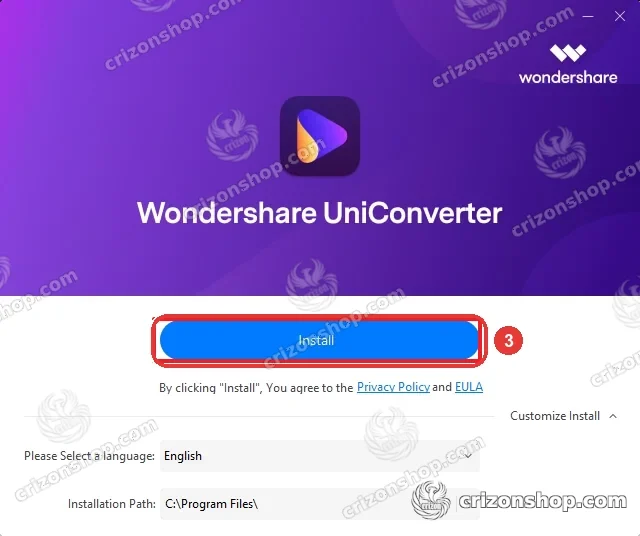
Click Install to start the installation. Wait for the progress bar to finish.
Click Start Now to open UniConverter right away.
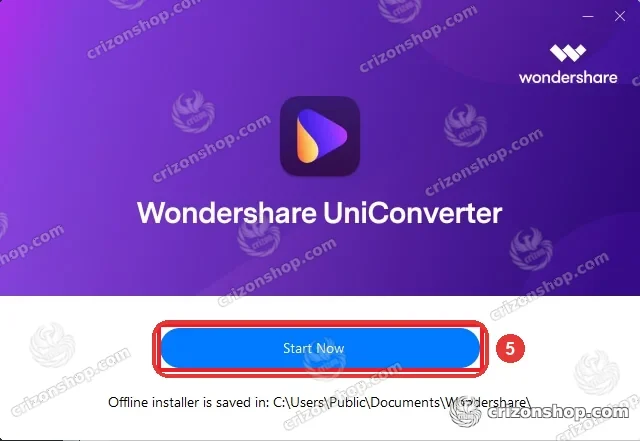
Click Start Now to open UniConverter right away.
Double-click the
.dmgfile you just downloaded.Follow the on-screen instructions to install the app.
Open UniConverter from the Applications folder or from Launchpad.
Step 3. Log in with your Wondershare ID
On UniConverter's main screen, click the person icon in the top-right corner.
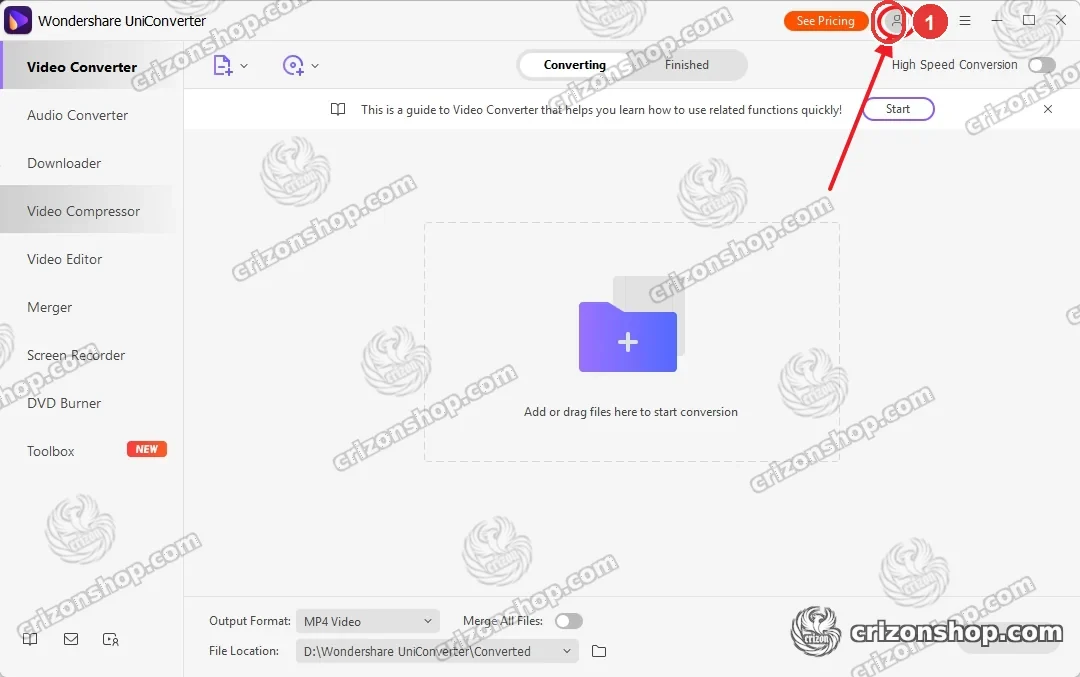
Click the person icon in the top-right corner. Enter your Wondershare ID email and password in the window that appears.
Click Log in.
When a small window shows your email and current plan, you're logged in.
On UniConverter's main screen, click Log In in the top-right corner.
Enter your Wondershare ID email, then click Next.
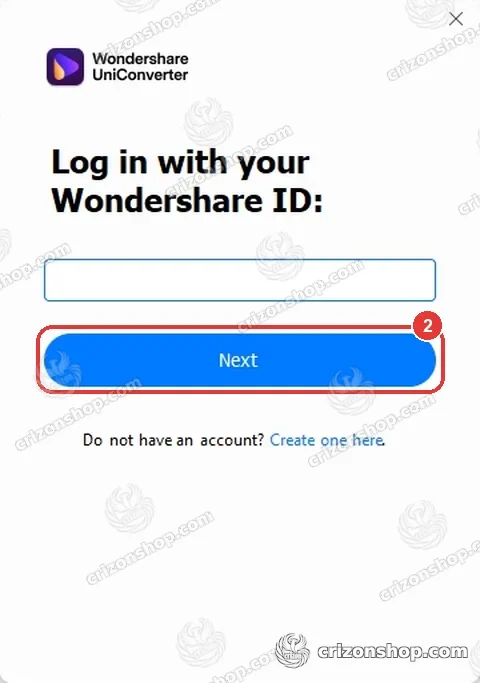
Enter your Wondershare ID email, then click Next. Enter your password, then click Sign In.
Check your plan and manage your account
After you log in, click the account icon in the top-right corner again to see your email and the plan that's active. This window has three options, shown in the table below.
| Option | What it does |
|---|---|
| View My Account | Opens Account Center, where you can edit your profile, change your password, and see your purchased plans and order history |
| Online Support | Opens Wondershare's support chat |
| Log Out | Logs your Wondershare ID out of the computer you're using |
For Wondershare's own instructions, see the Wondershare ID login guide for Windows or the Mac version.
FAQ
First, check that the email shown in the account window is the one you used to buy the plan. If it is, open View My Account and go to Plans & Products to make sure your plan hasn't expired. If the plan is still active but the app doesn't recognize it, click Log Out and log back in, or message Online Support so Wondershare can look into it.
Yes. Wondershare ID is one account shared across Wondershare products like UniConverter, Filmora, and PDFelement. After you log in, check the account window to see which plan UniConverter is using. Having an account doesn't necessarily mean you have a UniConverter license.
Install UniConverter on the new computer using the steps above. If your plan only allows one computer, click Log Out on the old one before logging in on the new one so you don't go over the device limit.
If you're still logged in on any computer, open View My Account and change your password under Security & Password. If you're not logged in anywhere, use the forgot password link in the login window to get a password reset email from Wondershare.
Related guides
How to Log In to Filmora with Your Wondershare ID on a ComputerHow to Redeem a Wondershare Filmora Key and Activate Your License How to Activate a GRFX Studio Key for Corel PaintShop Pro
Still need help?
Send your order code and we can sort it out faster.
