 Apple · Activate
How to Redeem a US iTunes Code on iPhone, iPad, Mac, and Windows
Open the App Store, tap your account photo, choose Redeem Code, then scan or type the 16-character code. US iTunes codes can only be redeemed to an Apple Account set to the United States region.
This guide shows you how to redeem a US iTunes code to your own Apple Account on an iPhone, iPad, Mac, or Windows PC. Apple now calls this type of code an Apple gift card (Apple Gift Card or App Store & iTunes Gift Card). The amount you redeem becomes your account balance, which you can use to buy apps, subscriptions, and other content.
Before you redeem the code
How to redeem the code
The steps below follow Apple's guide to redeeming gift cards. Pick the device you're using.
Open the App Store app.
Tap your photo, your initials, or the My Account button in the top-right corner.
Tap Redeem Code or Redeem Gift Card or Code, depending on your iOS version.
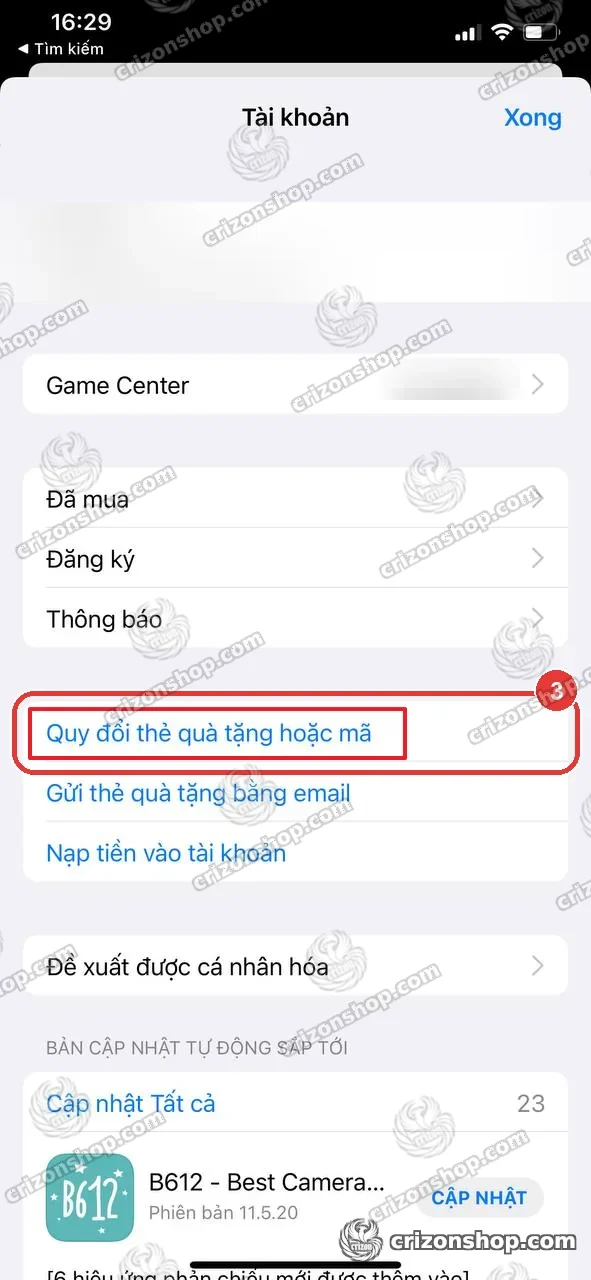
Tap “Redeem Gift Card or Code” (Redeem Code). Tap Use Camera and point the camera at the back of the card so your device reads the code.
If scanning doesn't work or you only have a text code, tap Enter Code Manually and type in the code.
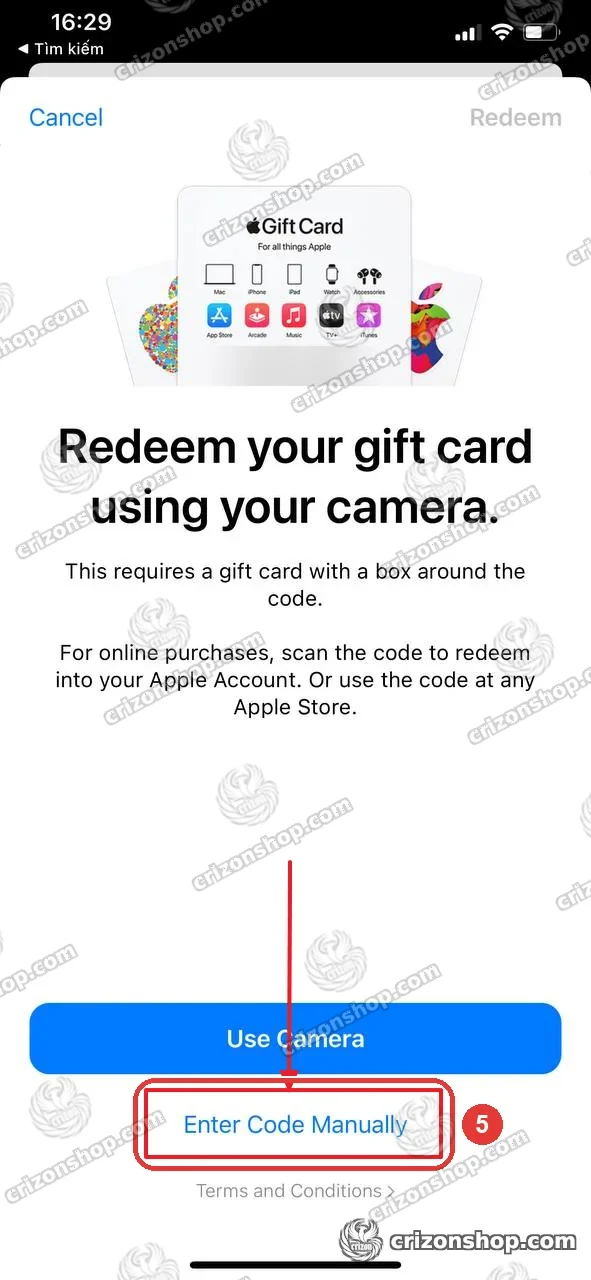
Tap “Enter Code Manually” to type in the code. Tap Redeem to finish.
Newer versions of macOS no longer have iTunes, so you redeem codes right in the App Store.
Open the App Store on your Mac.
Click your name in the left sidebar. If you're not signed in, click Sign In and sign in to your Apple Account first.
Click Redeem Code.
Choose Use Camera to scan the card with your Mac's camera, or choose Enter Code Manually to type the code yourself.
Follow the on-screen instructions until you see that the code was redeemed successfully.
Open the Apple Music or Apple TV app and sign in to your Apple Account.
Click your name at the bottom of the sidebar, then choose Redeem.
Enter the code by following the on-screen instructions.
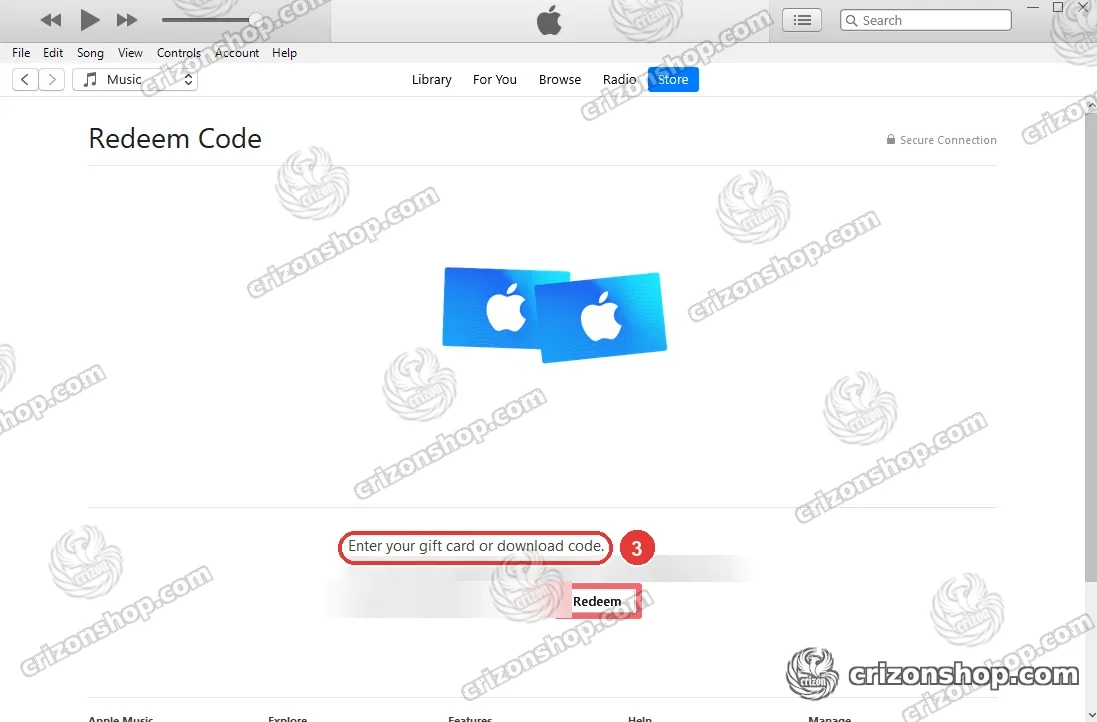
Type the code in the “Enter your gift card or download code” field. Click Redeem to finish.
If your PC still uses iTunes for Windows, open the Account menu in the menu bar, choose Redeem, type the code, then click Redeem.
Codes received by email
If you got the gift card by email, open the email, click Redeem Now, and follow the instructions that appear. Before you click, make sure your device is signed in to the right US Apple Account.
If the code won't redeem
Apple has a dedicated page on reasons you can't redeem a gift card. Match your situation with the table below.
| Problem | Common cause | What to do |
|---|---|---|
| The code is reported as invalid | Characters that look alike were mistyped | Type it again manually and carefully check these pairs: B/8, D/O, E/3, G/6, O/Q, O/0, S/5, U/V, Z/2 |
| The card can't be used with your account | Your account's region doesn't match the card's region | Use an Apple Account set to United States |
| The code says it's already been redeemed | The code was redeemed earlier, sometimes by you | Sign out of the App Store on all your devices, then sign back in so your balance updates |
| The card hasn't been activated | The seller didn't activate the card | Contact the seller so they can fix it |
| The code is scratched and unreadable | The coating was scratched off too hard | Contact Apple Support and send a photo of the card and your purchase receipt |
| The card is gray, white, silver, or gold | It's an older Apple Store Gift Card | This card can't be redeemed on the App Store |
FAQ
No. Apple only lets you redeem a card in the country or region where it was issued, so a US code needs an Apple Account set to United States. Changing the region of an account you already use comes with a number of Apple requirements, so read the instructions on Apple's support site carefully before you do it.
The code may have been redeemed successfully, but the balance hasn't updated on your device yet. Apple recommends signing out of the App Store on all your devices and then signing back in. Also check that you're not signed in to a different Apple Account by mistake.
Switch to Enter Code Manually and type the code yourself. Watch out for characters that are easy to mix up, like the number 0 and the letter O, 8 and B, or 5 and S.
Apple says some purchases require a credit card in your payment information, even when you pay with your balance. This is Apple's policy, not a problem with your code.
Related guides
How to Create a US Apple Account to Download Apps from the App Store How to Join a Google Family Group by InvitationHow to Install and Activate an eSIM on iPhone and Android
Still need help?
Send your order code and we can sort it out faster.
