 Apple · Before you buy
How to Create a US Apple Account to Download Apps from the App Store
Create a new Apple Account at account.apple.com and choose United States as your country/region. Then sign in under Media & Purchases on your iPhone to download apps from the US App Store.
This guide shows you how to create an Apple Account with the region set to the United States. You then use that account only for the App Store on your iPhone or iPad, so you can download apps that aren't available in the Vietnam store. The iCloud account you use now doesn't change.
What you need
Step 1. Create a US Apple Account on the web
If you create the account on the web, you can pick the right region from the start without changing anything on your iPhone. These steps follow Apple's guide to creating an Apple Account.
Open account.apple.com in your browser and click Create Your Apple Account.
Enter your first name, last name, and date of birth.
In the Country/Region field, choose United States.
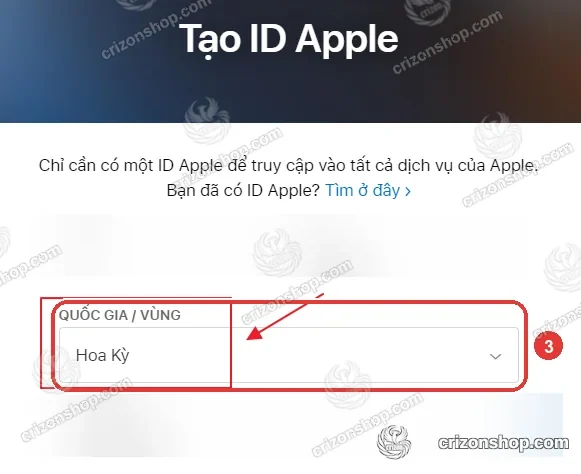
Choose United States in the Country/Region field. Enter an email address that has never been used for an Apple Account.
Create a password, then enter it again to confirm it.
Choose the country code for your phone number (+84 for a Vietnamese number) and enter your number.
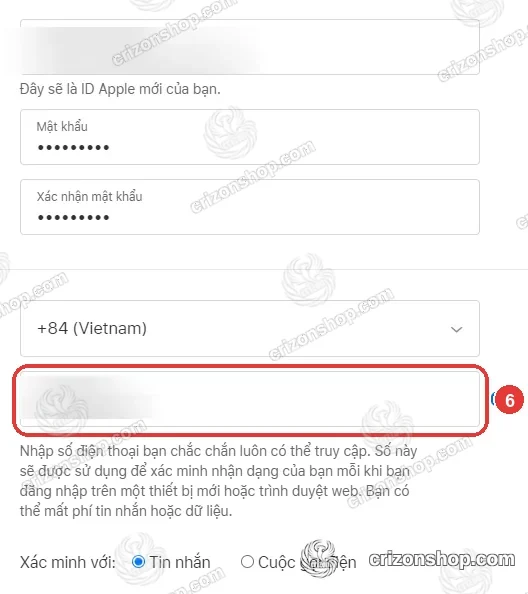
Enter your number in the Phone Number field. Choose Text message or Phone call to get the code.
If the page asks, type the characters shown in the image. Then click Continue.
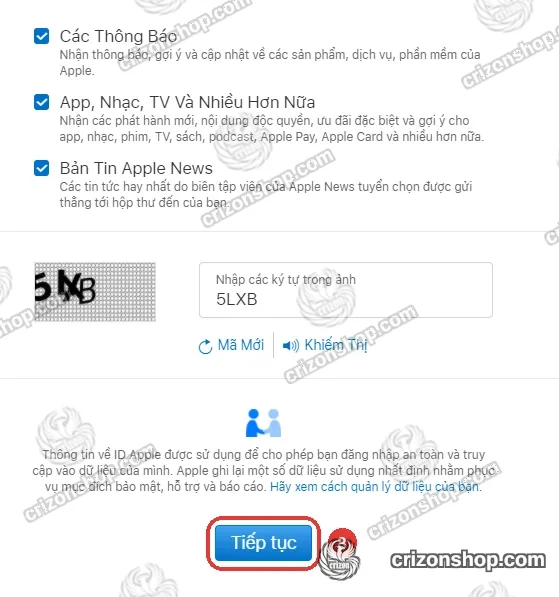
If asked, type the characters, then click Continue. Open your inbox, find the verification code Apple just sent, and enter it on the page.
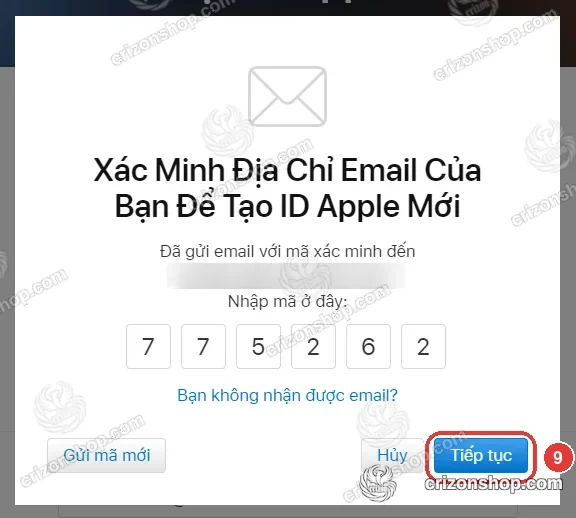
Enter the verification code, then click Continue. Enter the code sent to your phone and click Continue to finish.
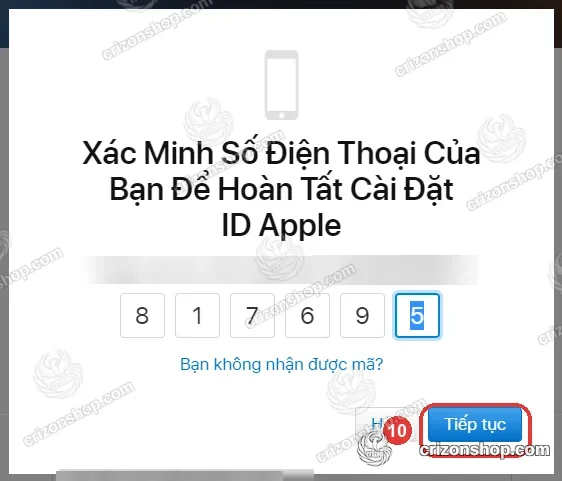
Enter the verification code, then click Continue.
Step 2. Sign in to the App Store with your new account on iPhone or iPad
On iPhone, you can use one account for iCloud and a different account for purchases. That means you only switch your App Store account. Your photos, contacts, and iCloud data stay on your current account.
Open Settings and tap your name at the top of the screen.
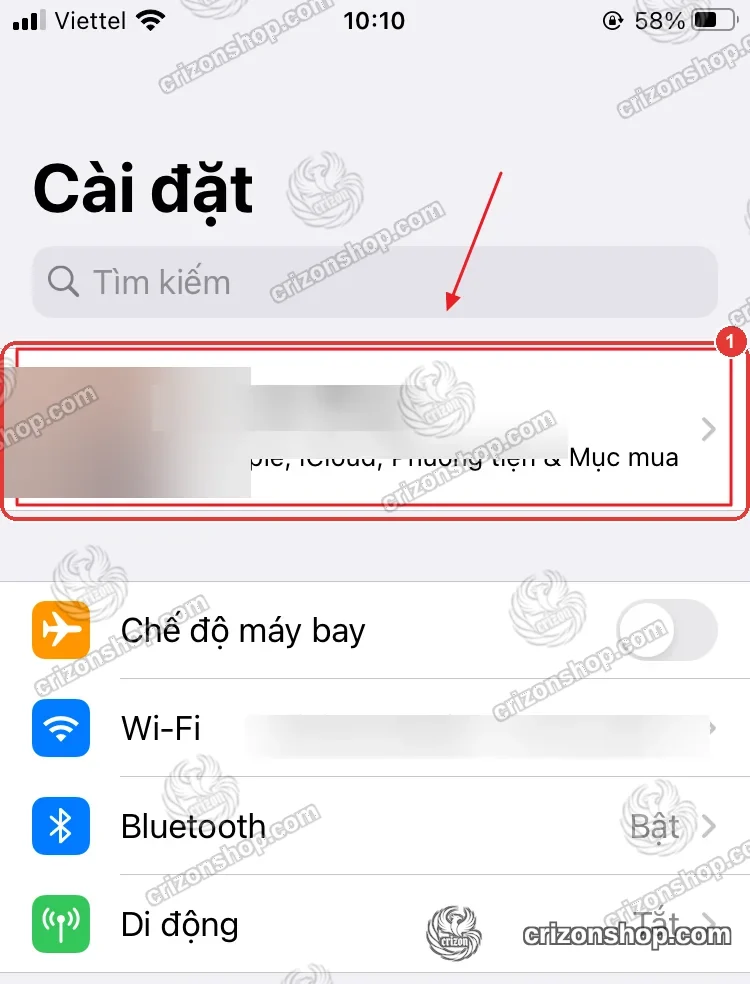
Tap the Apple ID, iCloud, Media & Purchases row in Settings. Tap Media & Purchases.
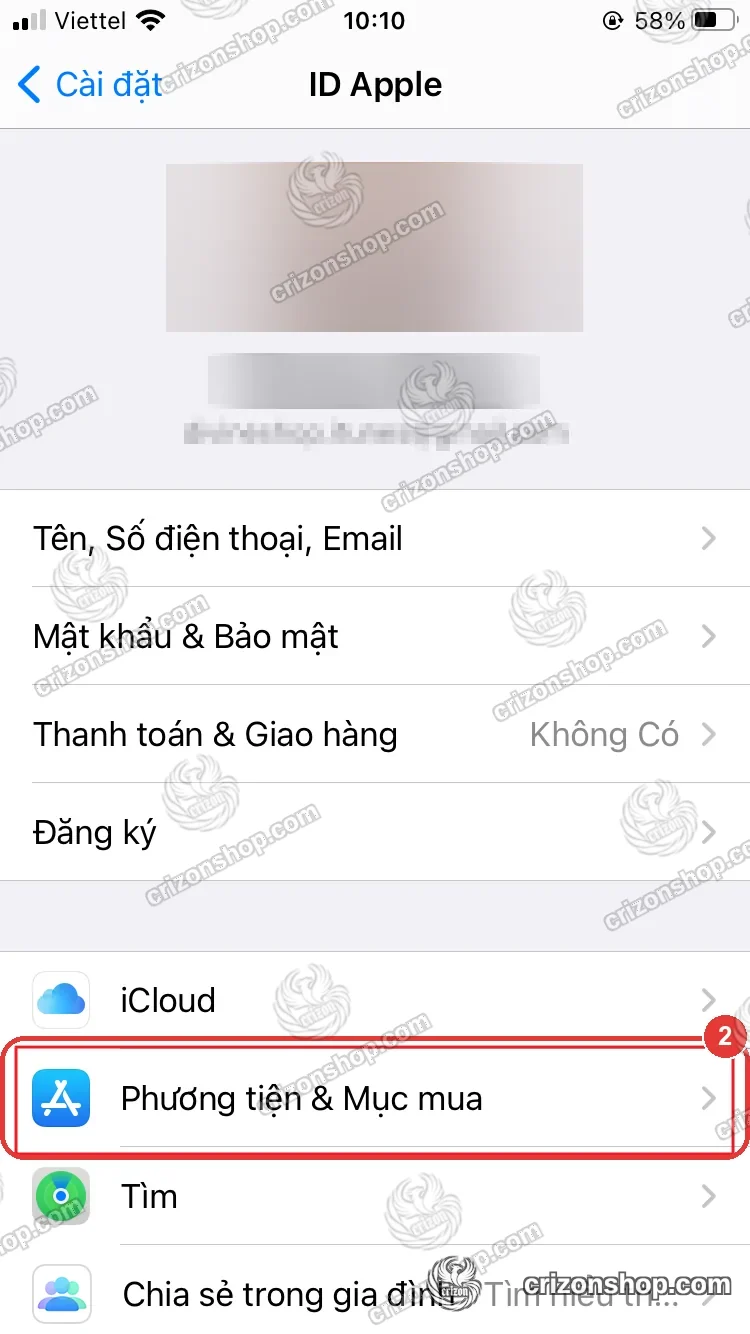
Tap Media & Purchases. Tap Sign Out in the menu that appears.
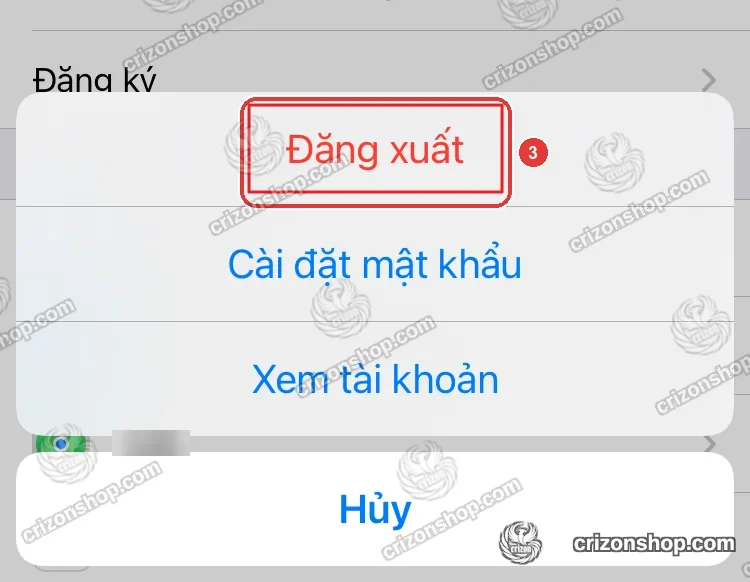
Tap Sign Out. Tap Media & Purchases again, then tap Not [your name]? 
Enter the email and password of the US account you just created.
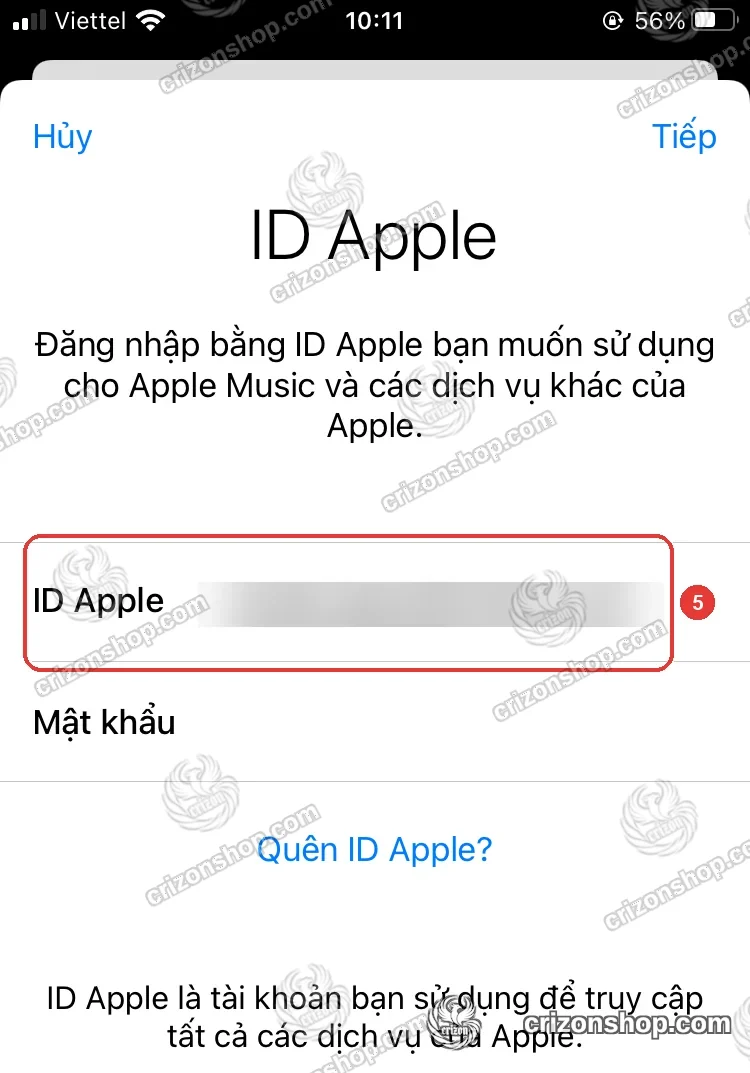
Enter your email in the Apple ID field. If asked, enter the verification code sent to your phone.
Step 3. Review your account the first time you download
Your new account has never been used with the App Store. So the first time you download an app, Apple asks you to accept the terms and enter billing information. Button names may differ depending on your device's language.
Open the App Store and find a free app you want to download.
Tap Get.
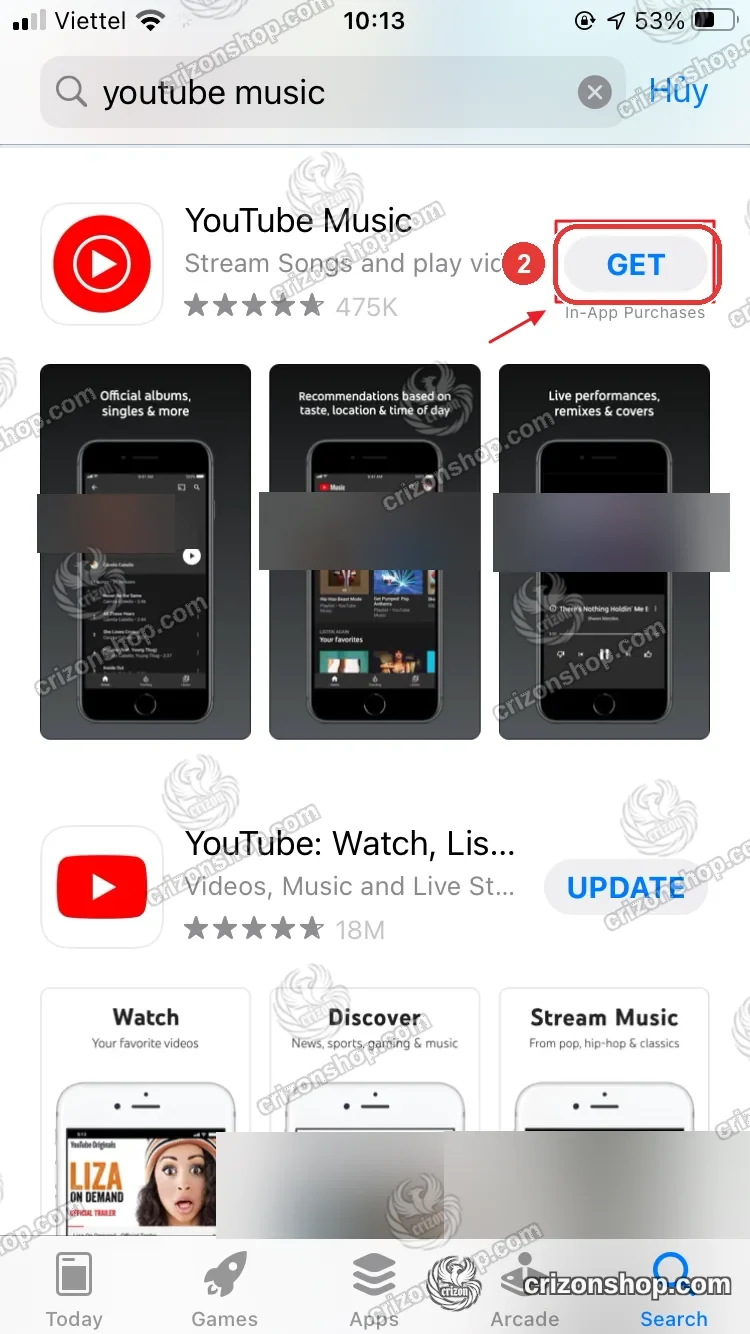
Tap GET to download YouTube Music. When a message says this account hasn't been used with the App Store, tap Review.
Read the terms, turn on Agree to Terms and Conditions, then tap Next.
Under payment method, choose None if you don't want to add a card yet.
Enter your name, a US billing address (street, city, state, ZIP code), and a phone number.
Tap Next to save your details.
Go back to the App Store and tap Get again to download the app.
You only see this review step on your first download. After that, you can download apps as usual.
Paying with a US account
If you only download free apps, None works fine. You won't be charged until you buy something. To buy a paid app or subscription, you can use any of the options below with a US account, according to Apple's list of payment methods.
| Method | Notes |
|---|---|
| Apple Account balance | Used before other methods when you buy |
| Apple Card, Apple Cash | Apple services in the US |
| Apple Pay | Uses the cards you've added to Wallet |
| Credit and debit cards | Most card types |
| PayPal | Link your PayPal account |
FAQ
No. You only sign out under Media & Purchases, so iCloud, Photos, Contacts, and Find My keep working with your original account. Your device signs out of iCloud only if you tap Sign Out at the bottom of your name page.
Repeat Step 2, but sign in with your Vietnamese Apple Account. Apps you downloaded with the US account stay on your device. When you update them, the App Store asks for the password of the account you used to download them.
No. Apple lets you choose None for payment and only charges you when you buy something. To buy paid apps, you need a valid payment method for the US.
Yes. Choose the +84 code before you enter your number. Apple uses this number to verify your identity and to recover your account if needed, so use a number you plan to keep.
Related guides
How to Redeem a US iTunes Code on iPhone, iPad, Mac, and Windows How to Join a Google Family Group by InvitationHow to Install and Activate an eSIM on iPhone and Android
Still need help?
Send your order code and we can sort it out faster.
