 Redfinger · Activate
How to Redeem a Redfinger Activation Code to Rent or Renew a Cloud Phone
Sign in to Redfinger on the web and click Redeem Code. To get a new device, choose Add New Cloud Phone. To add time to a device you already use, choose Renew Cloud Phone. Then enter the 12-character code.
This guide shows you how to redeem a Redfinger activation code on the web. You can use it to rent a new cloud phone or to add time to one you're already renting. Both are done from the same section. The only difference is which option you pick.
Before you enter the code
Sign in to Redfinger in your browser
Redfinger has an international version and a Vietnam version, and each one has its own website. Open the site for the version your code was issued for.
| Redfinger version | Sign-in page |
|---|---|
| International | cloudemulator.net/app |
| Vietnam | h5.cloudemulator.vn |
Open the Redfinger sign-in page in a browser on your computer or phone.
Sign in with your Redfinger account. If you don't have one, sign up for a new account. You can also sign in with Google if the page offers that option.
Once you reach the main screen, make sure this is the account you want to add the code to.
Open the Redeem Code section
On the main screen, click Redeem Code.
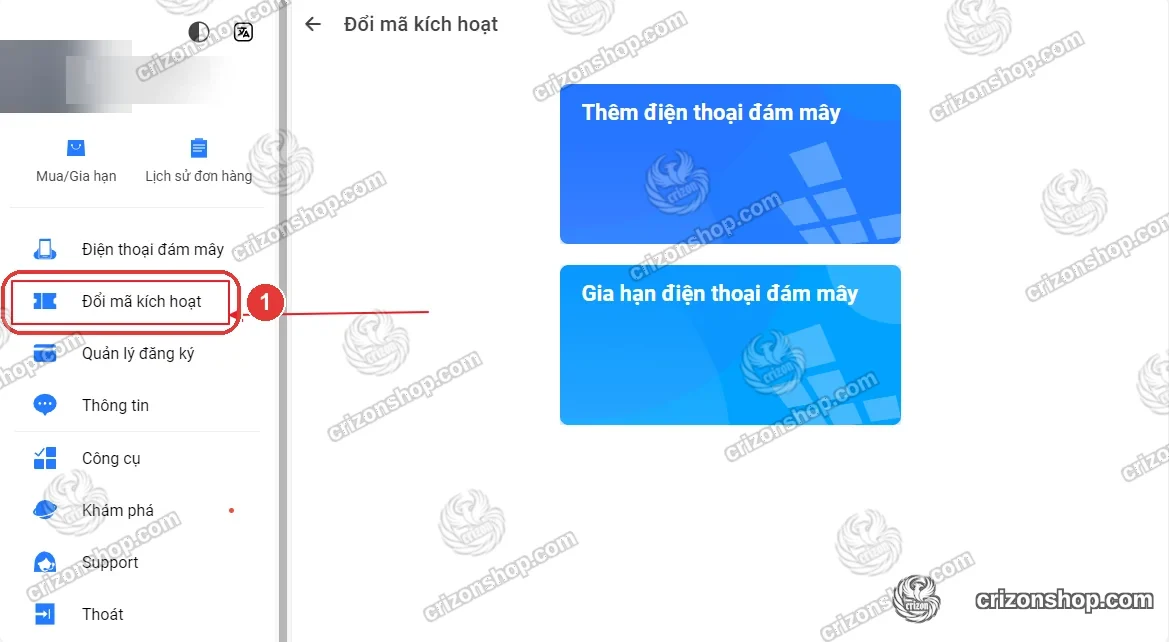
Click Redeem Code. You'll see two options: rent a new device or renew one you already have. Follow only one of the two sections below.
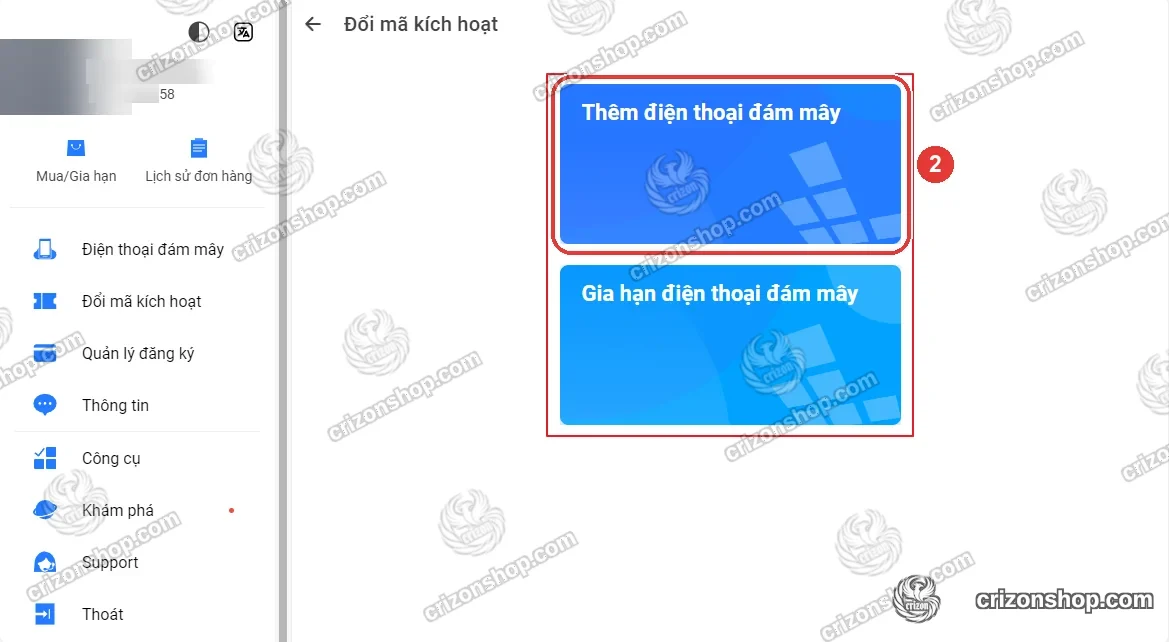
Click Add New Cloud Phone or Renew Cloud Phone.
Rent a new cloud phone
Select Add New Cloud Phone.
Enter the 12-character activation code in the field.
Click Next Step to redeem the code.
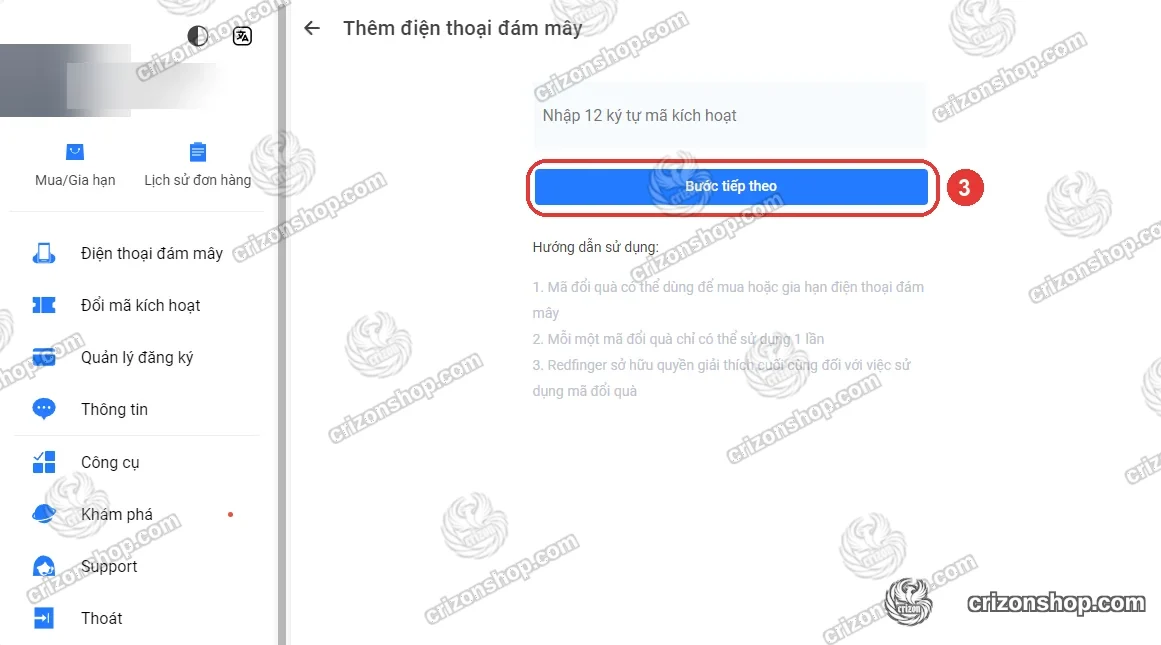
Click Next Step to redeem the code.
Renew a cloud phone you're already renting
Select Renew Cloud Phone.
From the list, pick the device you want to add time to.
Enter the 12-character activation code.
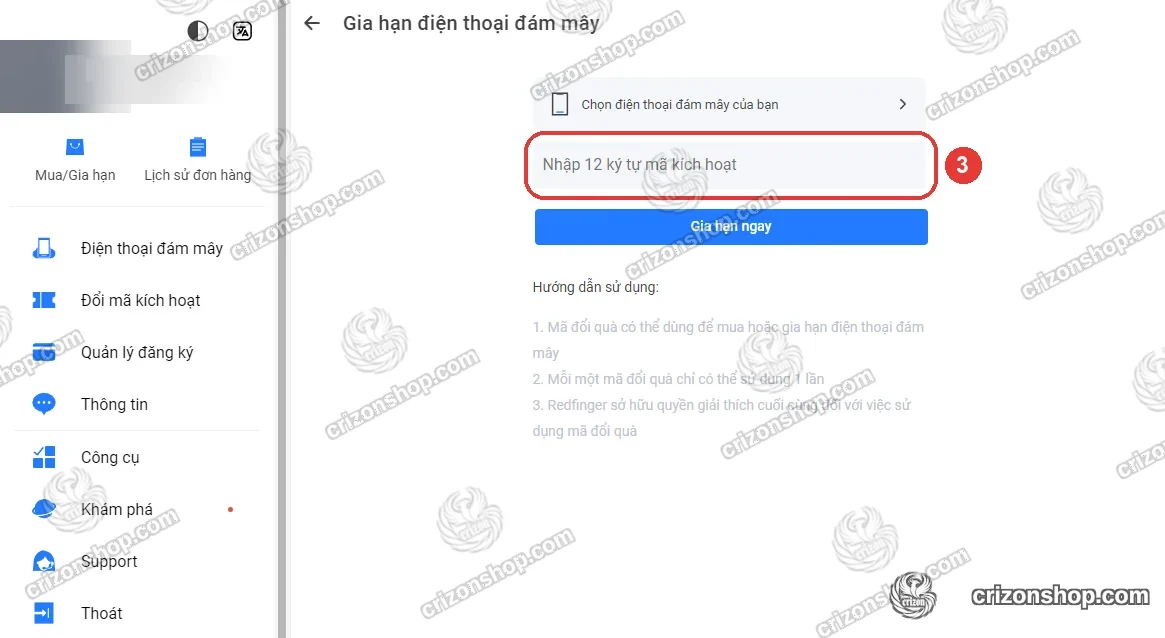
Enter the code in the 12-character activation code field. Click Next Step to finish.
Check your device after redeeming
Go back to your cloud phone list.
Click Refresh so the time syncs right away.
Check that the new device appears in the list. If you renewed, check that the device's expiry date has been extended.
For Redfinger's own instructions, see Redfinger's guide to using a Redeem Code on the web.
If the code returns an error
- Retype the code carefully. Watch for look-alike characters such as the number 0 and the letter O, or the number 1 and the letter I. If you paste the code, remove any extra spaces at the start or end.
- Make sure you're on the Redfinger version the code was issued for (international or Vietnam).
- If the system says the code has already been used, it may have been redeemed earlier. Before you contact the seller, check the device list in every Redfinger account you've ever signed in to.
- If it still doesn't work, contact Redfinger support and include a screenshot of the error message.
Frequently asked questions
A redeemed code can't be used again. The time now belongs to the new device that was just created. You can still use that new device as normal. If you need the time moved to your old device, contact Redfinger support and ask them to look into it.
You're probably signed in to the wrong account or the wrong Redfinger version. Sign out, sign back in with the account that has that device, and try again.
Go back to the device list and refresh it. According to Redfinger, this makes the time sync right away. If you still don't see the change, reload the page or sign in again.
Yes. The Redfinger Android app also has a section for redeeming codes. Like the web version, it lets you rent a new device or renew one you already have. Devices rented with a code show up in the same account, whether you sign in on the web or in the app.
Related guides
How to Activate IObit Driver Booster PRO with a License Code How to Leave a Microsoft 365 Family Group
 How to Enter a Product Key to Activate Windows 10 and Windows 11
Still need help?
Send your order code and we can sort it out faster.
