 Windows · Activate
How to Enter a Product Key to Activate Windows 10 and Windows 11
On Windows 11, go to Settings › System › Activation, select Change next to Change product key, paste your 25-character key, then select Next and Activate. On Windows 10, go to Update & Security › Activation.
This guide shows you how to enter a product key bought from CrizonShop to activate Windows 10 or Windows 11. It also covers how to check your Windows edition before you enter the key, and what to do if Windows won't accept it.
Before you enter the key
Check whether your PC runs Home or Pro
Right-click the Start button and select Settings.
Select System, scroll to the bottom, and select About.
Under Windows specifications, check the Edition line to see whether your PC runs Home or Pro.
| Your PC runs | Key to use |
|---|---|
| Windows 10 Home or Windows 11 Home | Windows 10/11 Home OEM key |
| Windows 10 Pro or Windows 11 Pro | Windows 10/11 Pro key |
Get your key from your order
Sign in to your account at crizonshop.com.
Go to Account › My orders and open the details of your Windows key order.
Copy the 25-character key shown in the order details.
Your key is delivered to the order details within 24 hours of payment. The order details also include a Guide section with screenshots you can check anytime. The key is made up of 5 groups of 5 characters separated by hyphens, like the example below.
XXXXX-XXXXX-XXXXX-XXXXX-XXXXXEnter the key on Windows 11 or Windows 10
The way to the Activation page is slightly different on each version, so follow the tab that matches your PC.
Select Start, then select Settings.
Select System, then select Activation.
If you see Upgrade your edition of Windows, select it to expand it.
Next to Change product key, select Change.
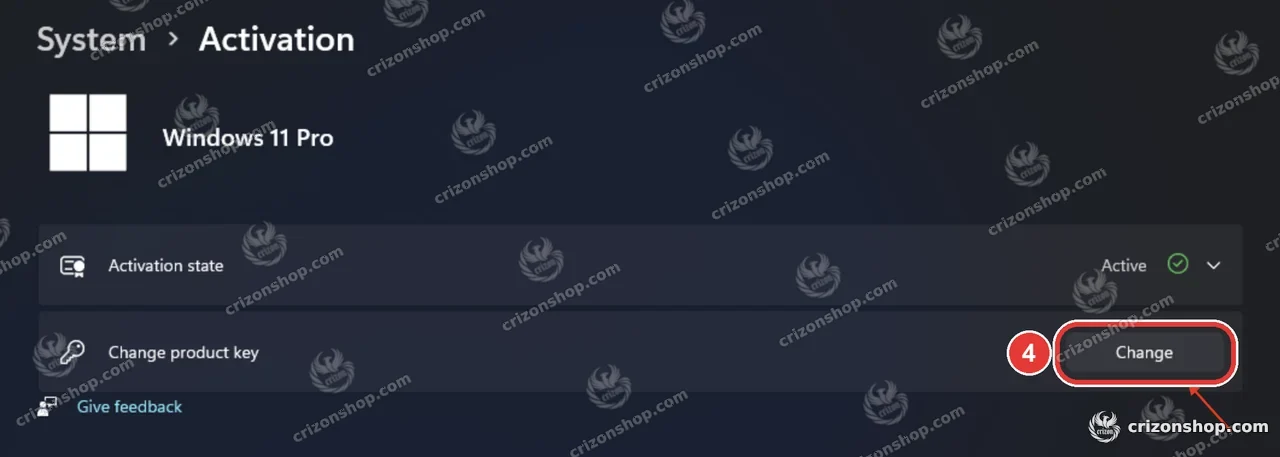
Select “Change” (Change product key) to change your product key. When the User Account Control prompt appears, select Yes.
Paste the key into the Product key box and select Next.
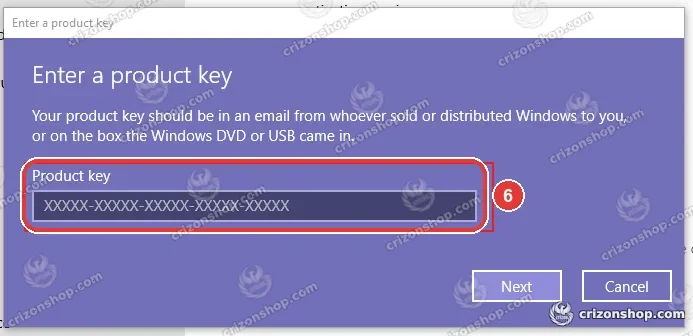
Paste the key into the “Product key” box, then select “Next”. Select Activate so Windows can activate online.
Select Start, then select Settings.
Select Update & Security, then select Activation in the left pane.
Select Change product key.
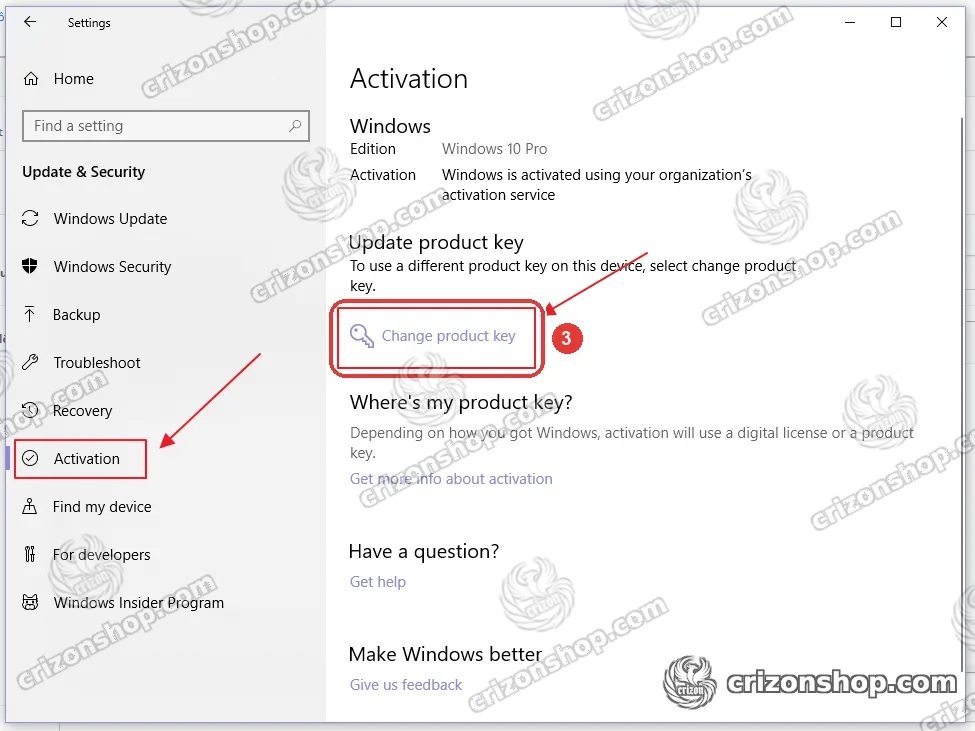
Select “Change product key”. When the User Account Control prompt appears, select Yes.
Paste the key into the box and select Next.
Select Activate to finish.
These steps follow Microsoft's official guide to activating Windows.
Check that Windows is activated
After you select Activate, open the Activation page in Settings again. On Windows 11, if Activation state shows Active, your PC is activated. On Windows 10, the page will say that Windows is activated.
If Windows won't accept the key
Most rejected keys come down to a key that doesn't match the Windows edition, or a PC that isn't online. Try these steps in order before you report a problem.
Check the Edition line in Settings › System › About again and compare it with the type of key you bought.
Make sure your PC is connected to the internet and its date and time are correct.
Update Windows in Settings › Windows Update (on Windows 10, Update & Security › Windows Update), select Check for updates, then enter the key again.
On Windows 11, go to Settings › System › Activation and select Troubleshoot to let Windows find activation problems automatically.
If it still doesn't work, open your order in Account › My orders, select Report a problem, and attach a screenshot of the error message, including the error code if Windows shows one.
Frequently asked questions
It might. Microsoft says that after a major hardware change, such as replacing the motherboard, Windows can no longer find a license that matches your device, and you'll need to reactivate it. OEM keys are tied to one device and can't be moved to another PC by default, so message Chat with Support before you replace the motherboard. You can also read Microsoft's guide to reactivating Windows after a hardware change.
According to Microsoft, if your PC already has a digital license, you can select I don't have a product key during reinstallation, and Windows will activate automatically once it's online after setup. You need to reinstall the same edition as before, Home or Pro. If Windows doesn't activate on its own, enter the key again using the steps above, or select Report a problem in your order.
Each key activates only one PC. If you have another laptop or PC at home, each one needs its own key that matches the Windows edition installed on it.
Go to Settings › System › About and look under Windows specifications. The Edition line shows the full name, such as Windows 11 Home or Windows 10 Pro. For more details, see Microsoft's page on finding your Windows device information.
Related guides
How to Download Genuine Windows and Office Installers from MicrosoftHow to Reinstall Windows Without a USB Drive or DVDHow to Activate IObit Driver Booster PRO with a License CodeStill need help?
Send your order code and we can sort it out faster.
