 Windows · Set up
How to Download Genuine Windows and Office Installers from Microsoft
You can download genuine Windows 11, Windows 10 and Office installers for free from Microsoft. This guide shows how to get the ISO file, create a USB installer, download Office and activate Windows with a key.
This guide shows how to download Windows 11, Windows 10 and Office installers directly from Microsoft's servers. You don't need third-party tools or links shared online. At the end, you'll learn how to install the right edition and enter a key to activate Windows.
Why download from Microsoft
Nobody can promise that Windows or Office files reposted on forums or file-sharing sites are untouched. Some have been modified, and some come bundled with malware. When you download from Microsoft, you get the original files and don't have to buy a premium account for faster downloads. Microsoft also publishes checksums so you can verify the file after downloading.
The installer is free to download. To keep using Windows long term, you still need a valid key or license to activate it after installation.
Choose the right download option
| What you need | Where to go on Microsoft's site |
|---|---|
| Upgrade a PC already running Windows 10 (version 2004 or later) to Windows 11 right away | Windows 11 Installation Assistant |
| Create a USB drive to clean install or reinstall Windows 11 | Create Windows 11 Installation Media |
| Get an ISO file to make your own USB drive or install in a virtual machine | Download Windows 11 Disk Image (ISO) for x64 devices |
| Install Windows 10 | Media Creation Tool on the Windows 10 download page |
| Install Office | The Microsoft 365 apps page, signed in with an account that has a license |
Download the Windows 11 ISO file
Open Microsoft's Download Windows 11 page.
Scroll down to Download Windows 11 Disk Image (ISO) for x64 devices.
In the Select an edition from the drop down menu box, choose Windows 11 (multi-edition ISO for x64 devices).
Click the download button right below that box.
Under Select the product language, pick a language and click Confirm.
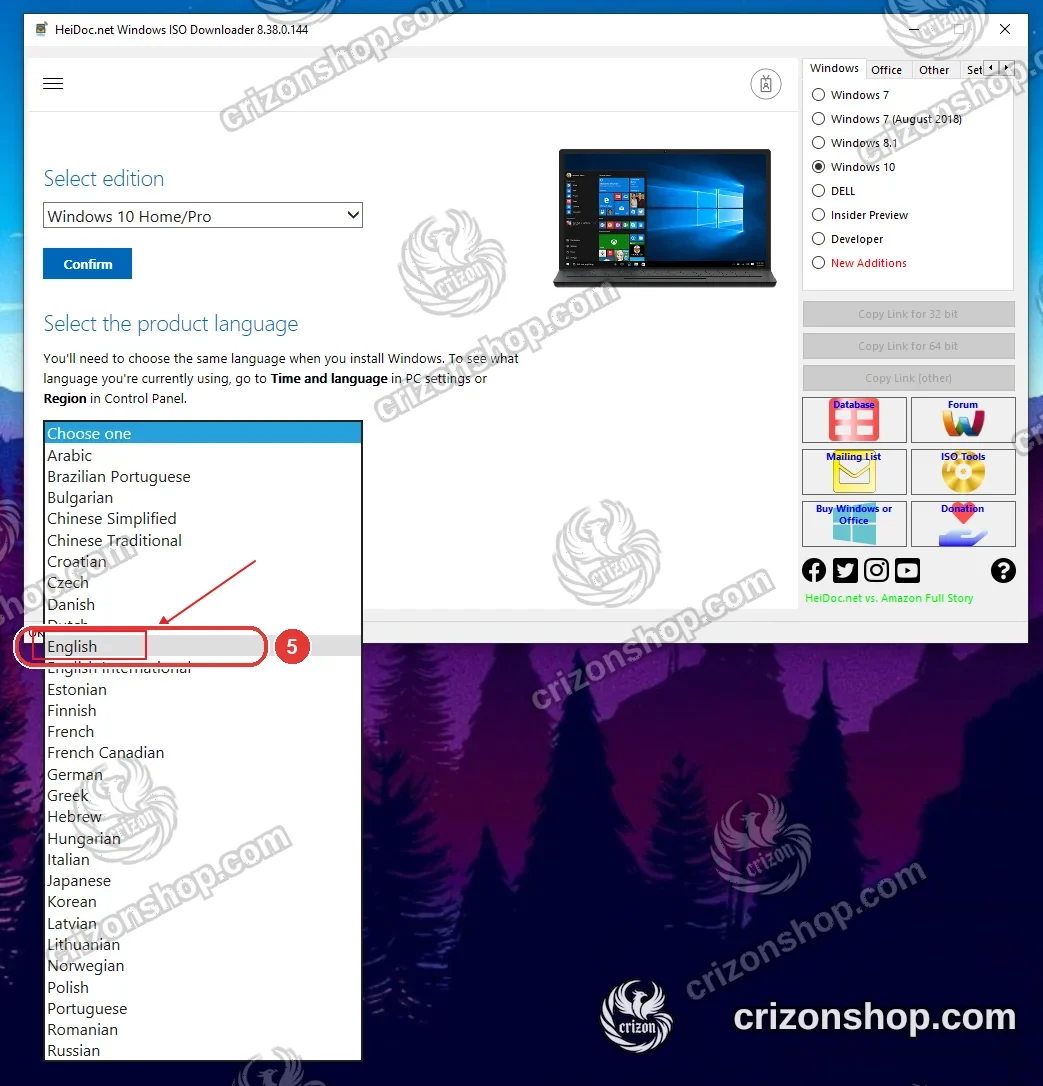
Choose “English” under Select the product language. Click 64-bit Download to start the download in your browser.
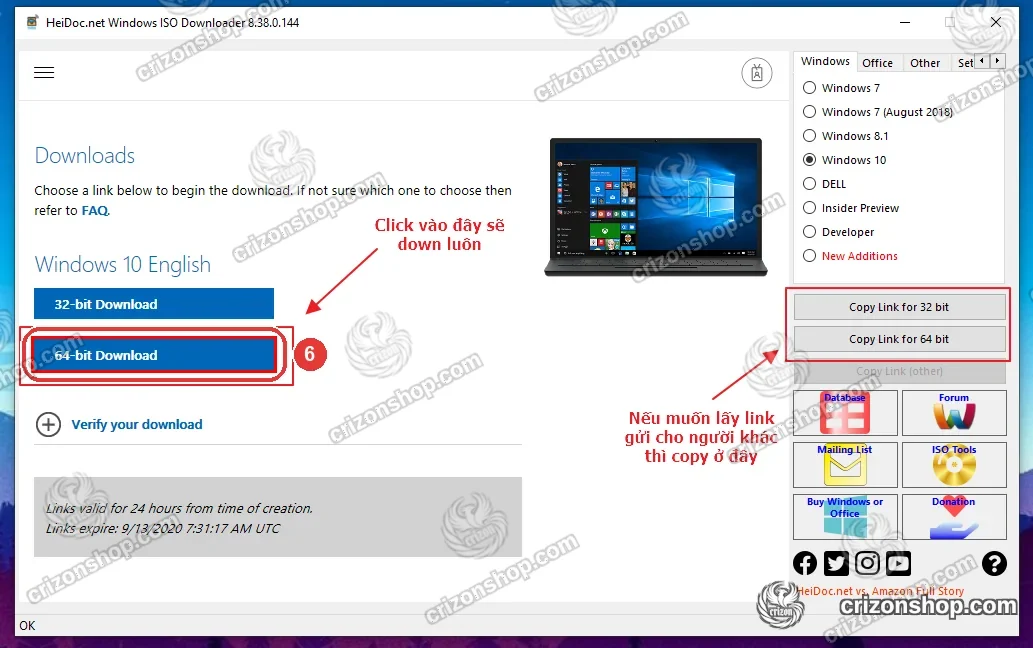
Click “64-bit Download” to start downloading the file. Wait for your browser to finish downloading the ISO file.
Verify the file after downloading
The Windows 11 download page lists a SHA256 hash for each language. Open PowerShell and run the command below. Replace the path with the location of the ISO file on your PC.
Get-FileHash "D:\Downloads\Windows11.iso" -Algorithm SHA256Compare the value in the Hash column with the SHA256 hash listed on Microsoft's page for the language you chose. If they match, the file is intact. It wasn't corrupted or changed during the download.
Create a Windows 11 USB installer with Media Creation Tool
Use this method to clean install or reinstall Windows on another PC. You need a blank USB drive of at least 8 GB, a stable internet connection and admin rights on the PC you're using.
On the Download Windows 11 page, under Create Windows 11 Installation Media, click Download Now.
Open the downloaded file and choose Yes when Windows asks for admin permission.
Read the license terms and click Accept.
If the tool asks what you want to do, choose Create installation media for another PC and click Next.
Choose the language, edition and 64-bit architecture, then click Next.
Choose USB flash drive to write the installer straight to the USB drive, or ISO file if you only want to save an ISO file.
Select the correct USB drive, click Next and wait for the tool to finish downloading and writing.
When it's done, plug the USB drive into the PC you want to install on and boot from the USB drive. Then follow the steps in Windows Setup.
Download Windows 10
If you still need Windows 10, for example because your PC can't run Windows 11, create the installer like this:
Open Microsoft's Download Windows 10 page.
In the section for creating installation media, click Download Now to get Media Creation Tool.
Open the tool, choose Yes when Windows asks for permission, then click Accept.
Choose Create installation media (USB flash drive, DVD, or ISO file) for another PC and click Next.
Choose the language, edition and architecture. Most PCs today use 64-bit (x64).
Choose USB flash drive or ISO file, then wait for the tool to finish.
Install the right edition to activate with your key
The Windows 11 ISO contains several editions. Setup uses the key you enter to unlock the matching edition. If you enter your key during setup, Windows automatically picks the edition that matches it. If you click I don't have a product key and enter it later, Setup lets you choose an edition. Pick Home or Pro to match the key you have.
Enter your key after installation
If you bought your key from CrizonShop, you'll find it under Account → My orders on crizonshop.com. Open the order details and click the copy button next to the key. Then follow the steps for your version of Windows.
Open Settings › System › Activation.
Select Change product key.
Paste your 25-character key and follow the on-screen instructions.
Open Settings › Update & Security › Activation.
Select Change product key.
Paste your 25-character key and follow the on-screen instructions.
Your PC should be online during activation. If Windows shows an error when you enter the key, click Report a problem on the product in your order, or contact us through Chat with Support in the corner of the screen. Microsoft's Activate Windows page also explains what each activation status means.
Download genuine Office
To get the genuine Office installer, download it from the Microsoft account that has your Microsoft 365 subscription or retail Office 2024 license. These steps are for Windows PCs.
If you have a retail Office key, go to microsoft365.com/setup, sign in with your Microsoft account and enter the key. You only need to do this once for each key.
Open m365.cloud.microsoft/apps and sign in with the Microsoft account that has the license.
Select Install apps, then select Install.
Open the downloaded setup file and choose Yes when Windows asks for permission.
Wait until you see You're all set! Office is installed now.
Frequently asked questions
The ISO file and Media Creation Tool are free to download. You can install Windows without a key by choosing I don't have a product key. To activate it and use it long term, though, you need a valid key or license for the right edition.
The ISO download link only works for 24 hours after it's created. Go back to the Download Windows 11 page and choose the edition and language again to get a new link. Then start the download again.
According to Microsoft, if your PC already has a digital license and you reinstall the same edition, Windows activates automatically once the PC is online after setup. If it still says Windows isn't activated, click Report a problem on the product in your order to get help.
Related guides
How to Enter a Product Key to Activate Windows 10 and Windows 11How to Reinstall Windows Without a USB Drive or DVDHow to Activate IObit Driver Booster PRO with a License CodeStill need help?
Send your order code and we can sort it out faster.
