 Shapr3D · Sign in
How to Log In to Your Shapr3D Account on the Web and in the App
To log in to Shapr3D, go to app.shapr3d.com or open the app. Enter your email and click Continue, then enter your password and click Log In. The old account.shapr3d.com address now redirects here.
This guide shows you how to log in to your own Shapr3D account in a browser and in the app. At the end, you'll find out how to reset a forgotten password and what to try when the app won't accept your login.
Log in from a browser
Open app.shapr3d.com in a browser on your computer or tablet.
Enter the email address for your Shapr3D account and click Continue.
Enter your password on the next screen.
Click Log In to open your account management page.
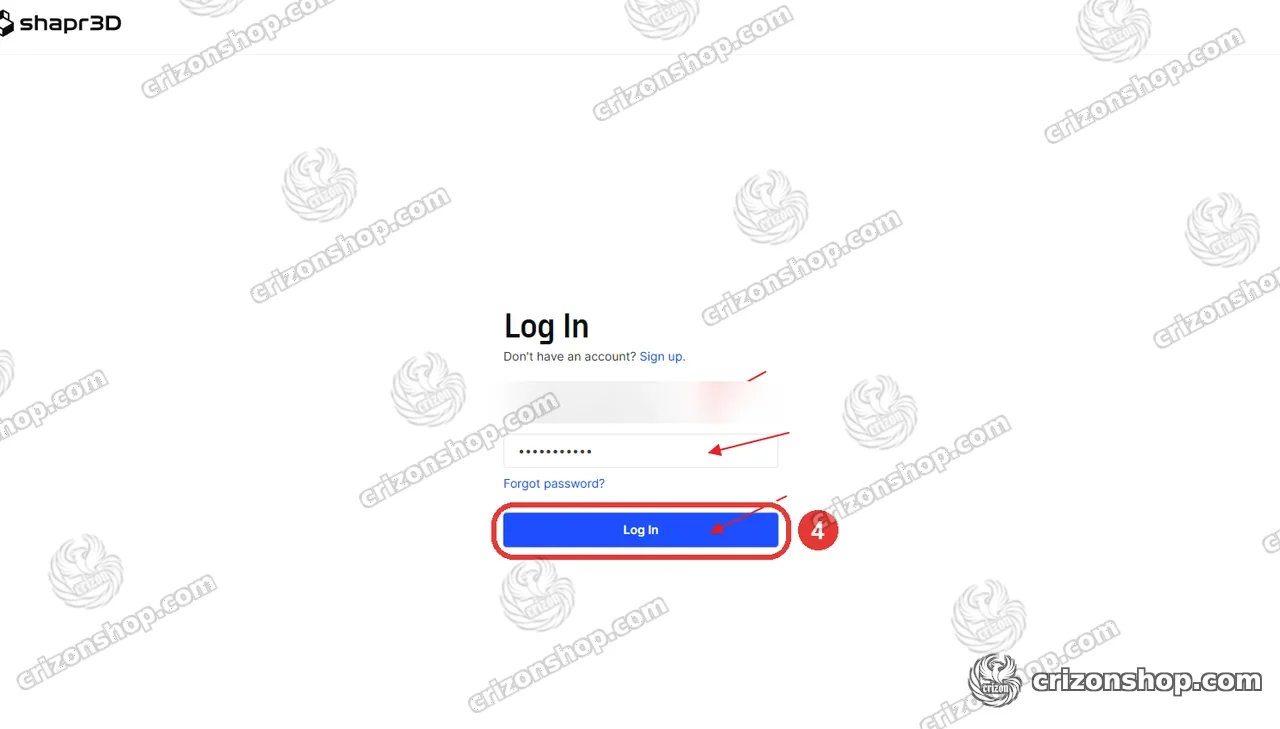
Click Log In to open your account management page.
Log in to the Shapr3D app
Logging in to the app works the same way on iPad, Mac, and Windows.
Open the Shapr3D app.
Select Log In on the welcome screen.
Enter your email and select Continue.
Enter your password and select Log In.
Log in with your organization account (SSO)
If your company or school uses single sign-on (SSO), you still start from the same screen.
Go to app.shapr3d.com or select Log In in the app.
Enter the email your organization gave you and click Continue.
Shapr3D redirects you to the sign-in page of the system your organization uses.
Sign in on that page, then click Log In to return to Shapr3D.
Reset a forgotten password
On the login page, click Forgot password?.
Click Send Reset Link so Shapr3D sends you a password reset email.
Open the email from Shapr3D and click Reset password.
Set a new password on the page that opens, then log in again.
Shapr3D's official instructions are on the Reset your Shapr3D account password page.
The Windows app won't accept your login
A common problem: you finish logging in in the browser, but Shapr3D keeps going back to the login screen. Try the steps below one at a time.
Frequently asked questions
Shapr3D moved account management to app.shapr3d.com, so the old address redirects automatically. This is normal. Just log in on the new page using the steps above.
Check that you logged in with the same email you used to buy the plan, because each email is a separate account. Then open the account management page at app.shapr3d.com to view your account details. If you still don't see the plan, send a request to Shapr3D support and include your account email.
SSO passwords are usually managed by your company's or school's IT department, not by Shapr3D. If you forget this type of password, contact your organization's IT department.
You need to create an account before you can log in. Shapr3D's Create a Shapr3D account article walks you through the steps.
Related guides
 How to Activate a GRFX Studio Key for Corel PaintShop Pro
 How to Activate Adobe Acrobat Classic with a Serial Number
 How to Accept Your Canva Pro Invitation and Check Your Upgrade
Still need help?
Send your order code and we can sort it out faster.
