 Notion · Sign in
How to Log In to Notion on Your Computer and Phone
Open notion.com/login or the Notion app, then log in with Google, Apple, or Microsoft, or enter your email to get a verification code. Password login only works if you've already set a password.
This guide shows you how to log in to your Notion account in a browser, in the desktop app, and on your phone. Notion has quite a few ways to log in. Pick the one that's tied to your account's email and you're in.
Choose the right login method
Every Notion account is tied to one email address. Whichever method you choose, it has to lead back to that exact email. That's how you get into the right account and see your existing pages.
| Login method | Works when |
|---|---|
| Your Notion account email matches your Google email | |
| Apple | Your Notion account email matches your Apple ID email |
| Microsoft | Your Notion account email matches your Outlook or Microsoft email |
| Email with verification code | You can open the inbox for your account email |
| Email with password | You've already set a password in Notion |
| Passkey | You've created a passkey in your account settings |
| SSO | Your company workspace is on the Business or Enterprise plan and an admin has turned on SSO |
Open the Notion login screen
Open any browser and go to notion.com/login.
The login screen appears, with quick login buttons and an email field.
Go to notion.com/desktop.
Click Download for Windows or Download for macOS, depending on your computer.
Open the downloaded file and follow the installation steps on screen.
Open the Notion app. The login screen will appear.
Open the App Store on iPhone or iPad, or Google Play on Android.
Search for Notion and install the Notion app. It's free.
Open the app to get to the login screen.
Log in with Google, Apple, or Microsoft
On the login screen, click Continue with Google.
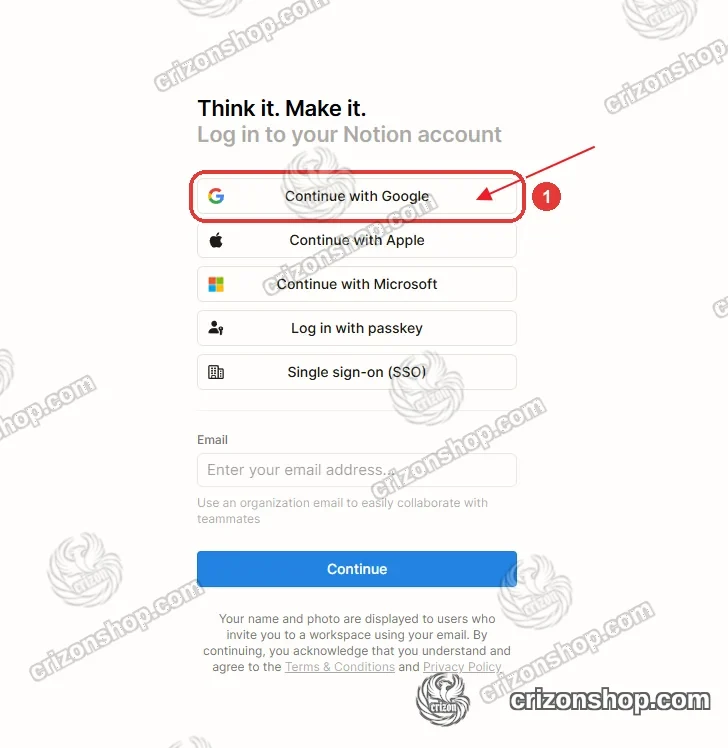
Click “Continue with Google” to log in. A Google window pops up. Pick a Google account that's already listed, or enter your Google email and password.
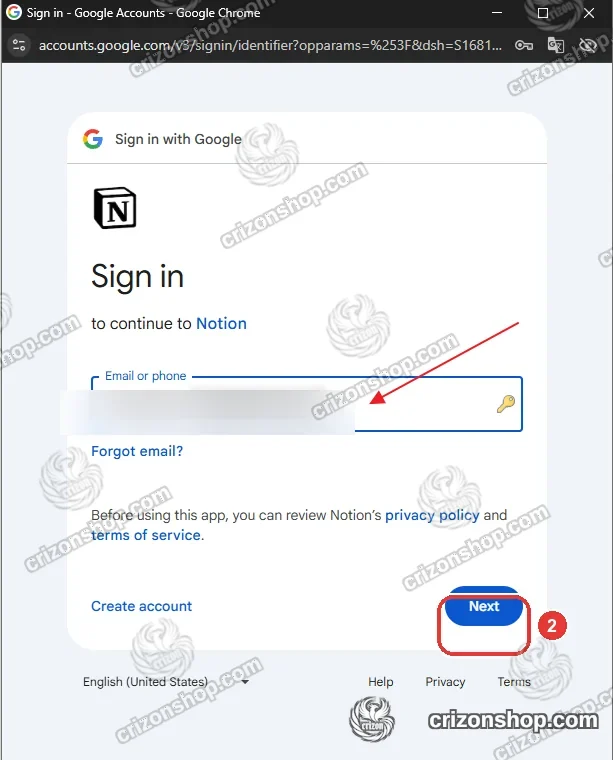
Pick an account or enter your email, then click “Next”. If your Google account has 2-Step Verification turned on, confirm on your phone or another device.
Once you've confirmed, Notion takes you straight into your workspace.
Apple
Click Continue with Apple on the login screen.
Sign in with your Apple ID. You can confirm with Face ID or Touch ID.
The first time you do this, choose Share My Email so Notion recognizes your existing account.
Microsoft
Click Continue with Microsoft, then sign in to your Outlook or Microsoft account. This only works if your Notion account email is that same Microsoft email.
Log in with your email
Get a verification code by email
This works for every account, even if you've never set a password.
Enter your Notion account email in the email field on the login screen.
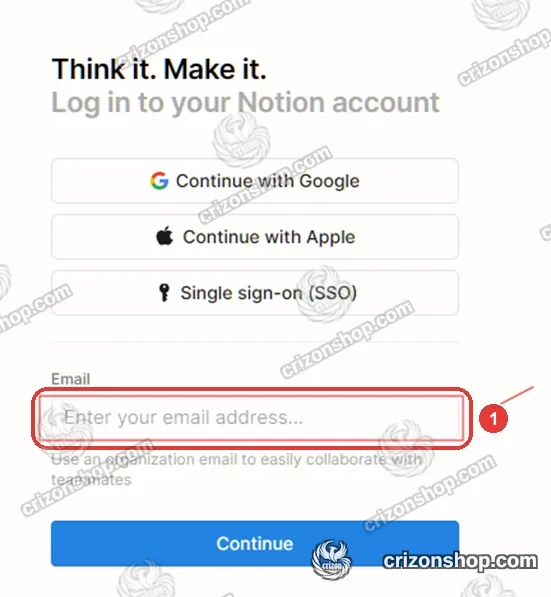
Type your email in the “Enter your email address...” field. Click Continue.
Open the inbox for that email, find the message Notion just sent, and copy the verification code.
Go back to Notion, paste the code into the code field, and click Continue to get into your account.
Use a password
Enter your account email in the email field and click Continue.
If your account has a password, a password field appears. Type your Notion password.
Click Continue with password.
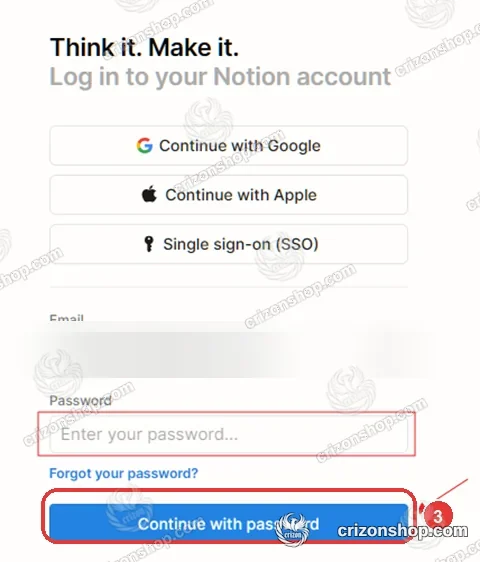
Click “Continue with password”. If Notion asks for another verification step, follow the prompts on screen to finish.
Log in with a passkey
A passkey is stored on your device and unlocked with Face ID, Touch ID, or your fingerprint. That makes it both faster and more secure than a password. You need to create a passkey before you can use it to log in.
On the web or in the desktop app, go to Settings and click your name. On your phone, go to Settings and find My settings.
Under Account security, choose Add passkey and pick where to save it, such as iCloud Keychain, your Chrome profile, or a password manager.
The next time you log in, click Continue with Passkey on the login screen.
Choose your saved passkey and confirm with biometrics. That's it.
Each account can have up to 5 passkeys. If your company requires you to log in through a system like Okta or Microsoft Azure, you won't be able to use passkeys.
Forgot your Notion password
Open notion.com/login in your browser.
Click Forgot password?.
Enter your account email and click Send reset link.
Open the email from Notion and click the link inside. It takes you to the settings in your workspace.
Set a new password and log in again.
Frequently asked questions
This usually happens when the Google email you just used isn't the email you signed up for Notion with, so you're in a different account. Log out, then log back in by entering your original email to get a verification code.
Password login may have been turned off for your account. Try getting a code sent to your Notion account email, or use a login method you've linked before, like Google, Apple, Microsoft, or a passkey.
If your account has a password, log in with it on the web or in the desktop app. Go to Settings, click your name, and choose Manage emails under Account security. Click Add email, enter your new email, choose Send verification code, and enter the code. Then open the ••• menu next to the new email and choose Make primary. If you've never set a password, you'll need to contact Notion's support team by following the steps on the Can't log in to Notion page.
Your account settings on the web or in the desktop app include a list of devices you're logged in on. Click Log out next to the device you want to log out of. Or click Log out of all devices to log out everywhere while staying logged in on the device you're using now. Learn more on the Log in & out of Notion page.
Related guides
How to Join a Notion Plus Workspace from an Email InviteHow to Activate IObit Driver Booster PRO with a License Code How to Leave a Microsoft 365 Family Group
Still need help?
Send your order code and we can sort it out faster.
