 Notion · Activate
How to Join a Notion Plus Workspace from an Email Invite
Open the invite email from Notion, click the join button, and log in with the exact email that was invited to get into the Plus workspace. The Plus plan only applies inside that workspace, not to your personal workspace.
This guide shows you how to accept an invite to a Notion workspace on the Plus plan with your own Notion account, then switch to that workspace to work in it. At the end, you'll find how to leave the workspace when you no longer need it.
Before you start
- You must log in to Notion with the same email address the invite was sent to.
- If the invited email doesn't have a Notion account yet, sign up with that email first, then join the workspace.
- You're added as a member. Members can see the workspace's shared areas, unlike guests, who only see a few pages shared with them.
Accept the invite and join the workspace
Open the inbox of the invited email address and find the email from Notion. It shows the name of the workspace that invited you.
Click the join button or link in the email. Depending on the email template, the button may say Join workspace or Accept invite.
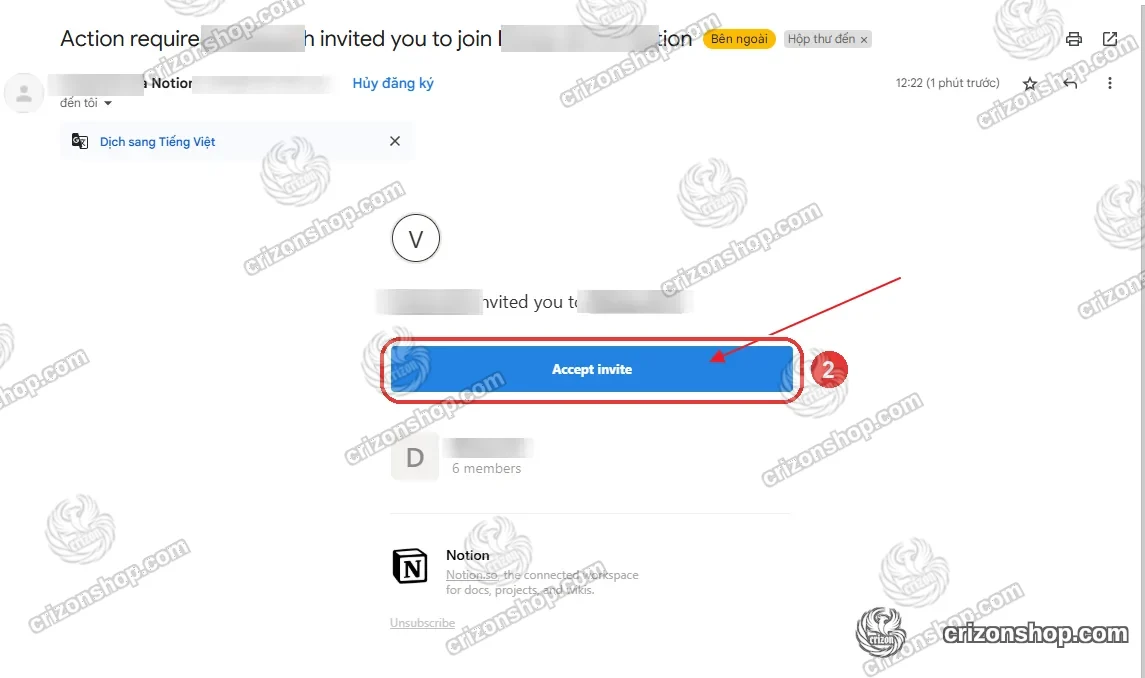
Click “Accept invite” (Join workspace) to join the workspace. When Notion opens the login page, enter the exact email that received the invite and follow the on-screen steps.
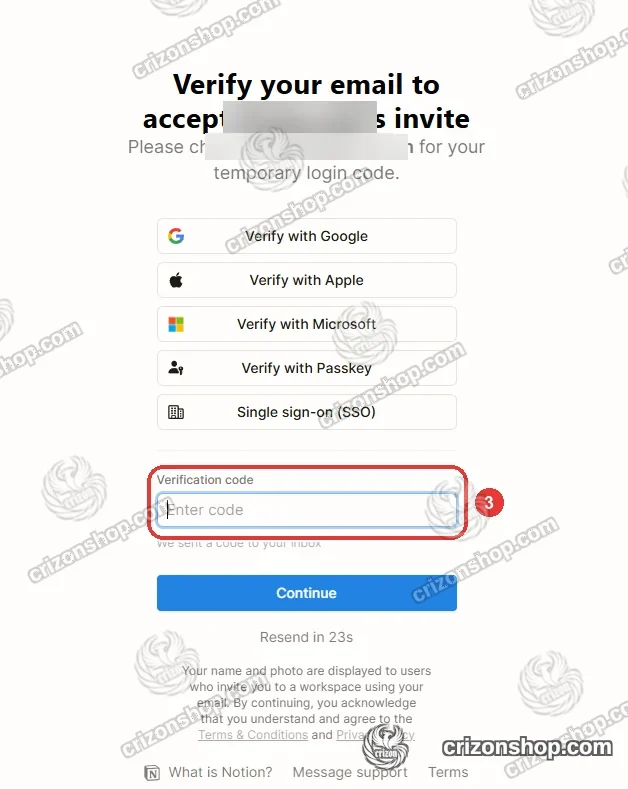
Enter the code in “Verification code”. If this email doesn't have a Notion account yet, finish signing up first. You can only get into the workspace after this step.
Check the sidebar to make sure the open workspace is the one that invited you.
Switch to the Plus workspace
One Notion account can be in several workspaces at once. After you join, you need to open the Plus workspace to use the plan's features.
Click the workspace name in the sidebar to open the list of workspaces.
Select the workspace you just joined.
To go back to your personal workspace, open the list again and select it.
On a computer, you can switch quickly with Ctrl + Shift + the workspace's position number in the list. For details, see Notion's guide to creating, joining, and leaving workspaces.
Leave the workspace when you're done
When you no longer need the Plus workspace, you can leave it yourself. The menu names below are from Notion's English interface.
Open the workspace you want to leave and click Settings in the sidebar.
Under Workspace, select General.
Scroll down to Danger zone and click Leave workspace.
Confirm to finish.
FAQ
No. Notion applies plans per workspace, so your personal workspace keeps its current plan. To use Plus features, switch to the workspace that invited you and work there.
This usually happens when you're logged in with a different email than the one that was invited. Log out of Notion, open the link in the email again, and log in with the right email. If that still doesn't work, ask the workspace admin to delete the old invite and send a new one.
Just click the link in the invite email. Notion will ask you to sign up with that same email. Once you've signed up, you're in the workspace as a member.
Not automatically. Your pages stay in that workspace, and you lose access as soon as you leave. Export important pages to a file or copy them to your personal workspace before you leave.
Related guides
How to Log In to Notion on Your Computer and PhoneHow to Activate IObit Driver Booster PRO with a License Code How to Leave a Microsoft 365 Family Group
Still need help?
Send your order code and we can sort it out faster.
