 Grammarly · Sign in
How to Log In to Grammarly Premium and Check Your Plan
Copy the email and password from your CrizonShop order and log in at grammarly.com/signin with those exact details. Then go to Account › Your account › Subscription to check your Premium plan.
This guide shows you how to find your Grammarly Premium account details in your CrizonShop order, log in on Grammarly's official site and check that your plan is active. Once you have the email and password, it only takes a few minutes.
Before you log in
Step 1. Get the email and password from your order
Log in to your account on crizonshop.com.
Go to Account, then select My orders.
Open the details of the order with your Grammarly Premium product.
Click the copy button in the email field.
Click the show-password icon if you want to see the password, then click the copy button in the password field.
Step 2. Log in on the Grammarly site
Open your browser and go to the login page at grammarly.com/signin. You can also go to grammarly.com and click Log in in the top-right corner.
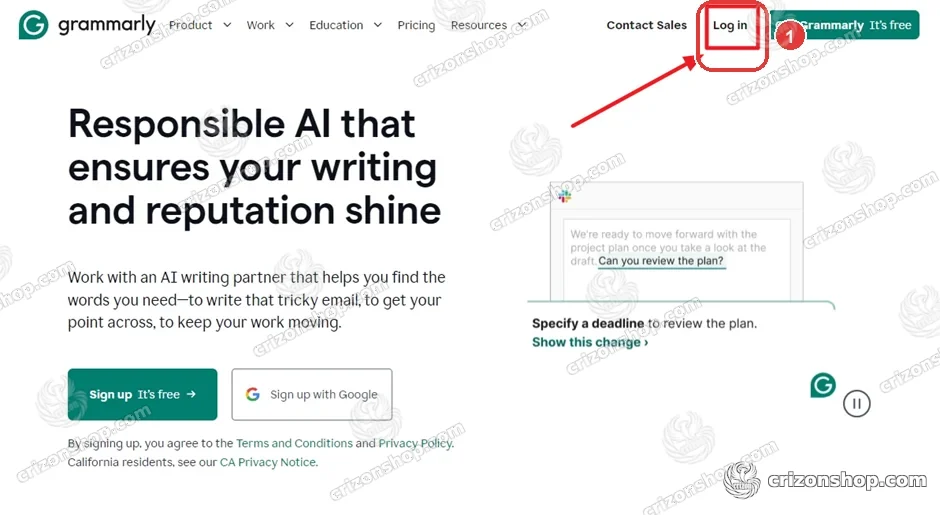
Click “Log in” to open the login page. Paste the email from your order into the email field.
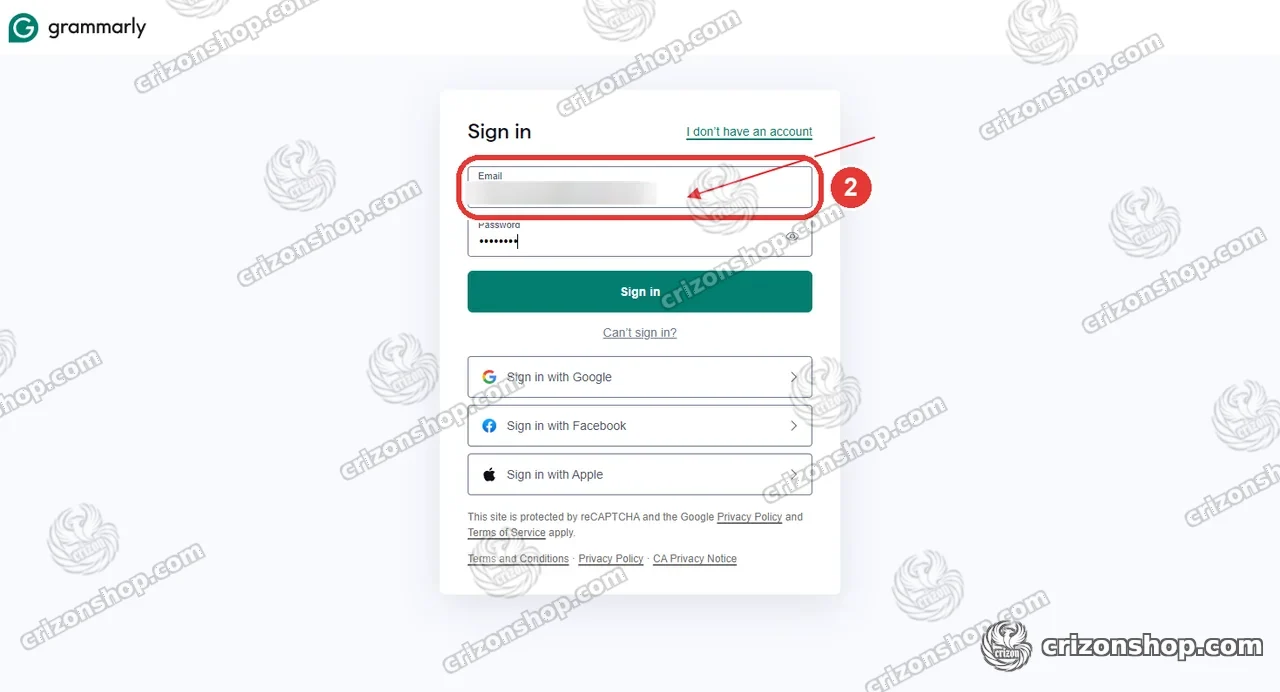
Paste the email from your order into the “Email” field. Paste the password into the password field.
Click Log in.
After you log in, Grammarly opens your documents page in Grammarly Editor. From there, you can create a new document and start writing in your browser.
Step 3. Check that Premium is active
Grammarly gives you two ways to see your current plan. You can use either one.
Option 1. Check the label in Grammarly Editor
Open app.grammarly.com.
Look at the label in the top-left corner of the screen. It shows which plan the account is on.
Option 2. Check the Subscription page
In the left sidebar in Grammarly, click the Account tab.
Select Your account, then select Subscription.
Check the plan name and the renewal date shown on the page.
Open a browser on your phone and log in to Grammarly as in Step 2.
Go directly to account.grammarly.com/subscription.
Check the plan name and the renewal date shown on the page.
Use Grammarly where you write
Once you're logged in, you can write and edit in Grammarly Editor in your browser. Want Grammarly suggestions directly in the apps and websites you use most? Install the Grammarly for Windows and Mac app or the Grammarly browser extension. Then log in with the same email and password from your order. Grammarly explains these options in Get started with Grammarly.
What to do if you can't log in
Grammarly suggests a few fixes in its I cannot log in article. Try the steps below in order.
Check the email and password again. Paste them from the order details instead of typing them.
Turn off your VPN, ad blocker and similar extensions, then try logging in again.
Clear your browser's cookies and cache, then open the login page again.
If you still can't log in, click Report a problem on the product in your order details. Include the exact error message Grammarly shows.
Frequently asked questions
The official login page is grammarly.com/signin. Before you paste your password, check that the domain in the address bar is grammarly.com. This keeps you from entering your details on a fake site.
No. Grammarly processes suggestions on its servers, so it always needs an internet connection. When you travel for work or study abroad, you can log in and use it just like at home, as long as your device is online.
No. This plan works on 1 device and can't be used on a second device at the same time. If you need to switch to another device, message Chat with Support first for instructions. Then log in on the new device.
Account details appear only after the order has been delivered. Check the order status in Account → My orders on crizonshop.com. If the delivery time shown on the product page has passed and you still don't see them, message Chat with Support in the corner of the screen.
Related guides
 How to Sign In to DataCamp and What to Do When You Can't Get In
 How to Log In to Your JetBrains Account on the Web and in the IDE
 How to Log In to Bookmate with Email or Google
Still need help?
Send your order code and we can sort it out faster.
