 Ginger · Sign in
How to Log In to Your Ginger Account on the Web, Desktop, and Phone
To log in to Ginger, open the Login to Ginger page or the Ginger extension or app. Then enter the email you used to sign up or buy Premium, along with your password.
This guide shows you how to log in to your Ginger account on the website, the browser extension, the desktop app, and your phone. The last section explains what to check if you bought Premium but your account still shows the free version.
Before you log in
Download Ginger from official sources
Ginger has a browser extension, a desktop app, and a mobile app. Download it from official sources so you don't end up with a fake copy or an old version that's no longer supported.
- For Windows, download it from the Ginger download page for Windows.
- For Mac, download it from the Ginger download page for Mac.
- The browser extension is on the Chrome Web Store (for Chrome) and the Safari Extension Gallery (for Safari).
- On your phone, search the App Store or Google Play for the Ginger app by Ginger Software.
Log in on the Ginger website
Open the Ginger login page. The page is titled Login to Ginger.
Enter the email for your Ginger account.
Enter your password.
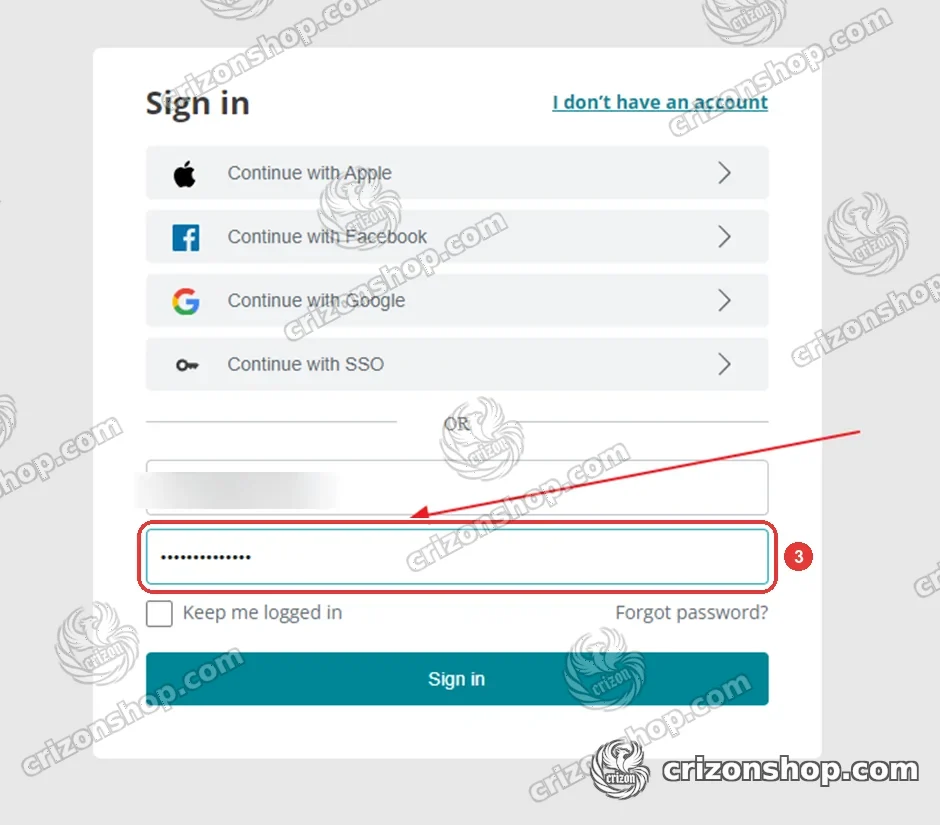
Enter your password in the highlighted field. Click Sign in to open your account.
Log in on the extension and apps
Install the Ginger extension from the Chrome Web Store or the Safari Extension Gallery.
When the installation finishes, Ginger opens a new window.
If you already have an account, click Log in in that window.
Log in with the email and password for your Ginger account.
Click the G icon on your browser toolbar to open Ginger and see more settings.
Install the Ginger app from the official download page in the section above.
Open the Ginger app.
Choose Log in instead of creating a new account.
Enter the same email and password you use on the web.
Install the Ginger app from the App Store or Google Play.
Open the app and choose to log in instead of signing up.
Enter the same email and password you used on the web or your computer.
You bought Premium but your account doesn't show it
Ginger says Premium bought on its website works on all your devices, including the browser extension, the desktop app, and the mobile app. If you've logged in and still don't see Premium, work through these steps in order.
Log out of Ginger on the device you're using.
Find the payment confirmation email in your inbox and check which email address was used for the purchase.
Log in again with that exact email.
Check your other devices and make sure they're all logged in with the same email.
If it still doesn't work, read Why isn't my account showing as premium after purchase? on Ginger's help site or contact Ginger support.
Frequently asked questions
Follow the article I can't remember my Ginger login details in Ginger's help center. If you don't remember which email you signed up with, search all your inboxes for emails from Ginger, especially the payment confirmation. Check your Spam folder too.
Yes. According to Ginger's support page, Premium bought through Ginger's online store also works in the mobile app. Just log in to the app with the same email you used to buy it.
Yes. Log in with the same account on the browser extension, the Windows or Mac app, and the mobile app. If one device shows the free version while another shows Premium, that device is almost certainly logged in with a different email.
Related guides
 How to Sign In to DataCamp and What to Do When You Can't Get In
 How to Log In to Your JetBrains Account on the Web and in the IDE
 How to Log In to Bookmate with Email or Google
Still need help?
Send your order code and we can sort it out faster.
