 Freepik · Sign in
How to Log In to Freepik After Its Rebrand to Magnific
Freepik is now called Magnific. Go to magnific.com, click Sign in, then choose Continue with email, Google or Apple and log in with your existing Freepik account.
In late April 2026, Freepik was renamed Magnific, and freepik.com now redirects to magnific.com. This guide shows you how to log back in to your existing Freepik account on the new site, reset a forgotten password, and get past a few common snags.
Check how you created your account
Before you log in, think back to how you first signed up for Freepik. Only that same method will take you to the account that holds your data and your plan.
| You signed up with | How to log in now |
|---|---|
| Email and password | Choose Continue with email, then enter your email and password |
| A Google account | Choose to sign in with Google |
| An Apple ID | Choose to sign in with Apple |
| Facebook login is no longer supported. Set a new password via I forgot my password, then log in with your email |
Log in with email and password
Open your browser and go to magnific.com. If you type freepik.com, you'll be redirected to the new address automatically.
Click Sign in at the top of the page.
Choose Continue with email.
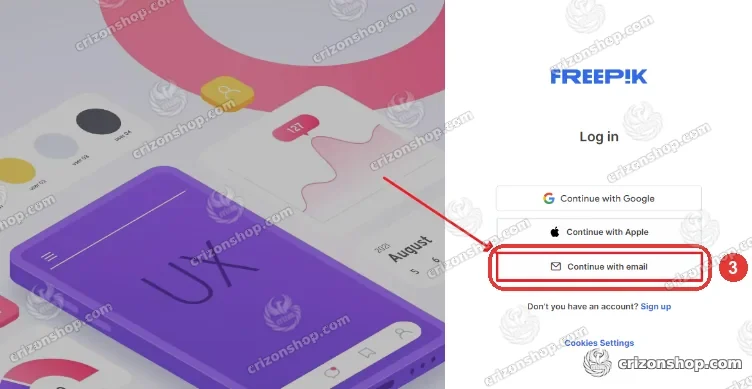
Click “Continue with email” to proceed. Enter the email and password for your Freepik account.
Click Log in just below the password field.
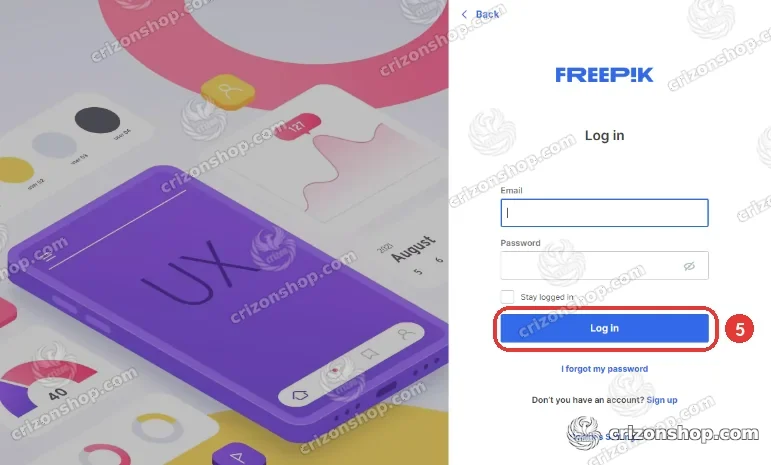
Click “Log in”. If you're asked for extra verification, follow the on-screen steps to finish.
Log in with Google or Apple
Go to magnific.com and click Sign in.
Choose Google or Apple, depending on what you used to create your account.
In the pop-up window, pick the Google account or Apple ID linked to your Freepik account.
Confirm access. You'll be taken back to the site, signed in.
Old accounts created with Facebook
Facebook login is no longer available. If you originally signed up for Freepik with Facebook, you can still get back into your account by setting a new password for the email linked to it. That's usually the email on the Facebook account itself.
Go to the login page and click Sign in.
Choose Continue with email.
Click I forgot my password.
Enter the email linked to your Freepik account.
Open the email from Magnific and follow the link to set a new password.
Go back to the login page, choose Continue with email, and log in with your email and the new password.
Forgot your password
Click Sign in, then choose Continue with email.
Click I forgot my password.
Enter the email linked to your Freepik account.
Check your inbox for the password reset email from Magnific and follow the instructions in it.
Log back in with your new password.
Asked to verify or over the device limit
Magnific automatically turns on two-step verification when it sees your account logging in from many different IP addresses or after too many failed attempts. It's a security measure. Just follow the prompts on screen and you'll get in.
If you've tried everything above and still can't get in, send a request to Magnific on the Magnific support page.
Frequently asked questions
No. Magnific moves your Freepik account over automatically. Log in with the same email and password, or the same Google or Apple account, as before.
That's the official redirect after the rebrand. Your old links and bookmarks still open, so just log in as usual on the new site.
You may have created your account with Google, Apple or Facebook, so you never set a password. Try signing in with Google or Apple first. If you used Facebook before, follow the steps for setting a new password above.
Check your Spam folder and make sure you entered the email linked to your account. If it's still missing, send a support request to Magnific from that email to get a temporary password.
Related guides
 How to Activate a GRFX Studio Key for Corel PaintShop Pro
 How to Activate Adobe Acrobat Classic with a Serial Number
 How to Accept Your Canva Pro Invitation and Check Your Upgrade
Still need help?
Send your order code and we can sort it out faster.
