 CapCut · Sign in
How to Log In to CapCut Pro on Your Phone and Computer
Get your account from the order details, then log in to CapCut with the same method the account was issued with. For email accounts, log in on your phone first, then scan the QR code to sign in to CapCut PC.
This guide shows you how to log in to the CapCut Pro account from your CrizonShop order on your phone, on CapCut PC and on the web version. The most important thing is to choose the right login method for your account. CapCut treats each login method as a separate account.
Before you log in
Choose your login method by account type
| Account type | On your phone | On CapCut PC |
|---|---|---|
| Email and password | Choose Email and enter your details | Scan the QR code with the phone app that's already logged in |
| Choose Google | Choose Google or scan the QR code | |
| TikTok | Choose TikTok | Choose TikTok or scan the QR code |
CapCut PC has no email login field. If you have an email account, log in on your phone first. Then scan the QR code with your phone to sign in to the desktop app.
Log in on your phone
Open the CapCut app.
Tap Log in on the home screen or tap the profile icon.
Choose the login method that matches your account: Email, Google or TikTok.
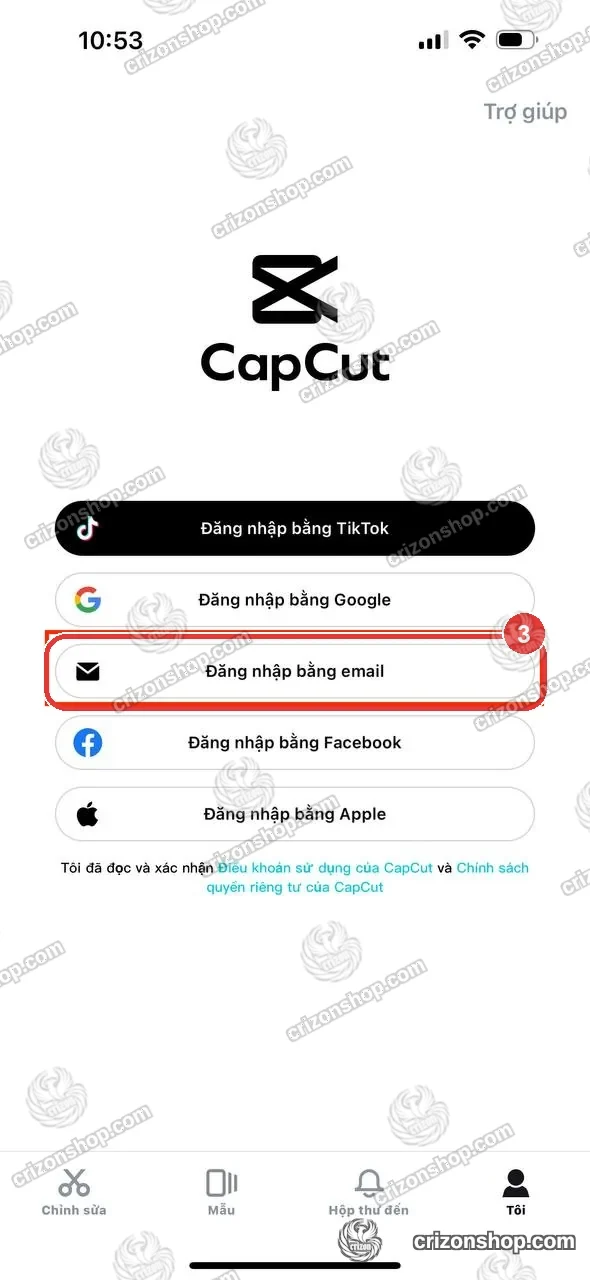
Tap the email login button (or Google). For an email account, paste the email and password you copied from the order details, then log in.
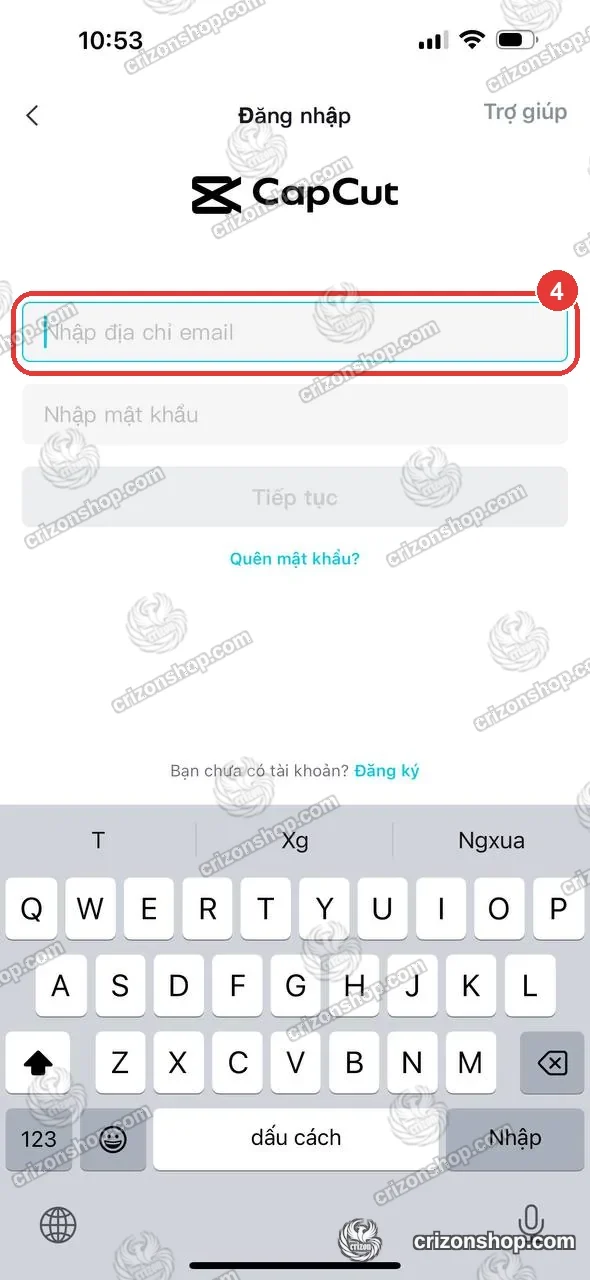
Paste your email into the email address field. For Google or TikTok, sign in to the account you got in the window that appears, then let CapCut access it.
Open the Me tab to make sure you're in the right account.
Log in on a computer (CapCut PC)
Email accounts: scan the QR code
For this method, your phone must already be logged in to your CapCut Pro account, as shown above.
Install and open CapCut PC.
Click Sign in in the top-left corner.
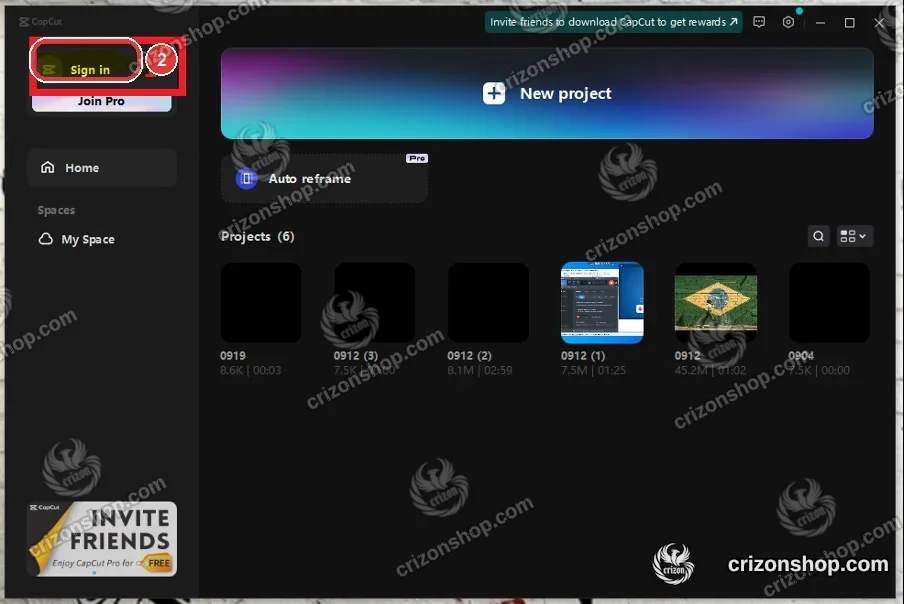
Click “Sign in”. Choose QR code login to show a QR code on the screen.
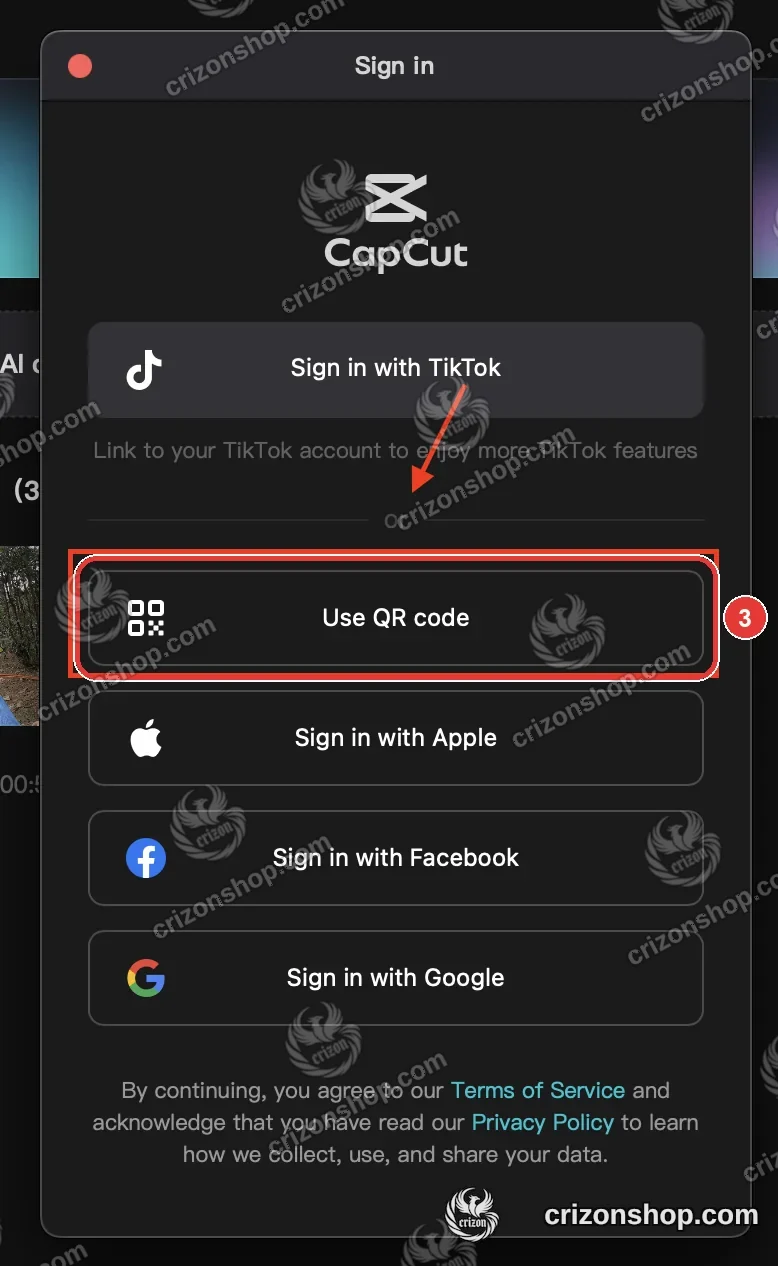
Click “Use QR code” (QR code login) to show the QR code. On your phone, open CapCut and tap Me in the bottom menu bar.
Tap Scan and point the camera at the QR code on your computer screen.
Confirm the login on your phone when asked.
Google or TikTok accounts
Open CapCut PC and click Sign in.
Choose Google or TikTok to match your account type.
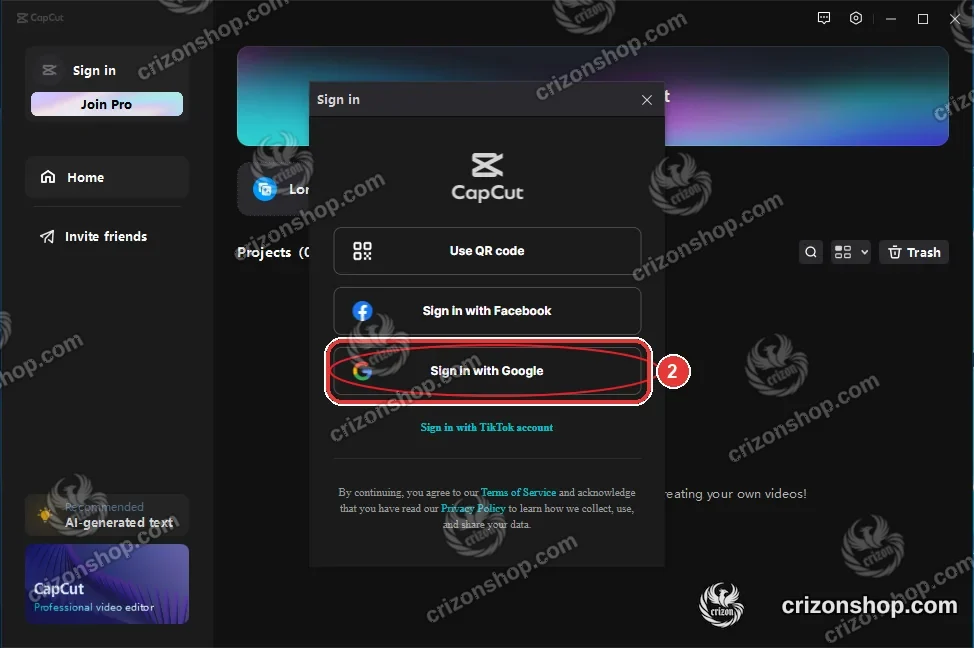
Click “Sign in with Google” (or TikTok) to sign in. Your browser opens a sign-in page. Enter the login and password from the order details.
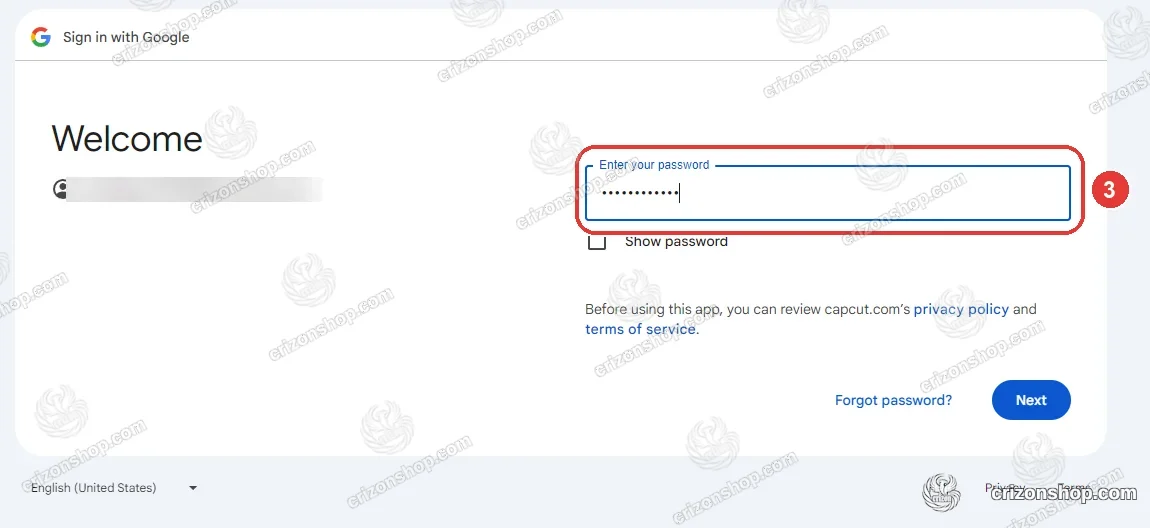
Type the password in the “Enter your password” field, then click “Next”. Click Continue to let CapCut use this account.
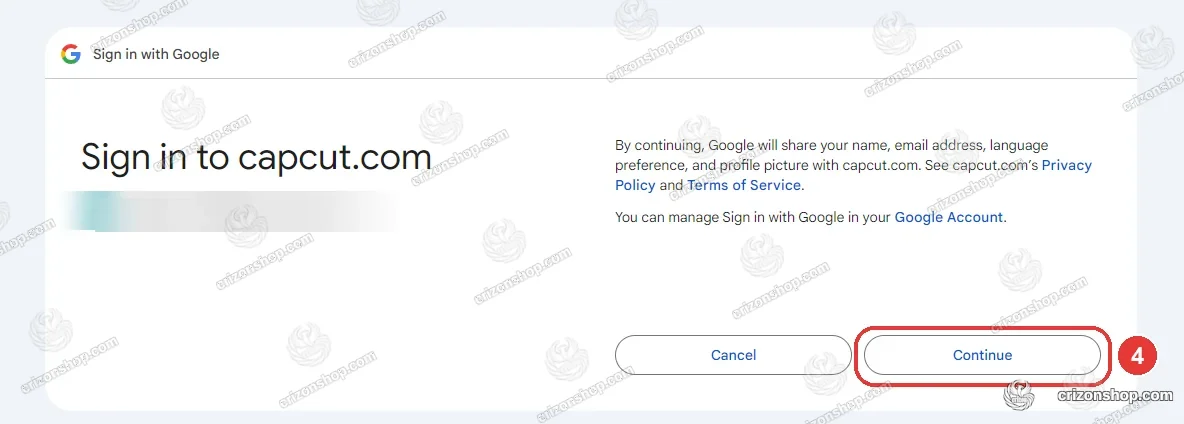
Click “Continue” to let CapCut use this account. When the browser asks if you want to open the app, choose Open CapCut to go back to CapCut.
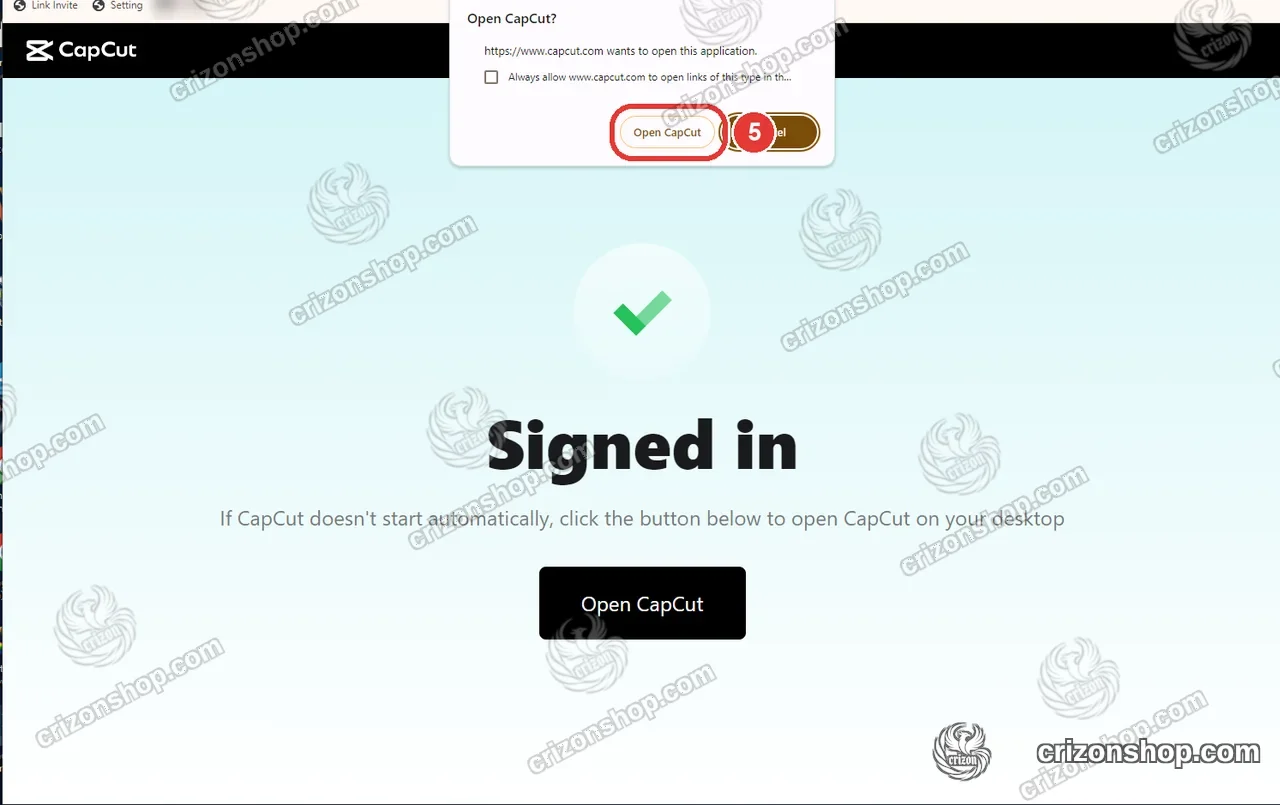
Click “Open CapCut” to go back to CapCut.
Use CapCut in your browser
CapCut's web version lets you sign in with Google, TikTok or Facebook. You can also scan a QR code with the CapCut app on your phone. If you have an email account, use the QR code option, just like on CapCut PC.
Logged in but Pro isn't showing
This usually means you're in the wrong account or the app hasn't updated your plan status yet. Try these steps in order.
Check that the login method and account you used match the details in your order.
Update CapCut to the latest version.
Log out completely, close the app, then open it again and log back in.
On a computer, check that your system date, time and region are set correctly.
On the web version, clear your browser cache or open a private window and log in again.
If you've tried every step and still don't have Pro, go to Account → My orders. Click Report a problem on the CapCut Pro item in your order and tell us which device you're using so we can check.
Frequently asked questions
According to CapCut, an account with a subscription works on up to 5 devices at the same time. This includes phones, computers and the web version. Pro is tied to the account, not the device, so just log in to the right account on each device. See CapCut's help page for details.
CapCut PC only lets you sign in with a QR code, Google, TikTok or Facebook. For an email account, log in on the phone app first. Then tap Scan in the Me tab and scan the QR code on your computer.
Google sends the verification code to the account's recovery phone number or email, so you can't get it yourself. Message Chat with Support in the corner of the screen on crizonshop.com and tell us which order it is. We'll help you sign in.
When the Pro plan expires, the account goes back to the Free plan. You can no longer use Pro features and effects. To check how long your plan lasts, open the order details in Account → My orders.
Related guides
 How to Activate a GRFX Studio Key for Corel PaintShop Pro
 How to Activate Adobe Acrobat Classic with a Serial Number
 How to Accept Your Canva Pro Invitation and Check Your Upgrade
Still need help?
Send your order code and we can sort it out faster.
