 AdGuard · Sign in
How to Log In to AdGuard VPN on Your Computer and Phone
Open the AdGuard VPN app, tap Log in or create an account, then sign in to your AdGuard account in the browser with a password, a one-time code, or Google, Apple, or Facebook.
This guide shows you how to log in to your AdGuard account in the AdGuard VPN app on computers, phones, and Linux, and on the account management website. All AdGuard VPN apps use the same AdGuard account, so you only need to remember the email you signed up with.
Before you log in
According to AdGuard's guide, you need to log in to an AdGuard account to use the app. If you don't have an account yet, create one right on the login page, then come back and follow the steps below.
Log in to the AdGuard VPN app
Open the AdGuard VPN app on your computer.
Click Log in or create an account.
Wait for the AdGuard login page to open in your browser.
Enter your AdGuard account email and click Continue.
Enter your password, or choose Use one-time code instead to get a code by email, then enter that code.
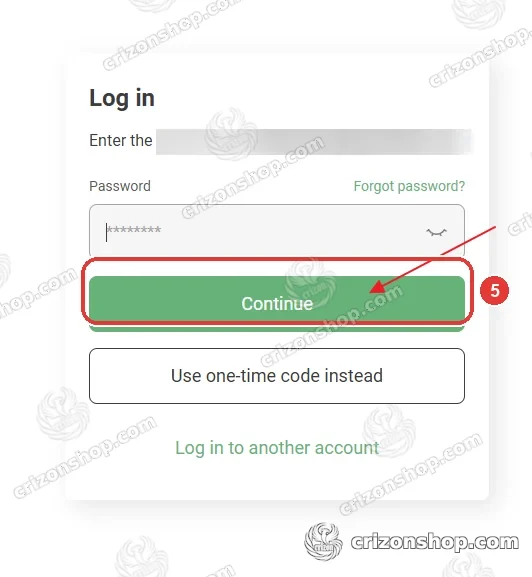
Enter your password or pick Use one-time code instead to get a code by email, then click Continue. When the page says you're logged in, go back to the AdGuard VPN app and turn on the connection.
If you use a password manager, it may fill in your email and password on the browser login page for you.
Open the AdGuard VPN app on your phone.
Tap Log in or create an account.
The login page opens in your browser. Enter the email you used to buy your plan.
Enter your password, or choose Use one-time code instead and enter the code sent to your email.
Or tap the Google, Apple, or Facebook icon if that account uses the same email as your AdGuard account.
Once you're logged in, go back to the AdGuard VPN app and turn on the VPN.
Open Terminal and run this command.
adguardvpn-cli loginWhen Terminal shows a menu of options, type
bto open the login page in your default browser.Log in on that page with your email and password, a one-time code, or your Google, Apple, or Facebook account.
Go back to Terminal and continue with the connection steps in AdGuard's Linux guide.
Log in to your account page on the web
Your AdGuard account page lets you view your subscription, change your password or email, and turn on one-time code login or two-factor authentication.
Open my.adguard.com in your browser.
Enter your AdGuard account email.
Choose whether to enter your password or get a one-time code by email.
Once you're in, open Settings if you want to change your password or turn on two-factor authentication.
Frequently asked questions
On the login page, enter your email, then choose Use one-time code instead. AdGuard will send a temporary code to your email. Enter that code to log in. After that, it's a good idea to reset your password in Settings on your AdGuard account page.
Logging in with Google, Apple, or Facebook only takes you to the right AdGuard account if that account uses the same email as the account you bought the plan with. If the emails are different, log out and log back in with your AdGuard account email, using your password or a one-time code.
Check the email you typed on the login page for typos, then look in your Spam or Promotions folder. If it still hasn't arrived after a few minutes, go back to the login page and request another code.
No. According to AdGuard's guide, the AdGuard VPN app requires you to log in to an AdGuard account before you can use it. If you don't have an account yet, create one right from the Log in or create an account button in the app.
Related guides
How to Enter an AdGuard Activation Key on Your Computer and Phone How to Activate Avast BreachGuard with a Sign-in Key
 How to Activate AVG AntiTrack Premium with an Activation Code
Still need help?
Send your order code and we can sort it out faster.
