 AdGuard · Activate
How to Enter an AdGuard Activation Key on Your Computer and Phone
Open AdGuard, go to Settings › License, then choose the option to enter an activation code. The path is different on Windows, Mac, Android, and iPhone, so this guide shows you exactly where to paste your key.
This guide shows you how to enter a license key (activation code) to unlock the Premium version of AdGuard Ad Blocker on Windows, Mac, Android, and iPhone. Each platform puts the code entry in a slightly different place. Just open the section for the device you're using.
Before you enter your key
Enter your key on each device
Open AdGuard, go to Settings, then select License.
Click the three-dot icon (⋮) in the top-right corner of the License screen.
Select Already purchased?.
Select Enter activation code.
Paste your activation code into the field (press Ctrl + V), then confirm.
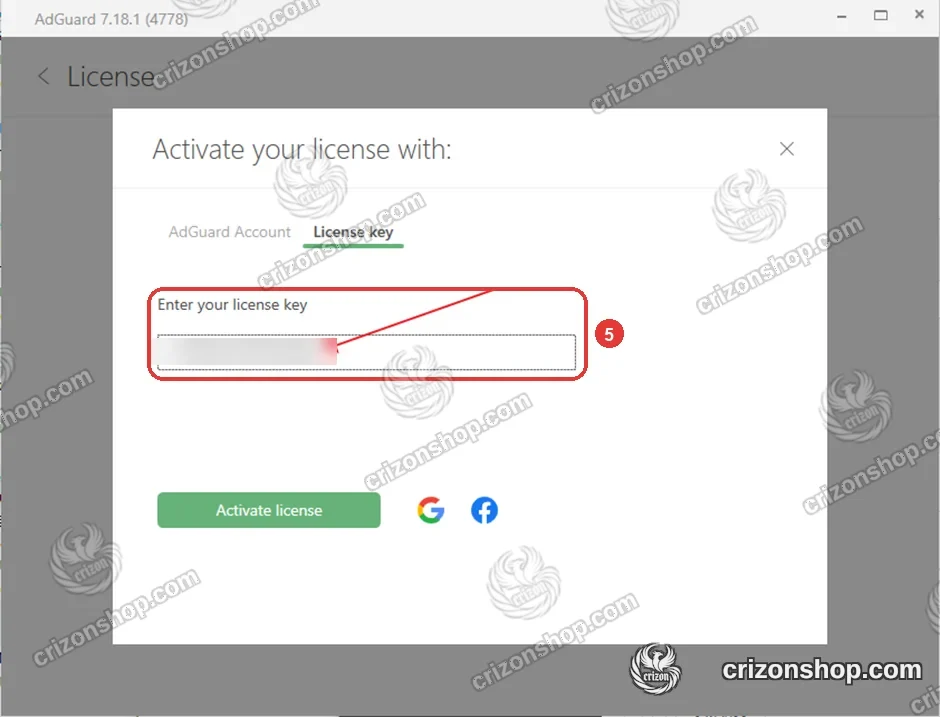
Paste your code into “Enter your license key”, then click “Activate license”.
Click the AdGuard icon in the menu bar, click the gear icon, then select License.
In the window that opens, click Activate.
Choose the option to enter a license key, paste your code (press Cmd + V), then confirm.
If AdGuard is showing a license expired screen, you can also click Activate right on that screen.
AdGuard Mini for Mac works a little differently. Click the AdGuard Mini icon in the menu bar, click the settings icon, go to License, open the ⋮ menu, select Already purchased?, then select Enter activation code.
Open the AdGuard app and tap Settings.
Select License.
Tap Activate license.
Tap the license key field, paste your code, then confirm.
Open the AdGuard app and tap Settings.
Select License.
Tap Log in in the top-right corner of the screen.
Paste your activation code into the email field and leave the password field blank.
Confirm to log in.
AdGuard recommends using your AdGuard account email and password here instead of the activation code, because it's more secure.
Check your activation
After entering the code, go back to Settings › License. This screen shows your license type, how many devices can use it at the same time, and the activation code linked to the device. If the details match your license, Premium features are unlocked.
The license usually applies right away, but it can sometimes take up to about five minutes. On Windows, if you chose to log in and accidentally closed the browser tab, click Reopen login page, or open the ⋮ menu and select Refresh license status to update the app.
FAQ
You need to remove a device you no longer use. Log in to your AdGuard account, open the AdGuard Ad Blocker tab, find the device under Devices, click its name, and select Remove. If you still have the old device, you can open AdGuard on it and select Reset license or Log out. Then go back to your new device and enter the key as usual. Learn more on AdGuard's support page.
Yes, as long as your license has a free slot. A license bought on the AdGuard website works on Windows, Mac, Linux, and Android, and you can also activate it on iPhone and iPad by logging in under License. A license bought through the App Store only works on iPhones and iPads signed in with the same Apple ID. For details on license types, see What is an AdGuard license?.
Wait a few minutes, then reopen License. It can sometimes take up to about five minutes for the license to apply. Check that the pasted code has no extra spaces or missing characters, and make sure the device is online. On Windows, you can click Refresh license status in the ⋮ menu. If it still doesn't work, check whether your license has expired or already reached its device limit.
No. You can enter the key directly in the app without an account. However, linking your license to an AdGuard account makes it much easier to see your device list, remove old devices, and reactivate on a new one.
Related guides
How to Log In to AdGuard VPN on Your Computer and Phone How to Activate Avast BreachGuard with a Sign-in Key
 How to Activate AVG AntiTrack Premium with an Activation Code
Still need help?
Send your order code and we can sort it out faster.
