 Linear · Activate
How to Join a Linear Business Workspace with an Invite Link
Open the invite link, sign in to Linear with Google, email or a passkey, then click Join to get into a Business plan workspace. This guide also covers how to switch workspaces and what to do when an invite link expires.
When an admin of a Linear workspace on the Business plan invites you, open the link, sign in with your Linear account and confirm that you want to join. This guide walks you through each step. It also shows how to switch between workspaces and what to do when an invite link doesn't work.
Before you start
- An invite link from the workspace admin, sent by email or shared as a general link.
- Your Linear account. If you don't have one yet, you can sign up with your email when you open the invite link.
- A computer with a web browser or the Linear desktop app.
Steps to join the workspace
Open the invite link in a browser on your computer.
Click Log in to sign in. If you don't have an account yet, choose to sign up with email.
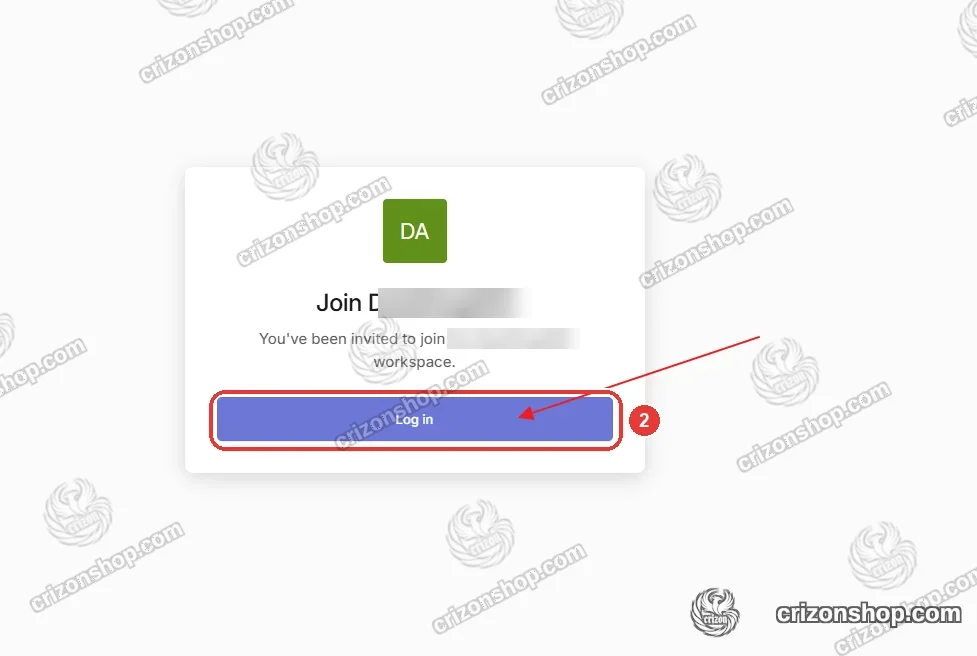
Click “Log in” to sign in. If your email is a Gmail or Google Workspace address, choose Continue with Google. For any other email, choose Continue with Email.
If you signed in with email, open the email Linear just sent and click the link in it. You can also copy the code from the email and paste it into the Enter code field.
When the invitation screen appears, click Join.
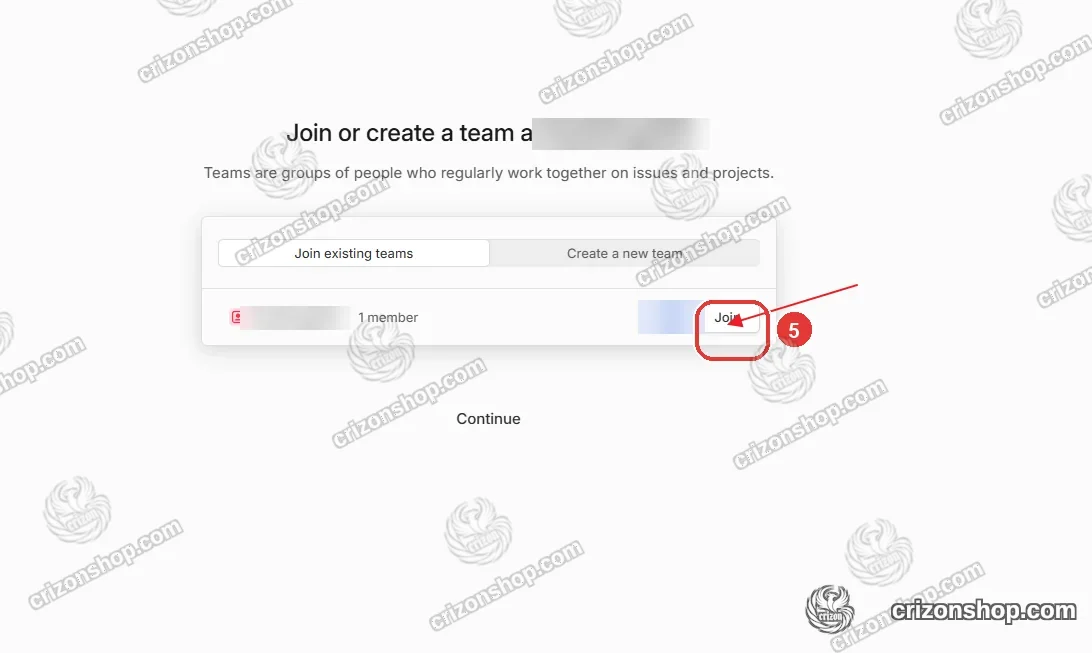
Click “Join” to join the workspace. Click Continue to move on.
If Linear asks you to invite teammates or finish the initial setup, click I'll do this later to skip it.
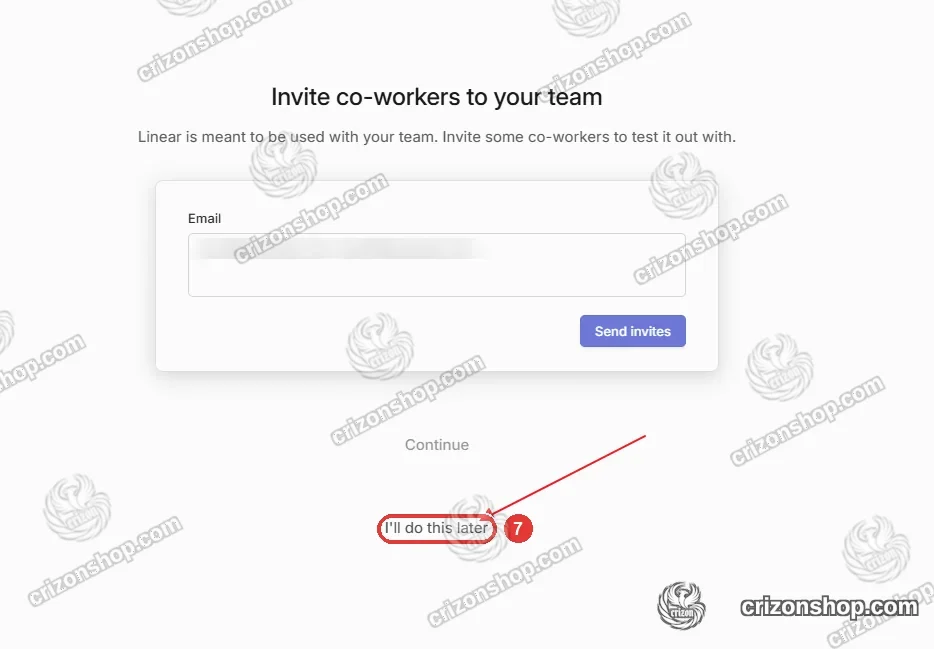
Click “I'll do this later” to skip.
After you join, the workspace name appears in the top-left corner. The teams you've been added to are listed in the left sidebar. You can now view issues and projects and start working with the rest of the workspace.
If the invite link doesn't work
If the invitation hasn't expired but you still get an error or can't see a join button, check the cases below.
- The admin may have replaced the shared invite link using Reset invite link. The old link no longer works, so you'll need to ask for the new one.
- Workspaces with SAML or SCIM enabled don't use shared invite links. Ask the admin to invite you directly, or sign in through your organization's single sign-on (SSO).
- Business plan workspaces can restrict which login methods are allowed. If one method is rejected, try another or ask the admin which methods you can use.
For more details, see the guide to inviting members and the login methods page in Linear's documentation.
Switch between workspaces
If you already had your own workspace, your account will have more than one workspace after you join. To open the Business plan workspace, follow these steps.
Click the workspace name in the top-left corner.
Hover over Switch workspace.
Select the workspace you want to use.
You can also press O then W to open the workspace list quickly.
Invitation sent to a different email
If the invitation was sent to a different email from the one you're signed in with, add that email to Linear first. Then open the invite link again.
Click the workspace name in the top-left corner, then hover over Switch workspace.
Select Create or join a workspace.
Click your current email in the top-right corner and choose Add account.
Sign in with the email that received the invitation.
Open the invite link again and continue from the step where you click Join.
Frequently asked questions
You're probably in your personal workspace. The Business plan only applies in the workspace that invited you. Switch to that workspace with Switch workspace, or press O then W.
No. One Linear account can access multiple workspaces, and each workspace keeps its own plan. That said, if you use Linear for both work and personal projects, Linear recommends using two separate emails to make them easier to manage.
Check that you typed the right email address, and look in your spam or promotions folder too. If your email is a Gmail or Google Workspace address, you can go back and choose Continue with Google to sign in without waiting for the email.
Related guides
How to Activate IObit Driver Booster PRO with a License Code How to Leave a Microsoft 365 Family Group
 How to Enter a Product Key to Activate Windows 10 and Windows 11
Still need help?
Send your order code and we can sort it out faster.
