 1Password · Set up
How to Join 1Password Families and Transfer Your Data
Open the invitation email, click the join button, create a password, and save the Emergency Kit with your Secret Key. To move your data, export a 1PUX file from the 1Password desktop app and import it into your new account.
This guide shows you how to accept an invitation to a 1Password Families account, store your Secret Key safely, and recover your account if you forget your password. The last section explains how to move all your passwords from an old account to a new one using a 1PUX file.
What you need
- Access to the inbox for the email address that received the invitation from your family organizer.
- A safe place to keep your Emergency Kit, such as a printed copy or a private folder on your computer.
- The 1Password 8 app on Windows or Mac if you need to transfer data. Download it from the official 1Password downloads page.
- The password for your old account, so you can confirm the export.
Accept the invitation and create your account
Your family organizer sends an invitation to your email. According to 1Password's guide to joining a family account, each member has their own account with their own Secret Key and password. Each member also gets a Private vault for personal items and a Shared vault for the whole family.
Open the invitation email from 1Password and click the join button (usually Join now).
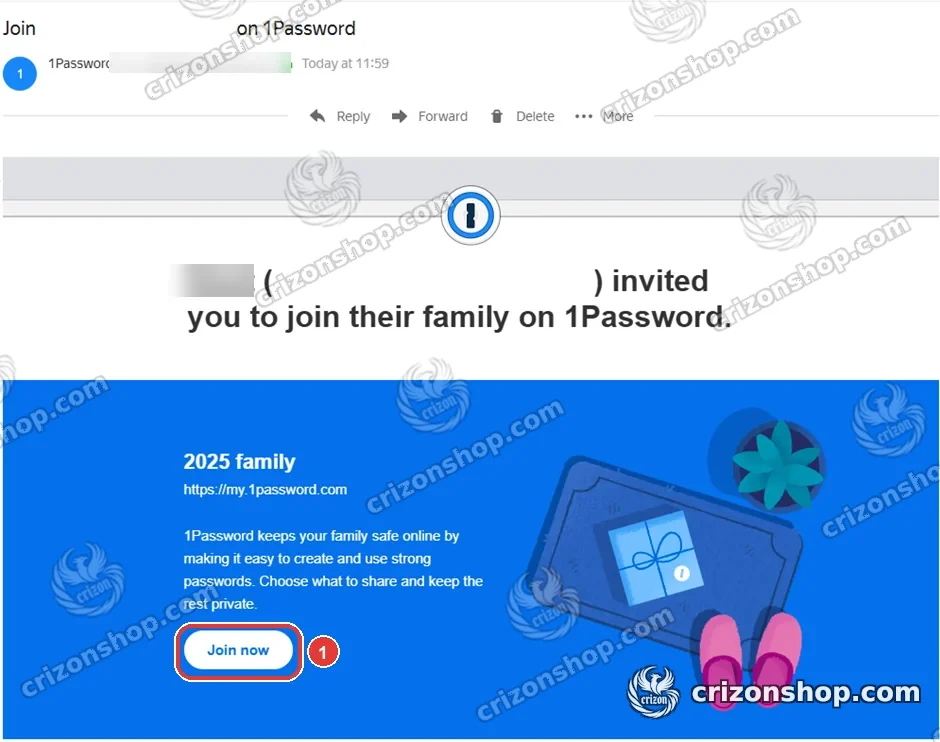
Click “Join now” to join. The sign-up page opens in your browser. Follow the on-screen instructions to verify your email and enter your name.
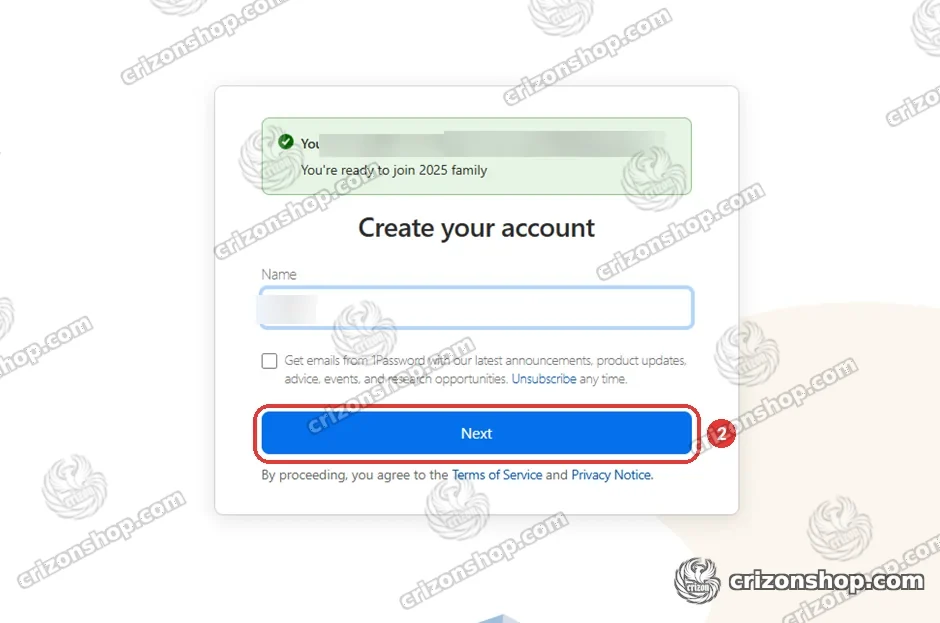
Enter your name, then click “Next”. Create your account password. This is the password you'll type every time you unlock 1Password.
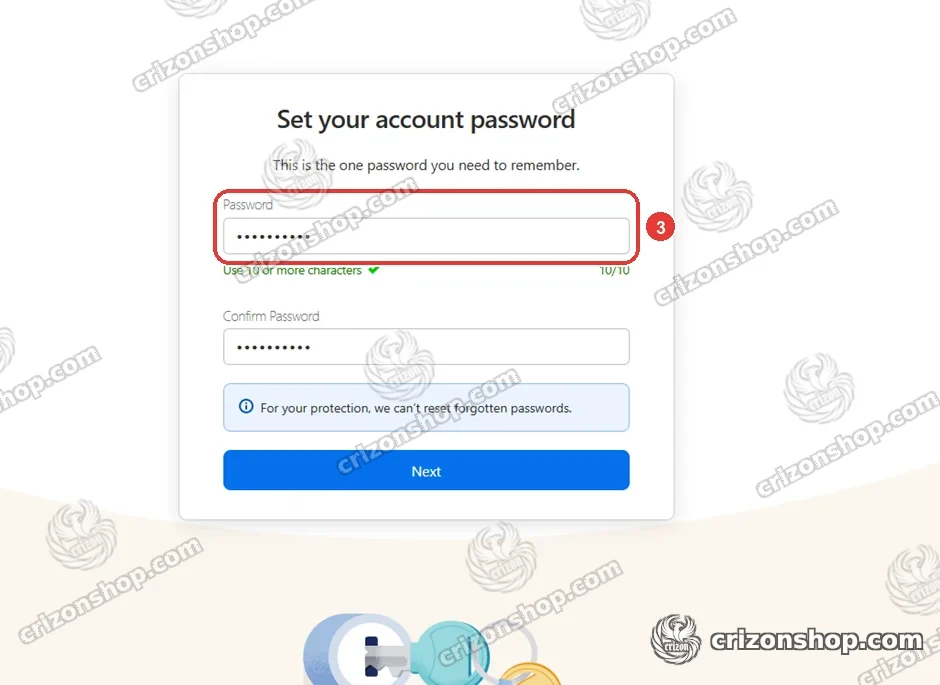
Enter your password in the “Password” field. If the page asks you to complete optional steps, you can choose Add it later or Skip and do them later.
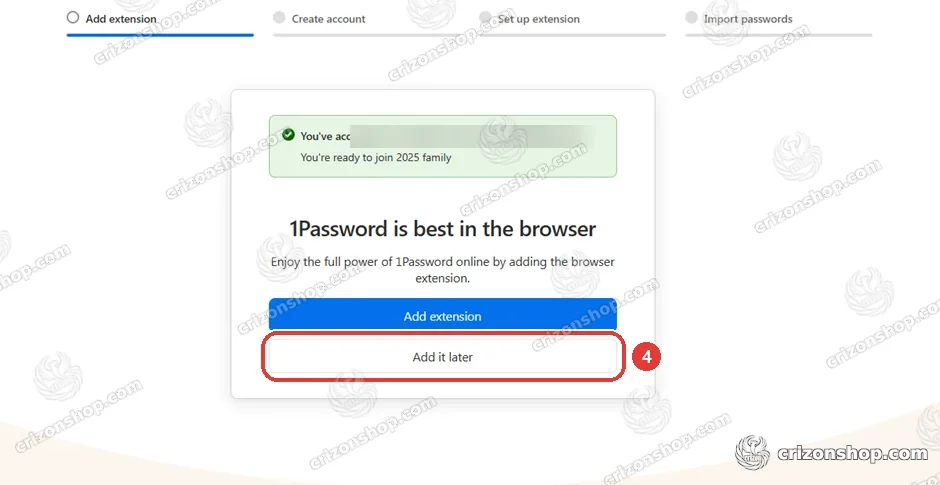
Click “Add it later” (Skip) to do this step later. When you reach the Secret Key step, download or print your Emergency Kit and keep it somewhere safe.
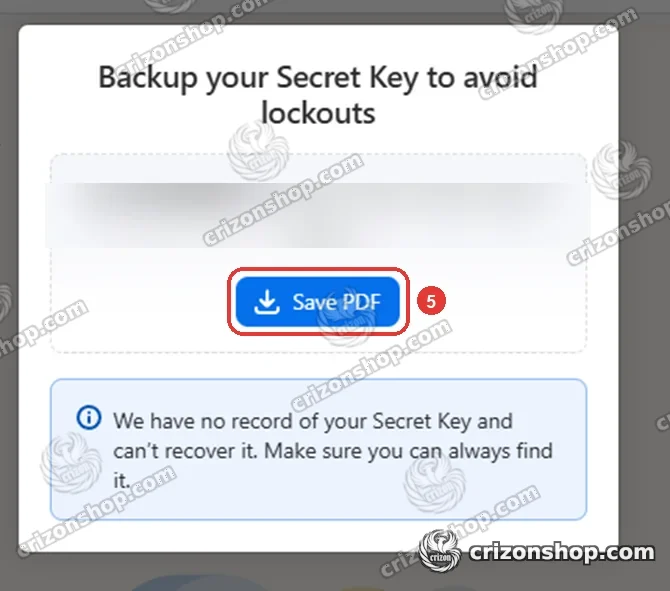
Click “Save PDF” to save your Emergency Kit safely. Open the 1Password app or go to 1Password.com, then sign in with your email, Secret Key, and the password you just created.
If you forget your password or lose your Secret Key
With a family account, you can't reset your password yourself. Your family organizer has to start the recovery process. According to 1Password's account recovery page, your vaults and items stay intact after recovery.
The organizer starts recovery
Sign in to the account on 1Password.com.
Select People in the sidebar.
Select the name of the member who needs recovery, then click Begin Recovery.
You follow the recovery email
Open the recovery email from 1Password and click Recover my account.
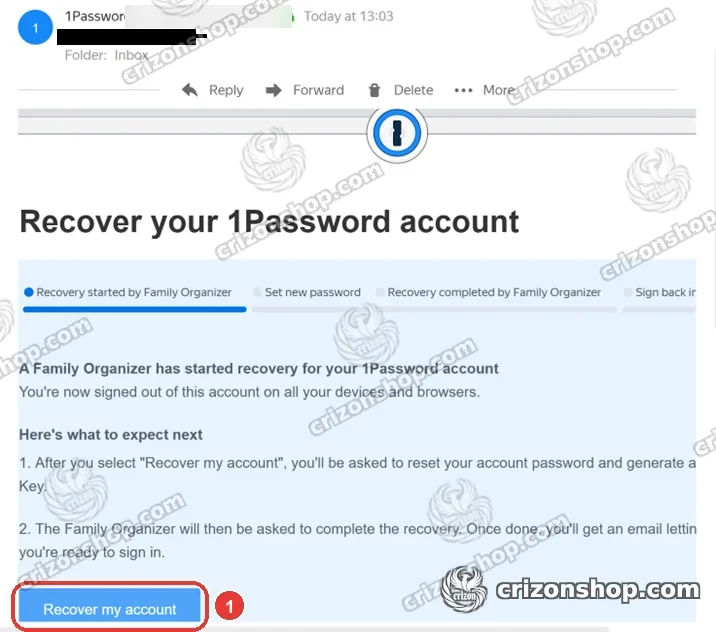
Click “Recover my account”. A new page opens in your browser. Verify your email with the code sent to your inbox.
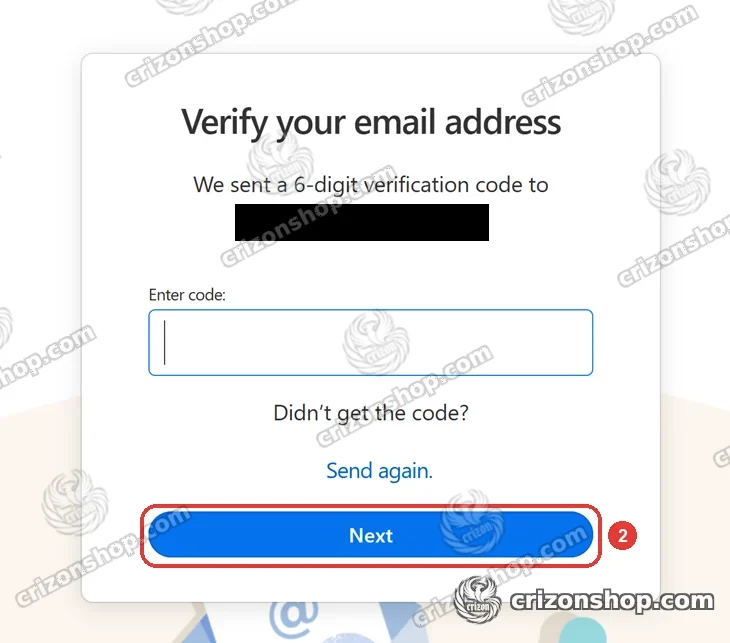
Enter the code from the email, then click “Next”. Get your new Secret Key and create a new account password.
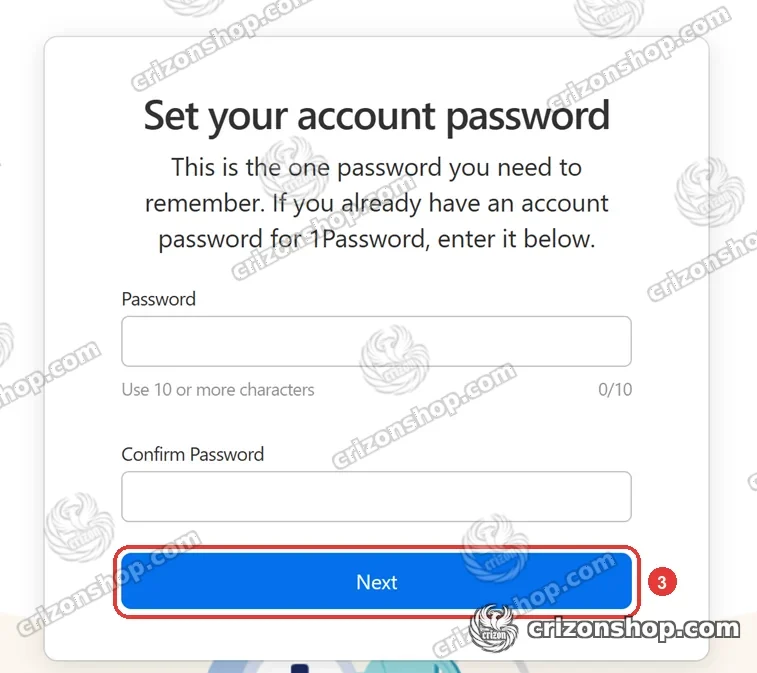
Create your account password, then click “Next”. Save your new Emergency Kit and destroy the old one, because your old Secret Key no longer works.
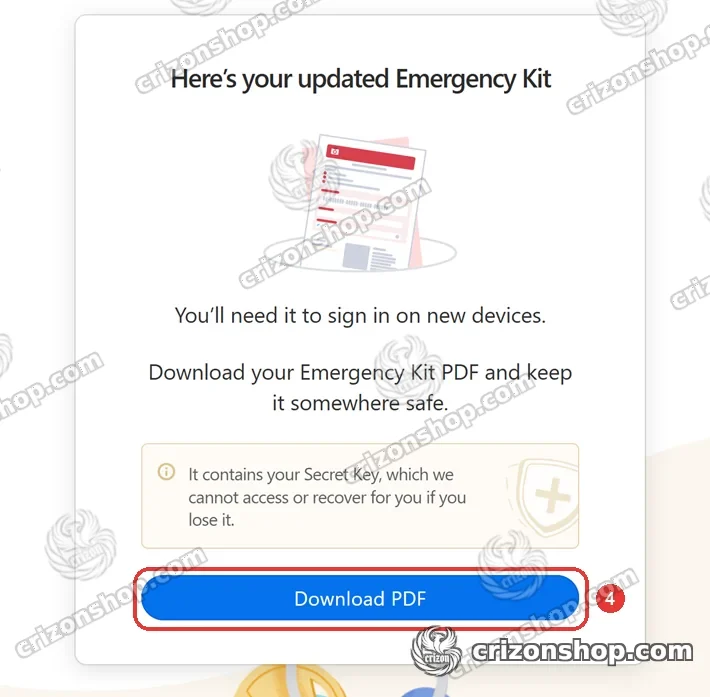
Click “Download PDF” to save your new Emergency Kit. Let your organizer know you've finished your part.
The organizer completes recovery
The organizer gets an email saying a recovery request is pending. They click Complete account recovery in the email, then choose Complete Recovery on the page that opens. You can only sign in again after this step.
Transfer your data to a new account with a 1PUX file
When you switch to a new account, for example because your old one has expired, export the old account's data to a 1PUX file, then import that file into the new account. According to 1Password, you export data and import data in the 1Password desktop app, not on 1Password.com in a browser.
Step 1. Export data from your old account
Open the 1Password app and unlock it.
Click the three-dot icon ⋯ at the top of the sidebar, then choose Export.
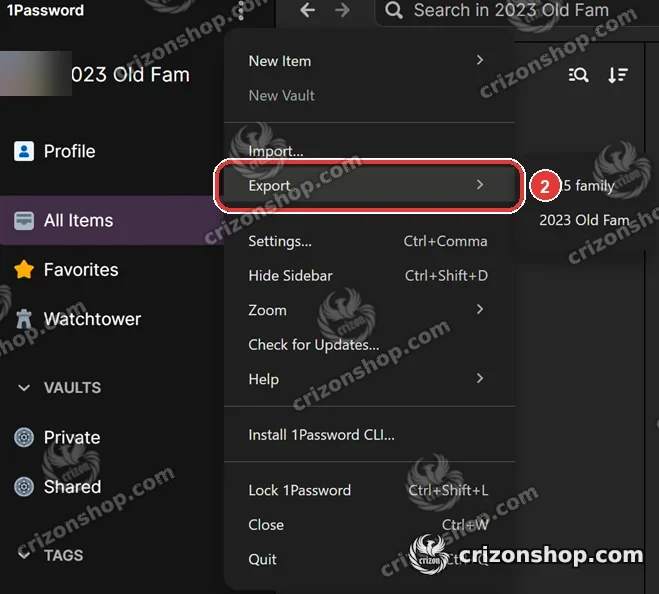
Choose “Export” from the ⋯ menu. Choose the old account you want to export.
Enter that account's password to confirm.
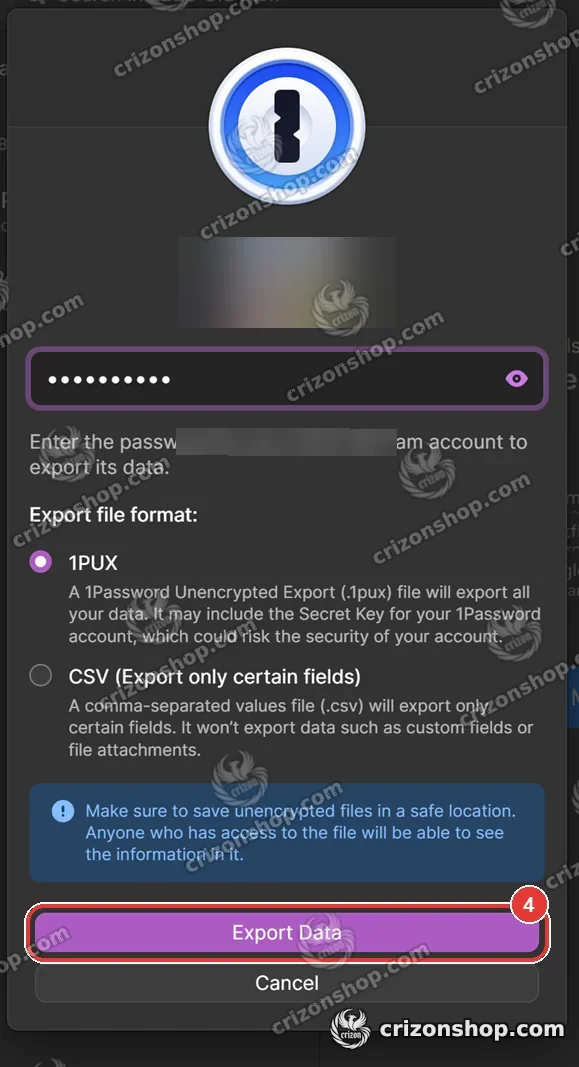
Enter your password, then click “Export Data”. Choose the 1PUX format, then click Export Data.
Choose a folder to save the file in and confirm. Remember this folder for the import step.
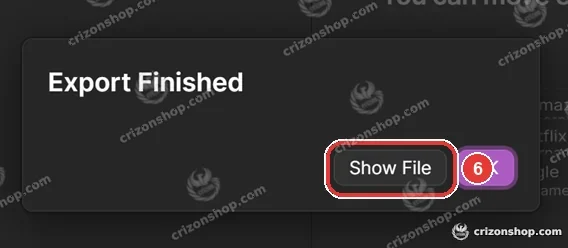
Click “Show File” to open the folder where the file is saved.
Open the 1Password app and unlock it.
In the menu bar, choose File › Export.
Choose the old account you want to export.
Enter that account's password to confirm.
Choose the 1PUX format, then click Export Data.
Choose a folder to save the file in and confirm. Remember this folder for the import step.
Step 2. Import the file into your new account
In the 1Password app, click ⋯ at the top of the sidebar, then choose Import.
Select 1Password from the list of data sources.
Click Add File and choose the 1PUX file you just exported.
Choose your new account as the destination, then click Import.
In the menu bar, choose File › Import.
Select 1Password from the list of data sources.
Click Add File and choose the 1PUX file you just exported.
Choose your new account as the destination, then click Import.
When the import is done, open a few items in your new account to make sure all your passwords, notes, and custom fields came over.
Frequently asked questions
According to 1Password, you export and import 1PUX files in the 1Password desktop app. If you only use a phone, install the 1Password app on a Windows or Mac computer, sign in to both accounts, and follow the steps above.
When moving between two 1Password accounts, choose 1PUX because it keeps almost everything. A CSV file only includes titles, websites, usernames, passwords, one-time passwords, favorite and archived status, tags, and notes. If you use CSV, security questions, linked items, custom fields, and 2FA backup codes are left behind.
1Password doesn't keep your Secret Key or password, so it can't get them back for you. Look for your Secret Key in the Emergency Kit you saved. If you no longer have it, ask your family organizer to recover your account as described above, and you'll get a new Secret Key.
No. According to 1Password, your vaults and items are still there after recovery. Only your Secret Key, password, and 2FA change, so you'll need to sign in again on every device.
Related guides
 How to Activate Avast BreachGuard with a Sign-in Key
 How to Activate AVG AntiTrack Premium with an Activation CodeHow to Activate a Gilisoft Audio Recorder Pro Key on Windows
Still need help?
Send your order code and we can sort it out faster.
