 VMware · Set up
How to Install VMware Workstation Pro for Free, No License Key Needed
VMware Workstation Pro is now free for all uses, so new versions don't need a license key. Just create a Broadcom account, download the official installer, and install it as usual.
If you're looking for a way to enter a key for VMware Workstation 17 Pro, you can skip that step. Since November 2024, Broadcom (the company that owns VMware) has made Workstation Pro free to use. This guide shows you how to create an account, download the installer from the official site, and install it on Windows.
Do you still need a VMware Workstation Pro key?
According to VMware's FAQ page, new versions come with a built-in license, so you don't have to buy or enter a key. Workstation Pro is free for personal, educational, and commercial use. The latest versions no longer use 17.x numbering. Instead, they're named after the year and half-year of release, for example 25H2.
| Your version | Do you need a key? |
|---|---|
| 17.5.2 or later, and year-based versions (25H2…) | No, it's free to use |
| Earlier than 17.5.2 | Yes, you need a valid key, otherwise you'll see Not Entitled |
Before you install
Step 1. Create a Broadcom account
Go to support.broadcom.com.
Click Support Portal in the top-right corner.
Click Register to create a new account. If you already have one, click Go To Portal to sign in.
Fill in your full profile, including your email, address, and country.
Next, fill in the Trade Compliance form.
Wait for Broadcom to approve your profile.
Step 2. Download the VMware Workstation Pro installer
Sign in to support.broadcom.com.
Click the division menu at the top of the page and choose VMware Cloud Foundation.
In the left column, click My Downloads.
Click the line that says Free Software Downloads available HERE.
Type
Workstationin the search box, then click Show Results.Click VMware Workstation and choose the latest version for Windows.
Check the box to agree to the Terms and Conditions, then click download.
For Broadcom's own instructions, see Download Desktop Hypervisor (Workstation and Fusion) Products.
Step 3. Install on Windows
Open your Downloads folder and find a file named like
VMware-workstation-full-xxxx.exe.Right-click the file and choose Run as administrator.
Click Next, then accept the license agreement.
If the installer asks for a setup type, choose Typical for the default installation.
Keep clicking Next until you reach Install, then wait for the installation to finish.
If the last screen has a License Key field, leave it blank and click Finish.
Restart your computer to complete the setup.
If you're still using an older version with a key
Versions earlier than 17.5.2 still require a valid key. The simplest fix is to uninstall the old version and install the latest free version using the steps above. If you bought a perpetual license earlier and want to keep the old version, VMware says that license is still valid. Here's how to enter your key.
Open VMware Workstation.
Click the Help menu.
Choose Enter Serial Number and type in your 25-character key.
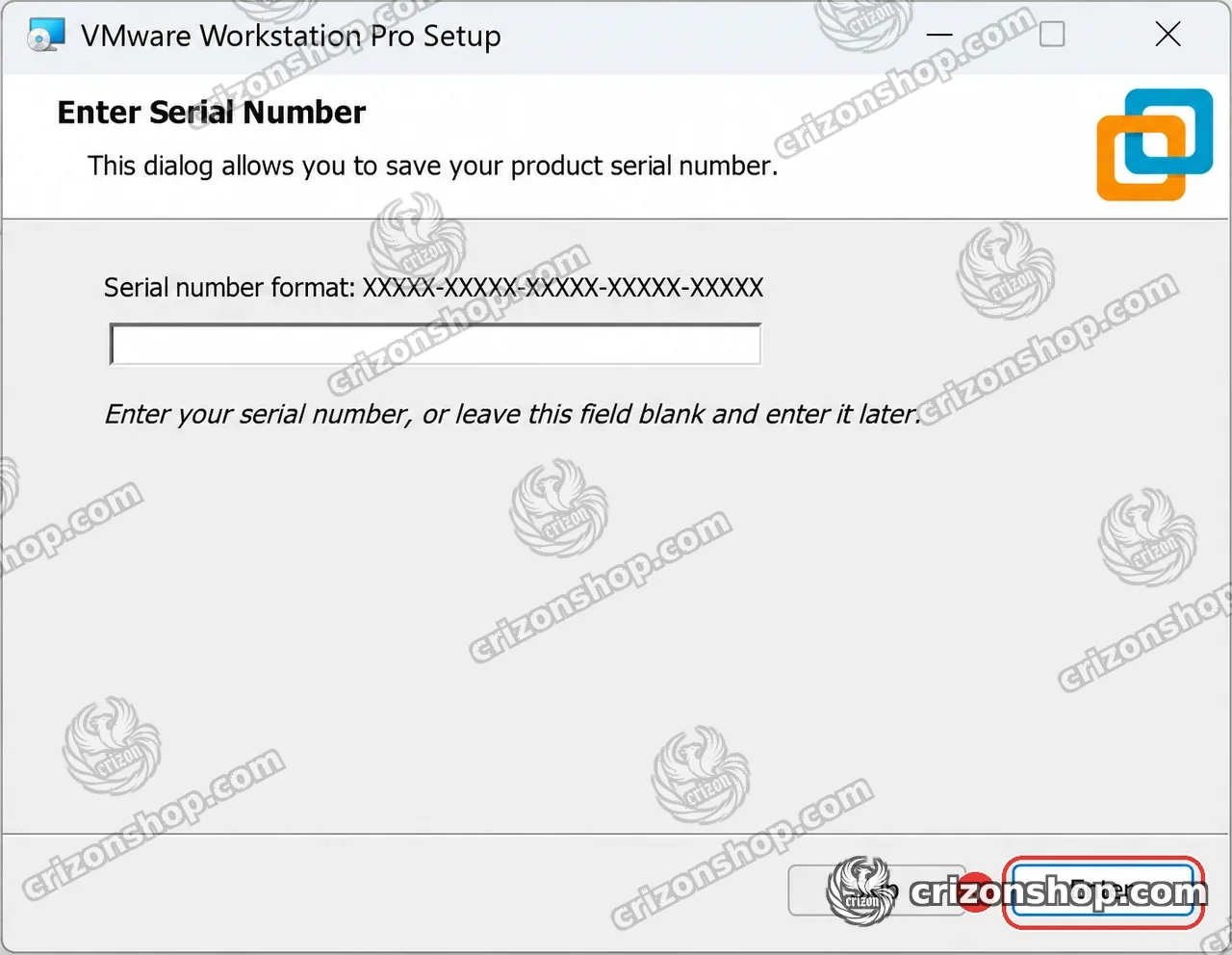
Choose 'Enter' (Enter Serial Number) to type in your 25-character key. Click OK.
Choose Register to register now, or Close to do it later.
Frequently asked questions
No. Broadcom makes it free for personal, educational, and commercial use. Keep in mind that free users don't get help from Broadcom's global support team, so if you run into a problem, you'll need to check Broadcom's documentation or community forums yourself.
According to VMware, perpetual licenses bought before the switch to free remain valid. That said, new versions already include a license, so you don't need to enter your key again when you install a new version.
This usually means your profile hasn't been approved yet. Double-check the details in your profile and the Trade Compliance form, especially your address and country, then wait a bit longer. For more help, see Broadcom's KB article 368734.
This message appears on versions earlier than 17.5.2 when there's no valid key. To be safe, back up the folders that hold your virtual machines. Then uninstall the old version from Windows' app settings and install the latest version from Broadcom using the steps above.
Related guides
How to Download and Activate VMware Fusion Pro on Mac Without a KeyHow to Activate IObit Driver Booster PRO with a License Code How to Leave a Microsoft 365 Family Group
Still need help?
Send your order code and we can sort it out faster.
