 VMware · Activate
How to Download and Activate VMware Fusion Pro on Mac Without a Key
VMware Fusion Pro is free starting with version 13.5.2, and newer versions don't need a key. This guide shows how to download Fusion from Broadcom, install it on your Mac, and handle the license key prompt.
This guide shows you how to download VMware Fusion Pro from Broadcom's official site, install it on your Mac, and activate it without buying a key. If you still have a key you bought earlier, the end of this guide explains how to enter it.
Which versions need a key
| Fusion version | Do you need a key? |
|---|---|
| Before 13.5.2 | Yes, a paid key. Update to a newer version to use it for free |
| 13.5.2 and later | No. If you see a screen asking for a key, click Finish |
| Latest release (named by year, e.g. 25H2) | The license is built in. You don't need to do anything else |
According to VMware's FAQ page, the latest Fusion releases come with the license built in, so you don't have to choose a usage type or enter a key.
Download VMware Fusion from Broadcom
Fusion is distributed through the Broadcom Support Portal. You need a Basic Broadcom account, which is free to create.
Go to support.broadcom.com and click Support Portal in the top-right corner.
Log in, or click Register to create a new account.
Fill in your profile with your real email, address, and country.
If you aren't taken back to the main page, open support.broadcom.com again.
From the drop-down menu, select the VMware Cloud Foundation division.
In the left sidebar, click My Downloads.
Click the Free Software Downloads available HERE link.
Type
Fusionin the search box and click Show Results.Click VMware Fusion and select the latest version.
Check the box to agree to the Terms and Conditions, then download the installer.
Install Fusion on your Mac
Open the
.dmgfile you just downloaded from your Downloads folder.Double-click the VMware Fusion icon in the window that appears.
Enter your Mac password when macOS asks for permission to install.
Accept the terms of use to finish the installation.
Activate Fusion the first time you open it
Open VMware Fusion from your Applications folder.
If you see a screen asking for a license key, click Finish to use the free version.
If Fusion goes straight to the main window without asking anything, your version already includes a license and you can start using it right away.
Enter a key you bought earlier
Perpetual licenses bought before Fusion became free are still valid. To enter that key, follow these steps.
Open VMware Fusion.
In the menu bar, choose VMware Fusion › License.
Enter your license key, which is a string of letters and numbers.
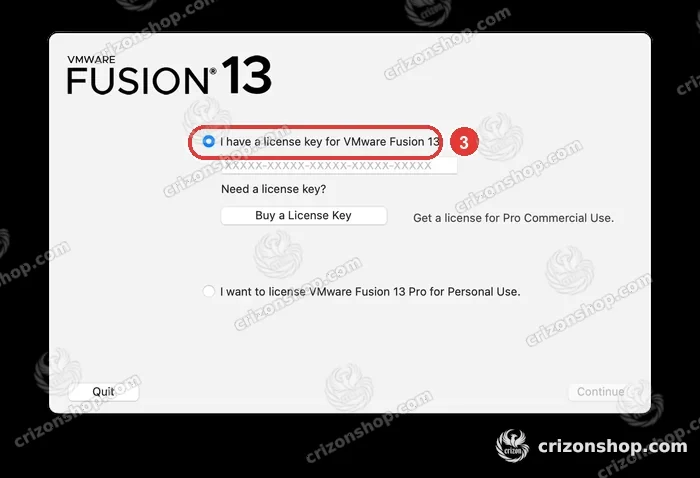
Select “I have a license key for VMware Fusion 13.” to enter your license key. Click OK.
If you bought a downloadable copy, the key is usually in the order confirmation email VMware sent you when you made the purchase.
Frequently asked questions
Yes. Broadcom lets you use Fusion Pro for free for commercial purposes too, not just personal and educational use. You don't need to buy an extra license to use it at your company.
Download the latest version from the Broadcom portal using the steps above and install it over your current one. From version 13.5.2 onward, Fusion is free and doesn't ask for a key.
No. Broadcom's support team doesn't handle cases from free users directly. You can look for answers on the Broadcom Community forums and in Broadcom's knowledge base.
Check that you selected the VMware Cloud Foundation division and clicked Free Software Downloads available HERE. If your profile is missing information or is still waiting for Trade Compliance review, the download button may not show up yet.
Related guides
How to Install VMware Workstation Pro for Free, No License Key NeededHow to Activate IObit Driver Booster PRO with a License Code How to Leave a Microsoft 365 Family Group
Still need help?
Send your order code and we can sort it out faster.
