Doodly · Set up
How to Install Doodly and Sign In with Voomly Cloud
To use Doodly, install the Voomly Cloud app and sign in with the email you used to buy Doodly. Then click Install and Launch under My Products to install and open the software.
Doodly is now installed and opened through Voomly Cloud, the developer's own app. This guide shows you how to download the right version of Voomly Cloud for your computer and sign in with your own Doodly account. You'll then install and open Doodly so you can start making videos.
Before you install
Step 1. Download and install Voomly Cloud
Go to cloud.voomly.com and choose the installer for your operating system. The steps are slightly different on Windows and Mac.
On the download page, click the blue Windows box.
Choose the 64-bit or 32-bit version to match your PC.
Save the installer to your computer, then open it.
Wait a few seconds for the installation to finish.
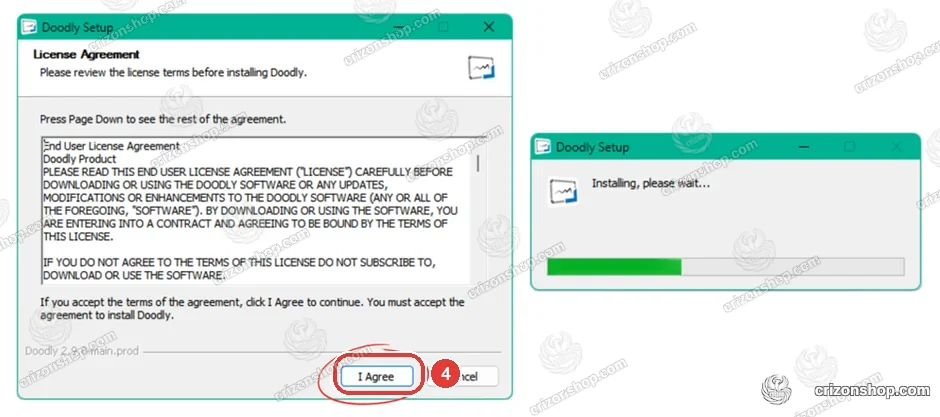
Click “I Agree” to continue the installation. The Voomly Cloud sign-in screen opens automatically when the installation is complete.
On the download page, click the Mac download button.
Choose Intel or Apple Silicon to match your Mac's chip.
Double-click the
.dmgfile you downloaded to open it.Drag the Voomly Cloud icon into the Applications folder.
Open the Applications folder and double-click Voomly Cloud to run it.
Step 2. Sign in to Voomly Cloud
You can sign in with a link sent to your email or with a password. Both methods use the email you used to buy Doodly.
Sign in with a magic link
Open Voomly Cloud and enter the email you used to buy Doodly.
Click Send Me Magic Link.
Check your inbox for an email with the subject Magic sign-in link.
Click the Sign In With Magic Link button in the email, or copy the link from the email and paste it into your browser.
Sign in with a password
Open Voomly Cloud and click Login with password.
Enter your email and password. Your initial password is in the welcome email the developer sent when you made your purchase.
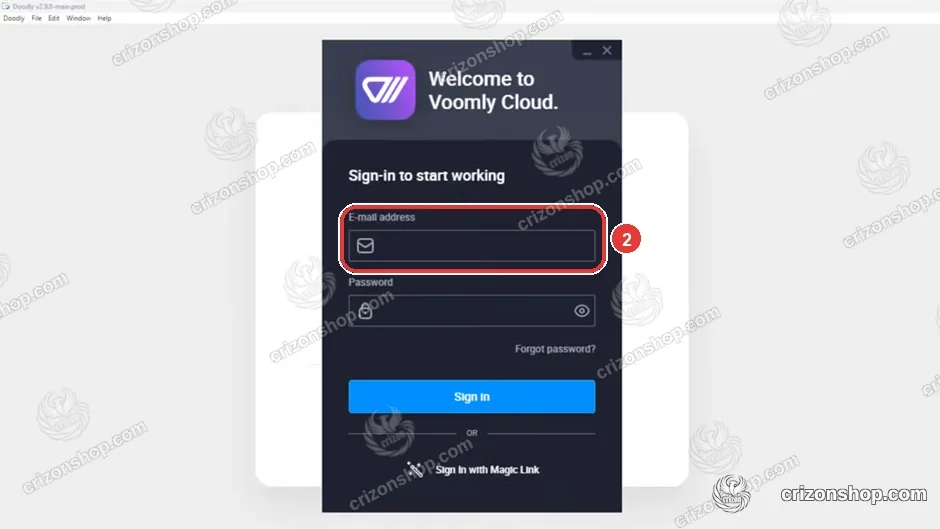
Enter your email in “E-mail address” and type your password. Click login.
If a captcha appears, select the requested images and click Submit.
Step 3. Install and open Doodly
After you sign in, scroll down to the My Products section at the bottom of the page to see the products your account can use.
Find Doodly and click Install.
Follow the on-screen instructions to finish installing Doodly.
Doodly will appear in the installed apps area at the top.
Click the Doodly icon there, or click Launch in the My Products section to open the software.
For more details, see the developer's original guide: Doodly: Downloading and Installing Doodly.
Using Doodly on more than one computer
The developer lets you install Doodly on as many compatible computers as you like. All your projects are saved in the Doodly cloud and linked to your account, so you can still open your old projects after switching computers.
Frequently asked questions
Make sure you entered the same email you used to buy Doodly, then check your Spam or Promotions folder. If you still can't find it, sign in with your password instead, or contact the developer's support team at support.voomly.com.
In Voomly Cloud, click Login with password, then click forgot password. Enter your email and click Request Code, then open the email to get your code. Go back to the app, enter your email, the code you received, and your new password, then click set new password.
No. The developer's current instructions are to install Doodly right inside Voomly Cloud using the Install button in My Products. You don't need to look for an installer on any other site.
The Doodly app still has an authenticate with email option, but the developer has announced that this method will be discontinued. Switch to signing in through Voomly Cloud so nothing breaks when the old method is turned off for good.
Related guides
 How to Activate a GRFX Studio Key for Corel PaintShop Pro
 How to Activate Adobe Acrobat Classic with a Serial Number
 How to Accept Your Canva Pro Invitation and Check Your Upgrade
Still need help?
Send your order code and we can sort it out faster.
