 Chrome Remote Desktop · Set up
How to Install Chrome Remote Desktop on a Mac for Remote Support
Install Chrome Remote Desktop from remotedesktop.google.com/support, allow the app in Privacy & Security, then click Generate Code and send the code to the person helping you so they can access your Mac.
Chrome Remote Desktop is a free Google tool that lets someone else see and control your computer over the internet, but only if you allow it. This guide shows you how to install it on your Mac, turn on the macOS permissions it needs, and create a code so your helper can connect.
What you need
- A Mac with Google Chrome installed.
- Your Mac login password. The installer and the permission settings will ask for it.
- A Google account, in case the Chrome Remote Desktop page asks you to sign in.
- A stable internet connection for the whole support session.
Step 1. Download and install Chrome Remote Desktop
Open Chrome and go to remotedesktop.google.com/support.
Sign in to your Google account if the page asks you to.
In the Get Support section, click the download icon.
Open the downloaded file in your Downloads folder.
Double-click Chrome Remote Desktop Host.pkg to open the installer.
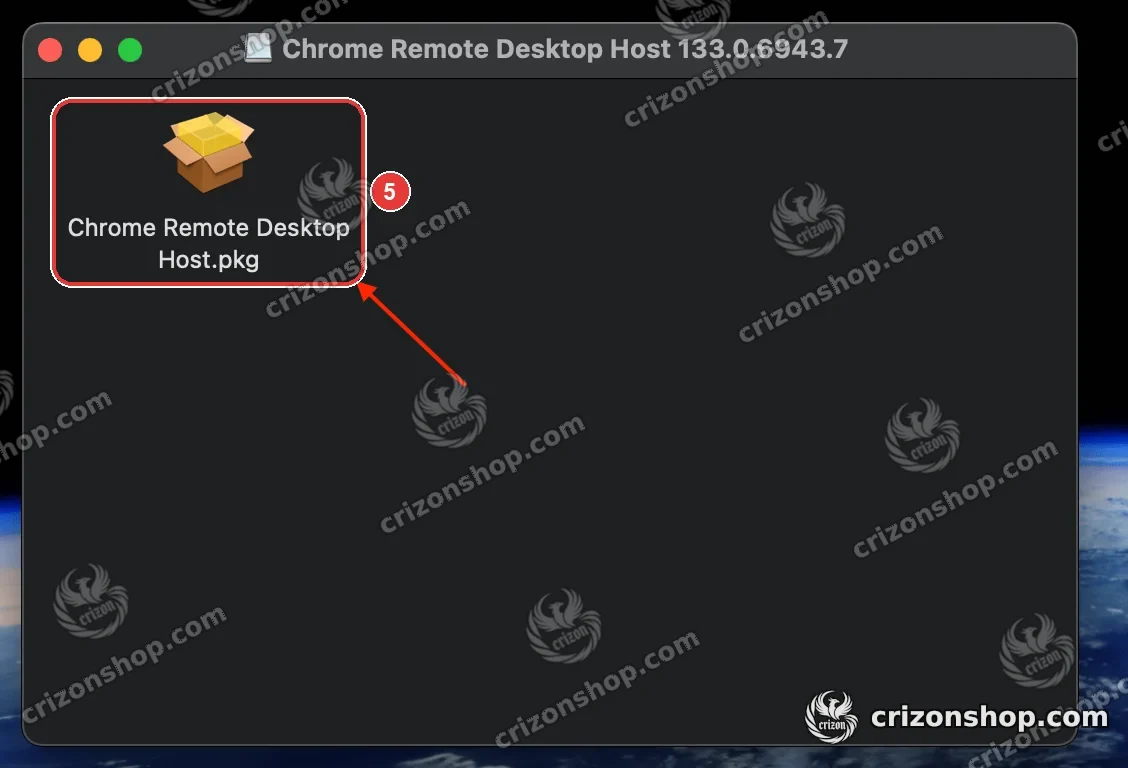
Double-click “Chrome Remote Desktop Host.pkg” to open the installer. Click Continue through the introduction screens, then click Install.
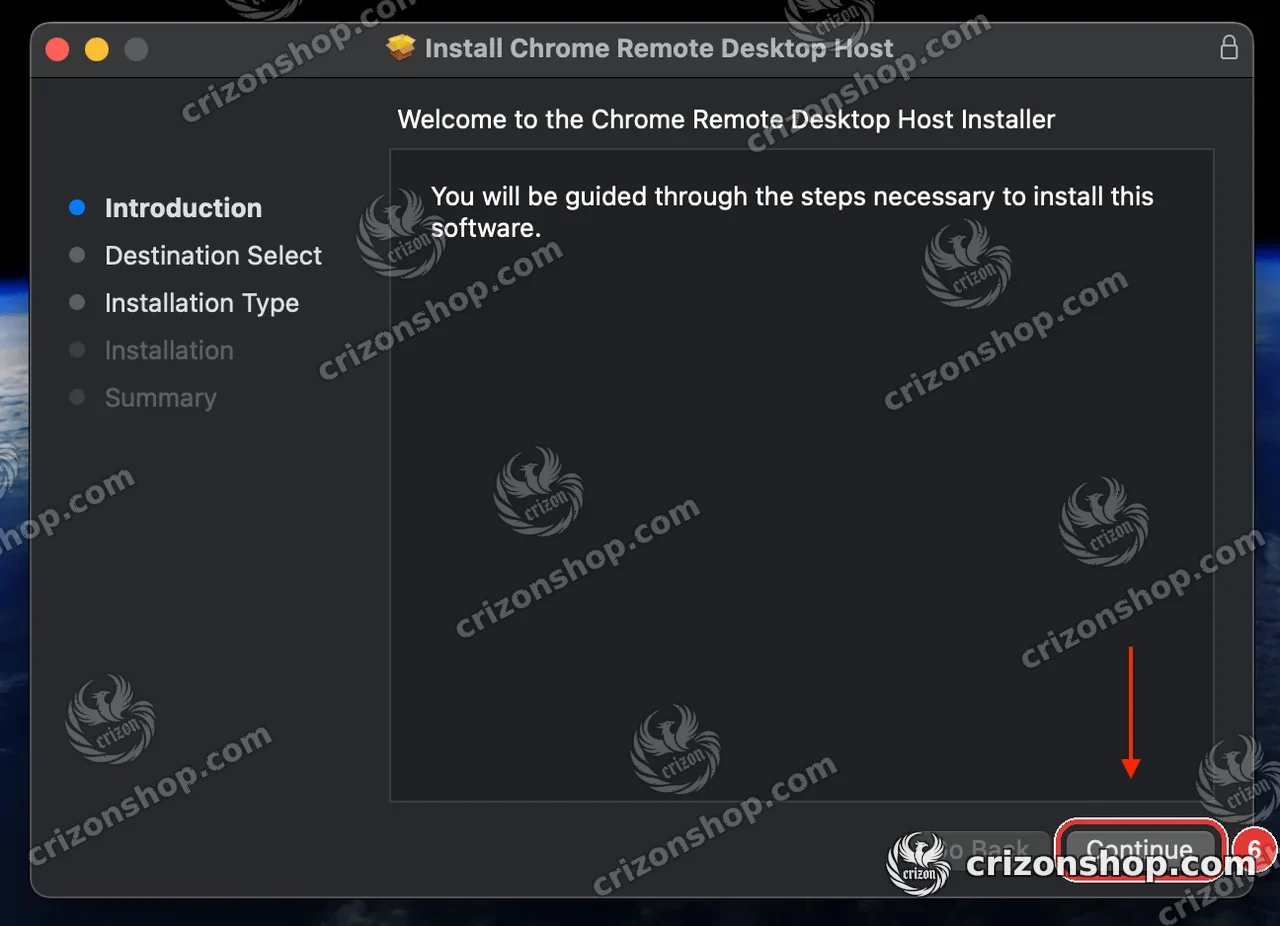
Click “Continue” to move past the introduction. Enter your Mac password when asked, then click Install Software.
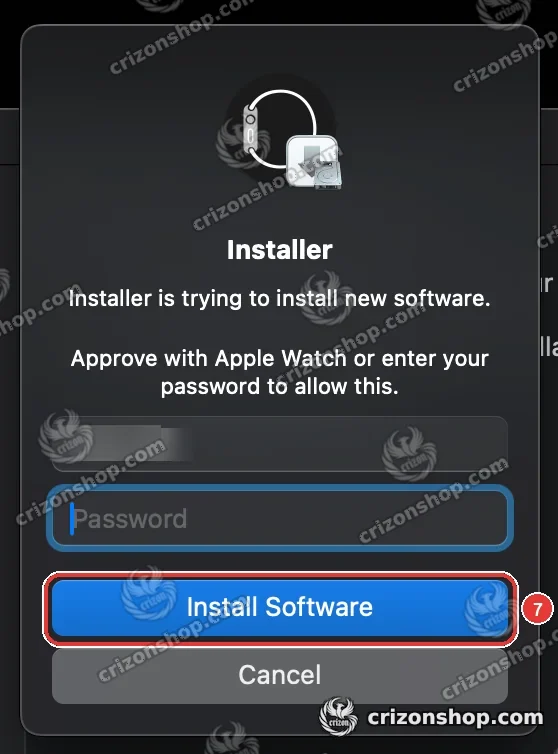
Enter your Mac password, then click “Install Software”. If macOS asks for permission for Chrome Remote Desktop, click Allow.
When the installer says the installation was successful, click Close.
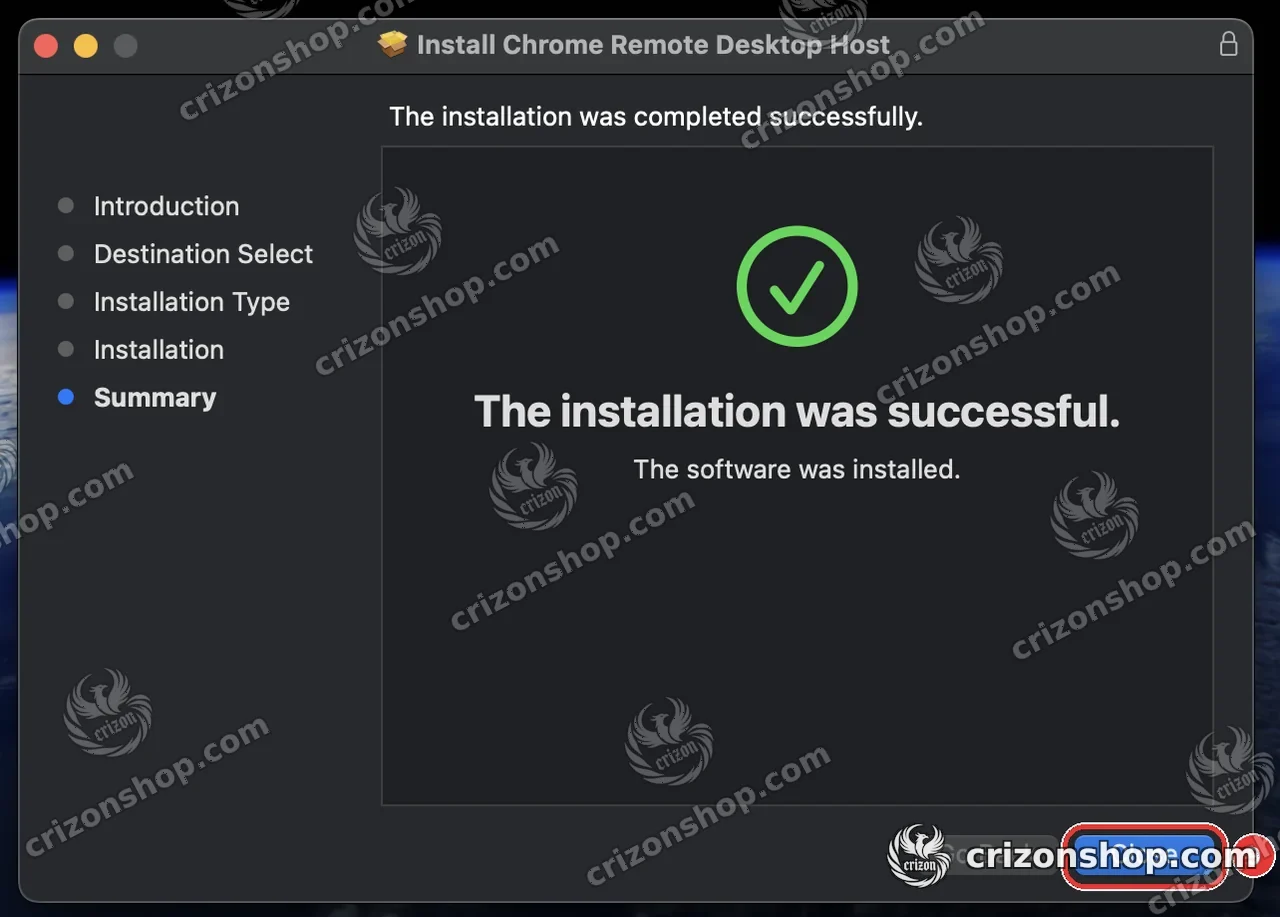
Click “Close” to exit the installer.
Step 2. Allow Chrome Remote Desktop to access your screen
macOS won't let an app record your screen or control your mouse and keyboard until you allow it. Without these permissions, your helper may still connect but won't see your screen or won't be able to do anything.
Click the Apple menu in the top-left corner of the screen and choose System Settings.
Click Privacy & Security in the sidebar.
Scroll down and open each item in the table below, one at a time.
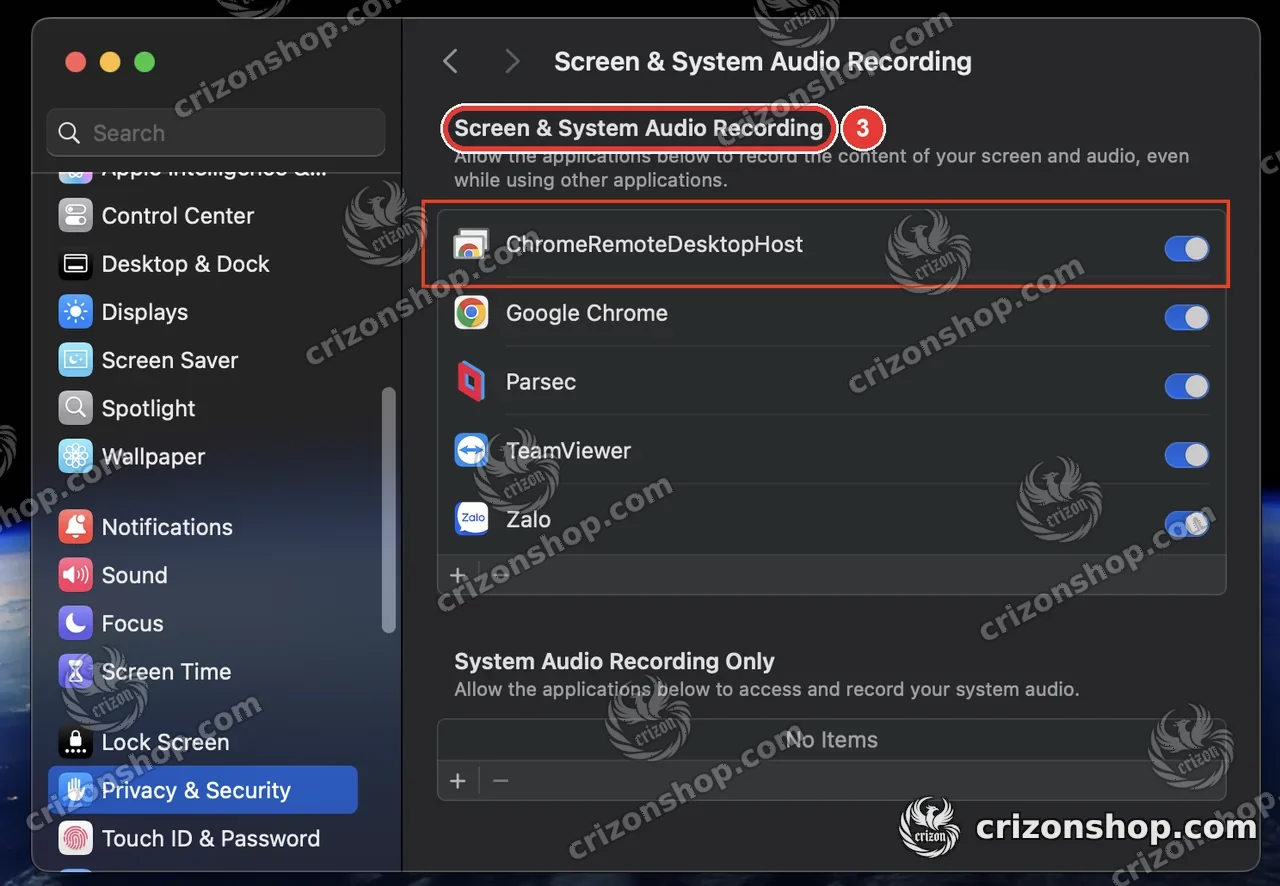
Open “Screen & System Audio Recording”. In each item, turn on the switch next to ChromeRemoteDesktopHost.
Enter your Mac password or use Touch ID if macOS asks.
If the app isn't in the list, click the + button below the list to add it.
| Privacy & Security item | What it's for |
|---|---|
| Accessibility | Lets your helper control the mouse and keyboard on your Mac |
| Screen & System Audio Recording | Sends your screen to your helper |
| Remote Desktop | Allows access to your screen and audio over a remote connection |
Step 3. Create a code for your helper
Open Chrome and go back to remotedesktop.google.com/support.
Click Generate Code.
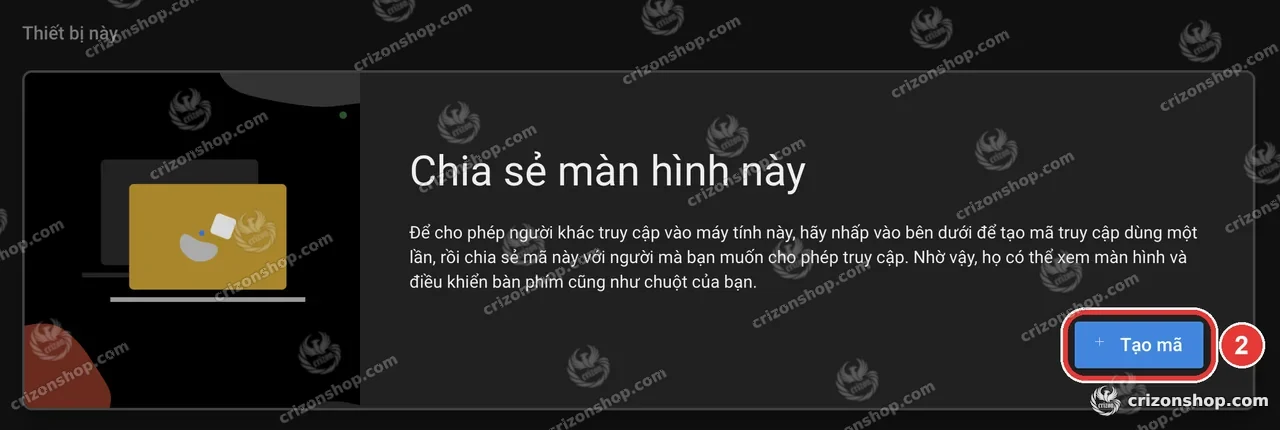
Click “Generate Code”. Copy the code shown on screen and send it to the person helping you.
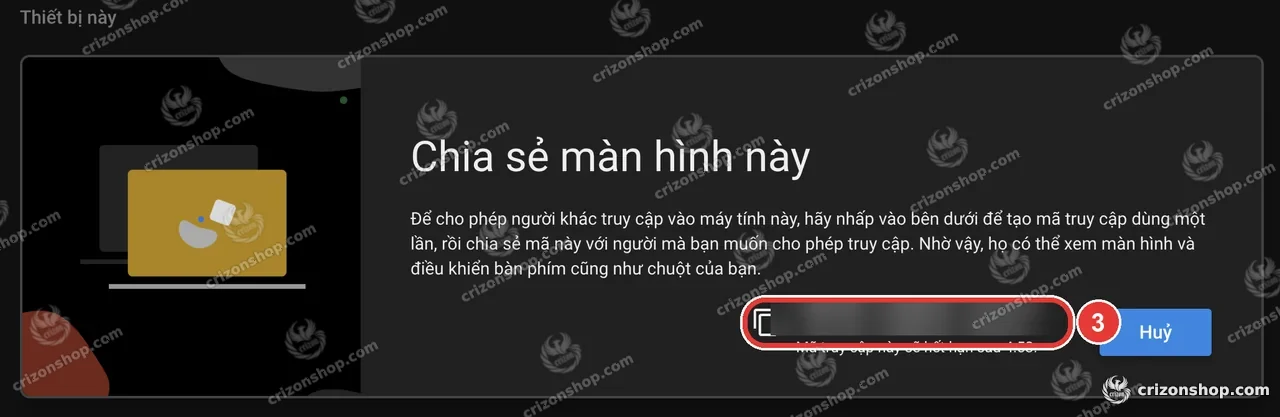
Copy the code “7078 5094 6337” and send it to the person helping you. Leave this page open and wait for your helper to enter the code.
When a dialog shows the email address of the person connecting, check that it's the person you're working with, then click Share.
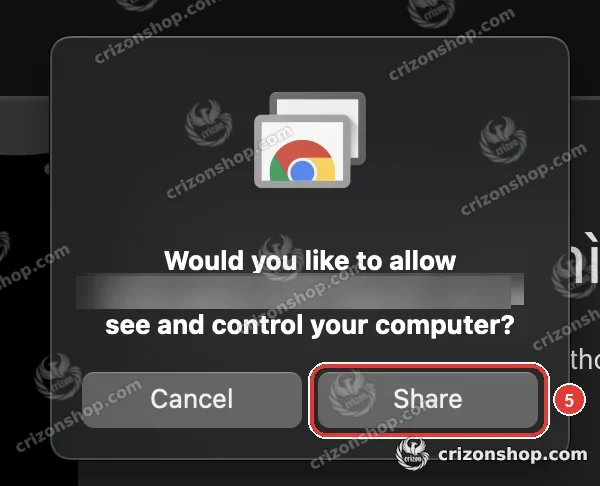
Check it's the right person, then click “Share”. If macOS asks for screen sharing permission, click Allow.
When you're done, click Stop Sharing to disconnect.
If CrizonShop is helping you with an order, send the code in the Chat with Support window in the corner of crizonshop.com when a staff member asks for it. Don't send it through any other channel.
Uninstall Chrome Remote Desktop when you no longer need it
Press Cmd + Space to open Spotlight.
Type
Chrome Remote Desktop Host Uninstallerand open the app.Click Uninstall and enter your Mac password if asked.
Frequently asked questions
No. The app and the permissions you turned on stay in place. Just go back to remotedesktop.google.com/support, click Generate Code, and send the new code. Your old code stopped working after you used it.
This usually means a permission from Step 2 is missing. Check Screen & System Audio Recording (or Screen Recording on older macOS) for the screen, and Accessibility for the mouse and keyboard. After you turn them on, fully quit Chrome with Cmd + Q, open it again, and create a new code.
Not with the sharing method in this guide. The other person can only connect if they have the code you just created and you click Share in the dialog showing their email. If you no longer need remote support, you can remove the app completely using the steps above.
Everything is in the same place. Only the labels are different. Look for the translated names of System Settings, Privacy & Security, and Accessibility in the same spots, and find the other items by their position in the list.
Related guides
How to Activate IObit Driver Booster PRO with a License Code How to Leave a Microsoft 365 Family Group
 How to Enter a Product Key to Activate Windows 10 and Windows 11
Still need help?
Send your order code and we can sort it out faster.
