 AnyDesk · Set up
How to Install AnyDesk on Mac and Grant Remote Control Permissions
Download AnyDesk from the official site and install it on your Mac. Then turn on Accessibility and Screen Recording for AnyDesk in Privacy & Security so the person helping you can see and control your Mac.
This guide shows you how to download and install AnyDesk on a Mac. It then covers the macOS permissions you need to turn on so the person helping you can see your screen and control your mouse and keyboard remotely. If a permission is missing, they usually can't see your screen, or nothing happens when they click.
Before you start
- A Mac with a stable internet connection.
- Your Mac login password. macOS asks for it when you change privacy settings.
- Your macOS version. To check it, click the Apple menu in the top-left corner and choose About This Mac. macOS Ventura (13) and later use System Settings. Older versions use System Preferences.
Download and install AnyDesk
Open the AnyDesk download page for macOS on the official AnyDesk website.
Click Download Now to download the
.dmgfile.Open the
.dmgfile you just downloaded from your Downloads folder.Double-click the AnyDesk icon in the window that appears.
In the main AnyDesk window, click Install Now.
Accept the Terms and Conditions to finish installing.
Open the permission status window in AnyDesk
The first time you open AnyDesk, you'll see a status icon next to your ID number. Click it to open the System Permission Status window. Each permission there has a button that takes you straight to the right place in your Mac's settings, so you don't have to look for it yourself.
| Permission | What it's for | Button in AnyDesk |
|---|---|---|
| Screen Recording | Lets the person helping you see your screen | Open Screen Recording preferences |
| Accessibility | Lets the person helping you control your mouse and keyboard | Request Accessibility |
| Full Disk Access | Lets you send and receive files between the two computers | Open Full Disk Access preferences |
Screen Recording and Accessibility are both required if you want someone to control your Mac. Full Disk Access is only needed if the person helping you has to transfer files to or from your Mac.
Turn on permissions in macOS settings
If the buttons in AnyDesk don't work, you can turn on the permissions yourself in settings. Follow the steps for your macOS version.
Click the Apple menu in the top-left corner and choose System Settings.
Click Privacy & Security in the sidebar. Scroll down if you don't see it.
Click Accessibility, then turn on the switch next to AnyDesk.
Go back, click Screen & System Audio Recording, then turn on the switch next to AnyDesk. On some macOS versions, this item is called Screen Recording.
If you need to transfer files, go to Full Disk Access and turn on the switch next to AnyDesk.
Enter your Mac password or use Touch ID when asked.
If AnyDesk isn't in the list, click the + button below the list, select AnyDesk in your Applications folder, then turn on its switch.
Click the Apple menu in the top-left corner and choose System Preferences.
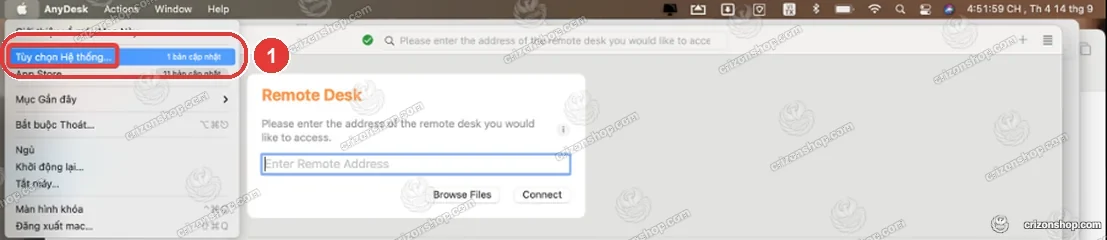
Click “System Preferences…”. Click Security & Privacy, then open the Privacy tab.
Click the lock icon in the bottom-left corner and enter your Mac password to unlock it.
Select Accessibility in the left column, then check the box next to AnyDesk.
Select Screen Recording, then check the box next to AnyDesk.
If you need to transfer files, select Full Disk Access and check the box next to AnyDesk.
Click the lock again to save and lock your changes.
Share your ID and accept the connection
Open AnyDesk and find your ID number on the main screen.
Send this number to the person helping you.
When the connection request window appears, check that it shows the ID of the person helping you, then accept.
When you're done, close the session or quit AnyDesk completely.
If you're talking to CrizonShop through Chat with Support in the corner of the screen on crizonshop.com and you're offered remote help, send your ID in that same chat. That way, the support agent knows exactly which computer to connect to.
Frequently asked questions
Quit AnyDesk completely with Command + Q and open it again. The screen recording permission only takes effect after the app restarts. If that doesn't fix it, go back to the screen recording section in Privacy & Security, turn off the switch for AnyDesk, turn it back on, then reopen the app once more.
Open AnyDesk at least once so macOS registers the app. If it's still not in the list, click the + button below the list, select AnyDesk in your Applications folder, then turn on the permission for it.
No. You can just drag AnyDesk into the Applications folder and run it from there. That's enough for a one-time session while you're sitting at your Mac. If someone needs to access your Mac while you're away, or AnyDesk needs to reconnect automatically after a restart, you need to do a full install with Install Now.
If you rarely need remote help, you can go back to the same sections in Privacy & Security and turn off the switches for AnyDesk. Next time you need it, just turn them back on and reopen the app.
Related guides
How to Activate IObit Driver Booster PRO with a License Code How to Leave a Microsoft 365 Family Group
 How to Enter a Product Key to Activate Windows 10 and Windows 11
Still need help?
Send your order code and we can sort it out faster.
