 Nero · Activate
How to Install and Activate Nero 8 Ultra Edition with a Serial Number
Download the Nero 8 Ultra Edition installer from nero.com and run setup. Enter your name in the User Name field and your serial in the Serial Number field, then click Next to activate your license.
This guide shows you how to download the Nero 8 Ultra Edition installer from Nero's servers and enter your serial during setup to activate your license. If you skip the serial step, you can still add it after the installation is done.
Before you install
Check these items first so the installation doesn't stop partway through.
Download the Nero 8 installer from Nero's website
Nero still keeps a Nero 8 download link at nero.com/download.php?id=n8upd. When you open it, the link automatically redirects to the Nero 8 setup file on Nero's own dl20.nero.com server.
Open the link above in a browser on your Windows computer.
Save the file to your computer. The file name looks like
Nero8-20.11.2015_stub_update.exe.Open your Downloads folder to find the file you just downloaded.
Install Nero 8 and enter your serial
Right-click the downloaded file and select Run as administrator.
Follow the installer until you reach the screen that asks for your user information.
Type your name in the User Name field.
Paste your serial into the Serial Number field.
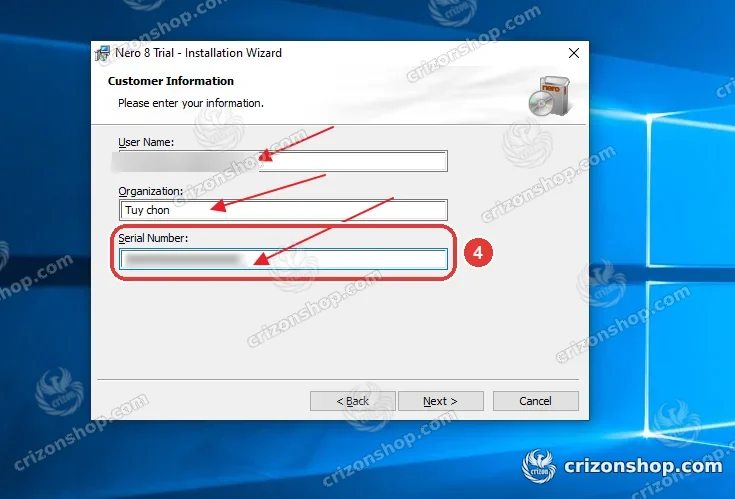
Paste your serial into the Serial Number field. Click Next and wait for the installer to finish.
Add a serial after installation
If you've already installed Nero without entering a serial, you can add one in Nero ControlCenter by following Nero's official support article. That article is written for newer versions of Nero, so some menu names may be slightly different in Nero 8.
Open the Start menu, go to All apps (or All programs), open the Nero folder, and launch Nero ControlCenter.
Select Serial Numbers in the left column.
Click Add Serial Number.
Enter your serial in the Serial Number field and click Next.
Once the serial is confirmed, click Exit to close the window.
Frequently asked questions
First, check every character again and make sure the serial is for Nero 8 Ultra Edition, not another Nero version. If you entered it correctly and still get an error, contact whoever provided your serial so they can check its status.
Nero hasn't published compatibility information for Nero 8 on Windows 10 or Windows 11, since this version was built for much older versions of Windows. It may still install, but some features may not work properly. If you need it to run reliably on a newer computer, you can look at newer Nero versions on Nero's download page.
Nero can remove old setup files from its servers at any time. If that happens, use your original installation disc if you still have it, or ask Nero Support. Don't download the Nero 8 installer from other sites, because those copies can easily contain malware.
Related guides
How to Activate IObit Driver Booster PRO with a License Code How to Leave a Microsoft 365 Family Group
 How to Enter a Product Key to Activate Windows 10 and Windows 11
Still need help?
Send your order code and we can sort it out faster.
