WonderFox · Activate
How to Install and Activate HD Video Converter Factory Pro
Download the HD Video Converter Factory Pro installer from WonderFox and install it on Windows. Then open the program, click Register and paste your license code that starts with VC-HDPA to unlock the Pro version.
This guide shows you how to download the official HD Video Converter Factory Pro installer and install it on a Windows PC. You'll then enter your license code to upgrade from the trial to the full Pro version.
Before you install
- A PC running Windows 11, 10, 8.1, 8 or 7. There is no macOS version.
- Minimum specs: a 1.5 GHz Intel or AMD CPU, 1 GB of RAM and 300 MB of free disk space.
- A license code for HD Video Converter Factory Pro specifically. Codes for this product start with
VC-HDPA.
Step 1. Download and install the software
Open the HD Video Converter Factory Pro page on the WonderFox website.
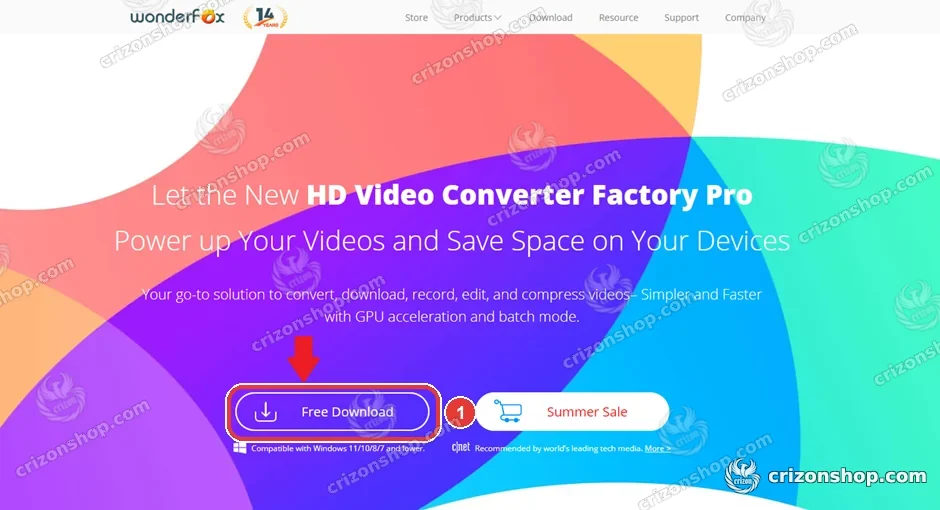
Click Free Download to get the installer. Click Free Download to save the installer to your computer.
Open the downloaded file to run the installer.
Click Next and accept the license terms.
When the installation is done, click Finish to close the installer and launch the program.
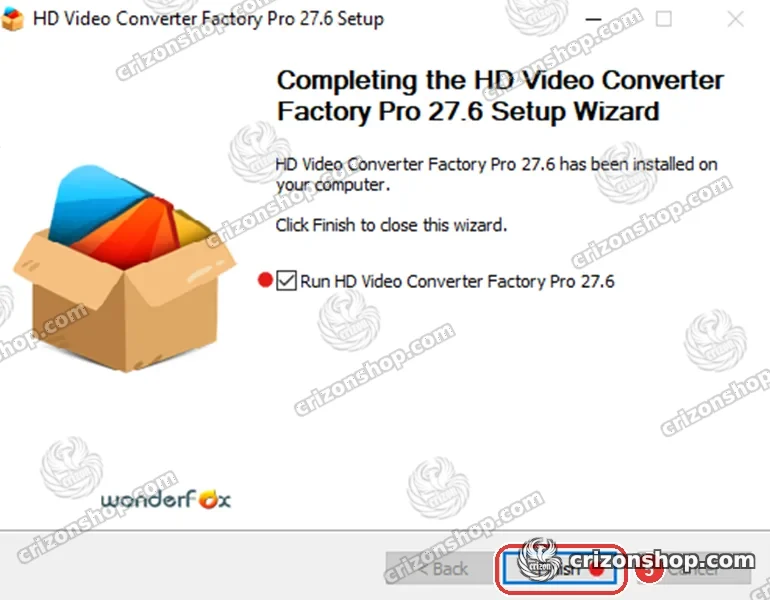
Click Finish to close the installer and launch the program.
Step 2. Enter your license code
Open HD Video Converter Factory Pro. If the program isn't registered yet, the registration window usually opens as soon as it starts.
If you don't see that window, click the Register button on the main screen to open it.
Copy your license code and paste it into the code field.
Click Register to submit the code.
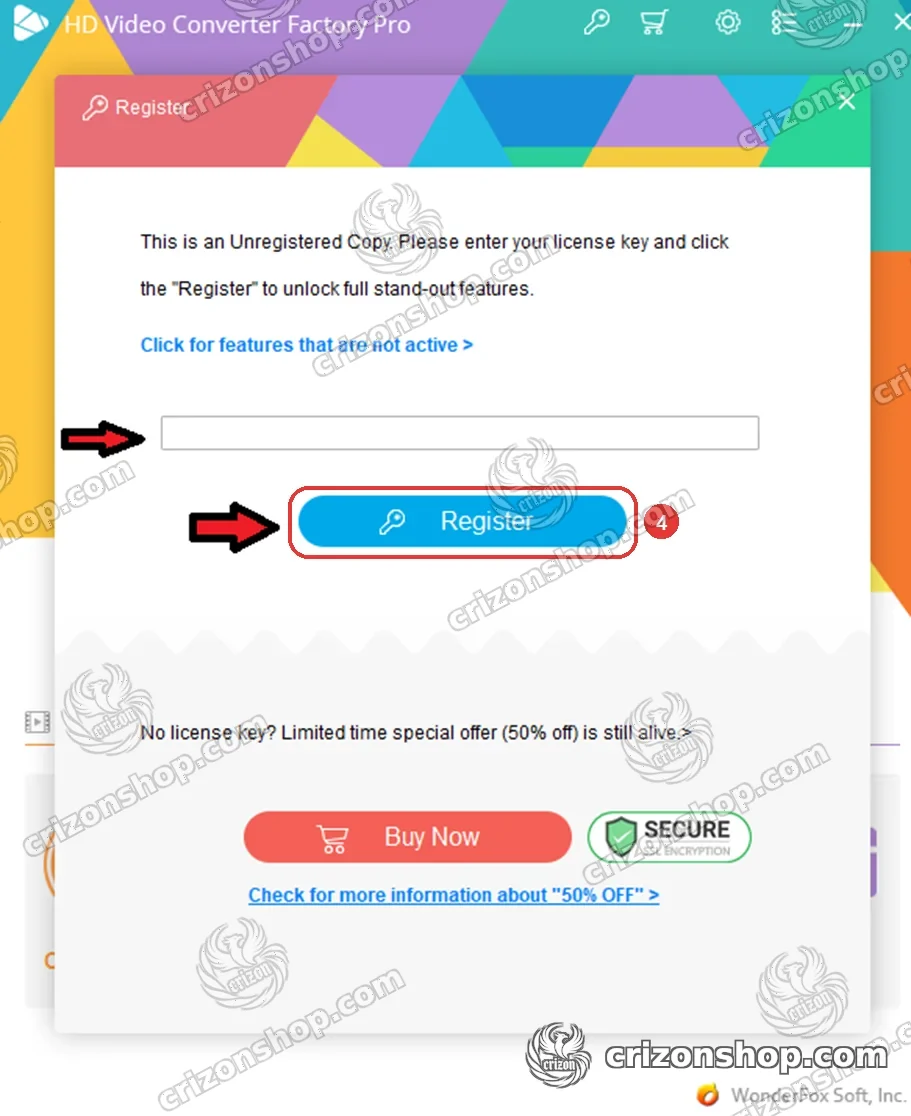
Click Register to submit the code. When you see the registration success message, you're on the Pro version.
If the program shows an error or loses its registration
"Registration info is invalid"
According to WonderFox, this error usually has one of three causes.
- The code was mistyped or has extra spaces. Paste it again and delete any spaces at either end.
- The code belongs to a different WonderFox product, such as DVD Ripper Pro. Codes for HD Video Converter Factory Pro must start with
VC-HDPA. - The code is an older one that doesn't support the newer version you just installed.
Registered successfully, but it shows as unregistered again
Add HD Video Converter Factory Pro to the allow list of your antivirus or firewall, such as Microsoft Defender or AVG.
Open the program and register it again with your code.
If that doesn't work, uninstall the program, download the latest version from the WonderFox website, reinstall it and register one more time.
If you've tried everything above and it still doesn't work, you can submit a request to WonderFox's support center.
Move your license to another computer
Under WonderFox's license policy, each code can only be used on one computer at a time. You don't need to buy a new code when you switch computers. Just unregister the program on your old computer so the code can be activated again. Then install the program on the new computer and enter the code as in Step 2. Recent versions have a built-in unregister option, and WonderFox's FAQ page has screenshots showing where to click.
FAQ
No. WonderFox only releases this program for Windows, from Windows 7 to Windows 11. The 32-bit installer also runs fine on 64-bit Windows.
Each code can only be used on one computer at a time. To move it to another computer, unregister it on the old one first, then enter the code on the new one.
According to WonderFox's FAQ, a lifetime license includes free upgrades to new versions. With a 1-year license, you have to pay after 12 months if you want to keep upgrading to new versions.
If you bought the code directly from WonderFox, go to the Retrieve License Key page and enter the email you used to buy it or your order number. WonderFox will send you the code again within 24 hours.
Related guides
How to Enter a License Key to Activate WonderFox Document ManagerHow to Enter Your WonderFox DVD Ripper Pro License KeyHow to Activate IObit Driver Booster PRO with a License CodeStill need help?
Send your order code and we can sort it out faster.
