 Webroot · Activate
How to Enter Your Webroot SecureAnywhere Internet Security Plus Keycode
Download the Webroot installer from the official site, open the file, paste your keycode and click Agree and Install on Windows. This guide also shows you how to check and change your key after installation.
This guide shows you how to download the right Webroot SecureAnywhere installer from Webroot's website and enter your keycode to activate Internet Security Plus on your computer. It also shows you how to check that the key was accepted.
What you need
Install Webroot and enter your key
Open the Webroot installer download page and click PC installation to download the setup file.
Open the file you just downloaded. It's usually in your Downloads folder.
Paste your keycode into the keycode field in the installer window.
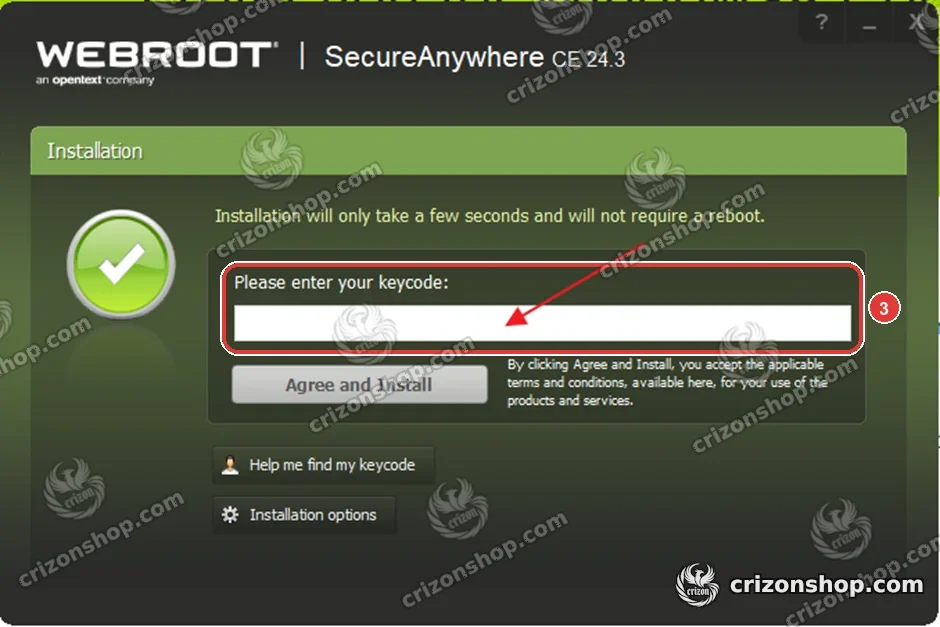
Paste your keycode into the “Please enter your keycode:” field. Click Agree and Install to accept the terms and start the installation.
When the User Account Control prompt appears, click Yes.
If the installer asks for your email, enter it and click Continue.
Wait for Webroot to finish installing and run its first scan automatically. Don't turn off your computer during this time.
Open the Webroot installer download page and click Mac installation to download the
.dmgfile.Open the
.dmgfile you just downloaded and drag the Webroot SecureAnywhere icon into the Applications folder.Open Webroot SecureAnywhere from the Applications folder.
Enter your keycode and click the activation button on screen.
Enter your Mac password when prompted.
Follow the on-screen instructions to give Webroot the permissions it needs in macOS Privacy & Security settings. If you skip this step, Webroot may not fully protect your Mac.
Check your key after installation
Open Webroot SecureAnywhere from its icon in the system tray (on the right side of the taskbar) or from the Start menu.
Click My Account.
Check the keycode in use and how many days of protection you have left.
If it's the key you just entered and the number of days matches the plan you bought, activation is complete.
Switch to a new key after Webroot is installed
When you renew with a different key, you don't need to uninstall and reinstall Webroot. Just enter the new key in the app.
Open Webroot SecureAnywhere and click My Account.
Click Activate a new keycode.
Paste the new key and click Activate.
Open My Account again to make sure the key and the remaining days have been updated.
Frequently asked questions
Check each character and try pasting the key again. If you still get the error, the key may have expired, reached its device limit, or belong to a different Webroot product. In that case, contact whoever provided the key or Webroot support to have it checked.
The number of devices depends on the plan you bought. It's usually shown on the package or in the details that came with your key. To protect another computer, download the installer on that computer and enter the same key as described above.
No. Your key keeps its remaining time. Just download the installer again from Webroot's website, install it on the new computer, and enter the same key.
No, your computer is protected without one. A Webroot account just lets you view and manage your devices and keys online. This is handy if you use several keys on several devices.
Related guides
 How to Activate Avast BreachGuard with a Sign-in Key
 How to Activate AVG AntiTrack Premium with an Activation CodeHow to Activate a Gilisoft Audio Recorder Pro Key on Windows
Still need help?
Send your order code and we can sort it out faster.
