SQL Server · Activate
How to Enter a SQL Server Product Key with Edition Upgrade
To enter a key for an installed SQL Server, open SQL Server Installation Center, select Maintenance, then Edition Upgrade. Paste your key on the Product Key page and choose the instance you want to upgrade.
This guide shows you how to enter a product key for SQL Server installed on Windows. For example, you might want to move from Evaluation, Developer, or Express to Standard or Enterprise. You'll use the Edition Upgrade feature built into Microsoft's setup program. It keeps your existing instance and databases as they are.
Before you enter the key
Supported edition upgrades
The table below summarizes the edition upgrade paths within SQL Server 2022, based on Microsoft's documentation.
| You're using | You can enter a key to upgrade to |
|---|---|
| Evaluation | Enterprise, Standard, Developer, Web |
| Express | Enterprise, Standard, Developer, Web |
| Developer | Enterprise, Standard, Web |
| Web | Enterprise, Standard |
| Standard | Enterprise |
Other versions have their own tables. See Microsoft's Supported version and edition upgrades page. Edition Upgrade only moves you up to a higher edition. It can't downgrade.
Enter the key with Edition Upgrade
Open SQL Server Installation Center
Use either method below. Both open the same window.
- From the setup media: open the SQL Server ISO file or setup folder, right-click
setup.exe, and select Run as administrator. - If SQL Server is already installed: open the Start menu, find the Microsoft SQL Server folder for your version year, and select SQL Server Installation Center (64-bit) from the configuration tools.
Enter the key and upgrade the edition
In the left pane of Installation Center, select Maintenance.
Click Edition Upgrade.
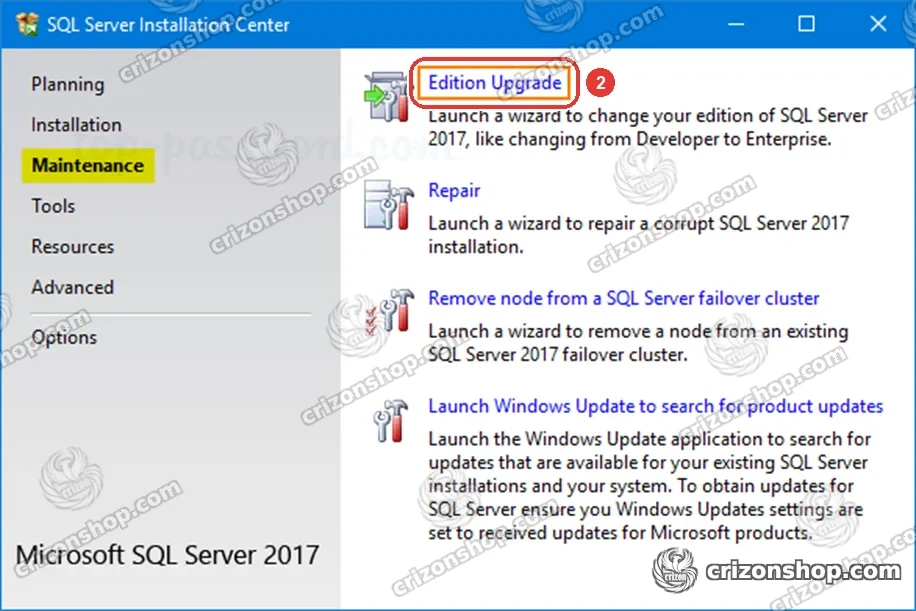
Click 'Edition Upgrade' to open the edition upgrade wizard. If setup needs to install Setup Support Files, let it install them. If it asks you to restart the computer, restart and start again from step 1.
When the system configuration check finishes, click OK to continue.
On the Product Key page, select Enter the product key, paste your key, and click Next.
On the License Terms page, read the terms, select the checkbox to accept the license terms, and click Next.
On the Select Instance page, choose the instance to upgrade (the default instance is usually named
MSSQLSERVER) and click Next.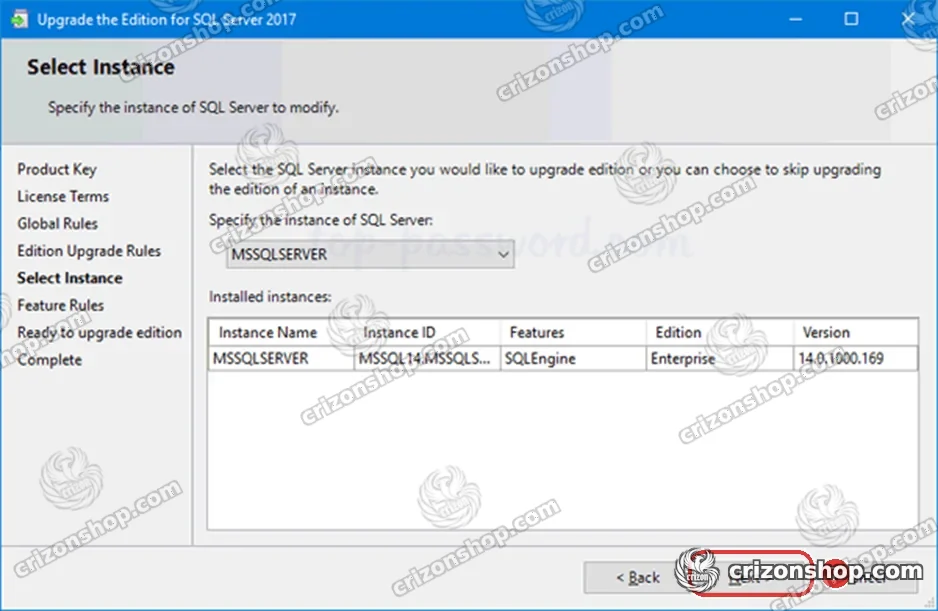
Select the instance to upgrade, then click 'Next >' (Select Instance). Wait for the Edition Upgrade Rules page to finish its checks. If any rule fails, fix it first. When everything passes, click Next.
On the Ready to Upgrade Edition page, review the details and click Upgrade.
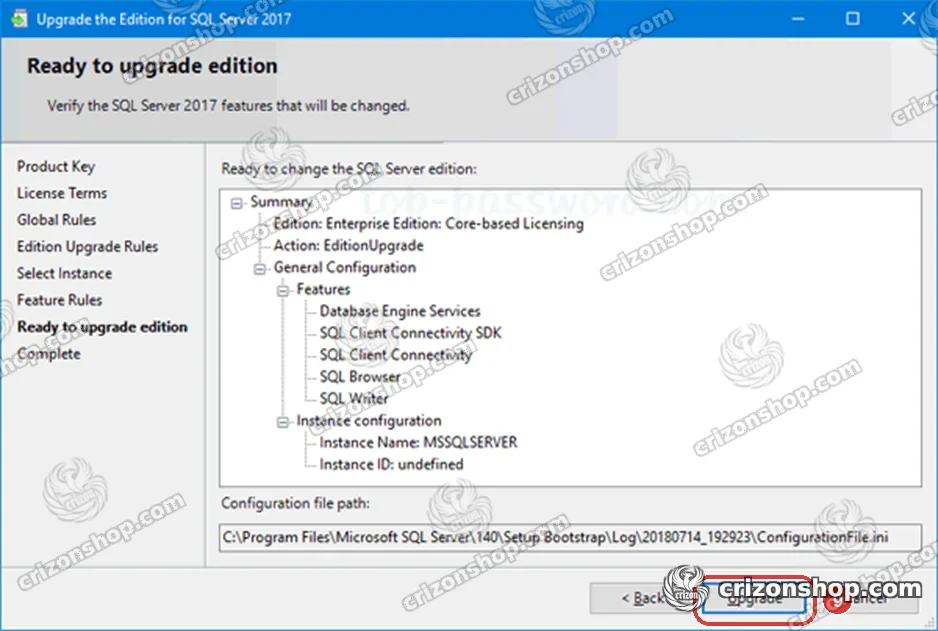
Review the details, then click 'Upgrade' (Ready to Upgrade Edition). When the Complete page appears, click Close. If setup says the computer needs to restart, restart it right away.
If you're upgrading from Express
Express doesn't run SQL Server Agent. After upgrading to another edition, you need to do a few extra things before you use it.
Open the Windows Services window and enable the SQL Server Agent service for the upgraded instance.
Open SQL Server Configuration Manager and set the account that runs the SQL Server Agent service.
Review the
BUILTIN\Usersgroup. Any permissions it had under Express are still in place, so disable or adjust them if you don't need them.Review the size and recovery model of
tempdbandmodel. These settings stay the same as they were under Express.
Check the edition after entering the key
Open SQL Server Management Studio, connect to the upgraded instance, click New Query, and run the following query.
SELECT SERVERPROPERTY('Edition') AS Edition,
       SERVERPROPERTY('ProductVersion') AS ProductVersion;
If the Edition column shows the new edition name, such as Standard or Enterprise followed by (64-bit), the key was accepted. If it still shows Evaluation, Developer, or Express, check whether you chose the right instance on the Select Instance page.
If the Engine_SqlEngineHealthCheck rule blocks the upgrade
According to Microsoft, if the Edition Upgrade Rules page fails on the Engine_SqlEngineHealthCheck rule specifically, you can run Edition Upgrade from the command line and skip just that rule.
Open Command Prompt as Administrator.
Use the
cdcommand to go to the setup folder that containssetup.exe.Replace the X's with your key, then run the command below.
setup.exe /q /ACTION=editionupgrade /InstanceName=MSSQLSERVER /PID=XXXXX-XXXXX-XXXXX-XXXXX-XXXXX /SkipRules=Engine_SqlEngineHealthCheckFrequently asked questions
No. Edition Upgrade changes the edition on the running instance, and your databases stay where they are. What you do need to plan for is a short outage, because the SQL Server service restarts. Even so, back up your databases first to be safe.
Check three things. The key must be a SQL Server key, not a Windows or Office key. It must match the version of your setup media (a 2019 key goes with 2019 setup media). And when you paste it, there must be no extra spaces or stray characters. If the key came from an order on crizonshop.com, go to Account → My orders and click Report a problem on that product so we can check it.
No. According to Microsoft, to downgrade you must back up all databases, including system databases, fully uninstall the instance, restart the machine, and then reinstall with the lower edition's setup media using the same instance name. This causes much longer downtime. See Microsoft's guide for the detailed steps.
The SQL Server service always restarts during the upgrade. You only need to restart the whole computer if setup asks you to. This usually happens when it installs support files at the start, or on the final Complete page. Read the message on the last page carefully to see whether you need to restart.
Related guides
How to Activate IObit Driver Booster PRO with a License Code How to Leave a Microsoft 365 Family Group
 How to Enter a Product Key to Activate Windows 10 and Windows 11
Still need help?
Send your order code and we can sort it out faster.
