 Monkey · Activate
How to Enter a Monkey Activation Code in the App or on the Website
You can enter your Monkey activation code in the app or at monkey.edu.vn/active-account. Then link it to an email or phone number so your child can log in and start learning.
This guide shows you how to enter a Monkey activation code to unlock a learning plan on your family's account. You can do it in the app on a phone or tablet, or on Monkey's activation page. Then your child just needs to log in to the right account to start learning.
What you need
Have these ready before you start so you don't have to stop partway through.
Method 1. Enter the code in the app
Find and install the Monkey app that matches your plan from Google Play or the App Store (for example, search for "Monkey Junior"). You can also go to Monkey's official website to open the right app.
Open the app. On the first screen, choose Enter activation code.
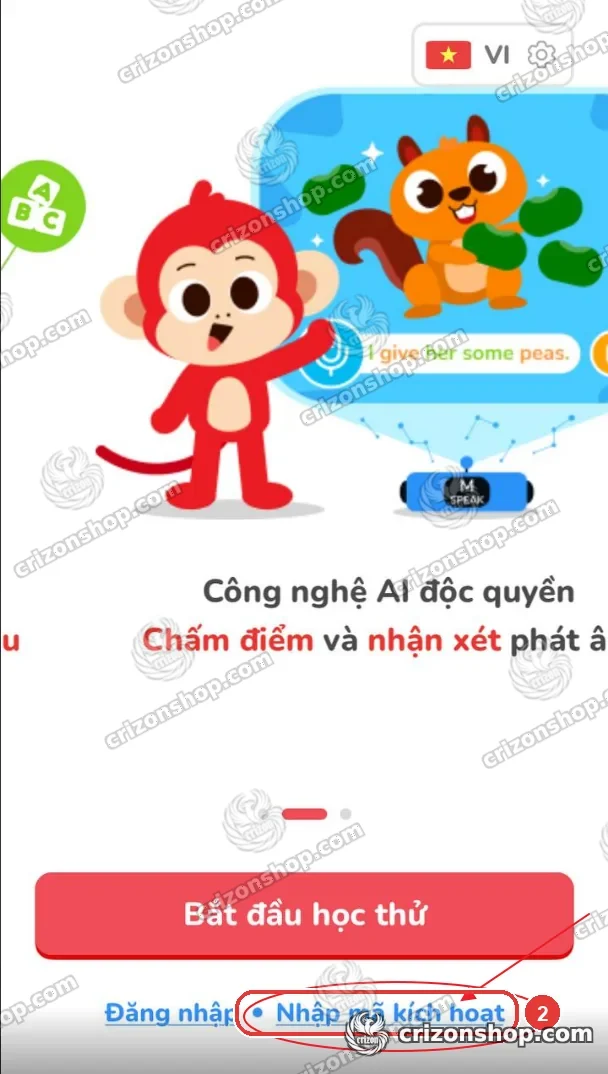
Tap “Enter activation code”. Type the code in the box, then choose Continue.
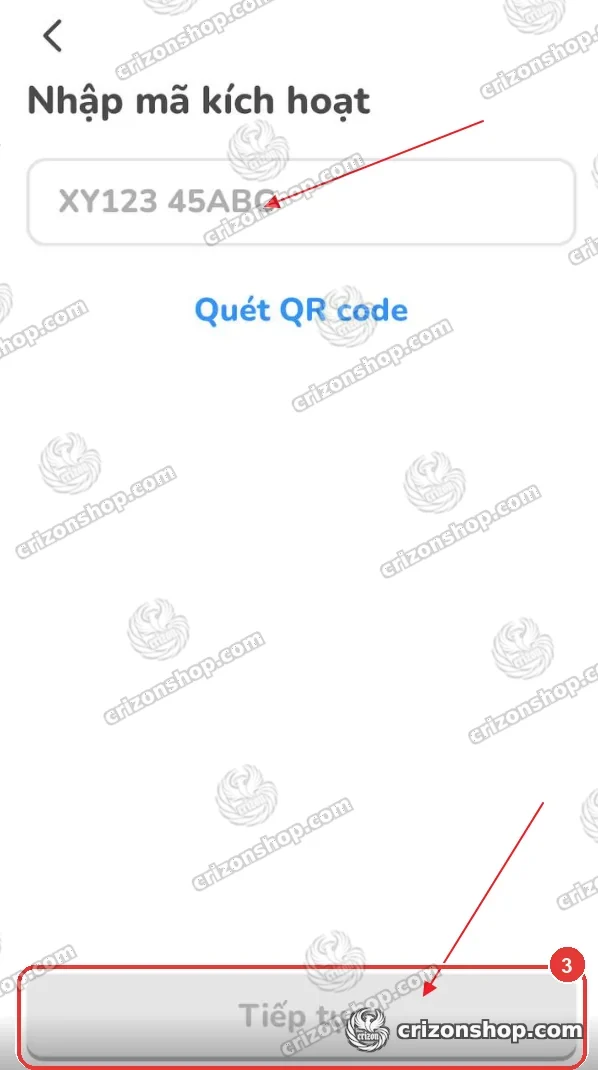
Type the code in the box, then choose “Continue”. When the app confirms the code was accepted, follow the prompts to link your account with an email or phone number.
Finish linking. From now on, log in with that same email or phone number on your child's devices.
Method 2. Enter the code on Monkey's activation page
Open Monkey's account activation page in a browser on your phone or computer.
Enter the code in the ACTIVATION CODE field and click ACTIVATE.
Choose I DON'T HAVE AN ACCOUNT if you've never had a Monkey account, or I ALREADY HAVE AN ACCOUNT if your family already has one.
Enter your email or phone number when asked. This creates a new account or links the code to your existing one.
Open the Monkey app on your child's device, choose LOG IN, and log in with the account you just activated.
Your child's device is logged in to another account
Monkey's instructions say to log out of the old account first. Then log in to the account you activated the code on.
In the app, tap the profile picture to open settings.
Choose LOG OUT.
Choose LOG IN and log in with the email or phone number linked to the code.
Frequently asked questions
A Monkey code works only once. If you're sure you haven't entered it anywhere, check each character again. Watch for look-alikes such as the number 0 and the letter O, or the number 1 and the letter I. If you still get an error, contact the seller you bought the code from or the Monkey hotline at 1900 63 60 52 so they can check it.
This usually means your child's device is logged in to a different account from the one linked to the code. Log out in the app's settings, then log back in with the email or phone number you used when activating.
Yes. Just log in to the same account on each device. However, Monkey limits the number of devices per account. Check the exact number in your plan details or ask Monkey's support team.
Contact Monkey by phone at 1900 63 60 52 or by email at [email protected]. Give them the activation code you entered so they can look up your account. For other questions, see Monkey's customer support page.
Related guides
 How to Sign In to DataCamp and What to Do When You Can't Get In
 How to Log In to Your JetBrains Account on the Web and in the IDE
 How to Log In to Bookmate with Email or Google
Still need help?
Send your order code and we can sort it out faster.
