Xilisoft · Activate
How to Enter a License Code in Xilisoft YouTube Video Converter
Open Xilisoft YouTube Video Converter, go to Help › Enter License Code, paste your exact User Name and License Code, then click Register. Windows and Mac keys aren't interchangeable.
This guide shows you how to download Xilisoft YouTube Video Converter from the official website and register it with your User Name and License Code. The last section covers what to do if the software says your key is invalid.
Before you enter your key
Run through this quick checklist before you start. Most activation errors happen because the wrong version is installed.
If you bought your key from CrizonShop, sign in at crizonshop.com, go to Account → My orders and open the order details to see your User Name and License Code. Each field has a copy button. Use it instead of typing the details by hand.
Download and install the software
Open the Xilisoft YouTube Video Converter page on Xilisoft's official website.
Download the right version for your computer. Xilisoft offers a Windows version, a Mac version for Intel chips and a Mac version for Apple chips.
Open the downloaded file and follow the installer until it finishes.
Open the software. It stays unregistered until you enter a key.
Enter your User Name and License Code
Open Xilisoft YouTube Video Converter.
Click the menu icon (three horizontal lines) at the top of the window. If your version has the classic menu bar, skip this step.
Choose Help, then Enter License Code... to open the Registration window.
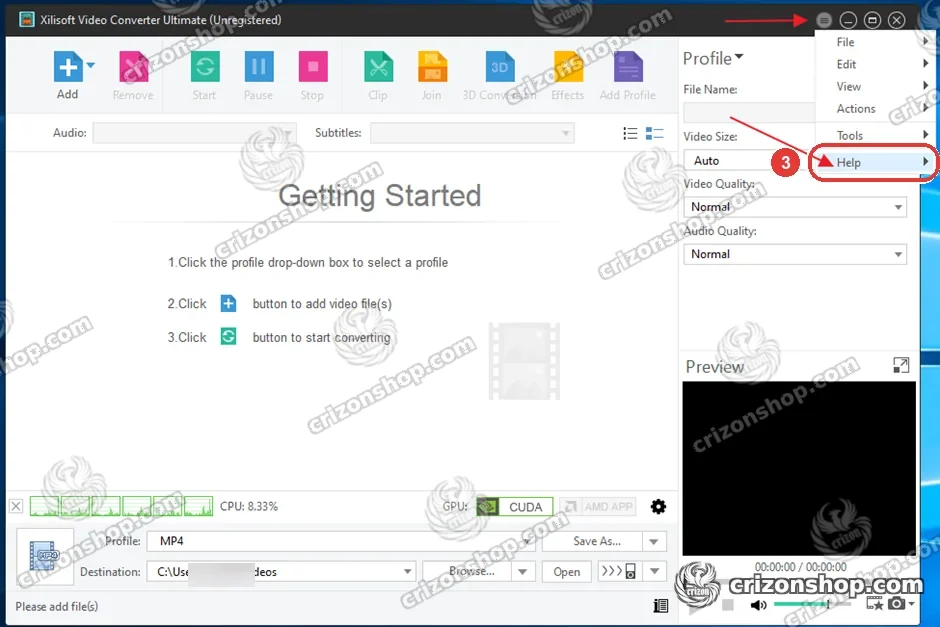
Click Help, then Enter License Code... Paste your User Name into the User Name field.
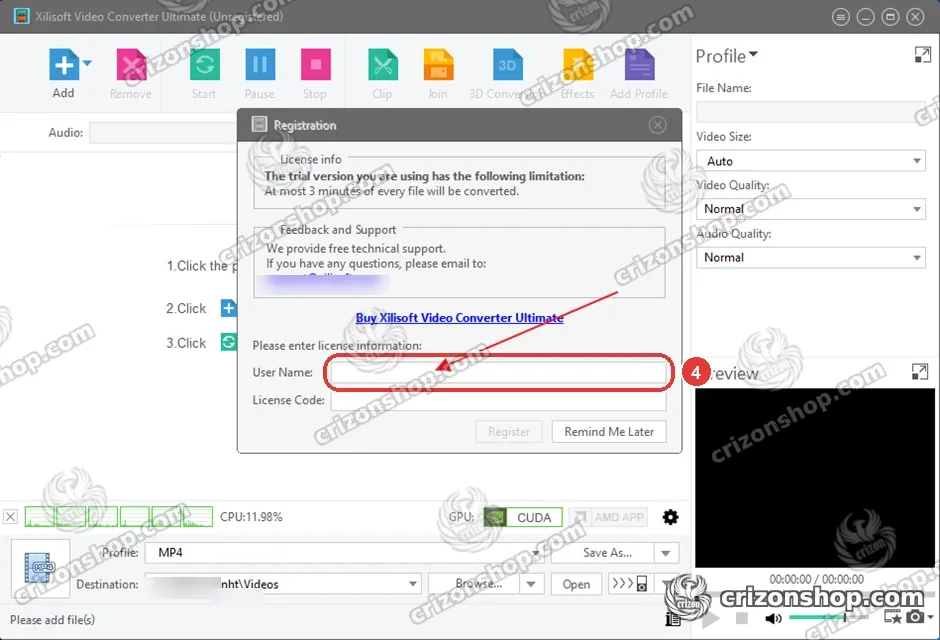
Paste your User Name into the User Name field. Paste your License Code into the code field just below it.
Click Register and wait for the software to confirm the registration.
Open Xilisoft YouTube Video Converter.
In the menu bar at the top of the screen, click the menu with the app's name. If the registration option isn't there, open the Help menu.
Choose Enter License Code....
Paste your User Name and License Code into the matching fields.
Click Register.
If the software says "Registration info is invalid"
This is the most common message people see when entering a key. According to Xilisoft's sales support page, it usually comes down to one of the causes below.
| Cause | Fix |
|---|---|
| A typo, or extra spaces picked up when pasting | Clear both fields, copy each value again and paste it once more |
| A Windows key entered in the Mac version, or the other way around | Uninstall the current version and download the one that matches your key |
| The key is for a different product or version | Check the product name that came with the key and install that exact product |
| A key for an older version used on an upgraded one | You need a key made for the version you have installed |
If you've tried all of this and still get the error, take a screenshot of the message. For keys bought from CrizonShop, click Report a problem next to the product in your order details, or message us through Chat with Support in the corner of the screen, and attach the screenshot.
Reinstalling or moving to another computer
Xilisoft says you need to register again every time you reinstall the software, so keep your User Name and License Code somewhere safe. To move to a new computer, uninstall the software from the old one first. Then install it on the new computer and enter the same details again.
Frequently asked questions
If you bought it from CrizonShop, go to Account → My orders on crizonshop.com and open the order details to view it again. If you bought it directly from Xilisoft, use Xilisoft's License Code Retrieval page to get your code back.
No. Xilisoft treats the Windows and Mac versions as completely separate products, and each uses its own code. Install the version that matches your key.
Yes. Every time you reinstall the software, open Help → Enter License Code... and enter your User Name and License Code again, just like the first time.
Xilisoft's support page doesn't give a number. It only says to uninstall the software from your old computer before you register it on a new one. To be safe, use each key on only one computer at a time.
Related guides
How to Enter a License Code to Activate Xilisoft Audio Converter ProHow to Enter a License Code to Activate Xilisoft HD Video ConverterHow to Activate IObit Driver Booster PRO with a License CodeStill need help?
Send your order code and we can sort it out faster.
