Xilisoft · Activate
How to Enter a License Code to Activate Xilisoft Audio Converter Pro
Open Xilisoft Audio Converter Pro, go to Help › Enter License Code..., paste your User Name and License Code, then click Register. The code must be for the right product and for the version you installed, Windows or Mac.
This guide shows you how to download Xilisoft Audio Converter Pro from the official website. You'll then enter your User Name and License Code to switch from the trial to the registered version. If you already have your code, it only takes a few minutes.
Before you enter your key
Step 1. Download and install the software
Open the Xilisoft Audio Converter Pro page on Xilisoft's official website.
Choose the version that matches your computer: Audio Converter Pro for Windows or Audio Converter Pro for Mac for a Mac.
Download the installer.
Run the installer and follow the on-screen steps until the installation is complete.
Step 2. Enter your License Code
Open Xilisoft Audio Converter Pro.
In the menu bar, click Help.
Select Enter License Code....
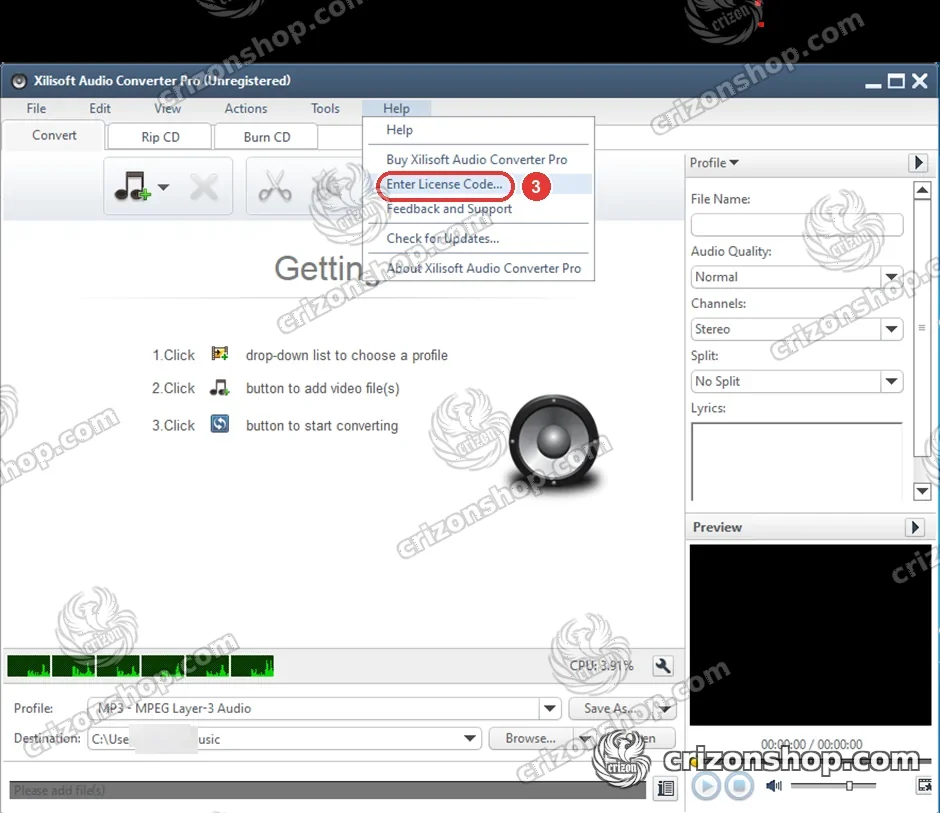
Select “Enter License Code...” to enter your license code. Paste your registration name into the User Name field.
Paste your license code into the License Code field.
Click Register to finish.
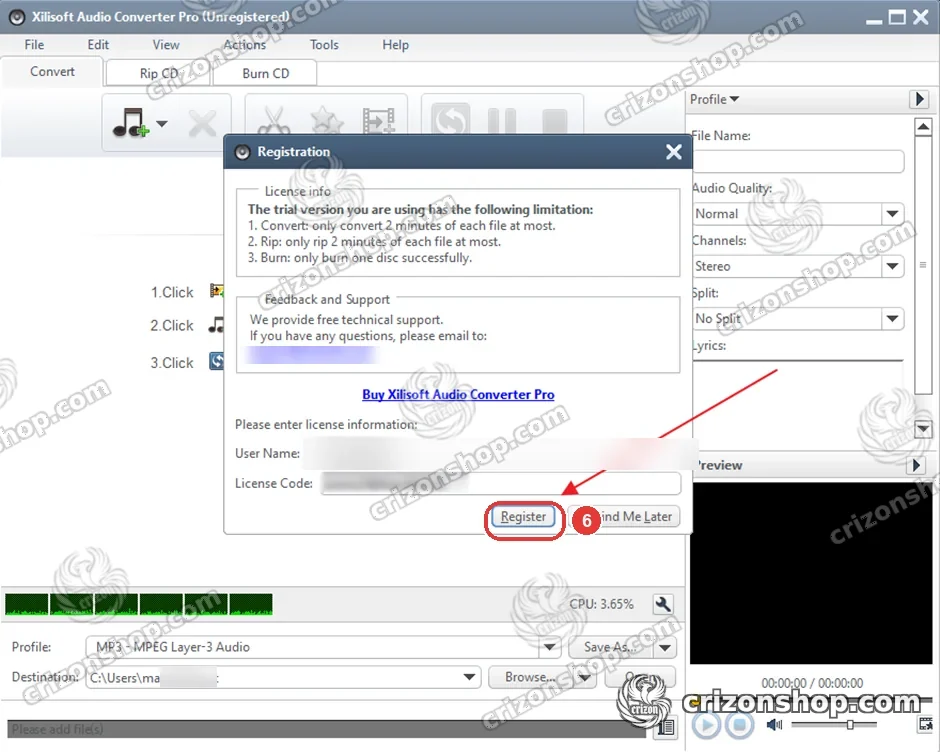
Click “Register” to finish.
If the software says Registration info is invalid
The Registration info is invalid message means the name or code doesn't match the software you installed. Xilisoft lists four common causes. Go through them one at a time using the table below.
| Cause | What to check |
|---|---|
| A typo or extra spaces | Clear both fields, copy your User Name and License Code again, and paste them in |
| The code is for an older version, but you installed an upgraded version | Ask the seller which version the code is for before you reinstall |
| The wrong product is installed | Make sure the installed software is Audio Converter Pro, not the standard Audio Converter or another Xilisoft program |
| The Windows and Mac versions are mixed up | Uninstall the current version and install the version for the operating system your code was issued for |
If you've tried everything and still can't register, contact Xilisoft through Xilisoft's support page. In your request, include the product name, your operating system, and a screenshot of the error message so your issue can be handled faster.
Frequently asked questions
No. Xilisoft treats the Windows and Mac versions as different products. If you switch from Windows to Mac or from Mac to Windows, you need to buy a code for the matching version.
No. The User Name is the registration name that comes with your License Code. It has nothing to do with your Windows or macOS account. Enter it exactly as it appears in the details you received when you bought the code.
If you bought it directly from Xilisoft, use Xilisoft's License Code Retrieval page to get your code back. If you bought it somewhere else, contact the seller you got the code from.
It may not. Xilisoft says a common registration error is using an older version's code to register an upgraded version. Before you update to a new version, ask which versions your code supports.
Related guides
How to Enter a License Code in Xilisoft YouTube Video ConverterHow to Enter a License Code to Activate Xilisoft HD Video ConverterHow to Activate IObit Driver Booster PRO with a License CodeStill need help?
Send your order code and we can sort it out faster.
