 Kaspersky · Activate
How to Enter a Kaspersky Activation Code on My Kaspersky
Sign in to My Kaspersky, open Subscriptions, paste your 20-character code into the activation code field at the bottom of the page, and click Add. Apps connected to your account will activate automatically.
This guide shows you how to add a Kaspersky activation code (a 20-character key) to your own My Kaspersky account. You'll then install and activate the app on your computer or phone.
What you need
The activation code is made up of 20 Latin letters and digits, split into four groups like the example below.
XXXXX-XXXXX-XXXXX-XXXXXAdd the code to your My Kaspersky account
Open My Kaspersky in your browser.
Sign in with your Kaspersky account email and password.
Select Subscriptions in the menu bar.
Scroll to the bottom of the page to find the activation code field.
Paste your activation code into the field.
Click Add.
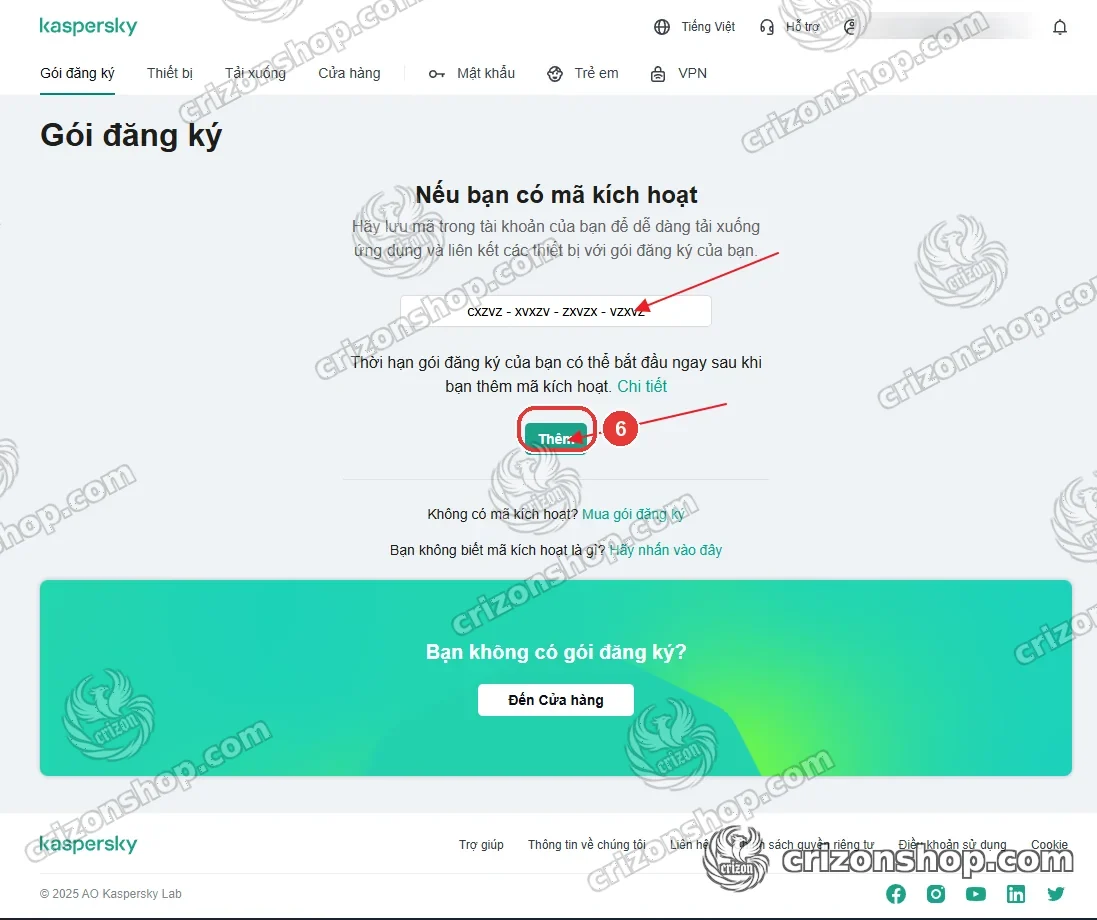
Click Add to add your activation code. Wait for the result window to appear.
If the code is added successfully, a new tile for the subscription appears under Subscriptions. Kaspersky apps that match the subscription and are connected to this account are activated automatically.
Activate the app on your device
Once the code is in your account, just install the app and sign in with that same My Kaspersky account. The app activates automatically under your subscription.
Under Subscriptions, click the tile for the subscription you just added.
Click Download to get the installer for your device.
Run the installer and follow the on-screen steps.
When the app asks, sign in with the My Kaspersky account you added the code to.
Wait for the app to finish activating after installation.
If a device already has the app installed and connected to your account, My Kaspersky may ask which device you want to send the subscription to. Choose the device you want to protect, then confirm to activate it right away.
Enter the code in the app
If the app is already installed, you can also enter the code directly in the app instead of using the website.
Open the main window of the Kaspersky app.
Select Profile in the bottom bar.
Enter your activation code.
Click Activate.
Open the Kaspersky app and select I have a subscription.
Tap Enter the activation code.
Enter your activation code.
Tap Next.
Add a reserve code while your current subscription is active
On Windows, you can save a new code in advance to use when your current subscription expires.
Open the main app window and go to Profile.
In the subscription details, click the three-dot icon.
Select Save activation code.
Sign in to My Kaspersky if the app asks you to.
Enter the new code in the field.
Click Save activation code.
If the code can't be added
Kaspersky only accepts codes that are still valid, not banned or blocked, and haven't been added before. Use the table below to find the likely cause and the fix.
| Situation | Common cause | What to do |
|---|---|---|
| The code shows as invalid | A typo or missing character, or the letter O mixed up with the number 0 | Copy and paste the code, and check it has four groups of 5 characters |
| The code has expired | The subscription period has ended | This code can't be reused. You need a new code |
| The code is blocked or banned | Kaspersky has blocked the code | Contact whoever issued the code or Kaspersky Support |
| The code has already been added | The code is already in your account or was added to another account | Open Subscriptions and check whether the subscription is already there |
| You can't add a new code | Your account already has 100 codes, the maximum Kaspersky allows | Use a different My Kaspersky account |
For more details, see Kaspersky's official guide on adding a subscription to My Kaspersky manually.
Frequently asked questions
Usually not. According to Kaspersky, subscriptions bought online are added automatically to the My Kaspersky account you used at checkout. The app activates on its own once you install it and sign in. You only need to enter a code if you got one from an activation card, a product box, or someone else.
No. The period only starts when you activate the subscription on the first device. So you can add the code to your account first and install the app later.
It depends on your subscription. You can see this in the subscription tile under Subscriptions. To protect another device, install the app on it and sign in with the same My Kaspersky account. You don't need to enter the code again.
No, because the code is already saved in your My Kaspersky account. Install the app on the new computer and sign in with the same account. If the app doesn't activate on its own, go to Subscriptions on My Kaspersky and send the subscription to the new device.
Related guides
How to Activate Kaspersky Premium from a Shared Subscription Invite How to Activate Avast BreachGuard with a Sign-in Key
 How to Activate AVG AntiTrack Premium with an Activation Code
Still need help?
Send your order code and we can sort it out faster.
