 Kaspersky · Activate
How to Activate Kaspersky Premium from a Shared Subscription Invite
Accept the invitation in the email, sign in to My Kaspersky, download the installer from Subscriptions, and install it on your computer. The app then activates Kaspersky Premium automatically using the subscription in your account.
This guide shows you how to activate Kaspersky Premium when someone invites you to share their subscription through the protection-sharing feature in My Kaspersky. You'll accept the invitation with your own My Kaspersky account, download the installer, and install it on your Windows computer.
What you need
Step 1. Accept the shared subscription invitation
Open the protection-sharing invitation that Kaspersky sent to your inbox.
Click the button in the email to accept the invitation.
Sign in to My Kaspersky, or create a new account if the page asks you to.
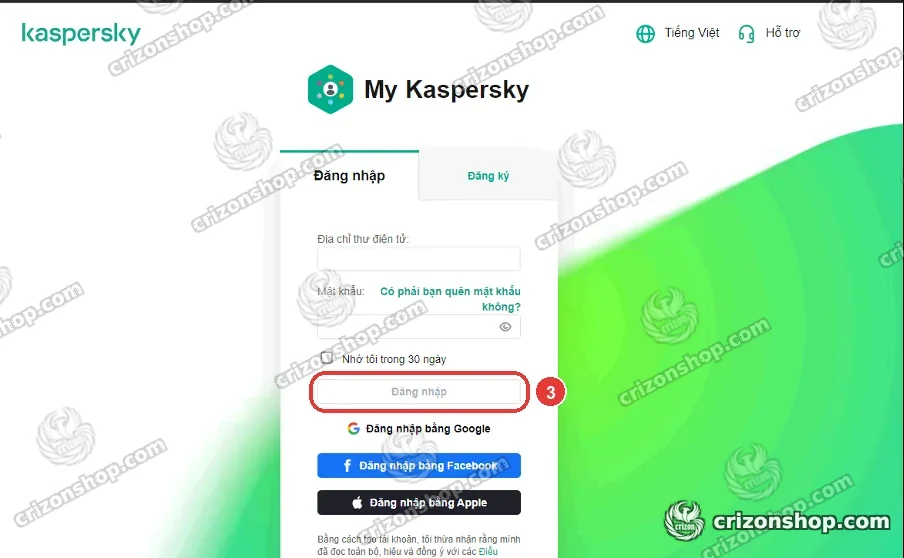
Click Sign in. When asked, allow Kaspersky to process your device information. If you don't agree, you won't be able to use the shared subscription.
Step 2. Download the installer from My Kaspersky
On the computer you want to protect, open My Kaspersky and sign in with the same account you used in Step 1.
Go to Subscriptions (if My Kaspersky is set to another language, this section appears under its translated name).
Select the Kaspersky Premium subscription shared with you.
Click Download to get the Windows installer.
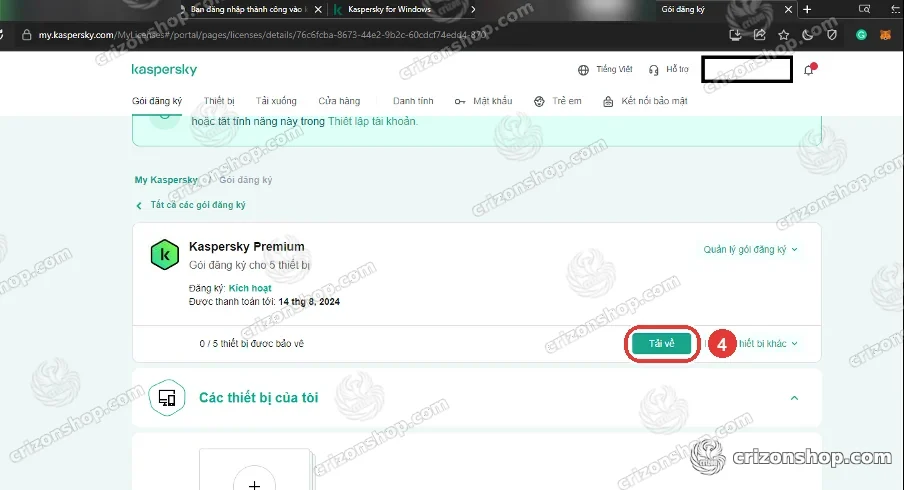
Click Download to get the Windows installer.
Step 3. Install Kaspersky Premium on Windows
Run the file you just downloaded.
On the first screen, click Continue to start (in some regions, the button says Accept).
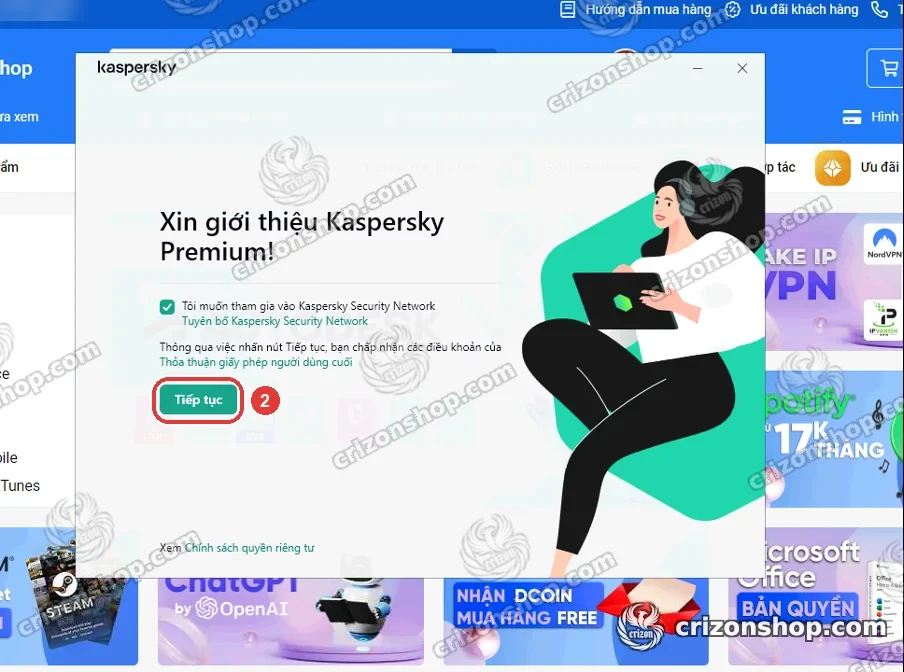
Click Continue to start. Read the End User License Agreement and Privacy Policy, then accept them to continue.
For the Kaspersky Security Network Statement, choose Accept or Decline, whichever you prefer.
If the installer finds incompatible apps, remove them by following the on-screen instructions.
Click Install if prompted, then wait for the installation to finish.
Restart your computer if asked.
Step 4. Check that the subscription is active
Once installation finishes, the app connects to your My Kaspersky account and activates using the shared Premium subscription. If the app still says you don't have a subscription, sign in again inside the app using the steps below.
Open the Kaspersky app and go to Profile.
Find the Sign in to My Kaspersky section and click Sign in.
Enter the email for the account from Step 1, then open the link Kaspersky sends to your inbox. Or sign in with Google, Facebook, or Apple if that's how you created your account.
Follow the on-screen instructions and select the Kaspersky Premium subscription if the app asks.
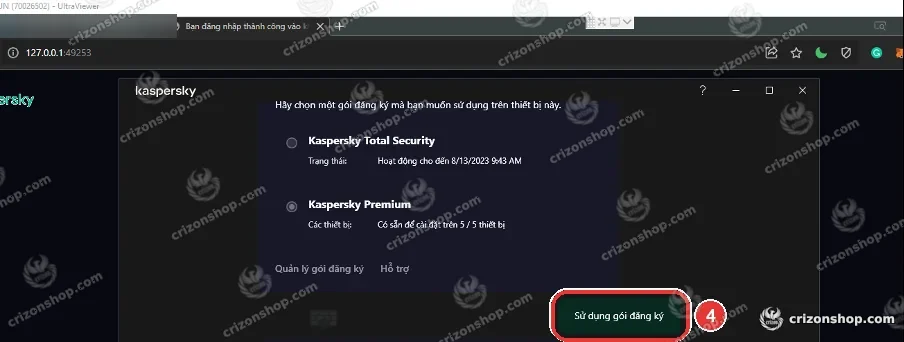
Click Use subscription.
If Kaspersky suggests installing on your phone
After installation on your computer, Kaspersky may also show instructions for installing on your phone. Only follow them if you actually want to protect your phone with this subscription.
Frequently asked questions
No, as long as you download the installer from the My Kaspersky account you used to accept the invitation. The app activates automatically with the subscription in your account right after installation.
According to Kaspersky's page on shared subscriptions, the subscription owner can't see your bank cards, passwords, or other private data. They can only see your devices' protection status, run remote scans, and renew the subscription.
Search your Spam or Promotions folder for "Kaspersky". If it's still not there, ask the person sharing the subscription to check that the invitation went to the right email address.
Kaspersky checks your computer before installing and stops if it finds other security software. Uninstall the listed software, restart your computer, and run the installer again. Your computer also needs enough free disk space, and you must run the installer with administrator rights.
Related guides
How to Enter a Kaspersky Activation Code on My Kaspersky How to Activate Avast BreachGuard with a Sign-in Key
 How to Activate AVG AntiTrack Premium with an Activation Code
Still need help?
Send your order code and we can sort it out faster.
