 HMA VPN · Sign in
How to Download HMA VPN and Sign In with Your Account or Activation Code
Download HMA VPN from HMA's official website and install it. Then click the gear icon › Account to sign in with your HMA email and password, or enter an activation code.

This guide shows you how to download HMA VPN from the official website, install it, and sign in with your HMA account or an activation code to use your paid plan. The app is in English, so button names here match what you see on screen.
Before you start
Download and install HMA VPN
Open the HMA VPN download page in your browser.
Choose your operating system (Windows or macOS).
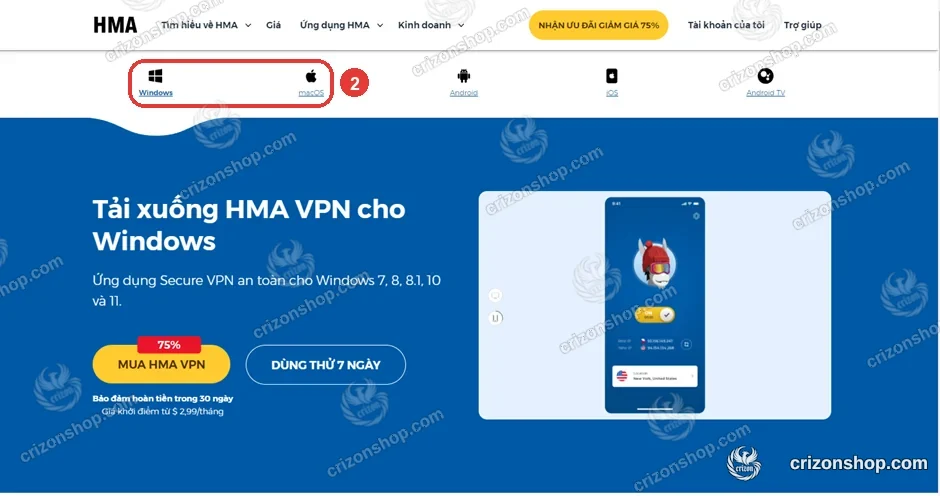
Choose Windows or macOS. Click the download button and wait for the installer to download.
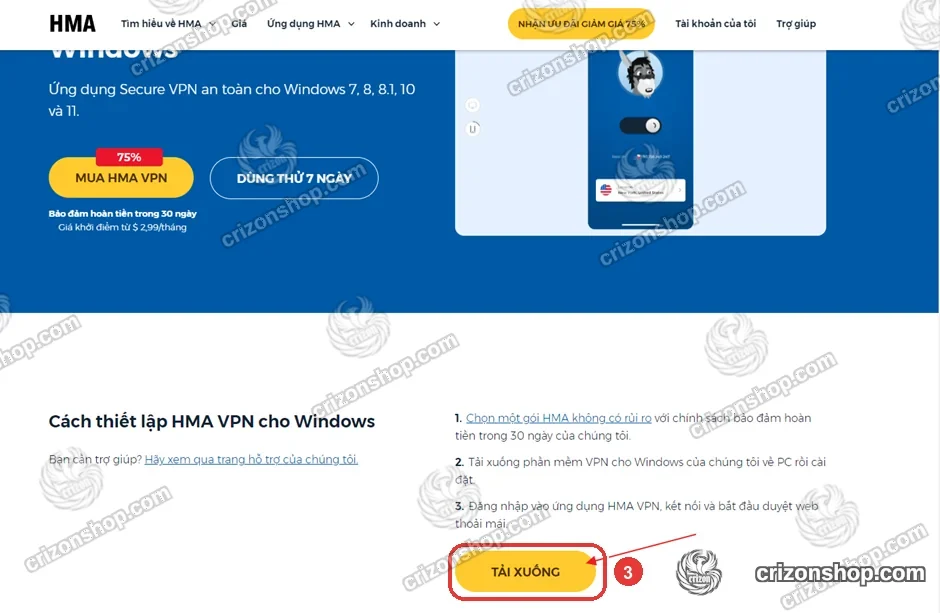
Click DOWNLOAD and wait for the installer to download. Open the downloaded file and follow the installer until it finishes.
Open the HMA VPN app.
Open the App Store on iPhone or Google Play on Android.
Search for "HMA VPN" and choose the app from the developer Privax.
Install it, then open the app.
On iPhone, the app requires iOS 15 or later.
Open the sign-in options on your computer
The first time you open the app, the welcome screen may show an Already purchased option. Click it to go straight to the two sign-in methods below. If you already skipped this screen, follow these steps to get back there.
On the HMA VPN main screen, click the gear icon to open Settings.
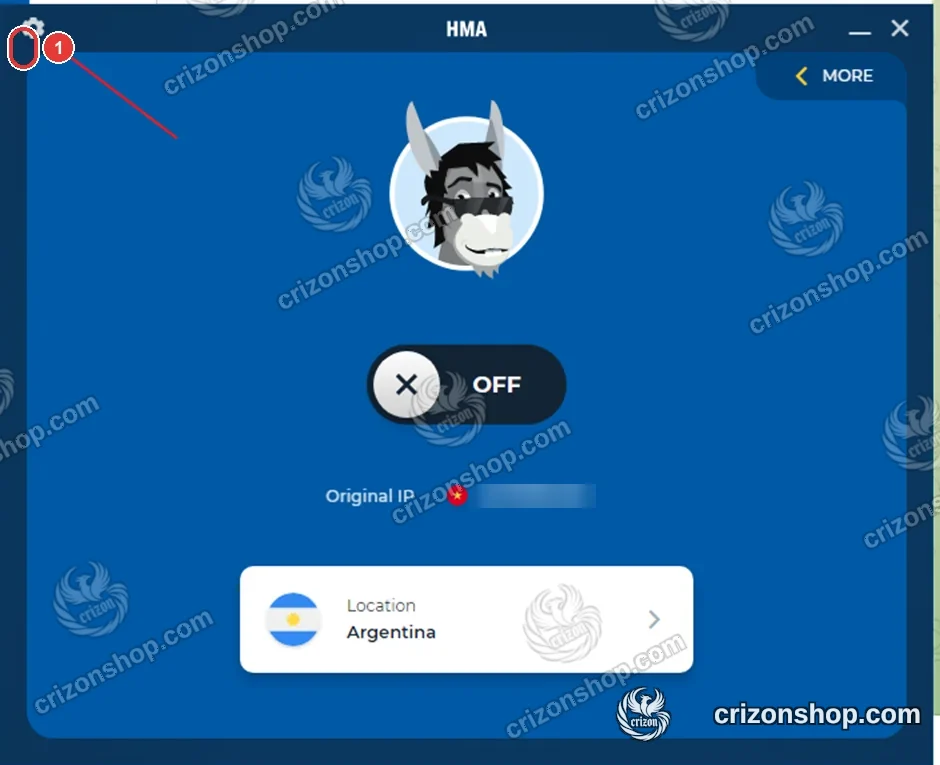
Click the gear icon to open Settings. Select Account.
Select Sign In if you have an HMA account, or Enter Activation Code if you have an activation code.
Sign in with your HMA email and password
Use this method if you bought your plan directly from HMA or your plan is already linked to your HMA account.
Click Sign In.
Enter your HMA account email and password.
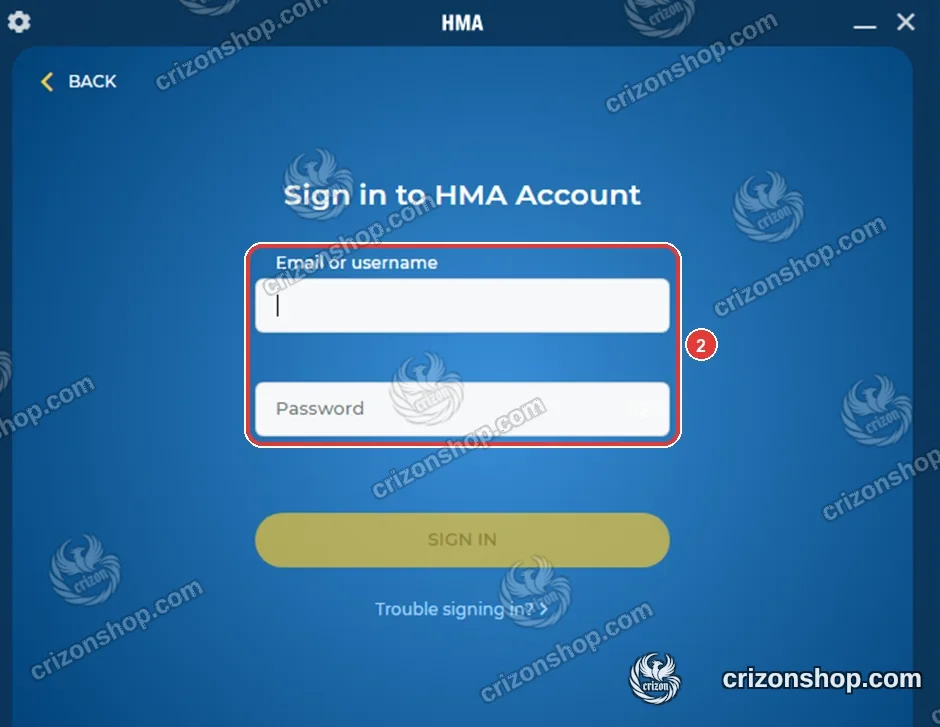
Enter your details in the “Email or username” and “Password” fields. Click Sign In again to confirm.
Activate with a code
Use this method if you have an HMA activation code.
Click Enter Activation Code.
Paste the code into the empty field. Keep all the hyphens in the code.
Click Activate.
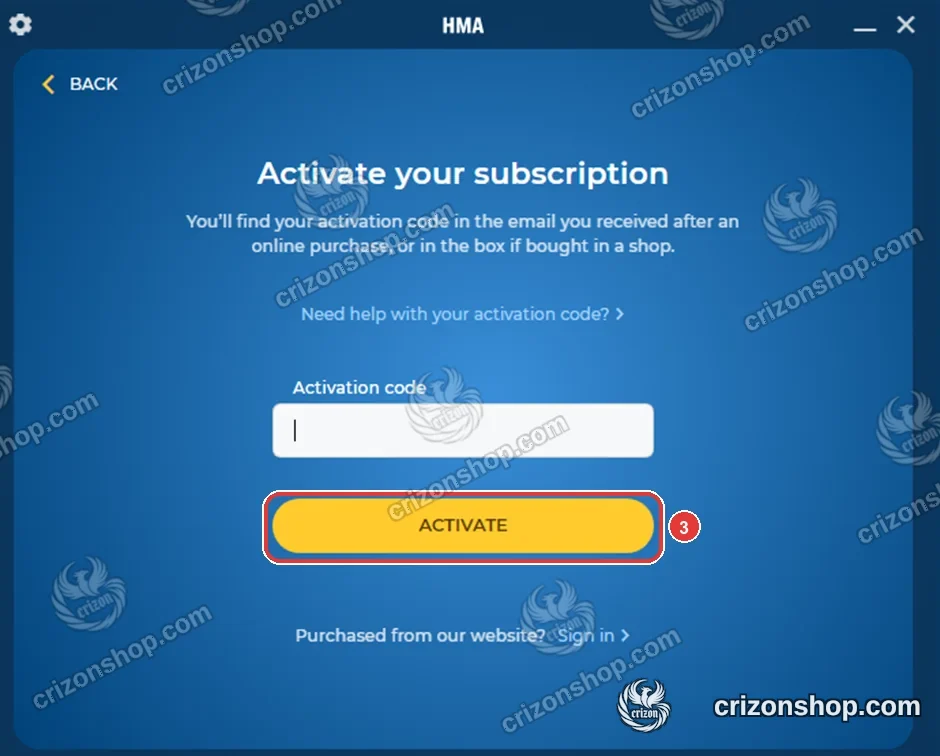
Click ACTIVATE.
Sign in on your phone
The HMA mobile app also lets you sign in with your HMA account, so you can use your plan on both your phone and your computer.
Open the HMA app.
On the first screen or in settings, choose the option for people who already have a plan (usually labeled Already purchased).
Sign in with your HMA account email and password, or enter your activation code if the app has a code field.
Check that you're signed in
After you sign in or activate, open Settings › Account again. If you see your email or your active plan details, you're signed in. Go back to the main screen and click the connect button to try the VPN.
If you still have trouble with your account or code, see HMA's support page for more help.
Frequently asked questions
Check that you entered every character and hyphen in the code, and that there are no extra spaces at the start or end. Next, check whether the code is still valid and whether your plan has already reached its device limit. If everything looks right and the code still shows an error, contact HMA support so they can check the code.
You've most likely signed in to a different HMA account, not the one that holds your plan. Go to Settings › Account to see which email is signed in. If it's the wrong one, sign out and sign in again with the correct email. If you have an activation code, you can also enter it to activate directly.
It depends on the plan you bought. On each device, just install the app and sign in with the same HMA account. Once you've reached the device limit, sign out on an old device before you sign in on a new one.
Use the forgotten password option on the sign-in screen to reset your password through your account email. Once it's changed, go back to the app and sign in with your new password.
Related guides
 How to Activate Avast BreachGuard with a Sign-in Key
 How to Activate AVG AntiTrack Premium with an Activation CodeHow to Activate a Gilisoft Audio Recorder Pro Key on Windows
Still need help?
Send your order code and we can sort it out faster.
