 NordVPN · Sign in
How to Download and Log In to NordVPN on Your Computer and Phone
Download NordVPN from the official site or your app store, select Log in, sign in to your Nord Account in the browser, let it reopen the app, then select Secure my connection to connect.
This guide shows you how to download the official NordVPN app, log in with the shared NordVPN account CrizonShop delivers in your order, and connect to the VPN for the first time on a Windows computer, an Android phone, or an iPhone or iPad.
What you need
- The NordVPN email and password under Account → My orders → order details on crizonshop.com (also sent by email).
- The one device you will use: the plan works on 1 device.
- A computer running 64-bit Windows 10 or Windows 11, or a phone or tablet running an Android, iOS, or iPadOS version that NordVPN supports.
- On iPhone and iPad, an Apple ID to download the app from the App Store.
- A stable internet connection while you download the app and log in.
Download and install the NordVPN app
Only download NordVPN from the official download page or from your phone's app store. On the download page, choose the type of device you're using. Mac and Linux versions are also available there.
Open the NordVPN download page for Windows and download the installer.
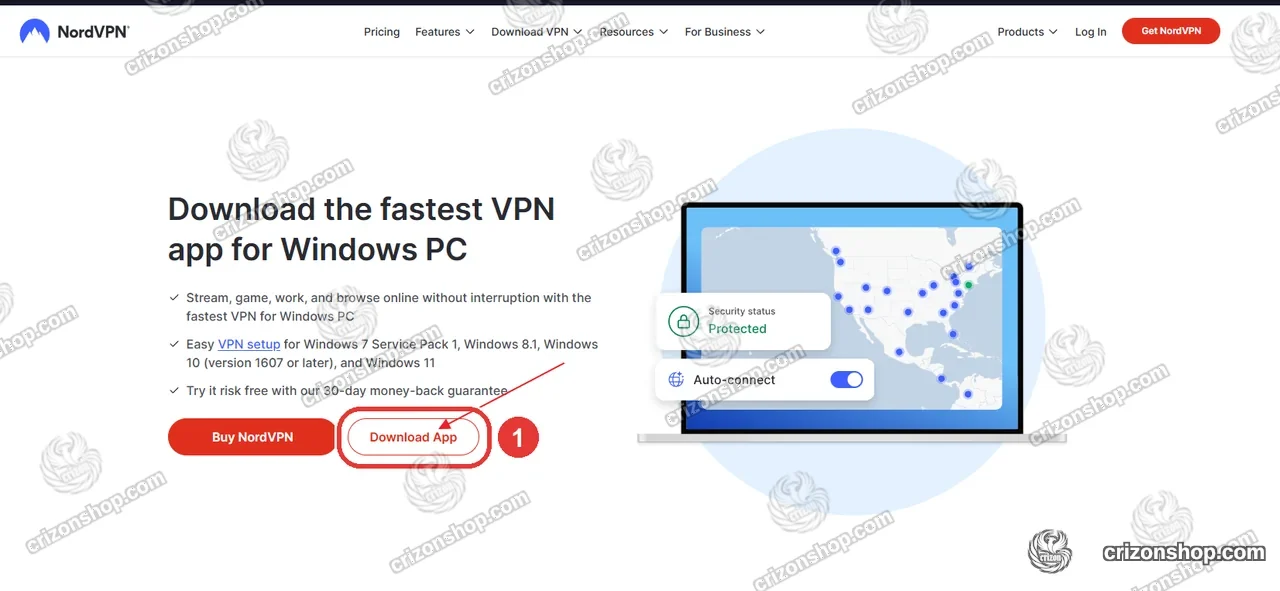
Click Download App to save the installer to your computer. Open your Downloads folder and double-click
NordVPNInstall.exe.If Windows asks whether to allow the app to make changes to your device, click Yes.
In the setup window, click Next.
Choose whether to install the included browser extension, then click Install.
When setup finishes, click Launch NordVPN to open the app.
Open Google Play on your phone. On Samsung devices, you can also use Galaxy Store.
Search for NordVPN and tap Install.
When it's installed, tap Open to launch the app.
Open the App Store and search for NordVPN.
Tap the download button and confirm with your Apple ID if asked.
When the download finishes, tap Open.
Choose your data-sharing preference, then tap Next.
Choose whether to allow notifications from the app.
Log in with the account from your order
When you select Log in, the app opens the Nord Account login page so you can enter your details. On computers and Android, this page opens in your browser. After you log in, the browser sends you back to the app.
Open the NordVPN app and select Log in.
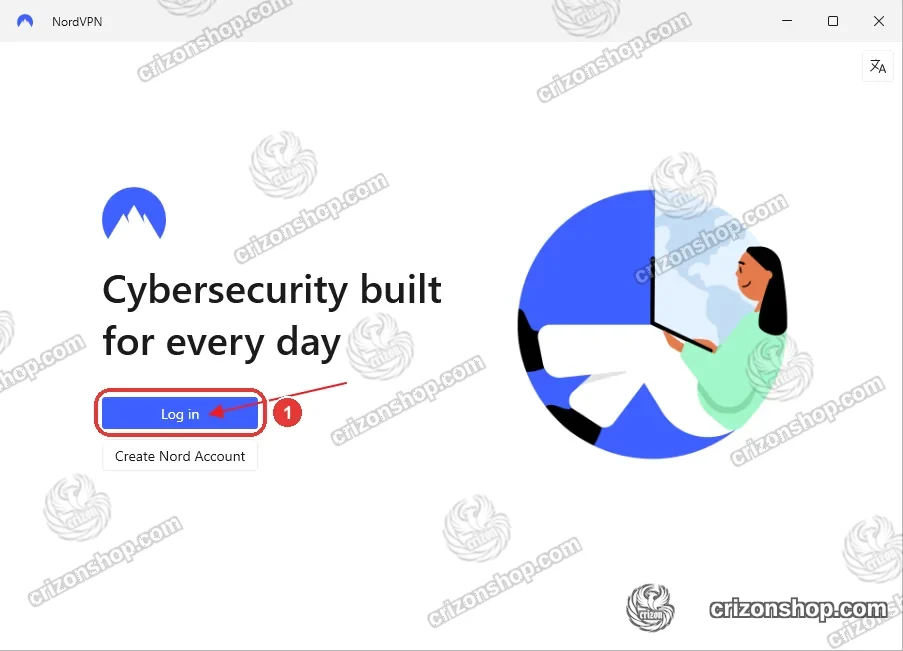
Select Log in to sign in. Wait for the Nord Account login page to appear.
Paste the email and password from your order details. Don't continue with Google or Apple.
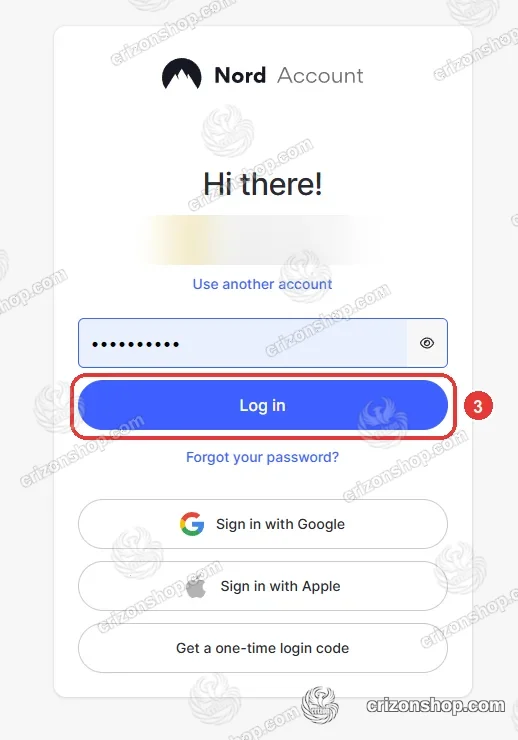
Select Log in to sign in to your Nord Account. When your browser asks whether this site can open the NordVPN link, select Open or Allow.
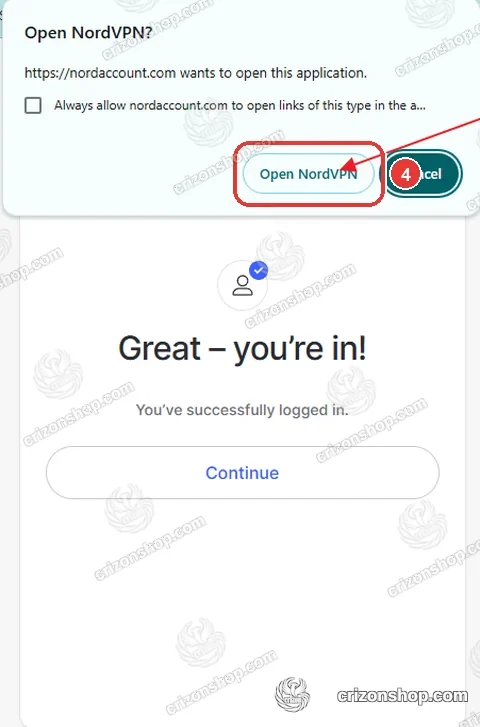
Select Open NordVPN (Allow). Go back to the NordVPN app. You're now logged in to your account.
Connect to the VPN for the first time
After you log in, the quickest option is to select Secure my connection so the app picks the fastest server for you. You can also select a country on the map or use the search bar to choose the country or server you want.
Click Secure my connection.
When the status changes from Not connected to Connected, you're connected.
Tap Secure my connection, or swipe up to open the country list and choose where to connect.
The first time you connect, your phone asks for permission to set up a VPN connection. Tap OK.
Wait for the app to show that you're connected.
Tap Next to go through the feature intro.
Tap the blue Secure my connection button.
When your device asks to add VPN configurations, tap Allow.
Confirm with your passcode, Face ID, or Touch ID.
When the pin on the map turns green and shows Secured, you're connected.
For more details, see NordVPN's own guides for Windows, Android, and iPhone and iPad.
Frequently asked questions
This is how NordVPN login works now. Your account is verified on the Nord Account page, and then the browser sends you back to the app. Just log in on that page and select Open or Allow when your browser asks.
This usually means the email was mistyped or a new account was created with Sign up. Log out and paste the email and password from your order details again. If it still asks you to buy a plan, report it from your order details page and the shop will fix it within 24 hours.
The new NordVPN app for Windows requires 64-bit Windows 10 or Windows 11. For older systems, NordVPN has a separate guide for Windows 7, 8.1, and 32-bit Windows 10. Read it before you install.
You can install it from the Samsung Galaxy Store, from the Amazon Appstore on Fire tablets, or by downloading the APK file from the official website and following the on-screen instructions.
Related guides
 How to Activate Avast BreachGuard with a Sign-in Key
 How to Activate AVG AntiTrack Premium with an Activation CodeHow to Activate a Gilisoft Audio Recorder Pro Key on Windows
Still need help?
Send your order code and we can sort it out faster.
