Visual Studio · Activate
How to Activate Visual Studio 2022 with a Product Key
Open Visual Studio 2022 Professional or Enterprise, go to File > Account Settings, select Unlock with a Product Key, enter your key, and click Apply. The Community edition doesn't use a key.
This guide shows you how to enter a product key to unlock Visual Studio 2022 Professional or Enterprise. It covers every step, from downloading the right 2022 installer to checking that your license has been applied.
Before you activate
Download and install Visual Studio 2022
Microsoft still provides the Visual Studio 2022 installers on the Visual Studio 2022 release history page, under Evergreen bootstrappers. These files always install the latest 2022 release, and you don't need to sign in to download them.
Open the Visual Studio 2022 release history page using the link above.
Scroll down to Evergreen bootstrappers.
Download
vs_professional.exeif your key is for Professional, orvs_enterprise.exeif your key is for Enterprise.Run the downloaded file to open the Visual Studio Installer.
Select the workloads you need, such as .NET or C++ development, then click Install.
Wait for the installation to finish, then open Visual Studio 2022.
Enter your product key
You don't have to sign in with a Microsoft account to enter a key. The first time you open Visual Studio, you can sign in right away or skip it and do it later.
Open Visual Studio 2022.
On the menu bar, select File > Account Settings.
In the Account Settings dialog, click Unlock with a Product Key. In some updates, this link is called License with a Product Key.
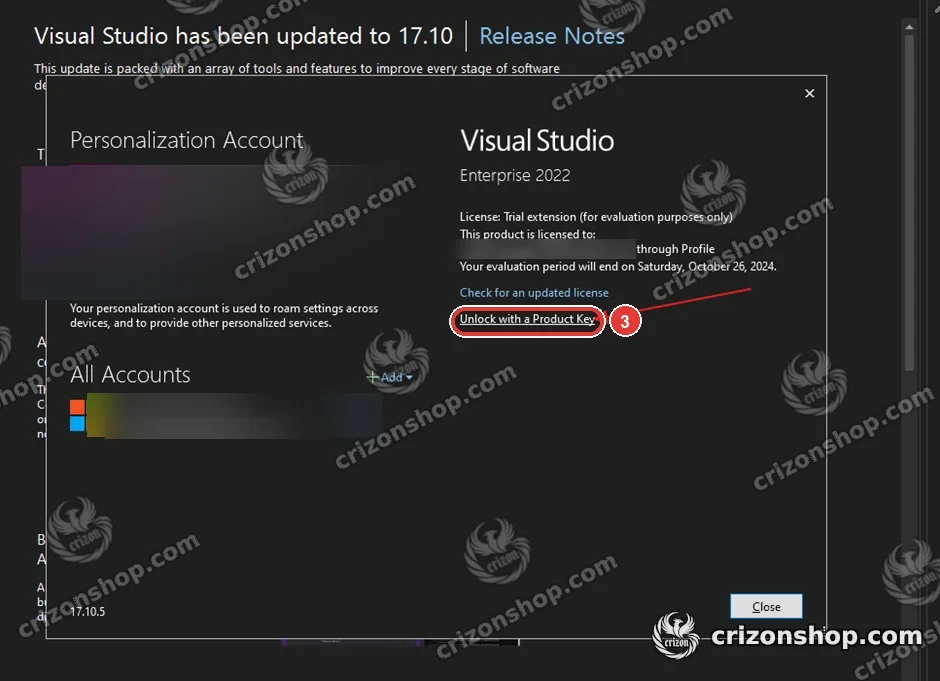
Click “Unlock with a Product Key” (Account Settings). When the Enter a product key box appears, paste your key into the empty field.
Click Apply to confirm.
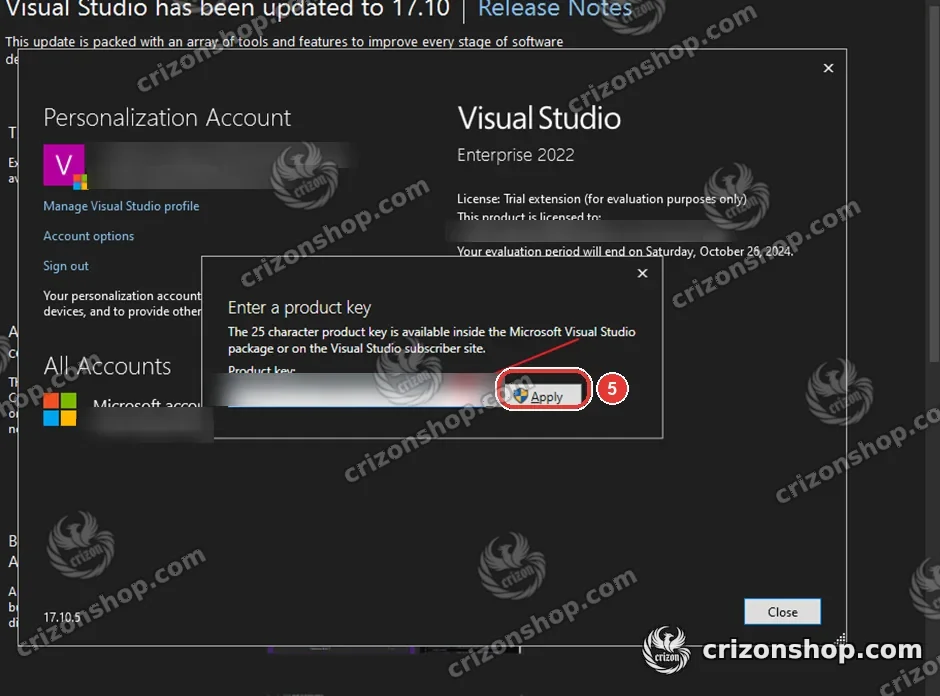
Click “Apply” to confirm. Check the license information on the right side of the Account Settings dialog to make sure Visual Studio has accepted the key.
Do you need to sign in with a Microsoft account?
Not if you activate with a product key. Signing in mainly lets you sync settings across computers, use GitHub Copilot, or connect to Azure services right inside Visual Studio.
If you have a Visual Studio Subscription, you don't need a key. Just click Sign in in the top-right corner and sign in with the account the subscription is assigned to. Visual Studio will find the subscription and unlock automatically.
Microsoft also recommends a product key if you often work on a weak connection or without internet for long periods, because account-based licenses need to be refreshed online from time to time. You can learn more in Microsoft's guide to unlocking Visual Studio.
Frequently asked questions
First, check whether you're running Professional or Enterprise, because the Community edition has no option to enter a key. If you're on the right edition and still don't see it, run Visual Studio with Run as administrator, then go back to File > Account Settings.
Don't count on it. Microsoft says Visual Studio 2026 doesn't use product keys. It unlocks when you sign in with an account that has a Visual Studio Subscription. Enter your 2022 key in Visual Studio 2022.
Professional and Enterprise come with a 30-day trial. If you sign in with an account, the trial is extended to 90 days, but only once. When the trial ends, you need to enter a product key or sign in with an account that has a subscription to keep using it.
This message shows up with account-based licenses when you haven't opened Visual Studio for a long time, haven't been online, or have signed out. Go to File > Account Settings and enter your sign-in details again. If you need to work offline for long periods, Microsoft recommends using a product key to avoid interruptions.
Related guides
How to Activate IObit Driver Booster PRO with a License Code How to Leave a Microsoft 365 Family Group
 How to Enter a Product Key to Activate Windows 10 and Windows 11
Still need help?
Send your order code and we can sort it out faster.
