 McAfee · Activate
How to Activate a McAfee Internet Security Key and Install It on Your PC
Redeem your McAfee Internet Security activation code at mcafee.com/activate and sign in or create a McAfee account. Then download the installer to your Windows PC and run it to finish.
This guide shows you how to redeem your McAfee Internet Security activation code (product key) to your own McAfee account. Then you'll download the software and install it on a Windows PC. You do every step on McAfee's official website.
Before you start
Step 1: Redeem your key to your McAfee account
On the computer you want to install McAfee on, open a browser and go to McAfee's activation page.
Enter the activation code from your card or email in the product key field.
Enter the email address you want to link to your subscription.
If that email already has a McAfee account, sign in with your existing password. If it doesn't, follow the instructions on the page to create a new account.
Keep following the on-screen steps. Stop when the page confirms that the subscription has been added to your account and shows an option to download the software.
Step 2: Download and install McAfee on your computer
On the page that opens after you redeem your key, click Download to get the installer.
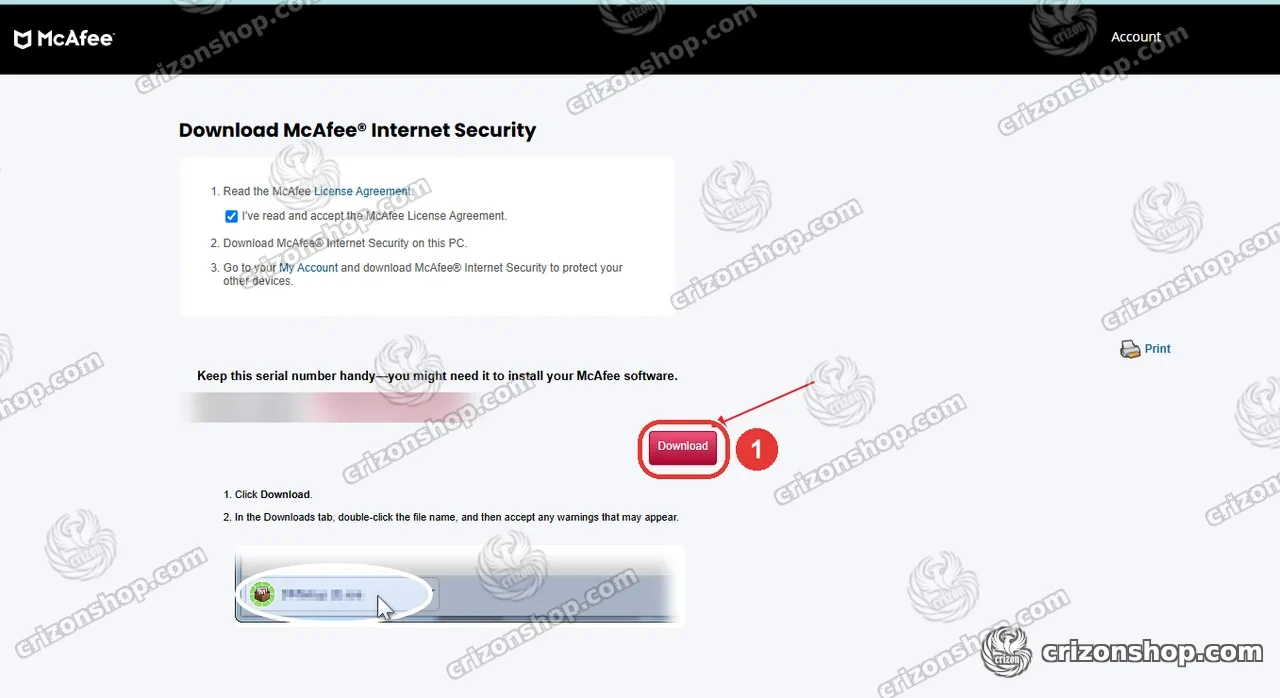
Click Download to get the installer. Open the file you downloaded. You'll usually find it in your Downloads folder.
When Windows asks if you want to allow this app to make changes to your device, click Yes.
Follow the installer and wait for it to finish. Your computer may ask you to restart.
Open McAfee. If the app asks you to activate it, sign in with the same McAfee email you used in Step 1.
Already redeemed your key? Reinstall or add another computer
According to McAfee, you don't need to enter your key again after you redeem it. Just sign in to your account on the computer you want to protect and download the software.
On the computer you want to install McAfee on, go to mcafee.com and sign in with your McAfee email and password.
Open the My Account page.
Select your McAfee Internet Security subscription and download the software for the computer you're using.
Run the installer the same way as in Step 2.
Frequently asked questions
If you redeemed this key yourself before, the subscription is already in your McAfee account. Sign in with the email you used to redeem the key, then go to My Account to download the software. If you've never redeemed the key, contact the seller you bought it from so they can look into it.
No. Your subscription is tied to your McAfee account, not to your copy of Windows. After you reinstall, sign in to My Account and download the software again, as described in the reinstall section above.
Sign in to your account on mcafee.com and open My Account. It shows your subscription details and expiration date. According to McAfee, if your subscription expires, you can renew it at any time.
Related guides
How to Activate a McAfee Key and Install McAfee on Your Devices How to Activate Avast BreachGuard with a Sign-in Key
 How to Activate AVG AntiTrack Premium with an Activation Code
Still need help?
Send your order code and we can sort it out faster.
