 Malwarebytes · Activate
How to Activate Malwarebytes Premium on a Windows PC
Open Malwarebytes, click the My subscription icon, and choose Activate subscription. Then sign in to your Malwarebytes account or enter your license key to turn on Premium.
This guide shows you how to install the official Malwarebytes app on a Windows computer and activate the Premium subscription you bought. You can do this by signing in to your Malwarebytes account or by entering a license key.
Before you start
Step 1. Download and install Malwarebytes
Go to malwarebytes.com and download the Malwarebytes installer for Windows.
Open the installer you just downloaded.
Follow the on-screen steps until the installation finishes.
Open the Malwarebytes app.
For a closer look at each installation screen, see Malwarebytes' Install Malwarebytes for Windows guide.
Step 2. Open the activation screen
On the Malwarebytes main screen, click the round account icon (My subscription).
On the My subscription page, click Activate subscription.
If you don't see this button, click the three dots on your subscription card and select Activate subscription.
Step 3. Activate with your account or a license key
On the activation screen, you can either sign in to your account or enter a key. Pick the option that matches what you got when you bought your subscription.
Option 1. Sign in to your Malwarebytes account
Click Sign in.
Enter your Malwarebytes account email and password.
Click Sign in to log in.
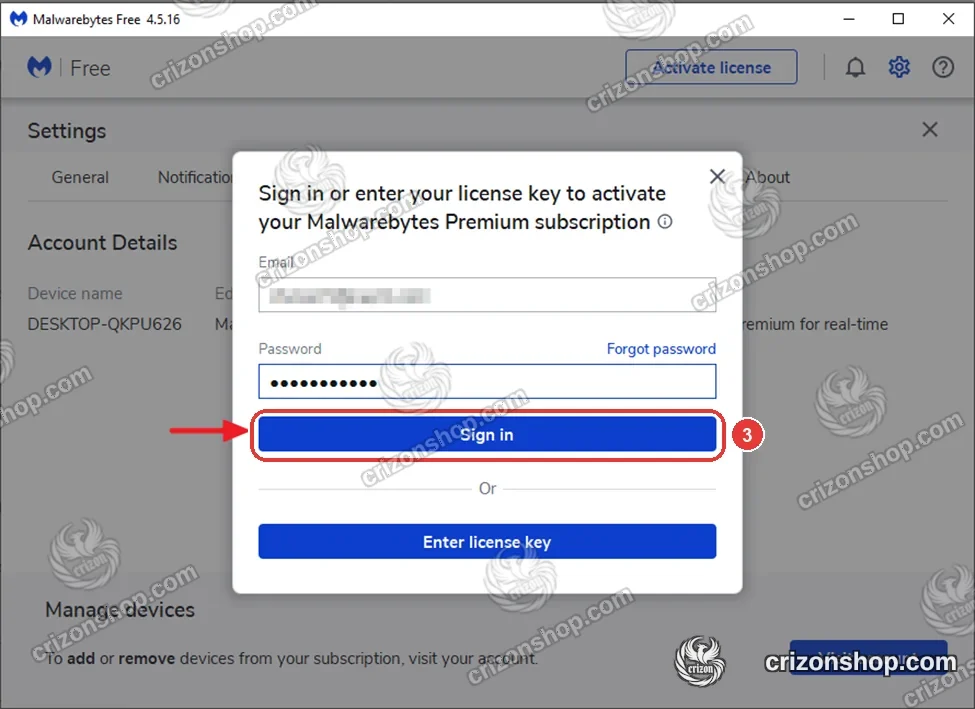
Click Sign in to log in. Open the inbox for your account email and find the message from Malwarebytes with your verification code.
Enter the code in the app and click Submit.
Option 2. Enter a license key
Click Enter license key.
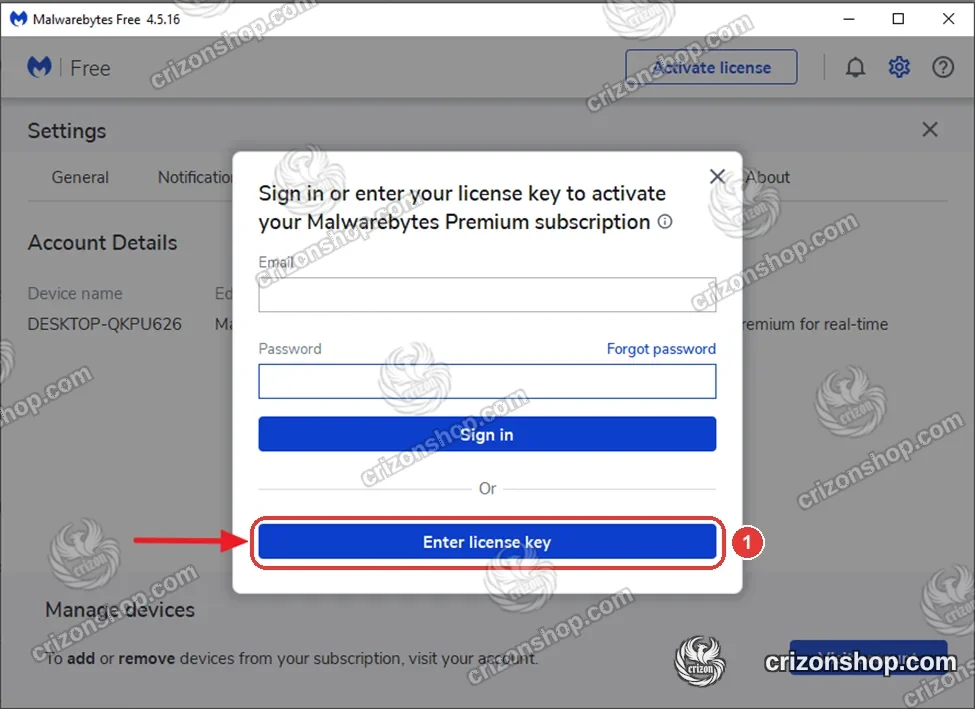
Click Enter license key. Paste your key into the License key field.
Click Activate.
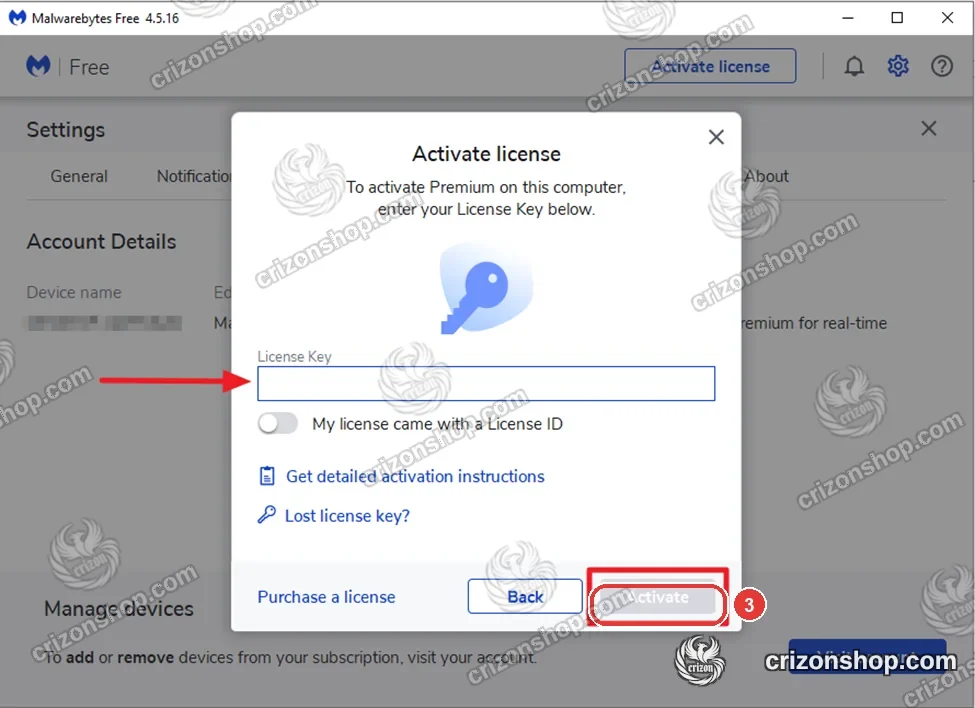
Click Activate.
Besides these two options, Malwarebytes also lets you activate with an MB code. This is a code you generate from the Malwarebytes mobile app or from your account. For the steps, see the MB code support page.
Step 4. Check that Premium is active
After activation, the Malwarebytes main screen shows Premium instead of the free version, and the Real-Time Protection layers are turned on. You can open the My subscription page again to see details about your current subscription.
If your key isn't accepted or won't activate
- Check the key for missing or wrong characters. The most common mix-ups are the letter S and the number 5, and the letter O and the number 0.
- Copy and paste the key instead of typing it, so you don't add extra spaces.
- Sign in to my.malwarebytes.com to check whether your subscription is still active and which devices it's linked to.
- See Malwarebytes' guide to fixing license key activation problems.
Frequently asked questions
No. The free and Premium versions are the same app. Just start from Step 2 to activate your subscription in the app you already have.
Make sure you're checking the email address on your Malwarebytes account. Look in your Spam or Promotions folder, and wait a few minutes because the email can sometimes arrive late. If it still doesn't show up, go back to the sign-in screen and try again so Malwarebytes sends a new code.
Install Malwarebytes on the new computer and sign in with the same account, as in Option 1. If your subscription has already reached its device limit, go to my.malwarebytes.com and remove the old computer from your account before you activate.
Related guides
 How to Activate Avast BreachGuard with a Sign-in Key
 How to Activate AVG AntiTrack Premium with an Activation CodeHow to Activate a Gilisoft Audio Recorder Pro Key on Windows
Still need help?
Send your order code and we can sort it out faster.
