 CCleaner · Activate
How to Activate CCleaner Professional on Windows with a License Key
Open CCleaner, go to Settings › My subscription (version 7) or Options › License Key (version 6), paste your Professional key and confirm. Also covers what to do if the key shows an error.
This guide shows you how to install CCleaner from the official website and enter your key to unlock Professional on a Windows PC. You enter the key in a different place in CCleaner 7 than in version 6 and earlier, so follow the section for the version you use.
What you need
Download and install CCleaner
You don't need a separate installer for Professional. The standard installer on the website installs the free version first. Once you enter your key, that same installation switches to Professional.
Open ccleaner.com in your browser.
Click the free download button for Windows to get the installer.
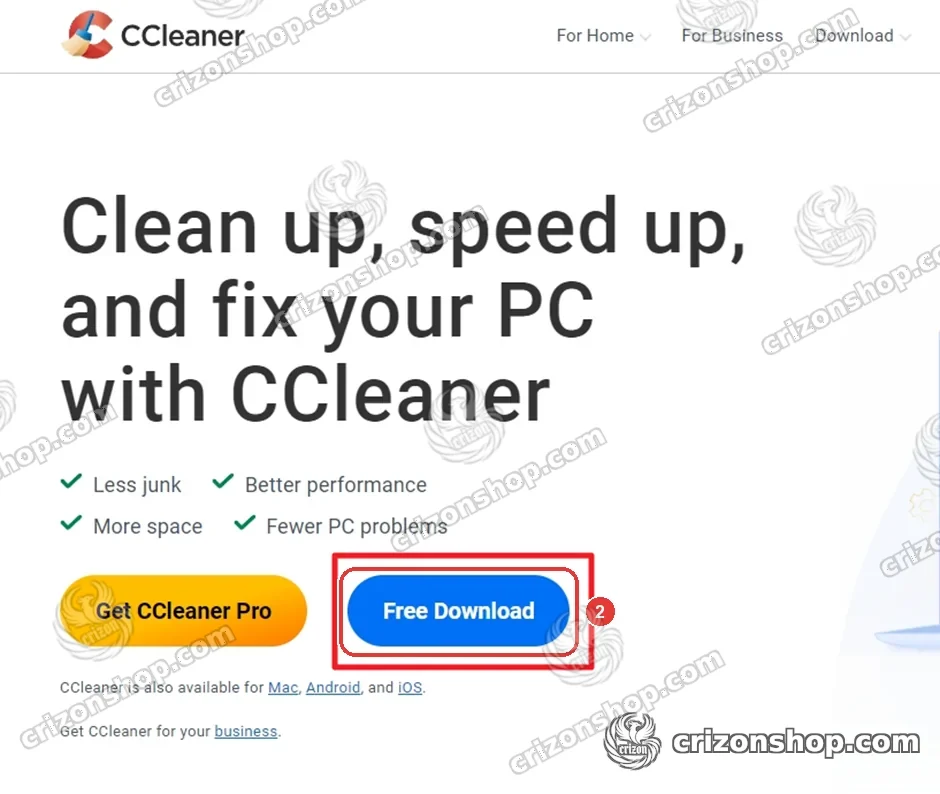
Click Free Download to get the Windows installer. Open the downloaded file and follow the installer until it's done.
Open CCleaner.
Enter your activation key
When you first open CCleaner, it may show a window asking you to register. If you see it, enter your key right there. If not, follow the tab that matches the CCleaner version on your PC.
Click Settings in CCleaner.
Select My subscription.
Choose the option to enter a new key, usually called Activate new key.
Paste your key into the field and confirm.
Wait a few seconds while CCleaner checks the key.
Click Options in the left-hand column.
Select License Key.
Enter the registration name exactly as it appears in your key details.
Paste your key into the License Key field.
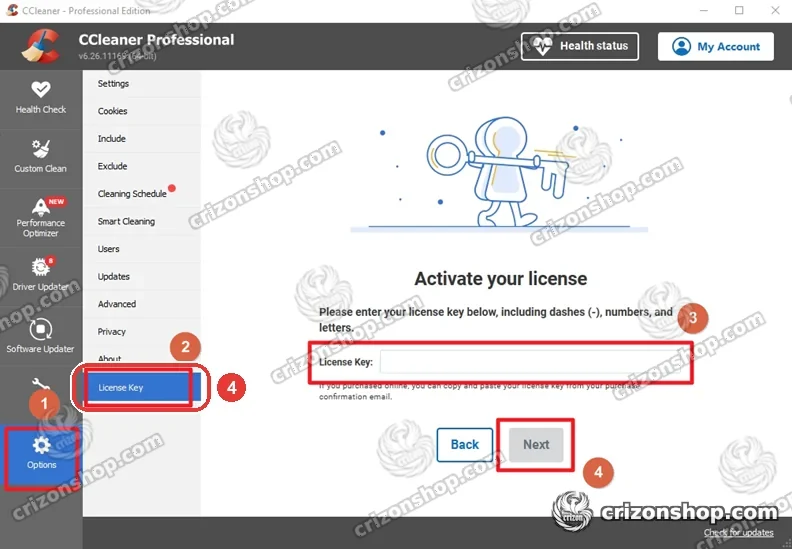
Paste your key into the License Key field. Click Next.
Close CCleaner and open it again.
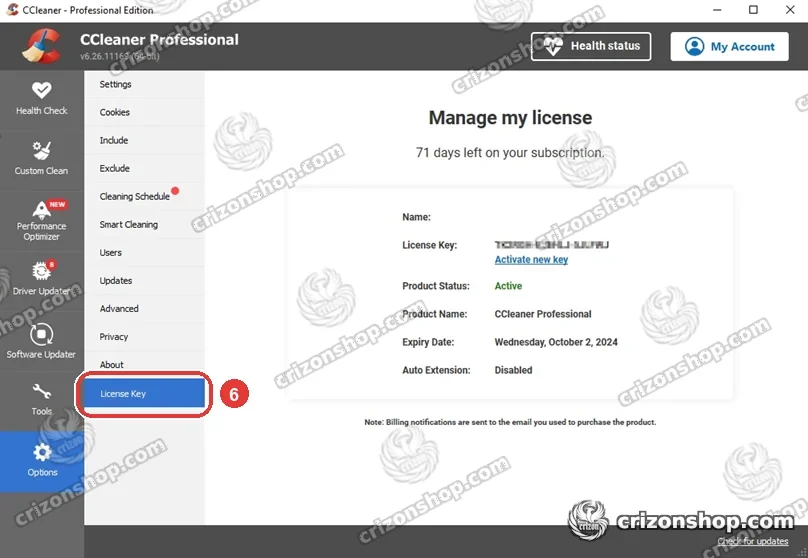
Click License Key.
Check that activation worked
After you enter the key, CCleaner shows a message saying registration was successful. Reopen the app to check. In version 6, the window shows the name CCleaner Professional. In CCleaner 7, My subscription shows the plan you just activated.
If activation doesn't work
| Problem | Fix |
|---|---|
| Failed to save registration key file error | Close CCleaner, right-click the CCleaner icon, choose Run as administrator, then enter your name and key again |
| Key is reported as invalid | Check that the registration name matches exactly, that the key has no extra spaces, and that the key hasn't expired |
| The key is correct but still not accepted | Make sure the key is for Windows, check your internet connection, then wait a few minutes and try again |
If none of these fixes work, submit a request to CCleaner support at support.ccleaner.com. Include a screenshot of the error message so they can check it faster. You can also read CCleaner's own guide, How to register and activate CCleaner Professional.
FAQ
Download CCleaner again from the official website, install it, then enter your key using the steps above. The number of PCs you can use at the same time depends on your key's plan. If the key is already in use on the maximum number of PCs, the new PC may not accept it.
In CCleaner 7, you enter the key under Settings › My subscription. Enter your key again there. If the key hasn't expired, Professional will work again.
No. A key only works on the operating system it was made for. The exception is keys from the Professional Plus or Premium Bundle plans, which work on both Windows and Mac.
No. Enter the key in the CCleaner you already have installed. The app switches to Professional without a reinstall.
Related guides
How to Activate IObit Driver Booster PRO with a License Code How to Leave a Microsoft 365 Family Group
 How to Enter a Product Key to Activate Windows 10 and Windows 11
Still need help?
Send your order code and we can sort it out faster.
