 Bitdefender · Activate
How to Activate Bitdefender Total Security with an Activation Code
Sign in to Bitdefender Central, go to My Subscriptions, click Activate with code, enter your code and confirm activation. Then click Install Bitdefender Products to download the installer to your Windows PC.
This guide shows you how to add a Bitdefender Total Security activation code to your own Bitdefender Central account, then download and install the software on your computer. You do the whole activation in your browser. All you need is an email address you can access and your activation code.
Before you start
Step 1. Create a Bitdefender Central account
If you already have a Bitdefender account, skip this part and go to Step 2.
Open Bitdefender Central in your browser.
Click Create account.
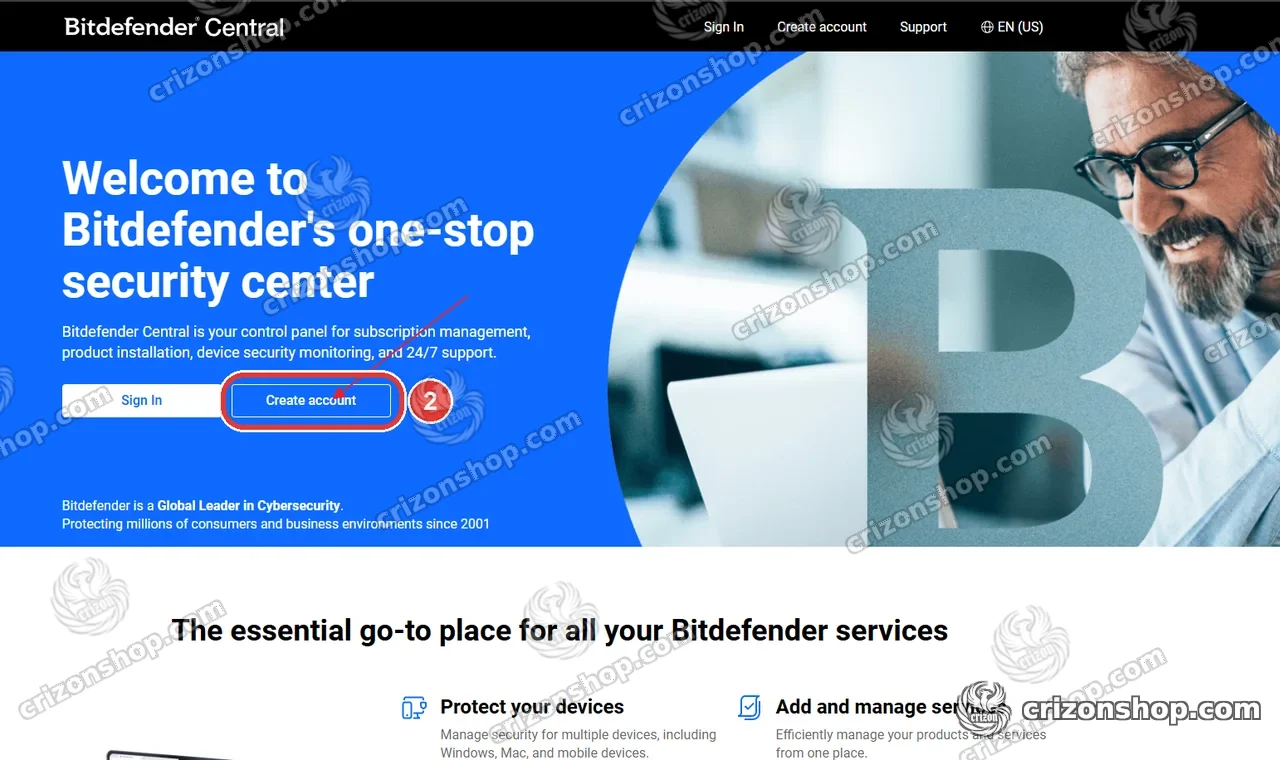
Click Create account. Enter your full name, email address and password.
Tick the box to agree to the Terms of Use and Privacy Policy.
Click Create account to finish signing up.
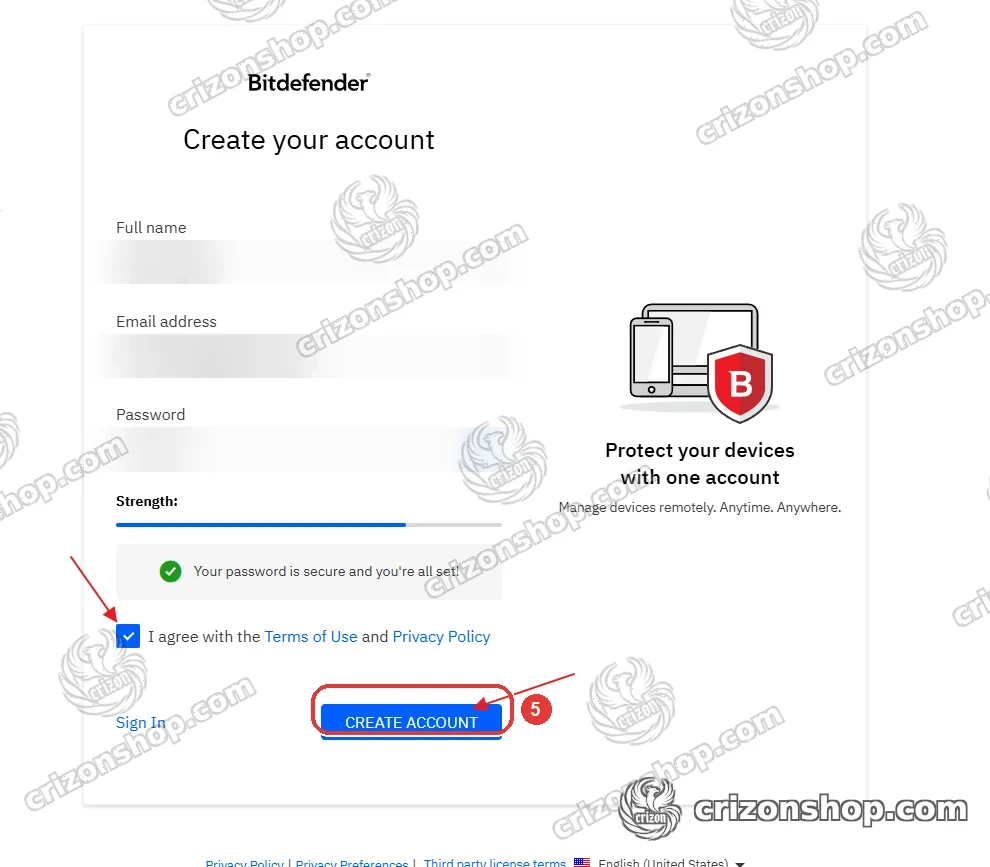
Click CREATE ACCOUNT to finish signing up. Open your inbox, find the email Bitdefender just sent you and click the button in it to verify your account.
Go back to your browser and click Continue to Bitdefender Central.
Step 2. Enter your activation code
Sign in to Bitdefender Central with the account you just created.
If your account doesn't have any subscriptions yet, the home page shows an ACTIVATE YOUR SUBSCRIPTION button. Click it.
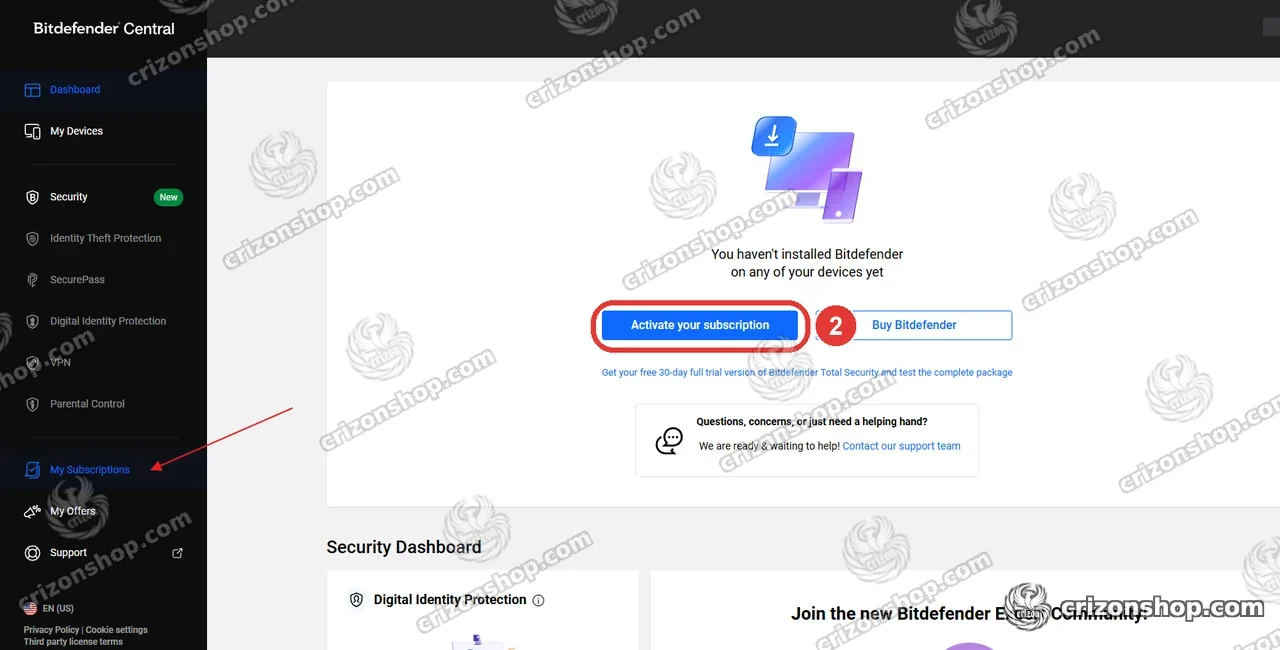
Click Activate your subscription to activate your plan. If you don't see that button, select My Subscriptions in the left menu, then click + Activate with code.
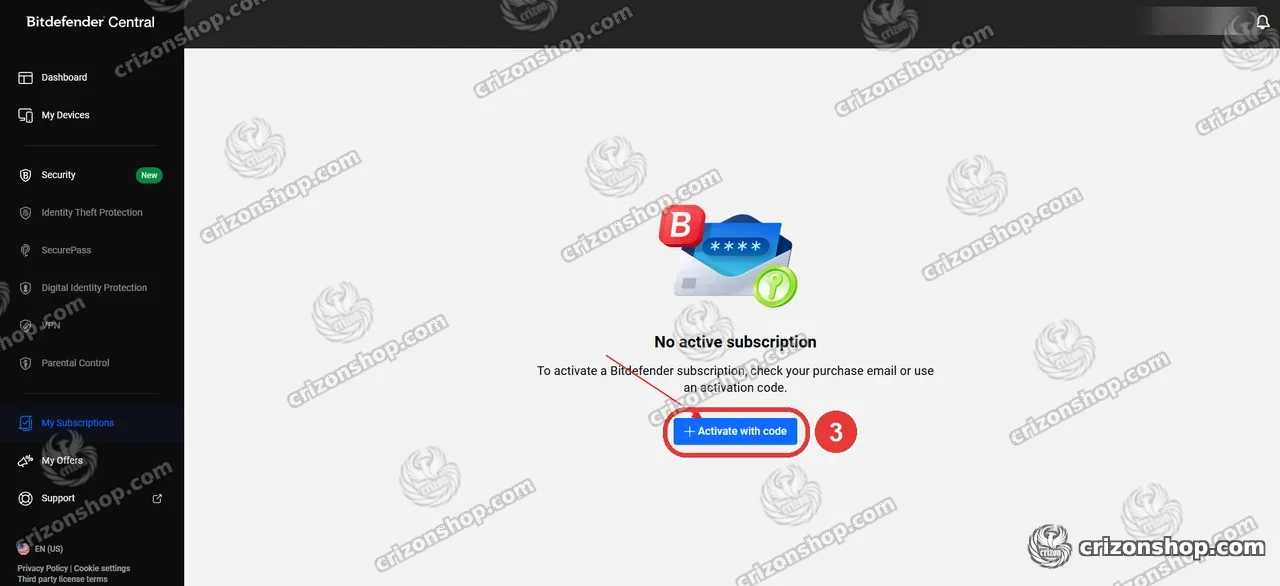
Click + Activate with code (My Subscriptions) to activate with a code. Type your activation code into the empty field.
Click ACTIVATE.
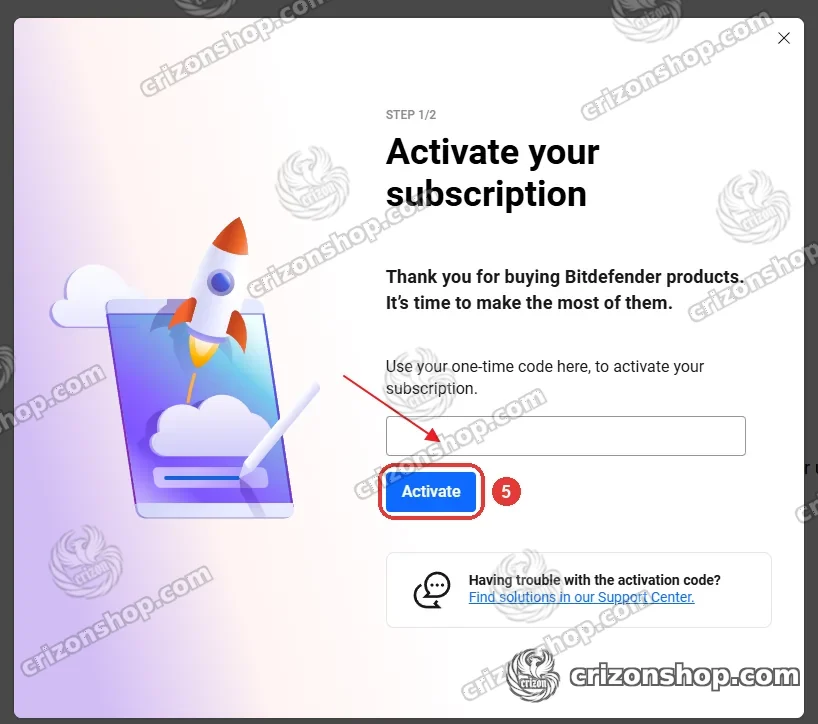
Click Activate to continue.
If the Plan Renewal Authorization window appears
If you bought your code from a retail store or a third-party seller, a Plan Renewal Authorization window may appear after you click ACTIVATE, asking for your payment details. If the window has a close button, this step is optional and you can close it. If there's no close button, continue as follows.
Click Continue.
Select the Personal tab for personal use, or Company for business use.
Fill in your email, full name, address and payment method.
Tick the confirmation box.
Click Save billing details.
Choose to extend or add a new subscription
In the last step, Bitdefender asks how you want to use the code.
- Extend current subscription adds time to the plan you already have, up to a total of 5 years.
- Add a new subscription creates a separate plan, independent of your existing one.
Once you've made your choice, click Confirm activation. The newly activated plan will appear under My Subscriptions in Bitdefender Central.
Step 3. Install Bitdefender Total Security on Windows
On the Bitdefender Central home page, click Install Bitdefender Products.
In the window that opens, click Install in the Security box.
Click Download to download the installer.
Open the
bitdefender_windows_...file you just downloaded.Click Yes when Windows asks for User Account Control permission.
Wait while the installer updates itself. This can take a few minutes.
Change the language if you want, read the agreement, then click Install.
Wait for the installation to finish.
Complete the device assessment or skip it. It's up to you.
Click Finish to open Bitdefender.
If you get an error with your code
| Message shown | Cause and fix |
|---|---|
Oops, the code you have entered is invalid | The code was mistyped. Check each character again, especially O vs. 0 and 1 vs. I. |
This key was already used to generate a subscription | The code is already linked to another account. Try signing in with another email you've used with Bitdefender before. |
Your account is not eligible for this type of license | Promotional codes are for new customers only. You need to use a different Bitdefender Central account. |
This code is restricted in your region | The code is region-locked and must be activated in the country where it was sold. |
Your license key is expired | A code's validity period starts from the payment date, not the activation date. Double-check that you entered the right code. |
There was an error activating your subscription | A temporary system error. Wait a few hours and try again. |
If none of the above works, see Bitdefender's guide to fixing activation errors or contact Bitdefender Support with a screenshot of the error message.
Frequently asked questions
No, not if you choose Extend current subscription in the last step. The time from the new code is added to your current plan, provided the total doesn't exceed 5 years.
No. Bitdefender checks your plan through the Bitdefender Central account you sign in with. As long as the code has been activated on that account, the software picks it up automatically.
Only if the Plan Renewal Authorization window appears without a close button. If the window has a close button, you can skip entering your payment details.
No. Each code can be activated only once, on one account. To use your plan on several computers, sign in to the same account on each of them instead of creating new accounts.
Related guides
 How to Activate Avast BreachGuard with a Sign-in Key
 How to Activate AVG AntiTrack Premium with an Activation CodeHow to Activate a Gilisoft Audio Recorder Pro Key on Windows
Still need help?
Send your order code and we can sort it out faster.
