 Air Explorer · Activate
How to Activate Air Explorer Pro with an Activation Code
Install Air Explorer from the official site and open it. Click Pro Version on Windows or the Air Explorer menu on Mac. Then choose Enter Activation Code and paste your code to upgrade to Pro.
This guide shows you how to install Air Explorer and enter an activation code to upgrade from the free version to Pro on a Windows PC or Mac. The steps are the same for the 1-year, 2-year and Lifetime plans.
Before you start
Download and install Air Explorer
Air Explorer has a free version, and you don't need an account to use it. Install the free version, then enter your code to unlock the Pro features. You don't need a separate installer for Pro.
Open the Air Explorer download page.
Pick the installer for your operating system:
AirExplorer-Installer.exefor Windows orAirExplorer-Installer.pkgfor Mac.Run the downloaded file and follow the installer until it finishes.
Open Air Explorer once to make sure it runs normally.
Enter your activation code
You enter the code in a different place on Windows and on Mac. Pick the tab for your computer.
Open Air Explorer.
Click Pro Version in the main window.
Choose Enter Activation Code.
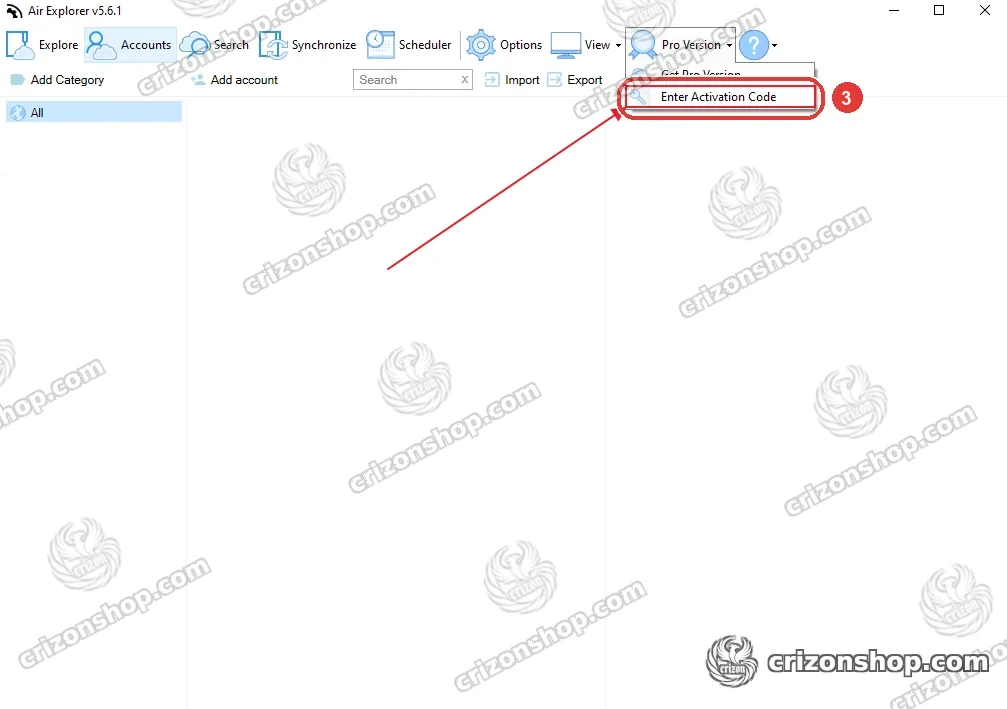
Click Enter Activation Code. Paste your activation code into the field.
Click OK to submit the code.
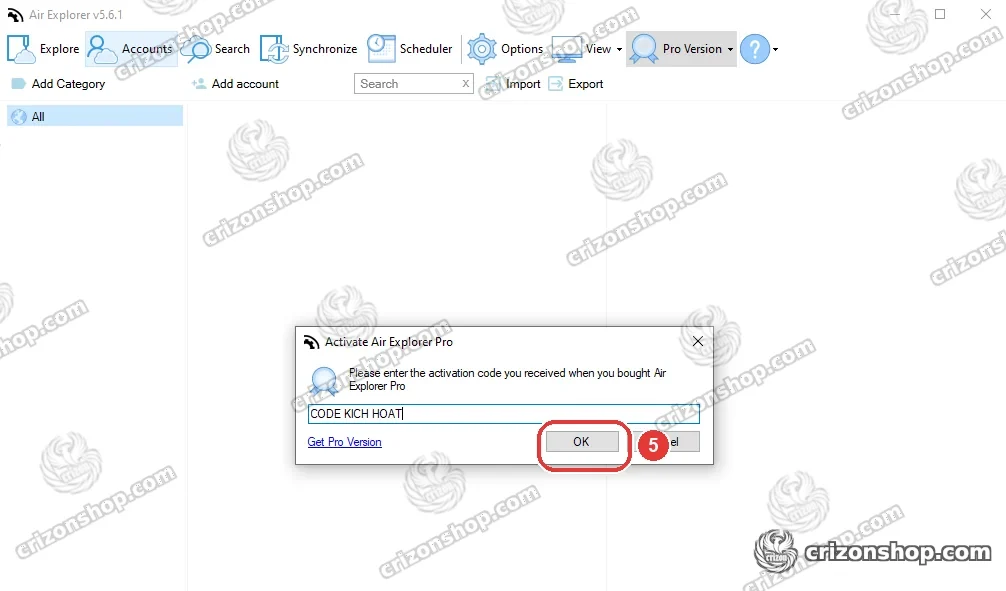
Click OK to submit the code. Review the license details that appear and check that they match the plan you bought.
Open Air Explorer.
In the menu bar at the top of the screen, click the Air Explorer menu.
Choose Enter Activation Code.
Paste your activation code into the field.
Click OK to submit the code.
Review the license details that appear and check that they match the plan you bought.
Check that Pro is working
After you activate, try a few Pro-only features to make sure your code was accepted.
- Add a second account for the same cloud storage service. The free version only allows one account per service.
- Schedule a sync that runs on its own while you're away from your computer.
- Use the command-line interface (CLI) to automate tasks.
You can see the features in each plan on the Air Explorer Pro page.
Frequently asked questions
According to Air Explorer's Pro page, each license covers one computer. Once you activate a code, it's tied to that device. To use Pro on two computers at the same time, you need two licenses.
No. You can deactivate the license on your old computer in the license management page. Or you can email [email protected] and ask Air Explorer's support team to transfer it for you. Then install Air Explorer on the new computer and enter your code again using the steps above.
No. Air Explorer says the Lifetime plan gets all future updates with no extra fees and no renewals. On the 1-year and 2-year plans, you can only use Pro features until your plan ends.
First, check that you pasted the whole code and didn't include extra spaces. If the code still isn't accepted, it may be active on another computer or it may have expired. In that case, contact whoever gave you the code. You can also email Air Explorer support with your code and a screenshot of the error message.
Related guides
How to Activate IObit Driver Booster PRO with a License Code How to Leave a Microsoft 365 Family Group
 How to Enter a Product Key to Activate Windows 10 and Windows 11
Still need help?
Send your order code and we can sort it out faster.
