 ACDSee · Activate
How to Activate ACDSee Photo Studio Ultimate 2021 Offline
To activate ACDSee Photo Studio Ultimate 2021 on a computer without internet, get the Request Code in the software, turn it into an Application Unlock Code on acdID, then paste it back and click Verify.
This guide shows you how to activate ACDSee Photo Studio Ultimate 2021 offline (Offline Activation) with your own license key. Use it when the computer running the software has no internet connection. You only need another computer with internet access to get the unlock code.
What you need
Step 1. Download and install the software
Older versions such as Photo Studio Ultimate 2021 are now on the legacy support page in the acdID portal. Sign in to the acdID legacy page, find the Photo Studio Ultimate 2021 installer, download it, and install it like any other Windows program.
Step 2. Get the Request Code on the ACDSee computer
Open ACDSee Photo Studio Ultimate 2021. The Sign In window appears.
Click the Offline Activation link in this window.
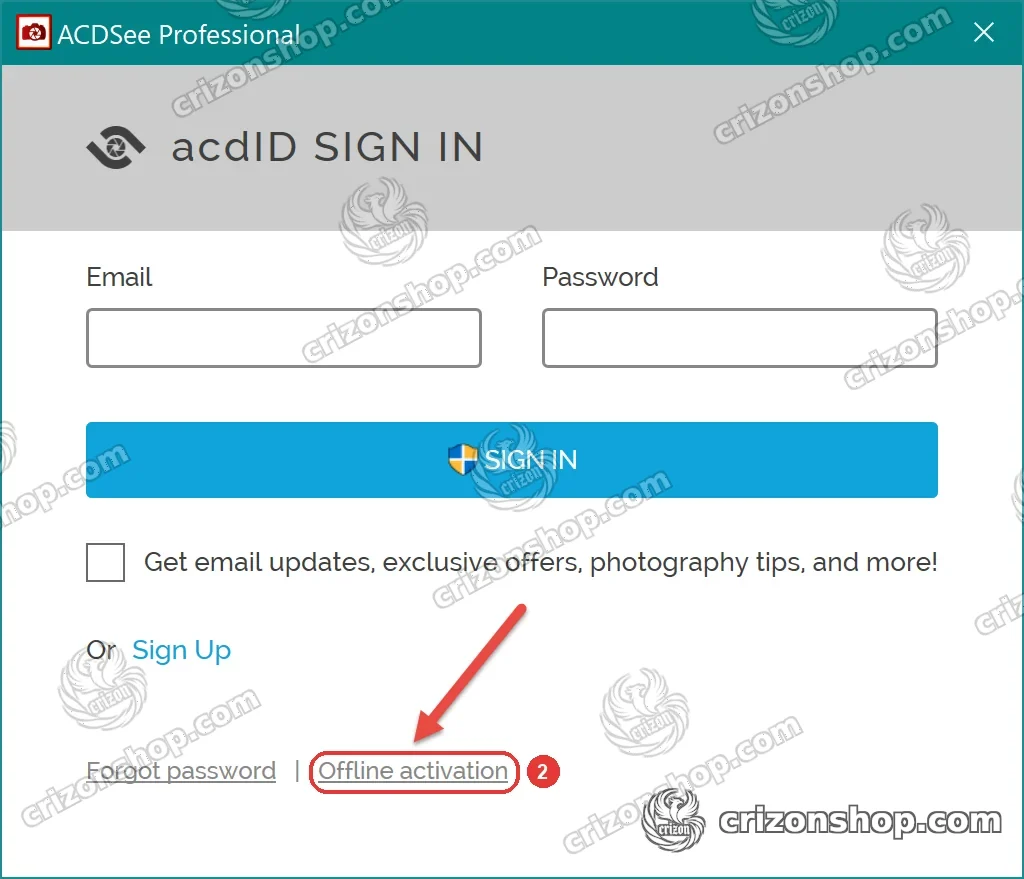
Click “Offline activation”. Enter your License Key and click Next.
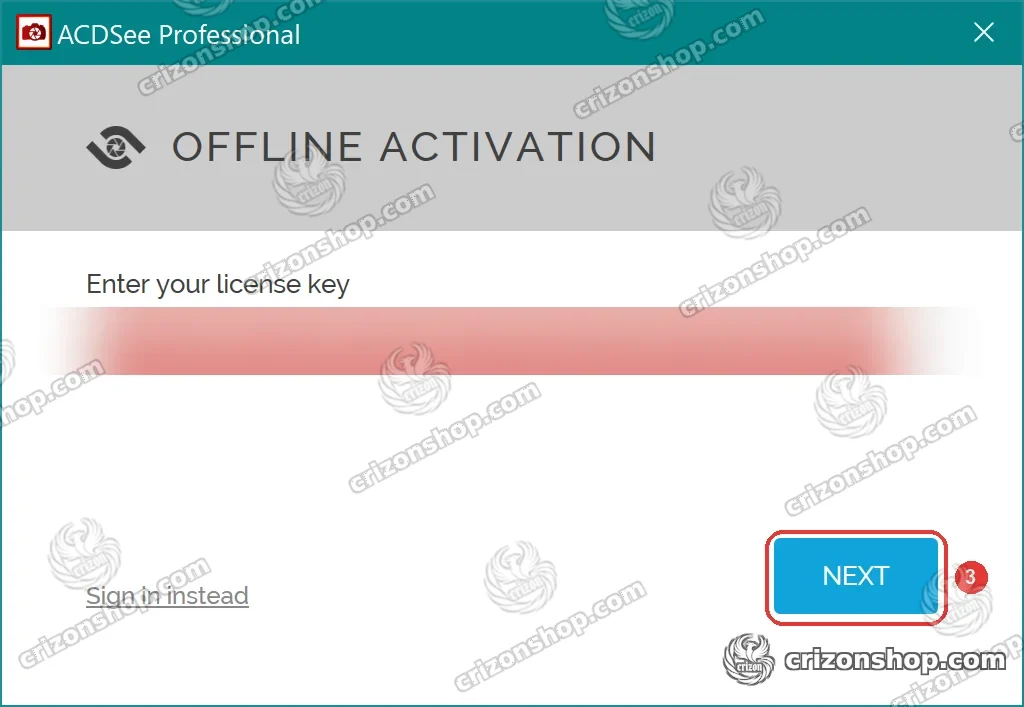
Enter your License Key, then click “NEXT”. The next screen shows a Request Code along with instructions for getting an unlock code.
Click the copy button next to each code to copy the Request Code and License Key.
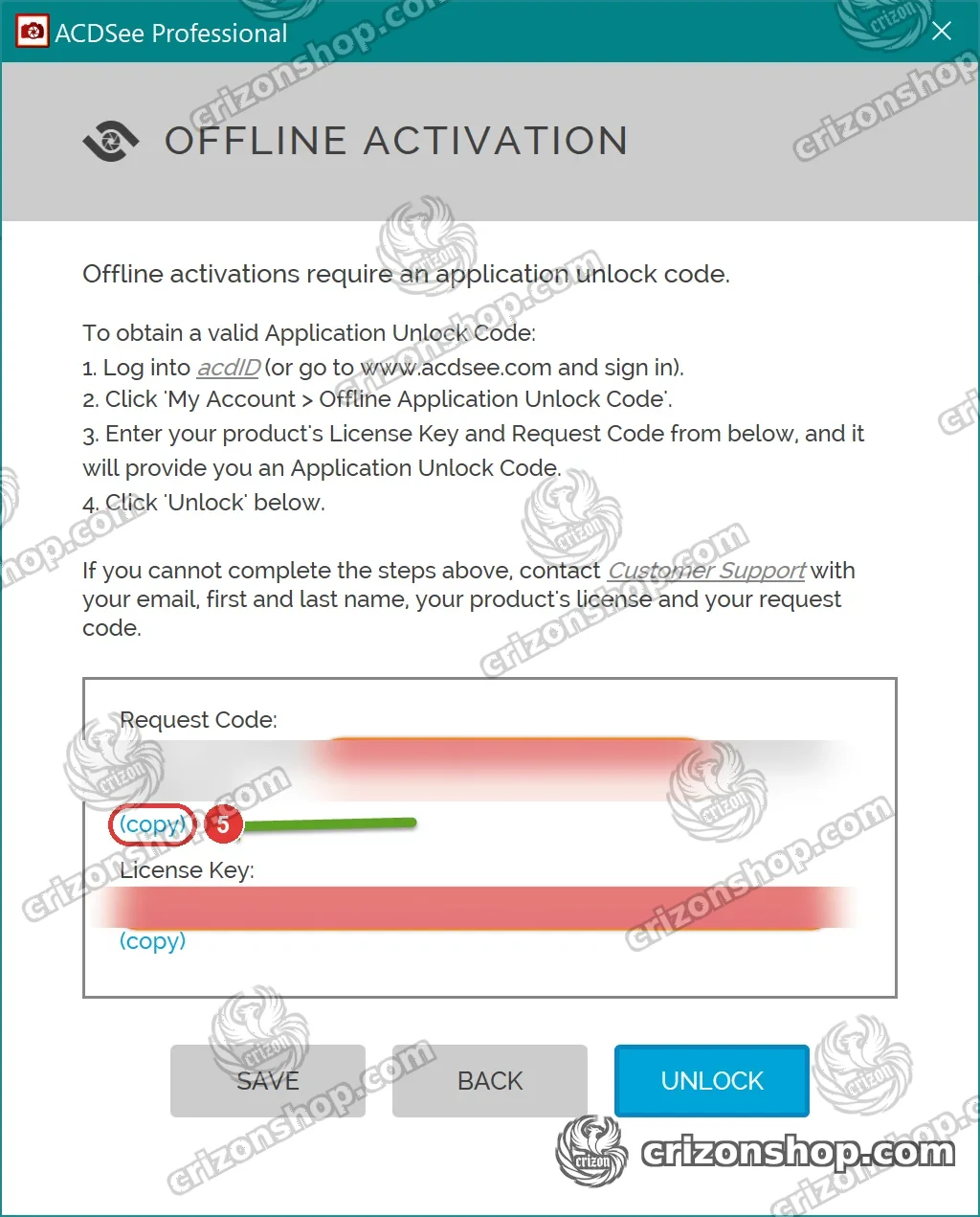
Click “(copy)” next to each code to copy it.
You can use the template below to keep the three codes straight.
License Key:
Request Code:
Application Unlock Code:
Step 3. Generate the Application Unlock Code on acdID
On a computer with internet access, sign in to acdID. You can also go to acdsee.com and sign in there.
In the top menu bar, choose My Account › Offline Activation.
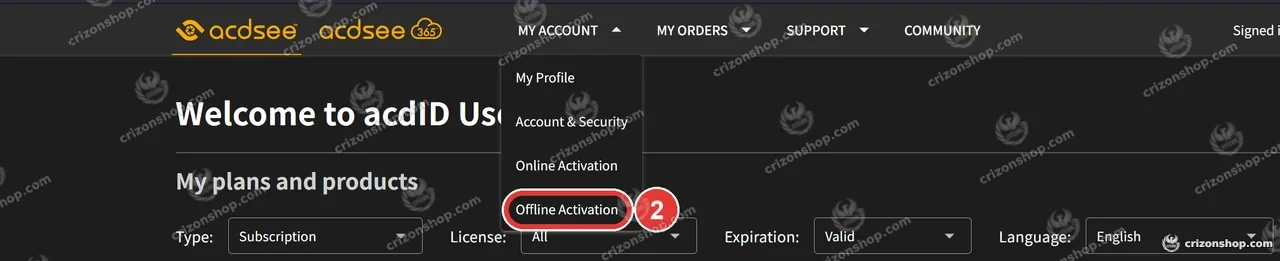
Click “Offline Activation” (My Account). Paste the License Key and Request Code into their matching fields.
Click Submit to generate the Application Unlock Code.
Copy the Application Unlock Code you receive.
Step 4. Enter the unlock code in the software
Go back to the ACDSee computer and click Unlock.
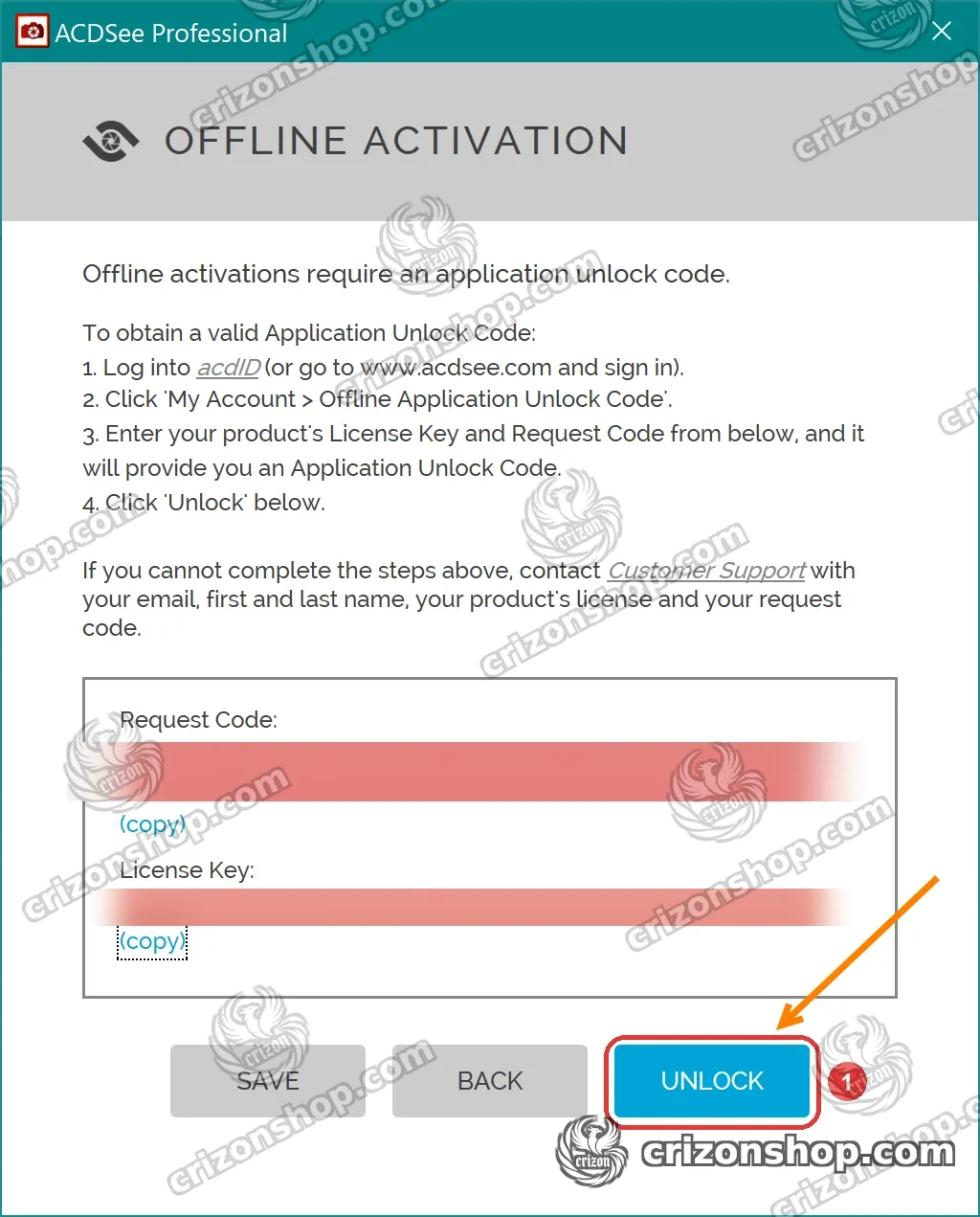
Click “UNLOCK” to continue. Paste the Application Unlock Code into the empty field in the new window.
Click Verify.
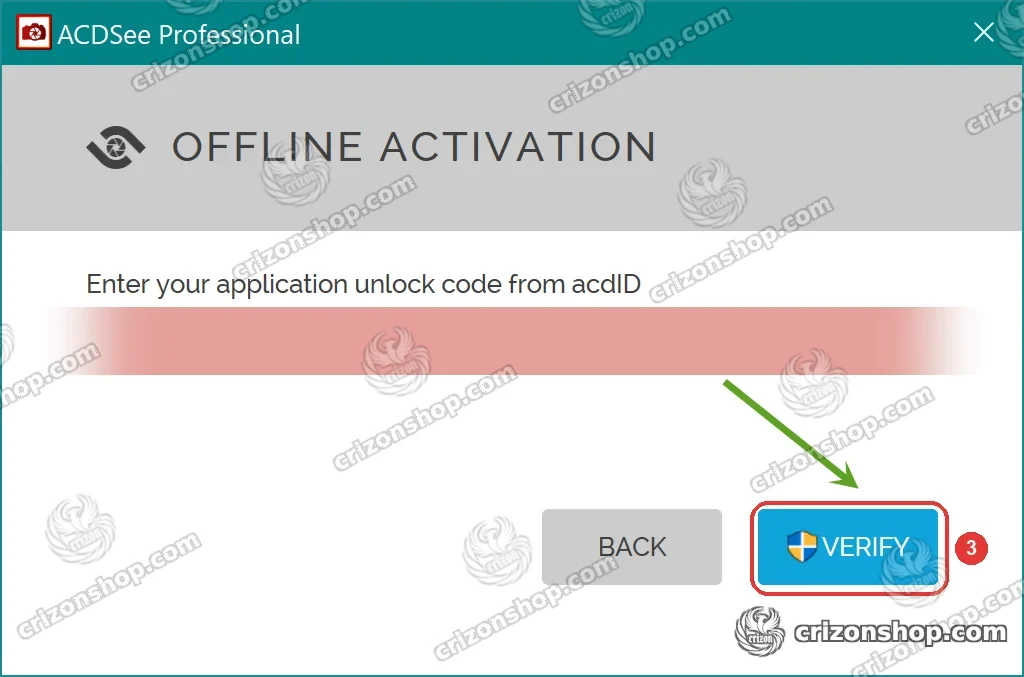
Click “VERIFY” to verify the activation code. When a message says the program has been activated, click OK to finish.
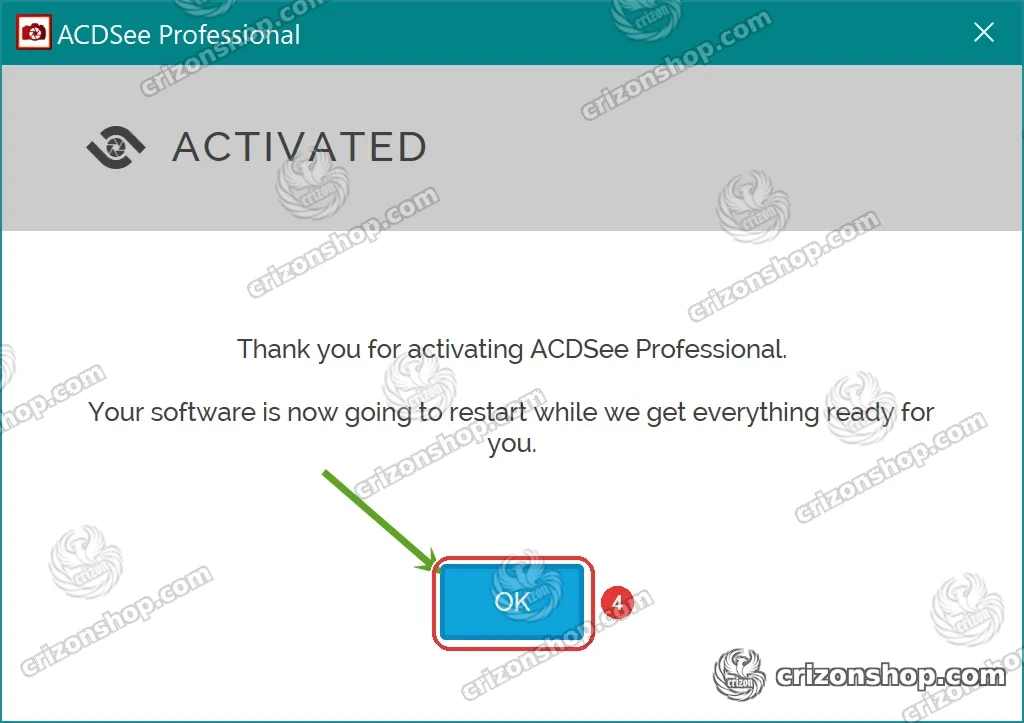
Click “OK” to finish.
If the software says you've reached the device limit
Each License Key can only be activated on a limited number of devices. If ACDSee says you've reached the maximum, deactivate a computer you no longer use in the acdID portal, then activate again.
Sign in to acdID.
Click My Apps to open your list of apps.
Click Details next to the License Key for ACDSee Photo Studio Ultimate 2021.
Next to the device you no longer use, click Deactivate.
Go back to the computer you want to activate and start again from Step 2.
Frequently asked questions
According to ACDSee, your license key is in the Order Receipt email the company sends after you buy. You can also sign in to the acdID portal to look it up.
No. Only the computer you use to sign in to acdID and generate the Application Unlock Code needs internet access. If the ACDSee computer is online, you can do both on the same computer.
ACDSee only describes offline activation for perpetual license keys. If you have a subscription, ask ACDSee Support how to activate your plan.
Deactivate the old computer in My Apps as described in the section above. Then install ACDSee on the new computer and go through the activation steps again from the beginning.
Related guides
 How to Activate a GRFX Studio Key for Corel PaintShop Pro
 How to Activate Adobe Acrobat Classic with a Serial Number
 How to Accept Your Canva Pro Invitation and Check Your Upgrade
Still need help?
Send your order code and we can sort it out faster.
