Stardock · Activate
How to Activate a Stardock SpaceMonger Key on Windows
Download SpaceMonger from Stardock's website, open the app, click Enter Product Key, paste your key and email, then click Activate. This guide also covers what to do if your key is rejected or your PC has no Internet connection.
This guide shows you how to download SpaceMonger from Stardock's official website, then activate it with your product key and email. If activation fails, see the troubleshooting section at the end.
Before you start
Download and install SpaceMonger
Get the installer from Stardock's website. Installers from third-party download sites may be outdated or bundled with other software.
Open the SpaceMonger page on Stardock.
Click Free Trial to download the installer.
Open the downloaded file and follow the installer until setup is complete.
Enter your product key to activate
Open SpaceMonger. The activation window appears.
Click Enter Product Key.
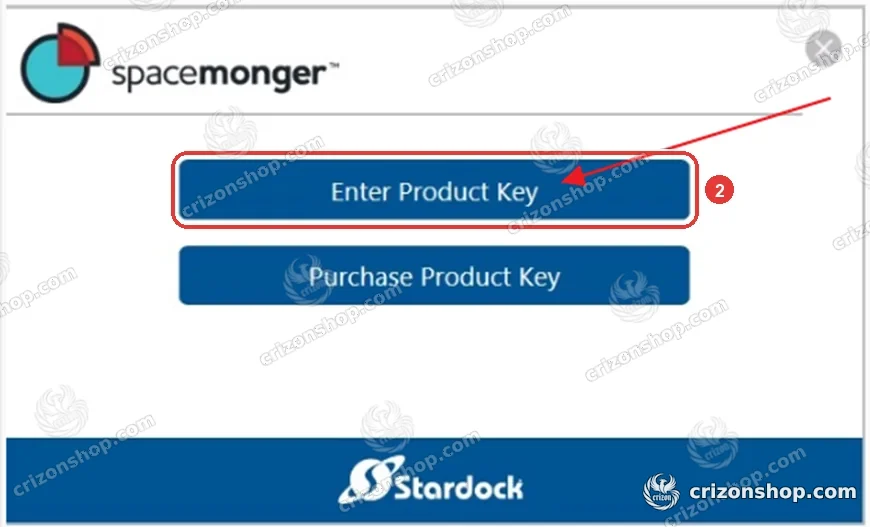
Click Enter Product Key. Paste your key into the Product Key field.
Type your email address in the email field.
Click Activate and wait a few seconds.
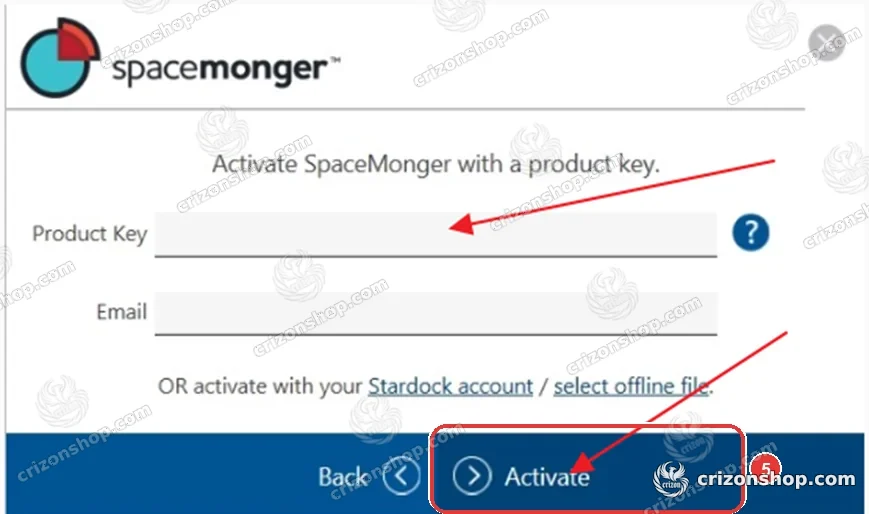
Click Activate and wait a few seconds. When the dialog confirms that activation succeeded, close it and use SpaceMonger as usual.
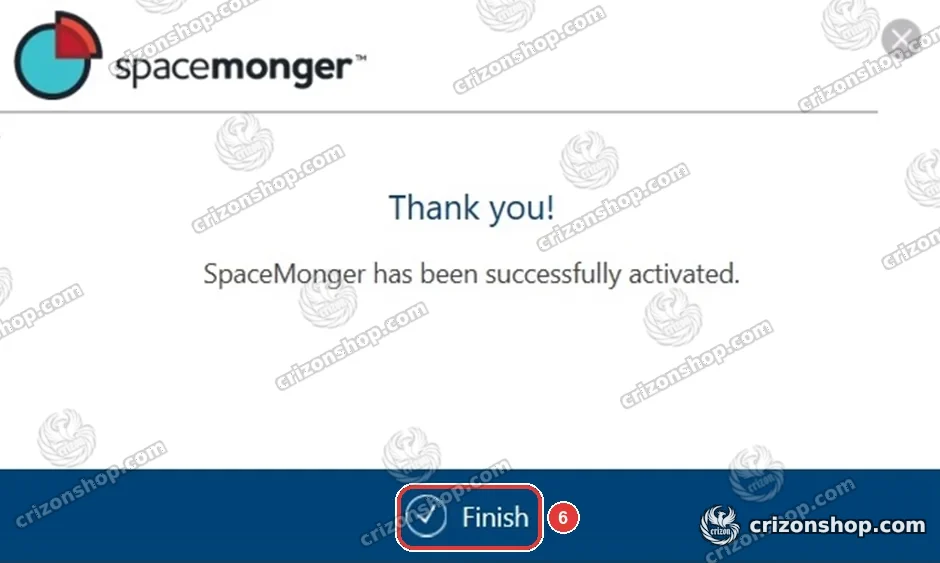
Click Finish to close the dialog.
Activate without an Internet connection
Stardock supports offline activation with a request file. You'll need a second computer with Internet access to upload this file to Stardock's activation site.
In the activation window, click Save Activation Request.
Save the
.reqfile somewhere easy to find, such as a USB drive.On the computer with Internet access, go to
activate.stardock.comand upload the.reqfile.Save the
.respfile the site gives you.Copy the
.respfile to the computer you want to activate, reopen SpaceMonger's activation window, and select the file by following the on-screen instructions.
If activation fails
| Problem | What to do |
|---|---|
| The key is reported as incorrect or invalid | Copy the key again from your email or product page and paste it into the Product Key field. If you typed it by hand, check for easily confused characters, such as the number 0 and the letter O. |
| Clicking Activate shows a connection error | Stardock notes that a firewall can block the activation program. Allow SpaceMonger to access the network in Windows Firewall or your antivirus software, then try again. |
| The key has been activated more times than allowed | Stardock limits the number of activations per key to prevent unauthorized use. In this case, contact Stardock support. |
| The computer can't connect to the Internet | Follow the offline activation section above. |
Frequently asked questions
If you bought directly from Stardock, go to the product key retrieval page, enter the email linked to your account, and click Submit. Stardock will resend the download link and key to that email. This page can't look up keys bought through a partner or another seller. In that case, ask the seller who sold you the key.
You can reactivate with your existing key, but Stardock limits how many times each key can be activated. If you see a message saying you've exceeded the limit, send a request to Stardock support so they can review it.
Stardock's product page currently lists support only up to Windows 10. Install the Free Trial to test it on your computer before you buy a key.
Related guides
How to Activate IObit Driver Booster PRO with a License Code How to Leave a Microsoft 365 Family Group
 How to Enter a Product Key to Activate Windows 10 and Windows 11
Still need help?
Send your order code and we can sort it out faster.
