 CleanMyMac · Activate
How to Accept an Invitation and Activate CleanMyMac with Your MacPaw Account
Open the invitation email from MacPaw and click Accept Invitation. Create or sign in to a MacPaw Account with the invited email address. Then install CleanMyMac and choose I already have a license to activate it.
When someone shares a Mac seat from a CleanMyMac plan bought on MacPaw Store with you, you get an invitation by email. This guide shows you how to accept it, sign in to your MacPaw Account, and activate the full version on your Mac.
What you need
Step 1. Open the invitation email and accept it
Open the inbox of the email address that was invited.
Look for an email from MacPaw. If you can't find it, check your Spam or Promotions folder.
Open the email and click Accept Invitation.
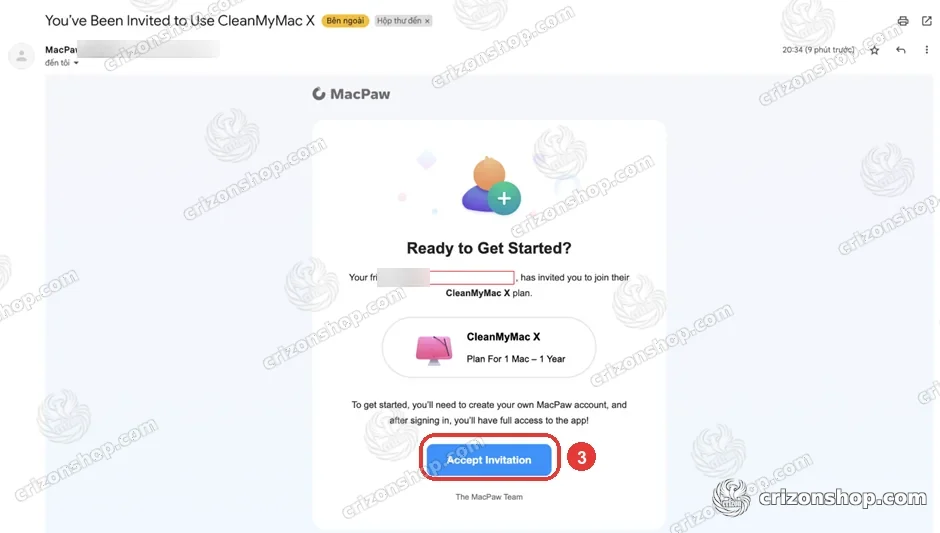
Click “Accept Invitation” to accept the invitation.
Step 2. Create or sign in to your MacPaw Account
After you click the button in the email, the MacPaw Account page opens in a new browser tab. MacPaw Account is one account for all MacPaw products. It's also where you can see the plans and Macs added to your account.
If this email doesn't have a MacPaw Account yet, enter your first and last name, then set a password to create one.
If this email already has a MacPaw Account, just sign in with your current password.
Once you're signed in, you can open my.macpaw.com to check whether the CleanMyMac plan has appeared.
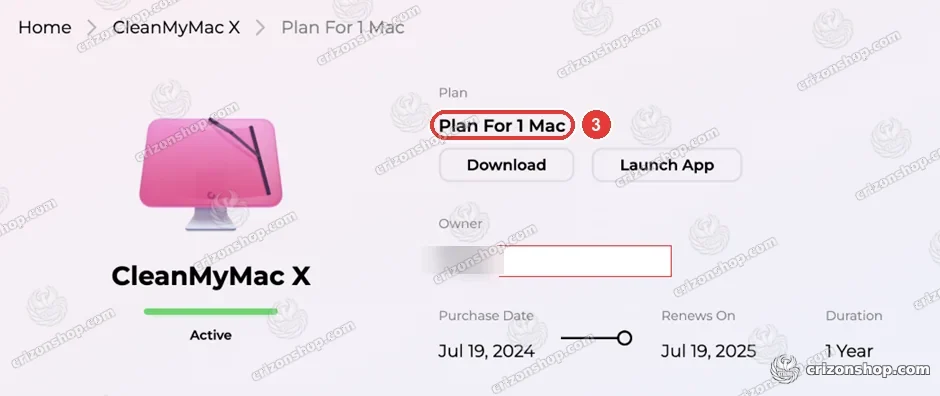
Open “Plan For 1 Mac” to check your CleanMyMac plan.
Step 3. Download and install CleanMyMac
Download CleanMyMac from MacPaw's website by following the Install and activate guide.
Open the
.dmgfile you downloaded.Drag the CleanMyMac icon into the Applications folder.
Open CleanMyMac from the Applications folder.
Step 4. Activate with your MacPaw Account
In CleanMyMac, click Unlock Full Version in the top-right corner. You can also choose CleanMyMac › Activate from the menu bar.
Choose I already have a license.
Enter your MacPaw Account email and password, then sign in.
Once you're signed in, CleanMyMac unlocks all features.
Troubleshooting
| Problem | What to do |
|---|---|
| No invitation email | Check your Spam folder, confirm the email address with the person who invited you, and ask them to resend the invitation if needed |
| Signed in, but the app is still locked | Check that the email you signed in with matches the invited email, then sign in again in the app |
| The app shows an error during activation | Follow MacPaw's activation troubleshooting page or contact MacPaw Support |
Frequently asked questions
According to MacPaw, your seat is held until you activate CleanMyMac or the person who invited you revokes your access. It's still best to activate soon so they know the seat is in use.
Each shared seat covers one Mac. The person who invited you can share several seats with the same person. In that case, sign in with the same MacPaw Account on each Mac to activate it. Ask them how many seats you have.
MacPaw discontinued CleanMyMac Business on July 14, 2026, so the steps for joining an Organization no longer apply. This guide covers CleanMyMac plans bought on MacPaw Store where someone shared a Mac seat with you.
Related guides
How to Activate IObit Driver Booster PRO with a License Code How to Leave a Microsoft 365 Family Group
 How to Enter a Product Key to Activate Windows 10 and Windows 11
Still need help?
Send your order code and we can sort it out faster.
